Automate Video Effects with AI Director
Create studio-quality software walkthroughs using our new Agent Timeline Effects framework, featuring custom camera waypoints and AI Director.
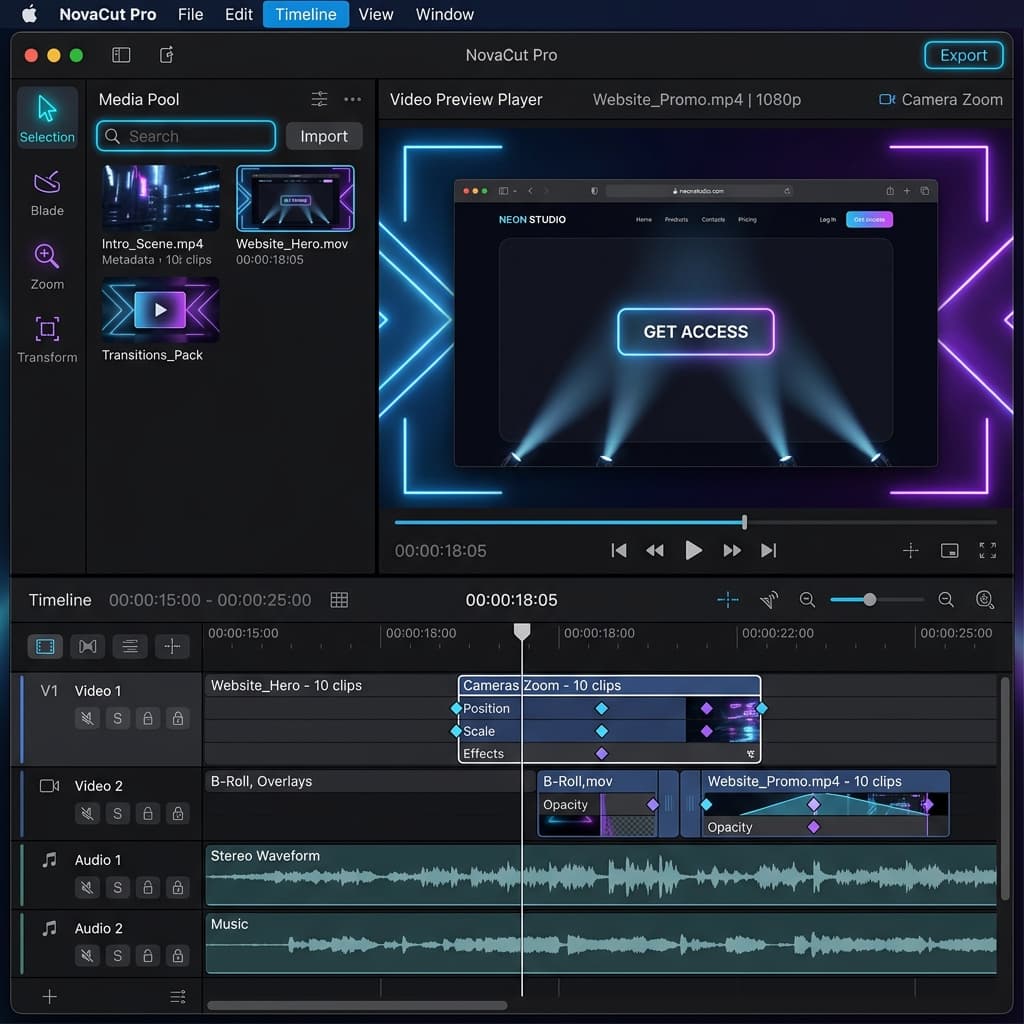
Making a software demo look professional is hard work. It requires panning, zooming, and highlighting areas of interest at just the right millisecond. Today, we are releasing Agent Timeline Effects and the AI Director—a powerful framework designed to automate cinematic edits directly from your recordings.
Whether you compile videos using our new command line tool or let Screenify's autonomous agents record a web session for you, the AI Director acts as a seasoned videographer, adding pan-and-scan camera movements, spotlight shadows, and blur masks without manual editing.
The AI Director: Natural Camera Movement
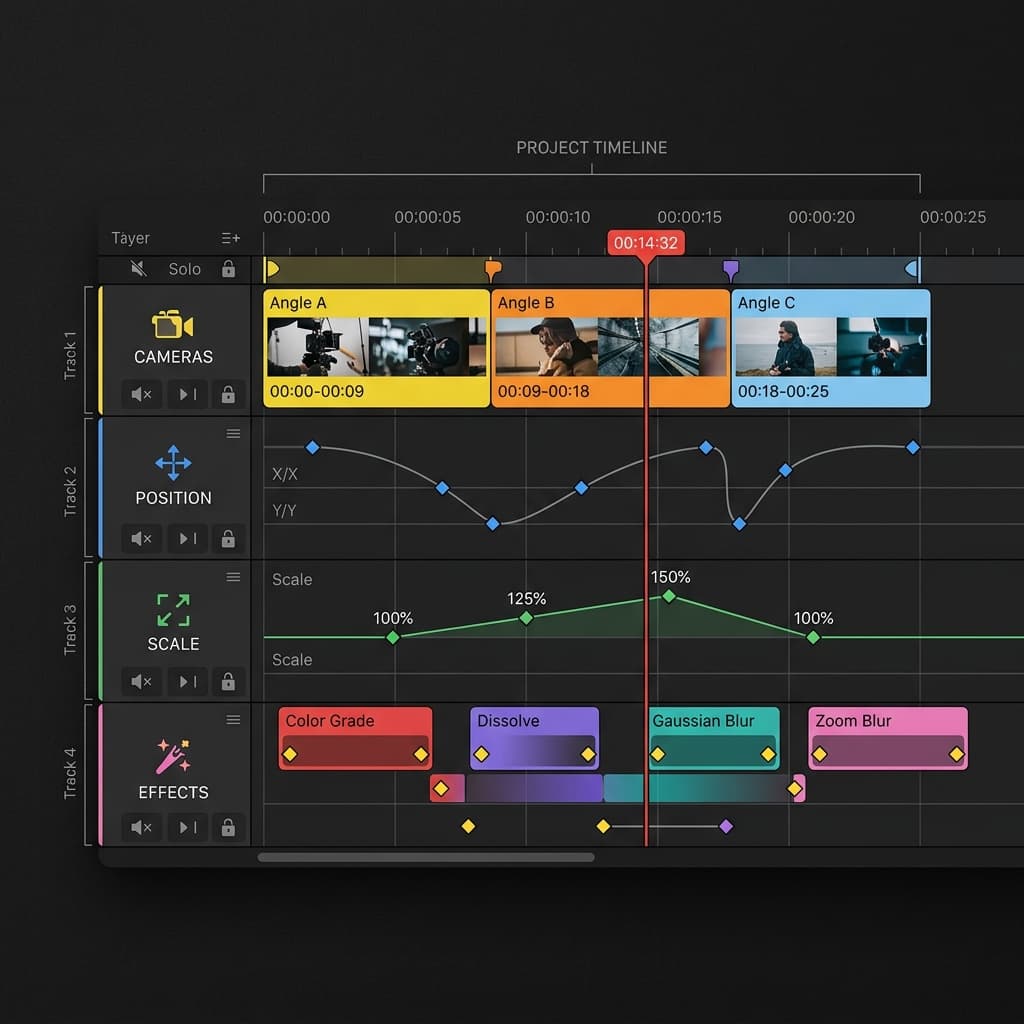
Unlike static screen recorders that crop your video, the AI Director treats the camera as a free-floating physical entity. It automatically implements two key camera styles during recording and export:
- Follow Cursor: The camera tracks your mouse cursor across the screen with natural damping and spring curves, keeping the action centered.
- Establish Pan: The camera sweeps over the corners of your application interface at the beginning of the video, giving viewers a lay of the land before dive-ins.
These camera motions are governed by a deterministic planner that automatically slices timeline intervals, ensuring moves never overlap or create disorienting speed changes. This is built on top of our existing Smart Auto-Zoom framework, bringing hardware-accelerated fluid camera transitions to every export.
The Math Behind the Centering
To keep focused items perfectly centered during 3D rotations, our compositor utilizes coordinate projection math. Our rendering engine calculates the exact translate offsets required to center a point $P$ (normalized coordinates between $0$ and $1$) under arbitrary rotations.
By deriving the projection from the shader uniforms, we can isolate the centering criteria from perspective distortion:
$$position = 0.5 - 2 \cdot p_rot$$
This formula guarantees that zoom targets land exactly in the center of the video frame, regardless of how much pitch, yaw, or roll is applied to the canvas. The projection calculation works in lockstep with the user-defined Transform3D keyframing matrix, projecting cursor pathways onto the simulated screen planes in real-time.
A Unified Effect Registry
At the core of this release is a non-destructive Effect Registry. The registry processes neutral directives (what effect to apply, when, and where) and converts them into engine-compatible segment files.
Screenify Studio ships with four primary effect modules:
- Zoom3D: Keyframe-driven cinematic camera tours centering on clicked items.
- Spotlight: Creates visual hierarchy by darkening everything outside a soft-blurred highlights region.
- Blur Mask: Obscures sensitive text fields (like API keys or passwords) automatically.
- Callouts: Draws animated zoom-in borders (like neon glow cards) directly around the target element.
For details on custom callout styles and spotlight setups, read our deep dive on Callouts and Spotlights inside the editing suite.
Behind the Scenes: E2E Automation Workflow
The automation pipeline begins when you launch our headless recording agent. The agent monitors mouse interactions, click bounding boxes, and DOM elements while logging them as structured events. Post-recording, our synthesizer processes these event files and maps them directly to the Effect Registry.
Instead of writing custom config parser layers for each new timeline animation, the compiler maps abstract focus requests into specific segments. For example, if the AI agent flags a crucial button click, the registry applies a callout card at the event timestamps, aligning zoom durations with click event intervals.
By isolating effect generation from the actual rendering pipeline, developers can create custom automated directors. Whether scripting custom walkthroughs in CI or using AI models to select target focus points, the final outputs map to the same uniform schemas.
Round-Trip Compatibility
What happens if you run an automated CLI record but want to adjust the timing of an effect? We've built an Editor Round-Trip sync.
When you open a CLI-generated project in the Screenify Desktop Editor, our Tauri backend synthesizes full timeline regions from raw segments. This means all AI-generated spotlights, blurs, and camera tracks appear natively in the timeline editor as editable items. You can drag, resize, or delete them visually just like any manually added effect.
When you edit an AI-planned path inside the editor, it seamlessly converts the linear coordinate waypoints into standard timeline keyframes, preserving the original motion paths while giving you full keyframe control.
Practical Editing Tips for Creators
To make your automated videos feel polished, mix dynamic camera movements with static focus callouts. A great sequence starts with an establish sweep of your application dashboard, followed by follow cursor camera paths as you navigate between sections.
If you input sensitive data, the blur effect will obscure password inputs automatically. This leaves your main canvas untouched and lets you focus on presenting the product rather than manually adjusting obscuring cards in post-production.
Automate Your Walkthroughs
Agent Timeline Effects are available in the latest version of Screenify. Get started by saving your API keys under Settings and recording your first agent-guided demo.
Want to drive the whole thing from your terminal? Our guide on command-line screen recording and automation walks through recording and auto-editing a demo without ever opening the editor.
Download Screenify Studio to try out the AI Director and streamline your video creation process.

Try Screenify Studio
Record your screen with auto-zoom, AI captions, dynamic backgrounds, and Metal-accelerated export. Free plan, unlimited recordings.
Download Free



