Collage Clips: Turn Screenshots into a 3D Intro
Screenify Studio 2.4 turns a set of screenshots, or the key frames of a recording, into a moving 3D collage you can use as an intro, outro or overlay.
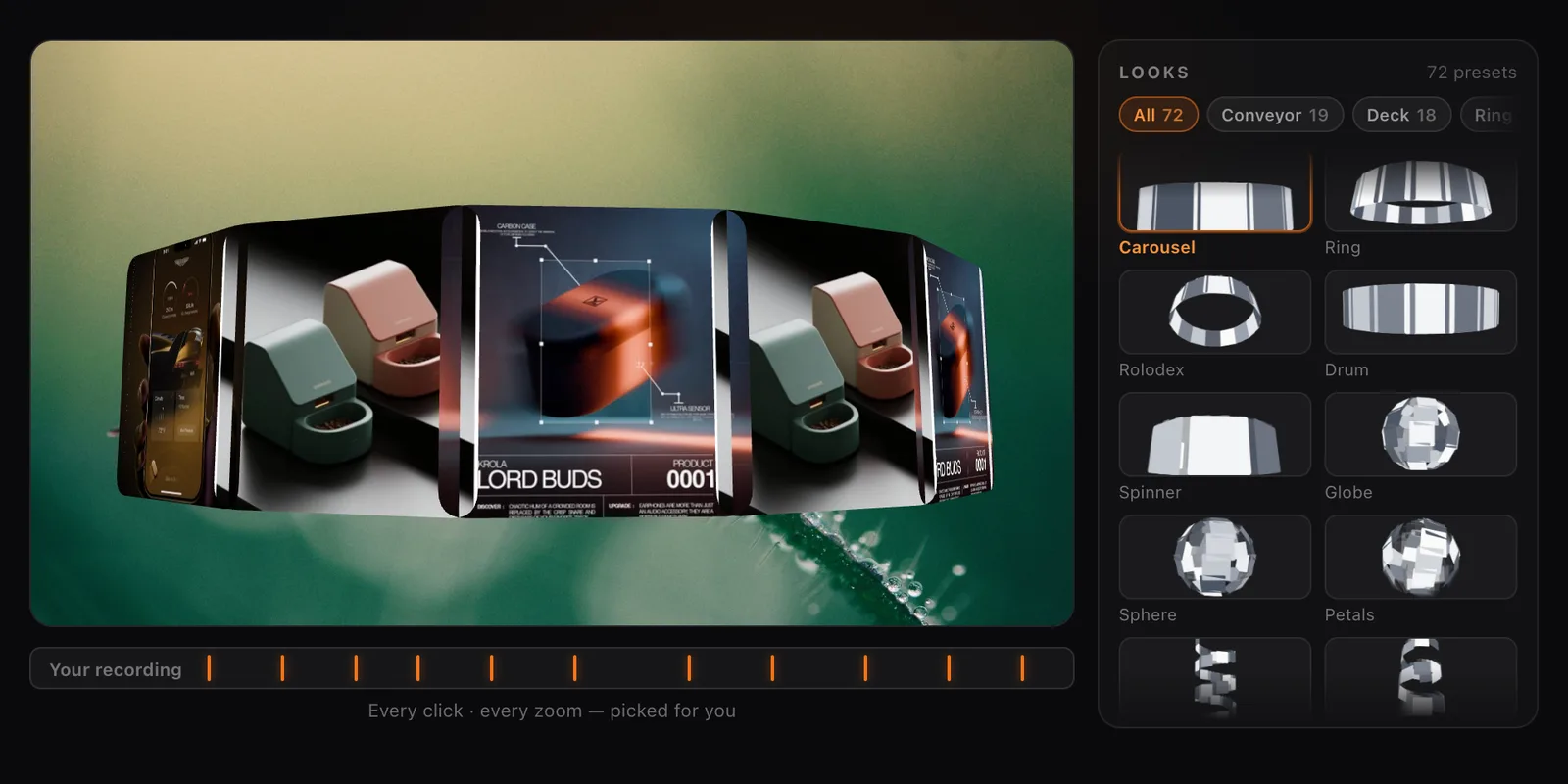
Most product videos open the same way: a title card, a logo, or the first second of a screen recording before anything has happened. None of those tell the viewer what they are about to see. Screenify Studio 2.4 adds a better opening shot. Give it a set of images and it arranges them in 3D space and sets them moving, as a finished clip that sits on your timeline next to everything else.
We call it a Collage clip.
What a Collage Clip Is
A Collage clip is a cluster of images moving through 3D: a ring that turns, a deck that fans out, a globe of screens, a row of covers sliding past. You choose the images and the look. Screenify Studio handles the layout, the camera and the motion.
It behaves like any other clip in the editor. It has a start and an end, you can drag it and resize it, and your background, music, voiceover and captions carry on around it. There are three ways to place one:
- As an intro, before your recording starts
- As an outro, after it ends
- Over your video, while the recording plays underneath

Start from Images You Already Have
You do not need a recording to make one. Drop a set of screenshots, product shots or design exports onto the Welcome screen, or choose New Collage, and Screenify Studio opens a project with the collage already built. When you drop several files at once, the app asks whether you want one collage or separate clips.
This suits the material most teams already have lying around: App Store screenshots, exported design frames, dashboard captures from a launch post. If that is your starting point, our guide to turning app screenshots into a preview video covers the rest of that workflow, and a Collage clip now makes a strong first five seconds for it.
Or Let Your Recording Pick the Frames
If you have already recorded a demo, you can skip choosing images altogether. Add a Collage clip to the project, press Add frames, and Screenify Studio pulls them out of the recording for you.
It does not sample at even intervals, because that gives you ten pictures of the same screen. It takes the frame right after every click and every zoom. Those are the moments where something changed: a menu opened, a page loaded, a result appeared. The collage ends up as a visual table of contents for the video that follows.
You stay in charge of the result. Hover a frame to remove it, or press Files to add your own images alongside the ones that were picked.
More Than 70 Looks
Every look is a preset, and each one has a live thumbnail that shows its real motion, so you can tell them apart before you click.
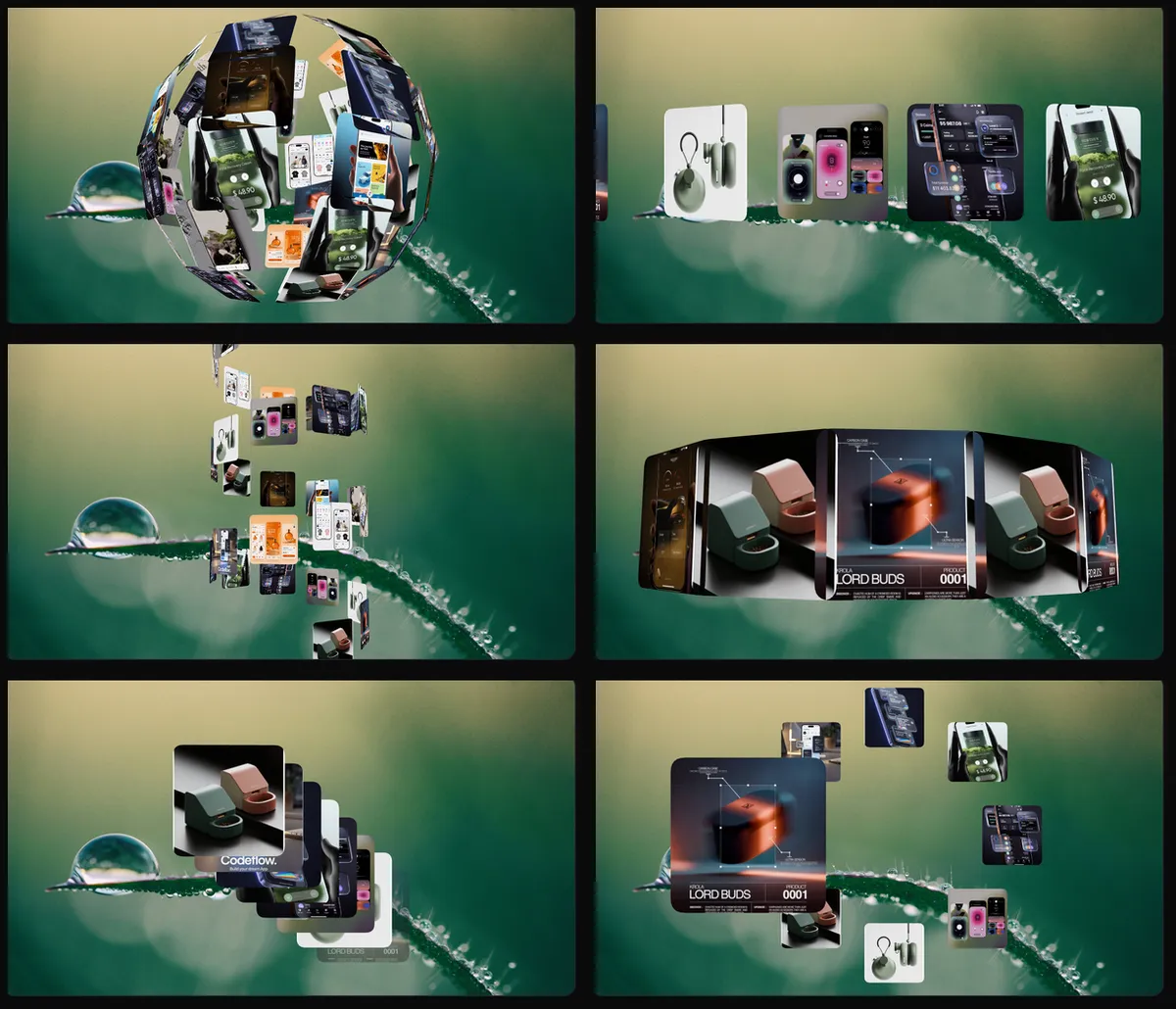
They fall into a few families:
| Family | What it does | Good for |
|---|---|---|
| Rings and carousels | Images circle the camera | A wide set of screens with equal weight |
| Decks and cards | Images stack, fan and deal out | A sequence with a clear order |
| Conveyors and shelves | Rows slide past at different depths | Many images, shown quickly |
| Globes and spirals | Images wrap a sphere or a helix | A dense set where the overall shape matters more than any one screen |
| One at a time | Each image arrives, holds and leaves | A short set where every screen should be read |
The library has a search box and family filters, and the panel lets you adjust a look after you pick it: how long it runs, how it loops, how many plates it shows, and its motion and appearance settings. New looks arrive from our servers without an app update, so the list will keep growing between releases.
Try Screenify Studio — free, unlimited recordings
Auto-zoom, AI captions, dynamic backgrounds, and Metal-accelerated export.
It Lives in the Same Project as Your Demo
Tools that animate screenshots usually hand you a standalone reel. You then have to stitch it onto your demo in a second app, match the background by eye, and export twice.
A Collage clip skips that. It shares the project with your recording, so it picks up the wallpaper you already chose and the aspect ratio you already set. A vertical canvas gives you a vertical collage. Your music bed plays straight through the cut from collage to recording, and a narration track can start over the collage and carry on into the demo. If you narrate with AI Voiceover, a single passage can introduce the product while the screens fly past.
You export once, and the collage is part of the video.
Free to Build, Pro to Export
Collage clips are a Pro feature. On a free account you can create them, try every look and preview the result in the editor for as long as you like. Exporting a video that contains one asks you to upgrade, the same way AI Voiceover does.
What It Does Not Do Yet
Two limits are worth knowing before you plan a video around this release:
- Tiles are still images. A tile cannot play a video clip yet.
- Tiles are flat plates. They are not wrapped in device frames. If you want a phone or laptop around your content, use a device mockup for that section of the video.
Also in 2.4
- Save frame as image. The camera button next to Export, or ⇧⌘E, saves the frame under the playhead as a PNG or JPG. The image includes your background, mockup, zoom, cursor and captions exactly as the video would show them, in the aspect ratio of your canvas. It also works inside a Collage clip.
- Name your share link. The Link tab in Export has a Title field, so a shared video no longer appears under its file name.
- Fixes. A shareable link now always uploads the video you just rendered. Inserting or deleting a clip moves every track along with it.
The full list is in the 2.4.0 changelog.
Collage clips are available today in Screenify Studio 2.4.0 for Mac. Download Screenify Studio, drop in a handful of screenshots, and see what your next intro looks like.

Try Screenify Studio
Record your screen with auto-zoom, AI captions, dynamic backgrounds, and Metal-accelerated export. Free plan, unlimited recordings.
Download Free



