How to Hide Cursor in Screen Recordings
4 ways to hide the mouse cursor in screen recordings on Mac. Remove distractions for presentations, UI showcases, and cinematic content.
Not every screen recording benefits from a visible cursor. When you are recording a presentation playback, showcasing a UI design, capturing a cinematic app demo, or recording automated workflows, the cursor becomes visual noise — a small arrow darting around the screen with no purpose for the viewer. Hiding it produces cleaner recordings that focus attention on the content itself rather than the navigation tool used to reach it.
This guide covers four methods for removing or hiding the cursor in Mac screen recordings, ranging from system settings to post-production removal.
Quick Comparison
| Method | Price | Approach | Difficulty |
|---|---|---|---|
| macOS System Settings | Free | Reduce cursor visibility at OS level | Easy |
| Screenify Studio | Free plan available | Toggle cursor off in recorder settings | Easy |
| Cursorcerer / Cursor Hider | Free–$5 | Auto-hide cursor after idle timeout | Easy |
| OBS Studio / DaVinci Resolve | Free | Capture without cursor or remove in post | Moderate–Advanced |
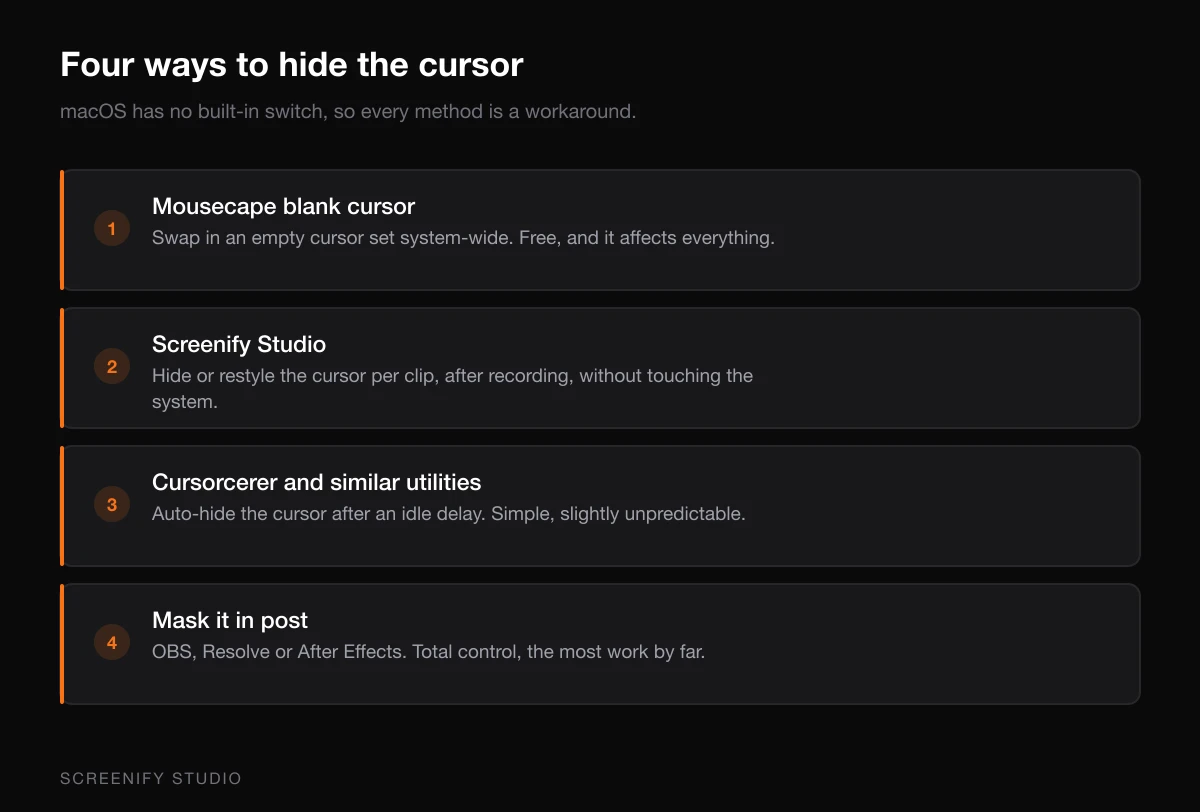
Method 1: macOS System Settings + Mousecape
macOS offers several built-in ways to minimize cursor visibility without installing any software. Combined with the free Mousecape utility, you can achieve full cursor invisibility. These approaches modify the cursor at the system level, meaning any screen recorder captures the result.
Reduce cursor size to minimum
- Open System Settings (or System Preferences on older macOS)
- Navigate to Accessibility > Display > Pointer
- Drag the Pointer size slider to the smallest setting
The minimum cursor size on macOS is still visible — you cannot make it completely invisible through this setting alone. However, at 1080p export resolution, the smallest cursor becomes a barely-noticeable speck that most viewers will not consciously register.
Use a blank cursor file (advanced)
On macOS, the system cursor is defined by cursor resource files. Advanced users can create a custom cursor set with transparent (invisible) pixels:
- Install Mousecape (free, open-source cursor customization tool)
- Create a new cursor cape
- Set cursor images to 1x1 transparent PNG for all cursor states (arrow, pointing hand, text beam, etc.)
- Apply the cape — your cursor disappears entirely
Warning: This makes your Mac genuinely difficult to use. You will need keyboard navigation to re-enable the normal cursor. Only do this for dedicated recording sessions.
Hide cursor via Terminal (temporary)
For a scripting-friendly approach:
# Hide cursor (requires Accessibility permissions)
# The cursor reappears on any mouse movement by default
# Use in combination with keyboard-only navigation during recording
macOS does not provide a native Terminal command to hide the cursor system-wide (unlike Linux). Third-party utilities are needed for true programmatic cursor hiding, covered in Method 3.
When this method works
System-level cursor reduction works best for recordings where you make minimal mouse movements. If you are recording a slideshow presentation controlled by keyboard arrows, the cursor sitting still at minimum size is effectively invisible. For recordings that require active mouse interaction, you need a method that hides the cursor completely.
Method 2: Screenify Studio
Screenify Studio includes a cursor visibility toggle that removes the cursor from recordings entirely while keeping it functional on your actual display.
How it works
- Open Screenify Studio and configure your recording area
- In the Cursor settings panel, toggle Show Cursor to off
- Start recording — your cursor continues working normally on screen, but the recording output contains no cursor
This is the cleanest approach because it separates your working experience from the recording output. You still use the mouse normally to navigate, click, and interact — the cursor simply does not appear in the exported video.
Use cases for hidden cursor in Screenify
Presentation recordings: Record yourself advancing slides where only the slide content matters. No cursor flitting around the edges distracting from your key points.
UI showcase videos: When demonstrating a finished design or app interface, hiding the cursor produces portfolio-quality recordings that look like animated mockups rather than screen captures.
Automated workflow captures: If you are recording a script or automation running (build processes, test suites, deployment pipelines), the cursor serves no purpose in the output.
Video backgrounds: Recording an app's interface as a background loop for a landing page or presentation — cursor-free recordings loop seamlessly without an arrow revealing the "recorded" nature of the clip.
Combining with keyboard shortcuts
When you hide the cursor but still need to interact with on-screen elements during recording, plan your workflow around keyboard shortcuts. Most productivity apps support extensive keyboard navigation:
- Browsers: Tab to navigate links, Enter to activate, Ctrl+L for address bar
- Code editors: Full keyboard navigation is standard
- Presentation apps: Arrow keys for slides, Escape for exit
- Figma/Design tools: Keyboard shortcuts for tool switching, Tab for panels
This technique produces recordings where UI changes happen "magically" without visible input — professional-looking content that draws zero attention to the recording process.
Try Screenify Studio — free, unlimited recordings
Auto-zoom, AI captions, dynamic backgrounds, and Metal-accelerated export.
Method 3: Cursorcerer and Cursor Hider Utilities
Several lightweight Mac utilities automatically hide the cursor after a configurable idle period. These work with any screen recorder and provide a middle ground — the cursor appears when you actively move it but vanishes when it stops.
Popular options
Cursorcerer (free)
- Hides cursor after configurable idle time (1-10 seconds)
- Menu bar toggle for quick enable/disable
- Cursor reappears immediately on any mouse movement
- Download from the developer's website (not on App Store)
AutoHideCursor (free, open-source)
- Minimal utility that hides cursor after 3 seconds idle
- No configuration UI — edit a plist file to change timeout
- Runs as a background process
Cursor Hider ($3, Mac App Store)
- Hides cursor after customizable delay
- Option to hide only in specific apps
- Per-app profiles (hide in presentation apps, show in editors)
Setup for recording
- Install your chosen cursor hider utility
- Set the idle timeout to 1-2 seconds (shorter = faster disappearing)
- Start your screen recorder
- During recording, pause mouse movement for 1-2 seconds whenever you want the cursor hidden
- The cursor vanishes, leaving only the content visible
The "move then pause" technique
For recordings where you need some cursor interaction but want cursor-free segments:
- Move the cursor to perform an action (click a button, select an option)
- Move the cursor to the edge of the screen or an irrelevant area
- Pause for the idle timeout — cursor hides
- Continue demonstrating the result without cursor distraction
- When you need cursor again, move it — it reappears instantly
This produces recordings where the cursor appears naturally for interactions but disappears during explanations or demonstrations. Viewers see the cursor only when it is relevant.
Limitations
Idle-timeout hiding has an inherent awkwardness: the cursor suddenly vanishes mid-frame. In fast-paced recordings, this pop-in/pop-out behavior can be distracting. For content where you want zero cursor throughout the entire recording, Method 2 (recorder-level hiding) is more appropriate. Idle-timeout hiding works best for longer recordings with natural pauses.
Method 4: OBS Studio, DaVinci Resolve, or After Effects (Capture & Post-Production)
For users who want maximum control, OBS Studio can capture screen content without the cursor, and video editors like DaVinci Resolve or After Effects can remove cursors from existing recordings in post-production.
OBS Studio — Hide cursor during capture (Free)
OBS Studio's Display Capture source includes a "Capture Cursor" checkbox. Unchecking it removes the cursor from the captured output entirely:
- Open OBS Studio and add a Display Capture source
- In the source properties, uncheck Capture Cursor
- The preview shows your screen without any cursor
- Record normally — the output file contains no cursor
This is free and straightforward, though OBS's interface and scene/source model adds complexity compared to simpler recorders. If you already use OBS, this is the fastest zero-cost method for cursor-free recordings.
DaVinci Resolve — Remove cursor in post (Free)
DaVinci Resolve's Fusion page includes tools for object removal, but cursor removal specifically is challenging:
- Import your recording into a DaVinci Resolve timeline
- Open the Fusion page
- Use Planar Tracker to track the cursor movement
- Apply a Clean Plate or Patch node to cover the cursor with surrounding pixels
- This works well for cursors over static backgrounds but struggles with cursors over changing content
Realistic assessment: Post-production cursor removal in DaVinci Resolve is technically possible but time-consuming. For a 5-minute recording, expect 1-3 hours of manual work depending on content complexity.
After Effects (Paid — Creative Cloud subscription)
After Effects with Content-Aware Fill provides more automated cursor removal:
- Import the recording as a composition
- Create a mask around the cursor (manually or using motion tracking)
- Apply Content-Aware Fill — After Effects attempts to fill the masked area with surrounding content
- Review and manually fix frames where the fill fails (transitions, busy backgrounds)
Cost consideration: After Effects requires an Adobe Creative Cloud subscription ($22.99/month for single app or $59.99/month for all apps). Using it solely for cursor removal is expensive unless you already have the subscription.
When post-production removal makes sense
Only pursue post-production removal when:
- You already recorded important footage and cannot re-record
- The cursor appears over relatively static backgrounds (easier for algorithms to fill)
- You have existing After Effects/DaVinci skills and the time budget
For planned recordings where you know cursor should be hidden, always use a pre-recording method (Methods 1-3). Post-production removal is a rescue technique, not a workflow.
Try Screenify Studio — free, unlimited recordings
Auto-zoom, AI captions, dynamic backgrounds, and Metal-accelerated export.
Tips for Cursor-Free Recordings
Plan keyboard-only navigation before hitting record
Before recording, rehearse your entire workflow using only keyboard shortcuts. Identify any step that requires mouse interaction and find keyboard alternatives. Most professional software supports extensive keyboard navigation — learn the shortcuts for your specific tool:
- Mac system: Ctrl+F2 (menu bar), Tab (next element), Space (activate)
- Chrome: Ctrl+L (URL), Tab (links), Enter (activate), Cmd+T (new tab)
- VS Code: Cmd+P (file open), Cmd+Shift+P (command palette), Ctrl+Tab (switch files)
- Keynote/PowerPoint: Arrow keys (slides), Escape (exit), B (black screen)
Use recording segments instead of continuous capture
Rather than recording one long cursor-free session, record multiple shorter segments and edit them together. Each segment can focus on one state or action. Between segments, use the mouse freely to set up the next state, then start a new cursor-free recording. This eliminates the need for keyboard-only navigation entirely.
Consider partial cursor hiding
Some content benefits from showing the cursor during interactions but hiding it during explanations. Rather than all-or-nothing, use idle-timeout hiding (Method 3) or record in segments:
- Segment 1: Cursor visible — "Click this button to open settings"
- Segment 2: Cursor hidden — "Here you can see the settings panel with these options..."
- Segment 3: Cursor visible — "Select the export format here"
This approach provides cursor context for actions while removing it during passive demonstrations.
Verify cursor is actually hidden before full recording
Record a 10-second test clip and review it before committing to a full session. System-level cursor hiding sometimes fails to apply to specific app windows, or recorder settings might not take effect until restart. A quick test prevents discovering a visible cursor after recording 30 minutes of content.
Account for accessibility
If your recording includes any educational purpose, completely hiding the cursor removes a navigation cue that helps viewers understand how you reached each screen state. Consider adding text annotations, step numbers, or voiceover narration to replace the spatial information that cursor movement normally provides. Tools like screen recording with annotations can add these visual cues without a cursor.
Troubleshooting Cursor Hiding Issues
Cursor still visible after enabling "hide cursor" setting
If your recorder's hide cursor toggle is on but the cursor still appears in exports:
- Restart the recorder: Some tools only apply cursor visibility changes at the start of a new recording session, not mid-session. Stop any active recording, toggle the setting, then start fresh.
- Check for overlay apps: Tools like Cursor Pro, mouse highlighters, or accessibility overlays render their own cursor layer. Even if your recorder hides the system cursor, these overlay cursors persist. Quit all cursor enhancement tools before recording.
- Full-screen apps: Some full-screen applications (games, presentation mode) render their own cursor independently of system settings. The app-level cursor will appear in recordings regardless of system-level hiding.
Cursor reappears after a few seconds of hiding
With idle-timeout hider utilities, the cursor hides when still but reappears on any input event — including:
- Trackpad resting touch (not clicking, just finger contact registering as movement)
- Bluetooth mouse micro-movements from surface vibration
- Notification banners triggering cursor restoration
- System UI events (volume change, brightness) resurfacing the cursor
Solutions: Use a physical mouse on a stable, non-vibrating surface. Enable Do Not Disturb during recording. Increase idle timeout sensitivity if the utility supports it.
Mousecape transparent cursor reverts after restart
Custom cursor capes created with Mousecape reset to system default after macOS updates or restarts:
- Re-apply the cape after each restart using Mousecape's "apply on login" option
- Some macOS versions reset cursor resources during updates — re-import your transparent cape after OS updates
- If Mousecape fails to apply on newer macOS versions, check for updated forks on GitHub that support your OS version
Keyboard navigation not working in specific apps
When you hide the cursor and rely on keyboard navigation, some apps have incomplete keyboard support:
- Electron apps (Slack, Discord, Notion): Keyboard navigation varies widely. Tab may not reach all interactive elements. Use the app's built-in shortcut list (usually Cmd+/ or Ctrl+/) to find keyboard paths.
- Web apps in browser: Some JavaScript-heavy UIs trap focus or do not implement proper tab order. Use browser developer tools to identify focusable elements, or record these portions with cursor visible.
- System dialogs: macOS system dialogs (Save, Open, Print) require Tab key navigation to be enabled in System Settings > Keyboard > Keyboard Navigation toggle.
Hidden cursor causes recording to show blank/black frames
Rare but possible — some screen capture tools use cursor position as a frame synchronization signal. Without cursor movement, they may reduce frame output:
- This primarily affects older or lightweight capture tools that optimize by only capturing frames when screen content changes
- If you see blank or frozen frames in cursor-free recordings, switch to a recorder that captures at constant frame rate regardless of cursor activity
- Screenify Studio captures at constant FPS independent of cursor state, so this issue does not occur
FAQ
Q: Does hiding the cursor affect click functionality during recording?
No. All cursor-hiding methods only affect the visual representation of the cursor, not its functional behavior. Your mouse continues to interact with UI elements normally — clicks register, hover states activate, drag operations work. The cursor is simply not rendered in the recording output (or on your display, depending on the method).
Q: Can I hide the cursor on specific parts of the screen only?
Not with standard tools. Cursor visibility is binary — shown or hidden across the entire recording area. If you need the cursor visible in one region but hidden in another, your best option is recording in segments with different cursor settings and compositing them in an editor, or using cursor spotlight to draw attention only where the cursor is relevant.
Q: Will hiding the cursor cause issues with hover-state UI elements?
During recording, hover states still trigger normally because the cursor still exists functionally. However, viewers of the cursor-free recording will see hover states activating with no visible cause — dropdown menus opening, buttons highlighting, tooltips appearing without any cursor present. This can look jarring. If your recording relies on hover interactions, consider keeping the cursor visible for those segments.
Q: How do I re-record just the cursor-visible parts of a long recording?
If you recorded with cursor hidden but realize certain sections need cursor visibility, the practical approach is to re-record only those specific sections with cursor enabled and splice them into your timeline. Screen recorders with segment markers (or just noting timestamps) make it easy to identify which portions need re-recording.
Q: Does cursor hiding work with screen recording during Zoom/Teams calls?
For live screensharing (not recording), you cannot hide the cursor from remote participants because the screenshare protocol transmits cursor position data separately from video frames. Remote viewers always see your cursor regardless of local hiding settings. Cursor hiding only applies to recorded files exported after the session.
Q: What about the cursor showing during screen transitions or app switches?
Even with cursor hidden in your recorder settings, rapid app switching (Cmd+Tab) might briefly flash system UI elements that include cursor positioning. Minimize this by using keyboard-only app switching and waiting for transitions to complete before continuing your demonstration. If a brief cursor flash appears, it is usually short enough (1-2 frames) that viewers will not notice at normal playback speed.
Q: Can I hide only specific cursor states (like the loading spinner)?
Most cursor-hiding tools operate on all cursor states uniformly — arrow, pointer hand, text beam, loading spinner all hide together. Selective state hiding would require a custom cursor set (via Mousecape) where you make specific states transparent while keeping others visible. This is technically possible but rarely practical for recording purposes.
Q: Is there a keyboard shortcut to toggle cursor visibility during recording?
Screenify Studio supports a configurable hotkey to toggle cursor visibility on and off mid-recording. This lets you show the cursor for interaction segments and hide it for demonstration segments without stopping the recording. Check Settings > Shortcuts for the cursor toggle binding. Other tools (Cursor Hider utilities) typically use menu bar toggles rather than global hotkeys.

Try Screenify Studio
Record your screen with auto-zoom, AI captions, dynamic backgrounds, and Metal-accelerated export. Free plan, unlimited recordings.
Download Free



