Your AI agent can now look at the video it made
Screenify's CLI and MCP server can read a video back to an agent: a frame as an image, what is said, what is on the timeline, and what a web demo clicked.
For a few months now, an AI agent has been able to make a finished product video with Screenify. It can record your screen or drive a browser through a website, put the recording on a 3D MacBook, add camera moves, titles and music, and hand you an MP4. You can do all of that from a chat in Claude Desktop, or from a terminal agent like Claude Code.
There was one thing it could not do. It could not see the video it had just made.
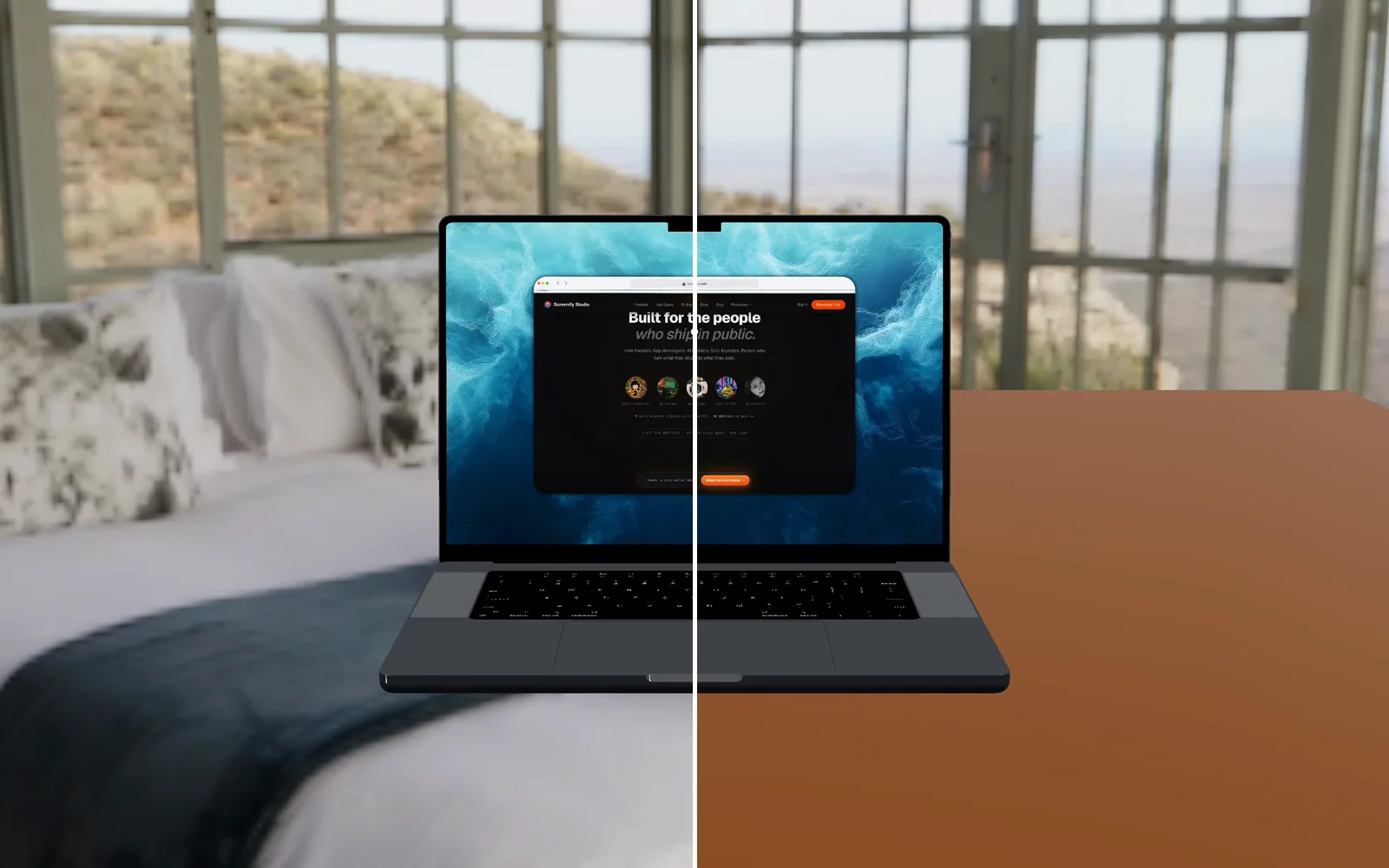
That gap showed up in a test we ran ourselves. We gave an agent a one-line brief: a 30-second demo of our homepage for social, on a 3D MacBook in a nice environment, with an intro, an outro and upbeat music. It ran every step without a mistake and delivered a clean file. Then we watched it. For most of the video, the laptop was hovering in mid-air above a bed. The agent had picked a bedroom environment and nothing for the laptop to stand on. It never noticed, because it had no way to look.
Screenify now closes that gap. Agents can read a video back, not just make one.
Four things an agent can read
The command line gains one command, screenify read, and the MCP server gains one tool, read_project. Both expose the same four readers.
| Reader | The question it answers |
|---|---|
| frame | What does the video look like at this second? The agent gets one rendered frame as an image. |
| transcript | What is said, and when? Your captions and the scripts of AI voiceover passages, with times. |
| timeline | What is on the timeline at this second? Every clip, zoom, 3D move, title, graphic, music and voiceover segment, with a short label. |
| events | What did the browser do in a web demo? Clicks, typing, scrolls and the pages visited. |
Every time in and out is a second of the finished video, after cuts, speed changes and intro spaces. When an agent reads "Pricing was clicked at 12.4 seconds", it can put a title at exactly 12.4 seconds.
The floating laptop, caught
Here is the same scene twice, rendered from the same project. On the left is what the agent produced on its first pass. On the right is the result after it looked.
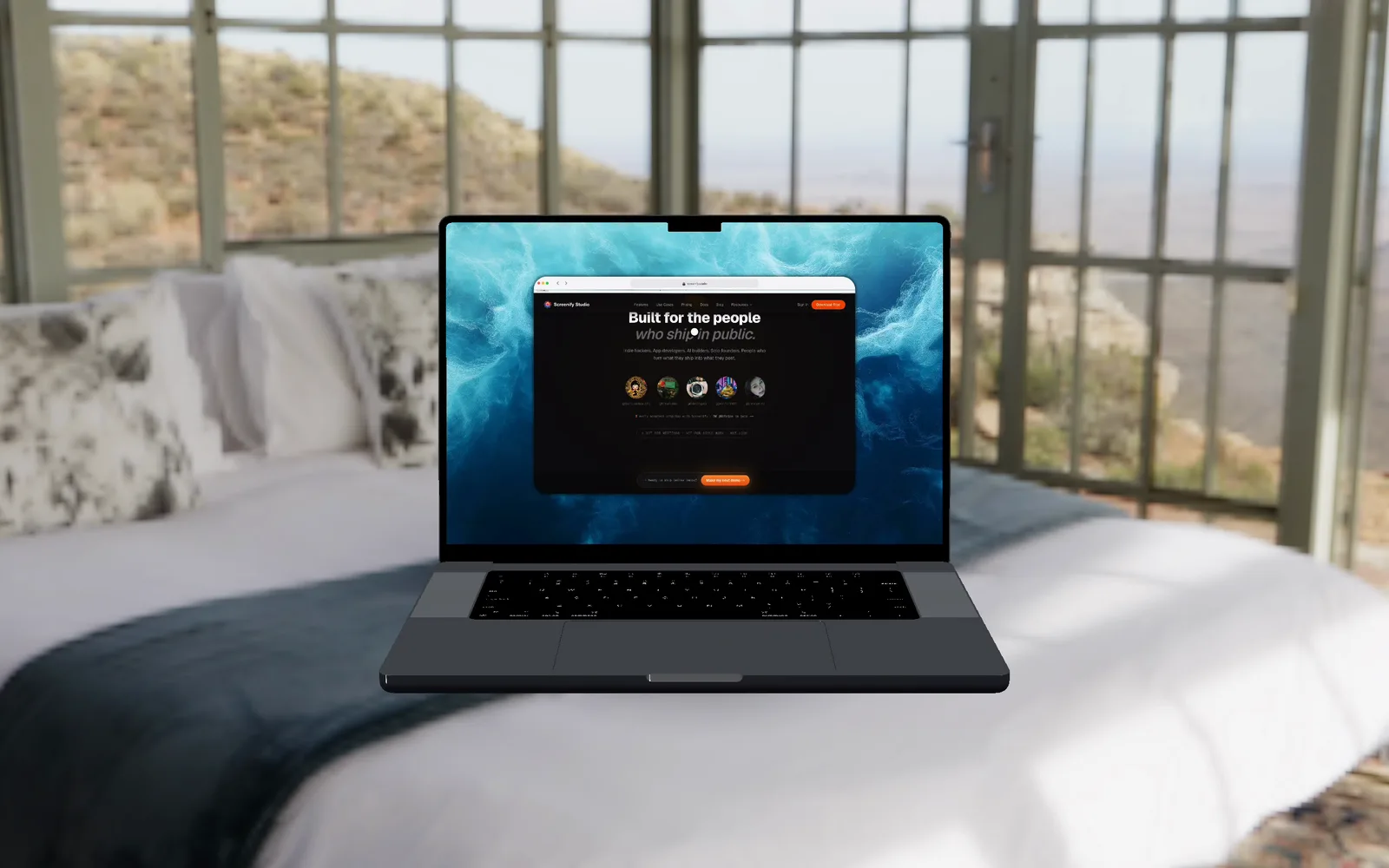
With read, the review step comes before the hand-off. The agent exports the video, reads four or five frames spread across it, and judges them the way an editor would. On this video, an agent with no prior context named the floating laptop as the most serious problem without being told what to look for. It also found the fix among the export options: put a desk under the laptop.
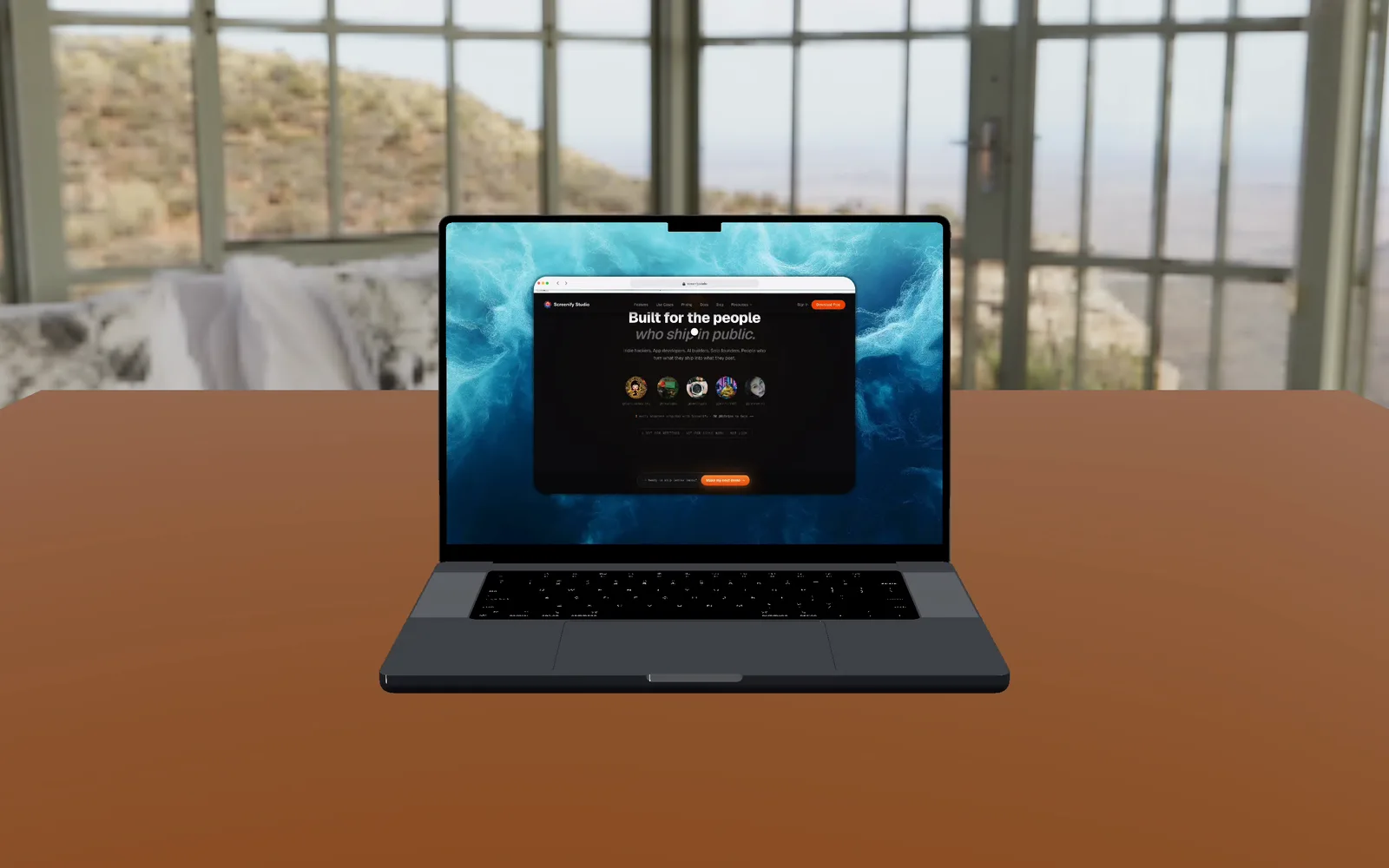
It also got one thing right that we cared about. A MacBook mockup in Screenify shows a whole desktop on its screen: your wallpaper, with the recorded window floating on it. That is the design, not a mistake. The read tools tell the agent so, so it does not "fix" what is meant to be there.
Look at the file, not just the project
A detail that matters in practice: frame reads a Screenify project or a video file you already exported. Styling chosen at export time, such as a device, an environment or a wallpaper, applies to that export only. To check what it is about to give you, the agent reads the exported file itself, the same pixels you will see. Reading a project renders the frame with the project's own settings, which is what a plain export of it would show.
The image an agent receives is sized for AI vision, about 1,600 pixels on the long side. If you want a full-resolution still, ask for it to be saved to a file:
screenify read frame --project ~/Desktop/launch.mp4 --at 8 --json
screenify read frame --project launch.screenify --at 3 --out ~/Desktop/still.png --json
Reading what is said
transcript returns your captions, including subtitles generated from a voiceover, and the scripts of AI voiceover passages whose subtitles are switched off. An agent can use it to check the narration against the brief, catch a typo in a caption, or place a title on the sentence that introduces a feature.
It reads the words already in your project. It does not listen to the audio itself, so for a recording with speech but no captions, the agent asks you to click Captions → Generate in the app first. It says so explicitly; you will not get an empty answer dressed up as a result.
Knowing what is already there
timeline gives an agent the map of an edit: which clips play where, which zooms and 3D moves exist, where the titles, graphics and music sit. Before it adds a callout, it can see there is already a zoom at that moment. Before it adds a title, it can see whether a voiceover is already talking over that moment.
For a web demo, events lists what the browser did, mapped to the finished video. A click that happened in a stretch that was cut for dead time is still listed and marked as not in the video, so the agent does not aim a title at a moment that no longer exists.
Safe by design
Reading never changes anything. Your project, its settings and its media stay exactly as they were; even rendering a frame happens on a private copy. When there is nothing to read, such as no captions yet or a recording that was not a web demo, the tool says so and suggests what to do next. That is a normal answer the agent relays to you, not a failure.
How to use it
In Claude Desktop, Claude Code or Cursor, you do not need to know any of the names above. Ask in your own words:
- "Export it, then look at a few frames and fix anything that looks wrong before you give it to me."
- "What does the narrator say between 20 and 40 seconds?"
- "Which zooms are already in this project?"
- "Add a title 'See pricing' right when I clicked Pricing in my web demo."
If you drive the command line yourself, screenify read --list --json shows every reader and its options. The full reference is in Read & review, and the agent setup is in For agents & CI.
Getting started
Reading is part of the command line and MCP server built into Screenify Studio, so there is nothing extra to install. AI apps that are already connected pick up the new tool on their next session.
An agent that can look at its own work makes fewer videos you have to send back. Download Screenify Studio and try it on your next demo.

Try Screenify Studio
Record your screen with auto-zoom, AI captions, dynamic backgrounds, and Metal-accelerated export. Free plan, unlimited recordings.
Download Free



