Best Screen Recorders with Auto-Zoom
Five screen recording tools with auto-zoom compared. See how each handles cursor-following zoom, customization, and animation quality.
Auto-zoom is the feature that separates polished screen recordings from raw captures. Instead of forcing viewers to squint at a full-screen recording to see where your cursor clicked, auto-zoom magnifies the relevant area automatically — keeping the focus on the action without manual pan-and-zoom editing.
The concept sounds simple, but implementation varies wildly between tools. Some track cursor position frame-by-frame for buttery-smooth animation. Others snap abruptly. Some let you customize zoom level, easing curves, and trigger behavior. Others give you a toggle and nothing else.
This comparison covers five tools that offer auto-zoom functionality, ranked by how well they execute it.
Quick Comparison
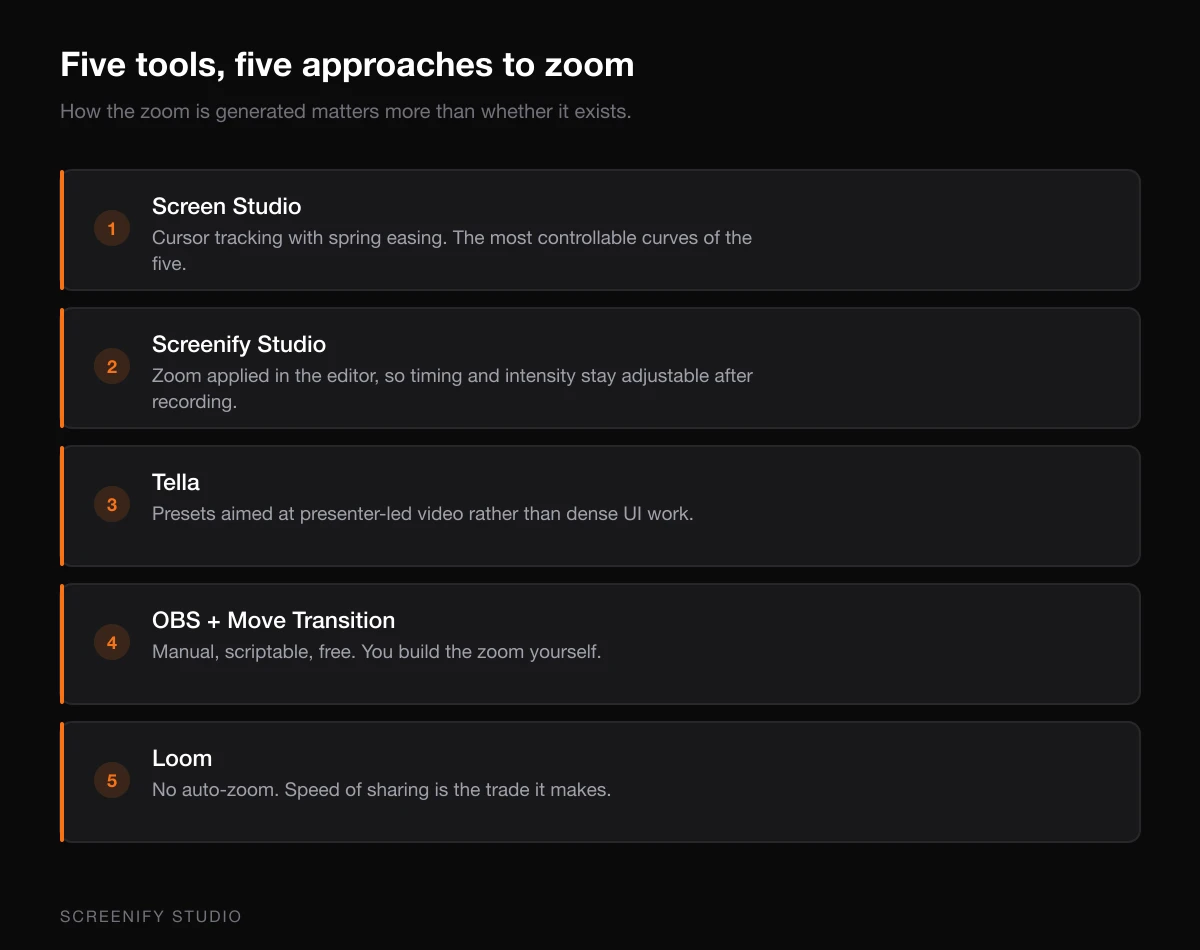
| Tool | Auto-Zoom Type | Zoom Trigger | Customization | Animation Quality | Platform | Price |
|---|---|---|---|---|---|---|
| Screen Studio | Real-time cursor tracking | Cursor movement + clicks | Zoom level, easing, speed, padding | Excellent — smooth, cinematic | macOS | $108/year |
| Screenify Studio | Post-recording cursor tracking | Cursor clicks + movement | Zoom level, easing, sensitivity | Excellent — Metal-accelerated | macOS | Free tier |
| Tella | Browser-based zoom | Clicks + manual markers | Zoom level, duration | Good — web-rendered | Web (any OS) | ~$19/mo |
| OBS + Move Transition | Manual scene switching | Hotkey-triggered | Crop coordinates, transition speed | Functional — step-based, not smooth | Any OS | Free (plugin) |
| Loom | Automatic focus detection | AI-detected UI elements | None | Basic — limited control | Web + desktop | Enterprise plan |
How Auto-Zoom Actually Works
Auto-zoom in screen recording typically operates in one of three ways:
Cursor-tracking zoom records at full resolution, then in post-processing (or real-time), the output frame follows the cursor position. When the cursor clicks a small button, the view zooms into that region. When the cursor moves to a different part of the screen, the view pans to follow. The recording itself stays full-resolution; the zoom is a viewport transformation applied to the output.
Marker-based zoom lets you place manual zoom points on a timeline. At timestamp 0:14, zoom to this region. At 0:22, zoom out. This gives full creative control but requires manual editing for every zoom point.
AI-detected zoom analyzes the recording to find areas of interest — active windows, dialog boxes, text fields — and automatically pans and zooms without cursor tracking. This is the least predictable approach but requires no user input.
The best tools combine cursor tracking with manual override: automatic zoom that you can adjust after the fact.
1. Screen Studio
Price: $108/year (or $29/month) Platform: macOS only Auto-zoom approach: Real-time cursor tracking with post-recording adjustment
Screen Studio deserves first billing in this comparison because it popularized auto-zoom for screen recording. Before Screen Studio launched, smooth cursor-following zoom was something you achieved manually in After Effects or Motion. Screen Studio made it a one-click feature.
How auto-zoom works in Screen Studio:
Screen Studio captures your screen at full resolution and simultaneously tracks cursor position, clicks, and scroll events. During export, it renders a "virtual camera" that follows the cursor with configurable zoom, easing, and padding. The result looks like a human camera operator following the action — smooth pans, gentle zoom-ins on clicks, and wide shots when the cursor is idle.
You can adjust zoom behavior after recording:
- Zoom level — how much magnification on clicks (1.5x to 4x)
- Easing curve — linear, ease-in-out, spring physics
- Follow speed — how quickly the virtual camera follows cursor movement
- Padding — how much space to leave around the cursor
- Idle behavior — what the camera does when the cursor stops moving
Strengths:
- The original and still arguably the smoothest auto-zoom implementation on Mac
- Spring-physics easing gives animations a cinematic, organic quality
- Per-click zoom control — override the zoom level for specific moments in the timeline
- Background blur and wallpaper replacement enhance the zoomed-in view
- Excellent output quality at 60fps with hardware encoding
Limitations:
- $108 a year is steep for individual creators or occasional users, and the lifetime licence is no longer sold
- macOS only — no Windows or Linux version
- Export times can be longer because zoom rendering is computationally intensive
- No free tier or trial beyond a short evaluation period
- The app is focused on polished output and offers limited general-purpose recording features compared to full production suites
Verdict: Screen Studio set the standard for auto-zoom. If your primary need is producing cinematic screen recordings and $108 a year is within budget, Screen Studio's zoom quality remains a benchmark that other tools measure themselves against.
2. Screenify Studio
Price: Free tier available (auto-zoom included); Pro for advanced AI features Platform: macOS only Auto-zoom approach: Post-recording cursor tracking with editor-based customization
Screenify Studio takes a different architectural approach to auto-zoom. Instead of rendering zoom during export as a single pipeline, Screenify separates capture from zoom — recording happens at full resolution with no zoom processing, and auto-zoom is applied as an editable layer in the built-in timeline editor.
How auto-zoom works in Screenify Studio:
After recording, open the clip in Screenify's editor. Enable auto-zoom, and the tool analyzes cursor positions and click events from the captured metadata. Zoom keyframes appear on the timeline, each representing a moment where the virtual camera moves. You can drag these keyframes, adjust their zoom level, change the easing curve, or delete them entirely.
This separation between capture and zoom means:
- Recording uses minimal CPU (no zoom calculation during capture)
- You see the zoom effect in the editor preview before committing to an export
- Adjusting zoom parameters doesn't require re-recording
- Multiple zoom presets can be tried on the same recording
Customization options:
- Zoom level per keyframe (1.2x to 5x)
- Easing curve selection (ease-in-out, linear, spring)
- Sensitivity threshold — how significant a cursor movement must be to trigger a zoom keyframe
- Manual keyframe insertion for clicks the AI didn't flag
- Zoom-out timing — how long before the camera pulls back to full view
Strengths:
- Free tier includes auto-zoom — no paywall for the core feature
- Non-destructive editing: adjust zoom after recording without re-capture
- Metal-accelerated zoom rendering keeps export times short on Apple Silicon
- Cursor smoothing and click highlights complement the zoom effect
- Integrates with AI captions and shareable links in a single workflow
- Timeline-based approach gives granular control over every zoom moment
Limitations:
- macOS only
- Post-recording workflow means you don't see zoom during capture (some users prefer real-time preview)
- AI sensitivity tuning may need manual correction on recordings with very rapid cursor movement
- The zoom animation library is growing but has fewer easing presets than Screen Studio currently offers
Verdict: Screenify Studio's editor-first approach to auto-zoom gives you more control over the final result than a record-and-export pipeline. The free tier makes it accessible for creators who want auto-zoom without an annual renewal. The tradeoff is that you assemble the zoom in the editor rather than seeing it live during capture.
Try Screenify Studio — free, unlimited recordings
Auto-zoom, AI captions, dynamic backgrounds, and Metal-accelerated export.
3. Tella
Price: ~$19/month Platform: Web-based (works on any OS with a modern browser) Auto-zoom approach: Browser-rendered zoom with click detection and manual markers
Tella is a web-based recording tool designed for async video communication — product demos, sales pitches, onboarding videos. Its auto-zoom feature works within the browser using click detection and optional manual zoom markers.
How auto-zoom works in Tella:
Tella records your screen through the browser's Screen Capture API and tracks click positions. After recording, you can enable auto-zoom in the editor, which generates zoom keyframes at click positions. You can also add manual zoom markers at specific timestamps for areas the click detection missed.
The zoom rendering happens in the browser during export, using canvas-based compositing. This means zoom quality depends partly on your browser's rendering performance.
Customization options:
- Zoom level per marker (adjustable per click)
- Zoom duration — how long each zoom lasts before pulling back
- Manual marker placement on the timeline
- Background color/blur during zoom
Strengths:
- Platform-independent — works on Mac, Windows, Linux, Chromebook
- No app to install (browser extension only)
- Good for async team communication with built-in sharing
- Simple editor UI that doesn't overwhelm new users
- Presenter mode with teleprompter and webcam overlay
Limitations:
- Browser-based capture has lower quality ceiling than native apps (particularly frame rate on high-resolution displays)
- Zoom animation is less smooth than native Metal or CoreAnimation-based rendering
- $19/month adds up — $228/year is more than twice Screen Studio's $108 annual plan
- No offline capability — requires internet connection for recording and editing
- Limited control over easing curves and zoom physics
- Web rendering can stutter on complex zoom sequences with 4K source material
Verdict: Tella is the right choice if you work across multiple operating systems and want auto-zoom without installing a native app. The browser-based approach sacrifices some animation smoothness and recording quality compared to native tools, but the platform flexibility and simple sharing workflow have real value for distributed teams.
4. OBS Studio + Move Transition Plugin
Price: Free (open source) Platform: macOS, Windows, Linux Auto-zoom approach: Manual scene-based zoom via hotkey-triggered crop transitions
OBS does not have built-in auto-zoom. But the open source plugin ecosystem includes Move Transition (by Exeldro), which enables zoom-like behavior through animated crop transitions between scenes. It's not automatic, but it's free and customizable.
How zoom works with Move Transition:
- Create two OBS scenes: "Full Screen" (your normal capture) and "Zoomed In" (the same source with a crop filter that magnifies a specific region)
- Install the Move Transition plugin
- Configure a transition between scenes with smooth animation (position, crop, and size interpolation)
- Bind a hotkey to switch between scenes
- During recording, press the hotkey to zoom in. Press again to zoom out.
Customization options:
- Crop coordinates define the zoom region — any part of the screen at any magnification
- Transition duration (milliseconds)
- Easing curve (the Move Transition plugin supports various easing functions)
- Multiple zoom scenes for different regions (e.g., one zoomed to the toolbar, another to the code editor)
- Cascading transitions for complex multi-step zooms
Strengths:
- Completely free — OBS and Move Transition are both open source
- Cross-platform — same setup works on macOS, Windows, and Linux
- Precise control over zoom regions — pixel-level crop coordinates
- Can chain multiple zoom levels and positions
- Hotkey-driven means you can zoom during live streams, not just recordings
Limitations:
- Not automatic — every zoom requires a manual hotkey press at the right moment
- Setup is complex: creating scenes, configuring crops, installing the plugin, and binding hotkeys takes 20-30 minutes
- No cursor tracking — the zoom targets a fixed region, not where your cursor goes
- Transitions between scenes can look mechanical compared to cursor-following zoom
- If you click somewhere unexpected, the zoom won't follow — it stays on the preconfigured region
- Maintaining multiple zoom scenes for different parts of the screen becomes unwieldy
Verdict: The OBS + Move Transition approach is the free, cross-platform option for zoom effects in screen recording. It works, and for pre-planned recordings where you know exactly where to zoom, it can look polished. But it's manual, requires significant setup, and lacks the cursor-aware intelligence that makes auto-zoom useful in the first place. Best suited for users already deep in the OBS ecosystem.
5. Loom
Price: Enterprise plan (auto-zoom not available on free or Business tiers) Platform: Web + desktop apps (Mac, Windows, Chrome extension) Auto-zoom approach: AI-detected focus areas with automatic pan
Loom added auto-zoom as an enterprise feature that analyzes recordings to detect areas of activity and automatically adjusts the frame. Unlike cursor-tracking tools, Loom's approach is fully automatic with no user configuration.
How auto-zoom works in Loom:
After recording, Loom's cloud-based processing analyzes the video to find active UI elements — dialog boxes, text input fields, menu selections. It then generates a zoomed version that pans and magnifies these regions during playback. The processing happens server-side after upload.
Strengths:
- Fully automatic — no configuration, no keyframes, no manual adjustment
- Works on recordings made on any platform (Mac, Windows, Chrome)
- Part of Loom's broader async video workflow with comments, reactions, and analytics
- Good enough for internal team communication where cinematic quality isn't the goal
Limitations:
- Enterprise plan only — not available on the free plan or $15/mo Business tier
- No customization — you cannot adjust zoom level, easing, regions, or timing
- Cloud-processed — requires uploading your recording to Loom's servers for zoom to be applied
- Zoom quality varies — the AI sometimes focuses on the wrong element or misses key interactions
- No manual override for incorrect zoom decisions
- The zoom effect is less refined than cursor-tracking implementations
- Privacy concern — all recordings must be uploaded to Loom's cloud for processing
Verdict: Loom's auto-zoom is hands-off convenience at the cost of control. It works acceptably for quick internal updates where you want some zoom effect without manual editing. It does not compete with Screen Studio, Screenify Studio, or even Tella for quality, customization, or reliability of the zoom behavior. The enterprise paywall and cloud-only processing further narrow its appeal.
Try Screenify Studio — free, unlimited recordings
Auto-zoom, AI captions, dynamic backgrounds, and Metal-accelerated export.
Best for Your Situation
You want the smoothest, most cinematic auto-zoom available
Screen Studio — the pioneer, the benchmark. Spring-physics easing and granular per-click control produce results that look professionally edited. Worth $108 a year if polished screen recordings are central to your work.
You want auto-zoom with editing control and a free starting point
Screenify Studio — timeline-based auto-zoom with per-keyframe customization, included in the free tier. The editor-first approach lets you fine-tune every zoom moment after recording.
You work across Mac, Windows, and Linux
Tella for a managed solution (~$19/mo, browser-based auto-zoom). OBS + Move Transition for a free DIY approach (manual hotkey zoom, no cursor tracking).
You record quick team updates and want zero effort
Loom — if your company already pays for Loom Enterprise, the automatic zoom adds some visual polish without any extra work. Don't subscribe just for this feature.
You're already an OBS power user
OBS + Move Transition plugin — leverages your existing scenes and hotkey muscle memory. The zoom won't follow your cursor, but for pre-planned demos with known click targets, the result can look intentional and clean.
FAQ
Q: What exactly is auto-zoom in screen recording?
Auto-zoom automatically magnifies regions of your screen recording based on cursor position, clicks, or AI detection. Instead of showing the entire screen at all times, the recording dynamically zooms into the area where action is happening — a button click, a menu selection, a form field — then zooms out when the action moves elsewhere. The effect makes recordings significantly easier to follow, especially for UI-heavy tutorials and product demos.
Q: Did Screen Studio invent auto-zoom for screen recording?
Screen Studio was the first widely adopted Mac screen recording tool to build cursor-tracking auto-zoom as a core feature. The concept of zoom-and-pan existed in video editing software for decades (After Effects, Motion, Camtasia's SmartFocus), but Screen Studio made it automatic and integrated it into a screen recording workflow. Most tools that offer auto-zoom today — including Screenify Studio and Tella — acknowledge Screen Studio's influence on the feature.
Q: Can I get auto-zoom for free?
Yes. Screenify Studio includes auto-zoom in its free tier on macOS. OBS with the Move Transition plugin provides manual zoom control for free on any platform. Loom's free tier does not include auto-zoom. Screen Studio and Tella are paid only.
Q: Is real-time auto-zoom better than post-recording auto-zoom?
Each approach has tradeoffs. Real-time zoom (Screen Studio) lets you see the zoomed output during capture, which helps you pace your movements. Post-recording zoom (Screenify Studio) keeps capture lightweight and lets you adjust zoom parameters without re-recording. For most users, post-recording zoom is more forgiving because you can fix mistakes in the editor.
Q: How customizable should auto-zoom be?
It depends on your audience. For internal team updates, default auto-zoom settings are usually fine. For public-facing tutorials, product demos, or marketing videos, you'll want per-keyframe zoom level control, easing curve selection, and the ability to manually add or remove zoom points. Screen Studio and Screenify Studio offer this level of control. Tella offers moderate customization. Loom and OBS offer the least.
Q: Does auto-zoom affect video file size?
Auto-zoom itself doesn't significantly change file size because the output resolution stays the same. The zoomed frames contain the same pixel count — they just show a magnified portion of the capture. However, zoom animation introduces more frame-to-frame pixel changes, which can slightly reduce video compression efficiency. In practice, the difference is under 10% for typical recordings.
Q: Can I add auto-zoom to an existing recording?
With Screenify Studio, yes — import a recording into the editor and apply auto-zoom to it, provided cursor metadata is available from the original capture. Screen Studio also allows adjustment after recording within its own export pipeline. For recordings made with other tools, you'd need to manually add zoom keyframes in a video editor like After Effects, DaVinci Resolve, or Final Cut Pro.
Q: Is auto-zoom worth it for short recordings?
For recordings under 30 seconds — probably not. The zoom animation adds visual complexity that may feel over-produced for a quick bug report or Slack message. Auto-zoom shines in recordings longer than 1-2 minutes where viewers need guidance on where to look, especially in multi-step tutorials where the action moves across different parts of the screen. For a deeper look at how auto-zoom improves recordings, see our guide to auto-zoom screen recording.
For more on choosing the right screen recorder, see best free screen recorders for Mac and recording without lag.

Try Screenify Studio
Record your screen with auto-zoom, AI captions, dynamic backgrounds, and Metal-accelerated export. Free plan, unlimited recordings.
Download Free



