Why Are Screen Recordings So Big? 5 Ways to Shrink
A one-minute recording can hit 100 MB. Why that happens, plus five fixes: lower resolution, cut fps, switch to HEVC, trim, or compress with HandBrake.
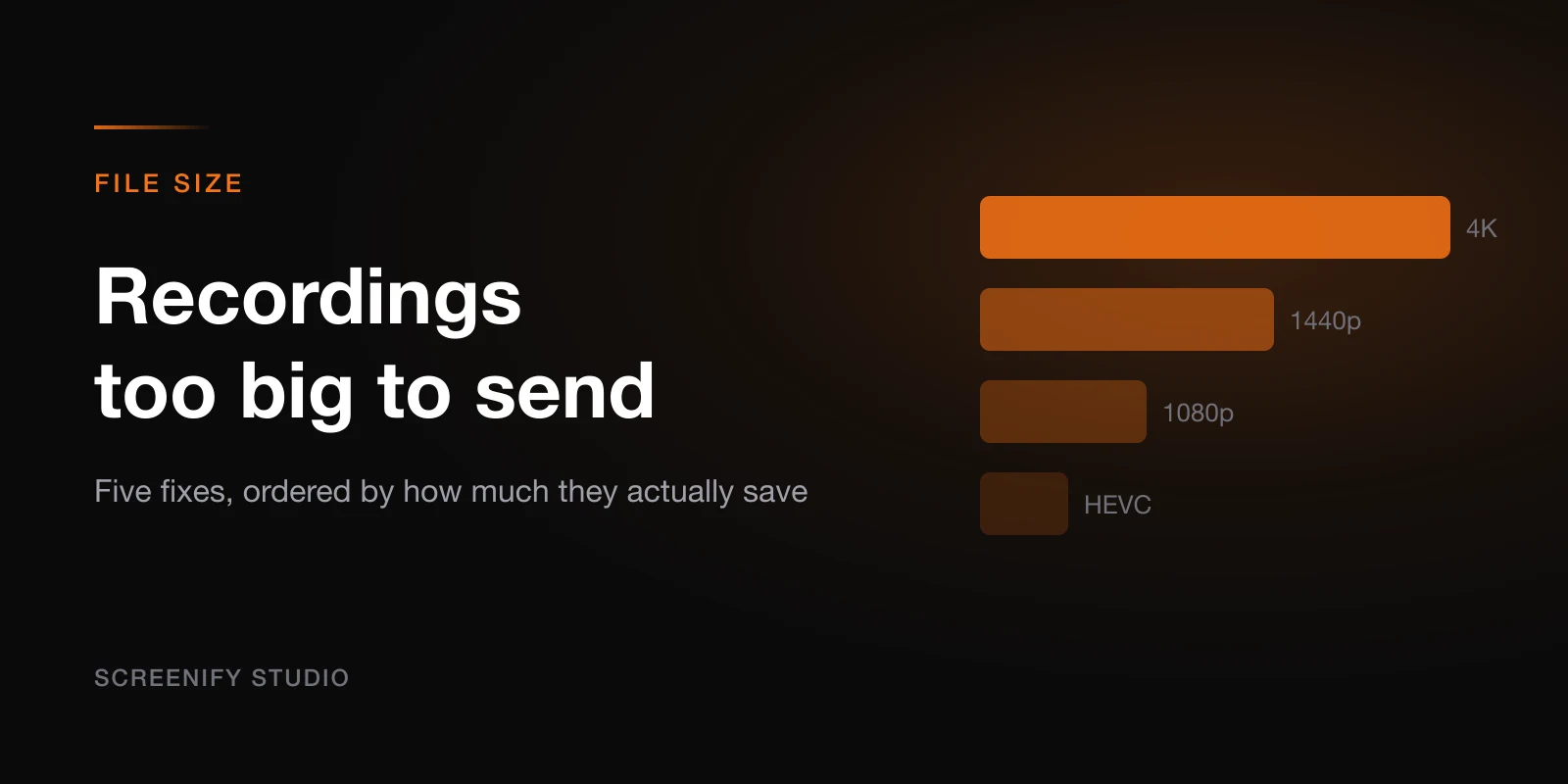
A 10-minute screen recording shouldn't weigh 4 GB. But if you recorded at 4K resolution, 60 fps, using an uncompressed or lossless codec, that's exactly what happens. The math is straightforward: higher resolution means more pixels per frame, higher frame rate means more frames per second, and an inefficient codec means each frame takes more disk space. Multiply those three factors and file sizes escalate fast.
This post breaks down why screen recordings balloon in size and gives you five concrete ways to shrink them — some before you record, some after.
Why Screen Recordings Get So Large
Understanding the root cause helps you pick the right fix. Screen recording file size depends on four variables:
Resolution — A 3840x2160 (4K) frame contains 4x the pixel data of 1920x1080 (1080p). If your display is a Retina MacBook Pro at native resolution, you're recording at 3024x1964 or similar — roughly 3x the pixels of standard 1080p.
Frame rate — 60 fps captures twice as many frames as 30 fps. For screen recordings (not gameplay), the difference between 30 and 60 fps is barely noticeable. Tutorials, presentations, and software demos look perfectly smooth at 30 fps.
Codec — The codec determines how efficiently each frame is compressed. Apple's default screen recording codec (Apple ProRes or the Screenshot Toolbar's H.264 at high bitrate) prioritizes quality over file size. HEVC (H.265) achieves roughly 50% smaller files at the same visual quality compared to H.264.
Duration — Obviously, longer recordings produce larger files. But this is the one variable you can address by trimming out dead time.
Size Estimates by Setting
Here's what a 10-minute screen recording looks like across different configurations:
| Resolution | FPS | Codec | Estimated Size (10 min) |
|---|---|---|---|
| 3840x2160 | 60 | H.264 (high bitrate) | 3.0 - 4.5 GB |
| 3840x2160 | 30 | H.264 | 1.5 - 2.5 GB |
| 1920x1080 | 60 | H.264 | 800 MB - 1.5 GB |
| 1920x1080 | 30 | H.264 | 400 - 800 MB |
| 1920x1080 | 30 | HEVC (H.265) | 200 - 400 MB |
| 1920x1080 | 30 | HEVC + optimized bitrate | 100 - 250 MB |
The difference between the worst case and best case is roughly 20x. That's significant whether you're uploading to a cloud service, sharing via email, or just trying not to fill your SSD.
Fix 1: Reduce Recording Resolution
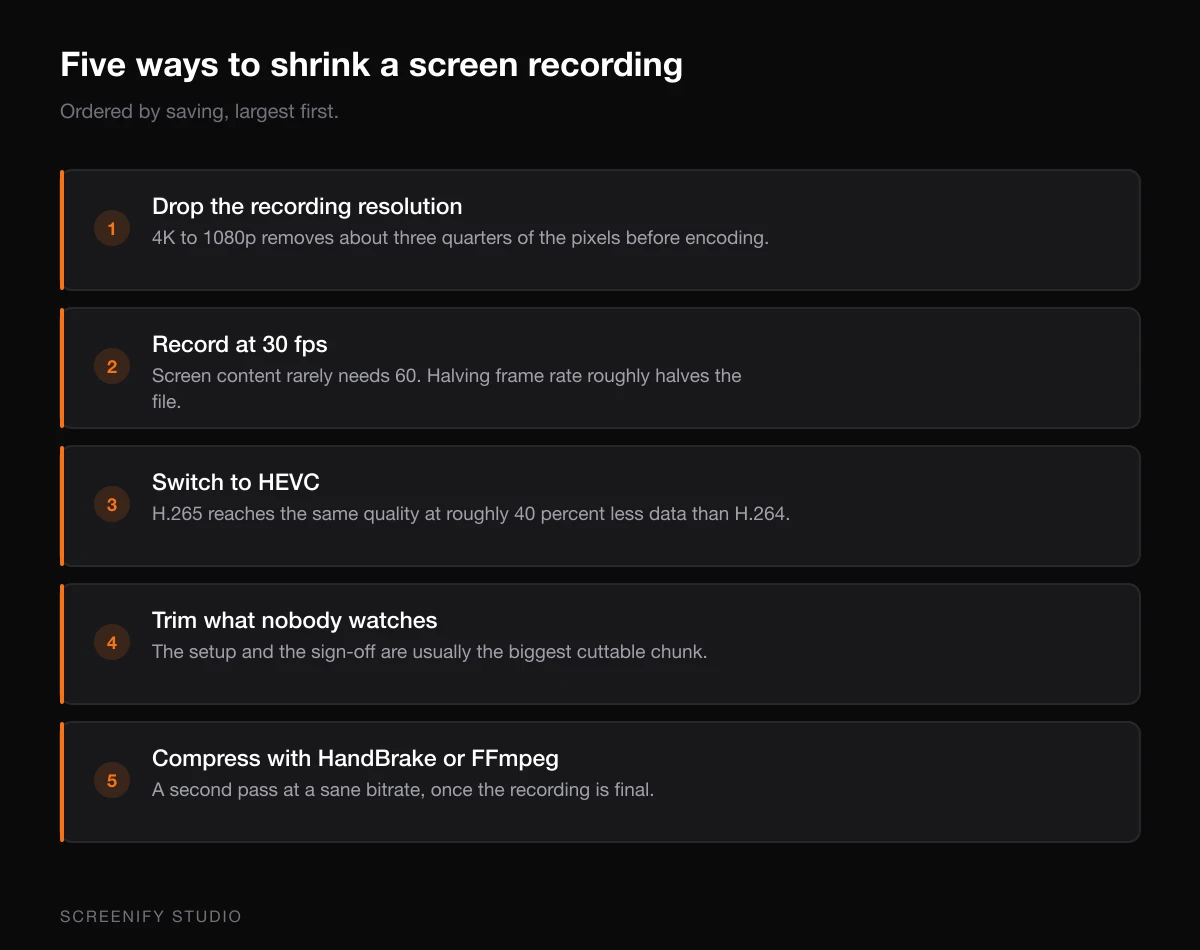
If you don't need pixel-perfect 4K, recording at 1080p cuts file size by 60-75% with minimal visual impact for most screen recording use cases.
How to Lower Resolution
macOS Screenshot Toolbar (Cmd + Shift + 5): The toolbar records at your display's native resolution with no option to change it. To work around this, you can change your display resolution before recording:
- Open System Settings > Displays
- Select a lower resolution (e.g., 1920x1080 or "Looks like 1080p")
- Record your screen
- Switch resolution back when done
This is inconvenient but effective if the Screenshot Toolbar is your only option.
OBS Studio:
- Go to Settings > Video
- Set Output (Scaled) Resolution to 1920x1080
- Keep Base (Canvas) Resolution at your native resolution — OBS downscales during encoding
Screenify Studio: Screenify lets you choose your output resolution during export. Record at full resolution and downscale during the export step — this preserves the original quality in case you need it later, while producing a smaller output file.
Fix 2: Lower Frame Rate to 30 FPS
Unless you're recording fast-paced gameplay, 30 fps is more than enough for screen content. Text, UI interactions, cursor movements, and slide transitions all look smooth at 30 fps. Dropping from 60 to 30 fps cuts file size roughly in half.
Where to Change FPS
OBS Studio:
- Settings > Video > Common FPS Values
- Select 30
Screenify Studio: Set the frame rate in recording preferences. For tutorials and software demos, 30 fps is the default recommendation. You can also adjust during export if you recorded at a higher rate.
QuickTime Player: QuickTime doesn't expose FPS settings. It records at your display's refresh rate (typically 60 Hz on newer Macs). You'll need to convert the output file afterward using HandBrake or FFmpeg (see Fix 5).
macOS Screenshot Toolbar: Same as QuickTime — no FPS control. The recording matches your display refresh rate.
Fix 3: Switch to HEVC (H.265) Codec
HEVC is the single most impactful change you can make. It reduces file size by 40-50% compared to H.264 at equivalent visual quality. Every Mac with an Apple Silicon chip (M1 and later) has hardware HEVC encoding, so there's no performance penalty.
Using HEVC in Different Tools
Screenify Studio: Screenify uses hardware-accelerated HEVC encoding by default on Apple Silicon Macs. The Metal-based export pipeline produces smaller files without sacrificing quality or increasing export time. No configuration needed.
Try Screenify Studio — free, unlimited recordings
Auto-zoom, AI captions, dynamic backgrounds, and Metal-accelerated export.
OBS Studio:
- Go to Settings > Output > Recording
- Set Recording Format to mp4 or mkv
- Set Encoder to Apple VT H265 Hardware Encoder
- If that option doesn't appear, your Mac may not support hardware HEVC encoding (Intel Macs before 2017)
HandBrake (post-recording conversion):
- Open your recording in HandBrake
- Select the H.265 (x265) video codec under the Video tab
- Use Constant Quality with RF 22-28 (lower = higher quality, larger file)
- For Apple Silicon, enable VideoToolbox for hardware encoding
FFmpeg (command line):
ffmpeg -i input.mov -c:v hevc_videotoolbox -q:v 65 -c:a aac -b:a 128k output.mp4The -q:v 65 flag sets quality (lower = higher quality). Values between 55 and 75 work well for screen content.
Fix 4: Trim Unnecessary Parts
Most raw screen recordings contain dead time: waiting for apps to load, fumbled starts, pauses while you think about the next step, or extra footage at the end. Trimming even 2-3 minutes from a 10-minute recording removes 20-30% of the file weight.
Quick Trim Options
QuickTime Player (built-in):
- Open the recording in QuickTime
- Go to Edit > Trim (Cmd + T)
- Drag the yellow handles to select the portion you want to keep
- Click Trim then save
Screenify Studio: Screenify's built-in editor lets you cut segments, remove pauses, and split clips. The timeline-based trimming is more precise than QuickTime's handle-drag approach, especially for longer recordings where you need to remove multiple segments.
iMovie: Drag the recording into an iMovie project, split and delete unwanted segments, then export. iMovie re-encodes the output, which can add further compression.
For a deeper look at trimming workflows, see our guide on trimming video on Mac.
Fix 5: Compress with HandBrake or FFmpeg
If you already have a large recording and can't re-record it, post-processing compression is your best option.
HandBrake Workflow
- Download HandBrake (free, open source)
- Open your recording file
- Under the Video tab:
- Video Codec: H.265 (x265) or H.265 (VideoToolbox) for faster hardware encoding
- Quality: Constant Quality, RF 24-28 for screen content
- Framerate: 30 fps, Peak Framerate
- Under the Dimensions tab:
- Set width to 1920 if the source is 4K (maintains aspect ratio automatically)
- Click Start Encode
Expected results: A 3 GB 4K/60fps H.264 recording typically compresses to 200-400 MB at 1080p/30fps HEVC — a 90%+ reduction.
FFmpeg One-Liner
For batch processing or automation, FFmpeg handles this in a single command:
ffmpeg -i input.mov -vf scale=1920:-2 -r 30 -c:v hevc_videotoolbox -q:v 65 -c:a aac -b:a 128k output.mp4Breakdown:
-vf scale=1920:-2— downscale to 1920px wide, auto-calculate height (even number)-r 30— output at 30 fps-c:v hevc_videotoolbox— hardware HEVC encoding on Mac-q:v 65— quality level-c:a aac -b:a 128k— re-encode audio to AAC at 128 kbps
For more compression techniques and tools, check out our detailed guide on reducing video file size on Mac.
Try Screenify Studio — free, unlimited recordings
Auto-zoom, AI captions, dynamic backgrounds, and Metal-accelerated export.
Which Fix Gives the Biggest Savings?
If you can only do one thing, switch to HEVC. Here's how the fixes stack up:
| Fix | File Size Reduction | Effort | Quality Impact |
|---|---|---|---|
| Reduce to 1080p | 60-75% | Low | Minimal for screen content |
| Lower FPS to 30 | ~50% | Low | None for non-gameplay |
| Switch to HEVC | 40-50% | Low | None (perceptually identical) |
| Trim dead time | 10-30% (varies) | Medium | None (removing unused footage) |
| Full compression pipeline | 85-95% | Medium | Slight, depending on settings |
Combining all five — record at 1080p, 30 fps, export as HEVC, trim the fat, and run a compression pass — can turn a 4 GB file into one under 200 MB.
FAQ
Q: Why is my 5-minute screen recording over 2 GB?
You're likely recording at Retina resolution (3024x1964 or similar) at 60 fps with H.264 encoding. Each of those factors inflates file size. Switching to 1080p, 30 fps, and HEVC encoding can bring that same 5-minute recording down to 100-200 MB.
Q: Does lowering resolution make my screen recording blurry?
For most use cases, no. Screen content at 1920x1080 looks sharp and readable. Text, UI elements, and code are all perfectly legible. The difference only matters if viewers need to zoom into fine details at pixel level, which is rare in tutorials or demos.
Q: Is HEVC compatible with all devices and platforms?
HEVC playback is supported on all Apple devices (iPhone, iPad, Mac), modern Android devices, Windows 10/11 (with the HEVC Video Extensions from Microsoft Store), and most web browsers. For maximum compatibility, H.264 remains the safest choice, but HEVC coverage is now broad enough for most audiences.
Q: Can I reduce file size without losing quality?
Switching to a more efficient codec (HEVC over H.264) achieves this — same perceptual quality at smaller file size. Trimming also removes data without affecting the quality of remaining footage. However, reducing resolution or heavily compressing an existing file will degrade quality to some degree.
Q: How much space does screen recording take on Mac per hour?
It depends heavily on settings. At 4K/60fps with H.264, expect 15-25 GB per hour. At 1080p/30fps with HEVC, expect 1-3 GB per hour. The difference is enormous, which is why choosing the right settings before recording matters.
Q: Should I record at high quality and compress later, or record at lower settings?
Record at the highest quality your workflow allows, then compress during export or post-processing. This preserves the original footage in case you need it later and gives you more control over the final output. Tools like Screenify Studio handle this well — record at full quality, then export at optimized settings.
Q: Does Screenify Studio automatically optimize file size?
Yes. Screenify uses hardware-accelerated HEVC encoding on Apple Silicon and applies intelligent bitrate optimization for screen content. The Metal-based export pipeline produces significantly smaller files than the default macOS screen recording tools without manual configuration.
For a broader overview of screen recording on Mac, see our complete guide to screen recording on Mac. Related: how to trim a video on Mac (cuts length + file size) and how to convert MOV to MP4 on Mac (smaller container, better compression).

Try Screenify Studio
Record your screen with auto-zoom, AI captions, dynamic backgrounds, and Metal-accelerated export. Free plan, unlimited recordings.
Download Free



