Screen Recording Black Screen? 6 Causes and Fixes
Black screen in a recording comes from DRM, GPU switching, missing permissions or hardware acceleration. Find which one it is in under a minute.
You hit record, gave a perfect walkthrough, stopped the recording, and hit play — only to find a solid black rectangle where your screen content should be. The audio might be fine. The file size suggests something was recorded. But the video is pure black.
Black screen recordings are different from other quality issues because the content isn't degraded — it's completely absent. The cause is almost always a hard block at the system level rather than a settings problem. This guide covers every known cause on macOS and gives you specific fixes for each one.
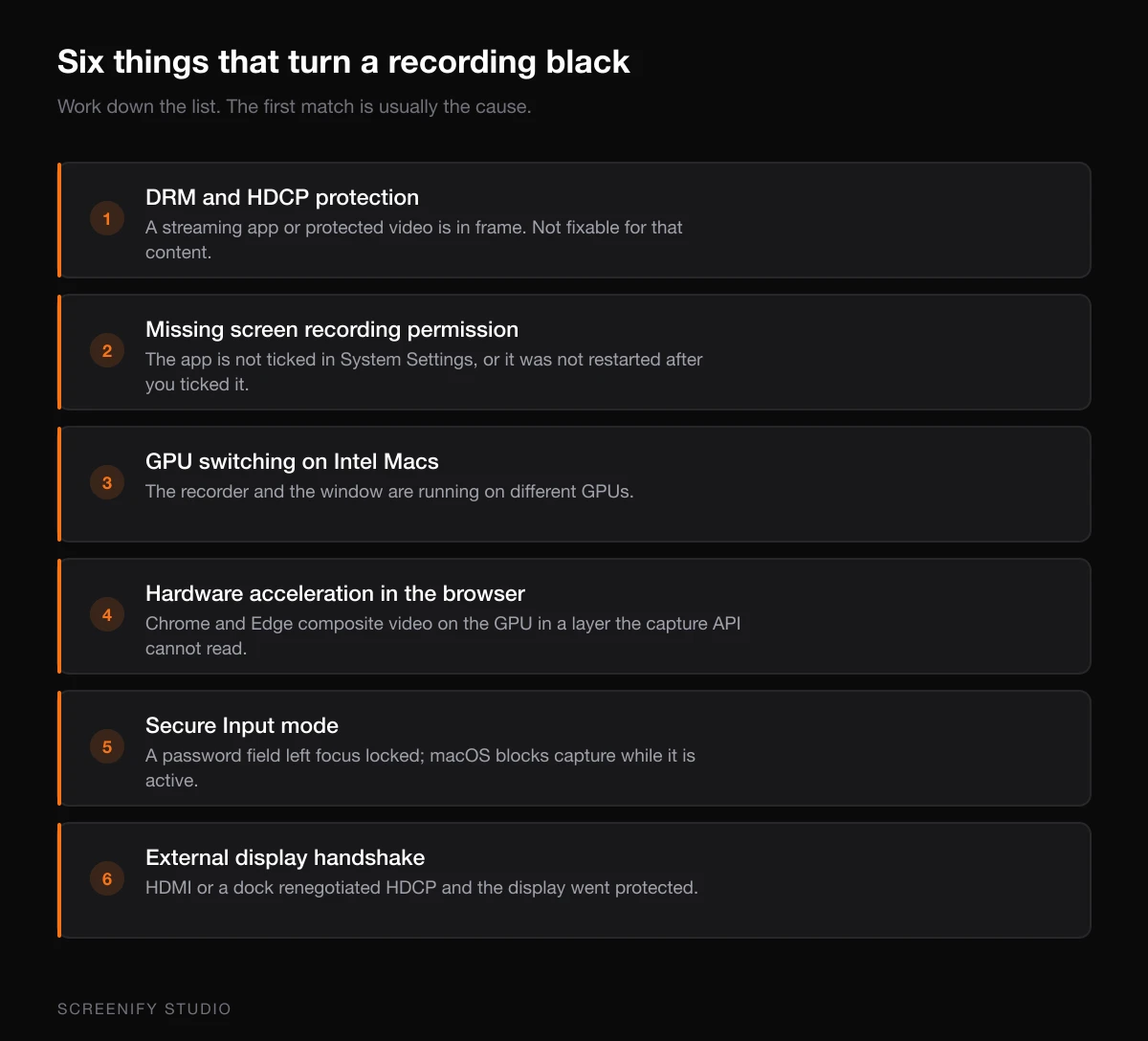
Cause 1: DRM and HDCP Protection
This is the most common cause of black screen recordings, and it's the one you can't fix with settings changes.
What's happening
Digital Rights Management (DRM) and High-bandwidth Digital Content Protection (HDCP) are encryption systems that prevent screen capture of protected content. When you record a screen that's displaying DRM-protected video, the screen recording API returns black frames for the protected window while capturing everything else normally.
This isn't a bug — it's an intentional security measure enforced at the operating system and hardware level.
Apps that trigger black screen recording
These applications use DRM that blocks screen capture:
- Netflix (browser and native app) — All content is HDCP-protected
- Disney+ — HDCP-enforced on all streams
- Apple TV+ (native app) — FairPlay DRM blocks capture
- Amazon Prime Video — Widevine DRM in browsers, platform DRM in native app
- Hulu — DRM-protected in all playback environments
- Spotify (canvas/video content) — Video elements are protected
- HBO Max / Max — Full HDCP enforcement
- Peacock — Standard DRM protection
What you can do
Understand the limitation: No legitimate screen recorder can bypass HDCP/DRM. Any tool claiming to record Netflix or Disney+ content is either misrepresenting its capabilities or circumventing copy protection (which raises legal concerns under the DMCA and similar laws in other jurisdictions).
Record non-protected content around the protected window: If you're recording a tutorial and need to show something near a DRM window, the recording will capture everything except the protected window. That window renders as black while the rest of your screen records normally.
Use platform-provided download features: Netflix, Disney+, and most streaming services offer offline downloads within their apps. If you need to save content for personal offline viewing, use the official download feature rather than attempting to screen record.
Check if the content is actually DRM-protected: Not all video content triggers black screens. YouTube videos (non-premium), Vimeo embeds, self-hosted videos, and most web-based video players don't use HDCP. If you're getting a black screen from a source you don't expect to be protected, the cause may be something else — read on.
Cause 2: Missing Screen Recording Permission
Starting with macOS Mojave, every application that captures screen content needs explicit user permission. Without it, the capture API returns black frames.
What's happening
When an app first tries to capture your screen, macOS should prompt you to grant permission. But this prompt can fail to appear (if it was previously dismissed), or the permission can be revoked silently during a macOS update. The result: your screen recorder runs, appears to capture video, but receives only black frames from the system.
How to diagnose
Open System Settings, then Privacy & Security, then Screen Recording. Look for your recording application in the list:
- Not listed at all — The permission prompt was never triggered, or was dismissed without granting access
- Listed but toggled off — Permission was revoked (possibly by a macOS update)
- Listed and toggled on — Permission is granted; the black screen has a different cause
How to fix it
Step 1: Grant or re-enable the permission
If your recorder isn't in the list, open it and attempt a recording. macOS should display a permission prompt. Grant access and restart the app.
If it's listed but off, toggle it on. macOS will require you to quit and reopen the app.
Step 2: Reset the permission if toggling doesn't work
Open Terminal and reset the screen capture permission for the specific app:
# For QuickTime
tccutil reset ScreenCapture com.apple.QuickTimePlayerX

# For all apps (nuclear option)
tccutil reset ScreenCapture
After resetting, reopen your recorder. macOS will prompt for permission again. Grant it, and the black screen should resolve.
Step 3: Check for MDM restrictions
Company-managed Macs may have configuration profiles that block screen recording entirely. Check System Settings, then General, then Profiles. If a profile restricts screen capture, contact your IT department.
For a deeper dive into permission troubleshooting, see our macOS screen recording permissions guide.
Try Screenify Studio — free, unlimited recordings
Auto-zoom, AI captions, dynamic backgrounds, and Metal-accelerated export.
Cause 3: GPU Switching on Intel Macs
This cause is specific to Intel Macs with dual GPUs — models from roughly 2011 through 2020 that have both integrated Intel graphics and a discrete AMD GPU.
What's happening
Older Intel Macs with dual GPUs dynamically switch between the integrated GPU (for battery efficiency) and the discrete GPU (for performance). Some screen recording software captures from one GPU while the display is being rendered by the other. The result: the recorder sees a black framebuffer because it's reading from the inactive GPU.
This issue is most common when:
- You start recording while on integrated graphics, then the system switches to discrete (a game launches, a GPU-intensive app opens)
- You're connected to an external display (which often forces the discrete GPU) while the recorder expects the integrated GPU
- Energy Saver settings allow automatic graphics switching
How to fix it
Step 1: Disable automatic graphics switching
On macOS Catalina and earlier: open System Preferences, then Energy Saver, and uncheck Automatic Graphics Switching. This forces the Mac to always use the discrete GPU, which prevents the switch that causes black frames.
On macOS Big Sur and later: Apple removed this toggle for most Mac models. If your Mac still has it, the setting is in Battery, then Options.
Step 2: Force a specific GPU before recording
Apps like gfxCardStatus (free) let you manually lock to a specific GPU. Set it to "Discrete Only" before starting your recording to prevent mid-recording GPU switches.
Step 3: Consider that this isn't a problem on Apple Silicon
If you're on an M1, M2, M3, M4, or any Apple Silicon Mac, you don't have dual GPUs. Apple Silicon uses a unified GPU architecture. If you're experiencing black screens on Apple Silicon, skip this cause entirely — it's not GPU switching.
Cause 4: Hardware Acceleration Conflicts in Browsers
This is the most common cause of black screen recordings when trying to capture browser content — and it's completely fixable.
What's happening
Modern browsers use hardware acceleration (GPU rendering) to display web pages. When a screen recorder tries to capture a GPU-accelerated browser window, it sometimes captures the wrong surface — reading from a GPU buffer that doesn't contain the composited page content. The browser window appears black in the recording while the rest of the screen captures normally.
This affects all major browsers but manifests differently:
- Chrome: Most frequently affected. Hardware acceleration is aggressive by default.
- Firefox: Less common but occurs with WebGL content and hardware-decoded video.
- Safari: Rare, since Safari uses macOS's native compositing pipeline, which screen recorders typically handle correctly.
- Arc, Brave, Edge (Chromium-based): Same behavior as Chrome since they share the same rendering engine.
How to fix it
For Google Chrome:
- Open Chrome, navigate to
chrome://settings - Click System in the left sidebar
- Toggle off Use graphics acceleration when available
- Restart Chrome completely (quit and reopen, don't just close the window)
After disabling hardware acceleration, Chrome renders pages using the CPU. Screen recorders can capture CPU-rendered content without issues. The tradeoff: slightly higher CPU usage during browsing and potentially less smooth scrolling on complex pages.
For Firefox:
- Open Firefox, navigate to
about:preferences - Scroll down to Performance
- Uncheck Use recommended performance settings
- Uncheck Use hardware acceleration when available
- Restart Firefox
For Arc / Brave / Edge:
These Chromium-based browsers have the same setting in their respective settings pages under System. The toggle wording is identical to Chrome's.
The targeted approach — disable only during recording:
If you don't want to leave hardware acceleration off permanently (it does improve browsing performance), toggle it off only when you need to record, then re-enable it afterward. Some recorders handle this scenario better than others — Screenify Studio uses Apple's ScreenCaptureKit API which captures the composited screen output directly, bypassing the GPU buffer issue that affects older capture methods. This means browser content typically records correctly without needing to disable hardware acceleration.
Cause 5: Secure Input Mode
Less commonly, macOS's Secure Input mode can cause partial or full black screen recordings.
What's happening
When you're typing in a password field (in a browser, a login dialog, or Terminal), macOS activates Secure Input mode. This mode is supposed to prevent keyloggers from reading your keystrokes, but on some configurations, it also blocks or interferes with screen capture for the duration of the secure input session.
Occasionally, Secure Input gets "stuck" — an app activates it and doesn't properly deactivate it when you leave the password field. The result is persistent black screen recordings.
How to diagnose
Open Terminal and check if Secure Input is active:
ioreg -l -d 1 -w 0 | grep SecureInputIf the output shows "kCGSSessionSecureInputPID" with a process ID, some application has Secure Input locked. Find the culprit:
ps -p $(ioreg -l -d 1 -w 0 | grep SecureInputPID | awk '{print $NF}')How to fix it
Quit the application that's holding the Secure Input lock (usually a terminal emulator, password manager, or browser with focus on a password field). If you can't identify it, a logout/login cycle releases all Secure Input locks.
Try Screenify Studio — free, unlimited recordings
Auto-zoom, AI captions, dynamic backgrounds, and Metal-accelerated export.
Cause 6: External Display and HDMI Handshake Issues
If you're recording an external display and getting black frames, the issue may be in the display connection itself.
What's happening
HDMI and DisplayPort connections perform a "handshake" that includes HDCP negotiation. If the handshake fails or the cable/adapter doesn't support the HDCP version your display expects, macOS may treat the entire display output as protected content — resulting in black frames in screen recordings.
This particularly affects:
- USB-C to HDMI adapters (cheap adapters often don't handle HDCP correctly)
- Daisy-chained displays through Thunderbolt docks
- HDMI splitters or capture cards in the display chain
How to fix it
Step 1: Try a direct connection
Remove any adapters, docks, or splitters between your Mac and the display. Use a direct USB-C/Thunderbolt to display connection if possible.
Step 2: Use a different cable or adapter
Replace your USB-C to HDMI adapter with one that explicitly supports HDCP 2.2 or later. Apple's own USB-C Digital AV Multiport Adapter handles this correctly.
Step 3: Record the built-in display instead
If the external display consistently produces black frames, mirror your Mac's display and record the built-in screen. The content will be identical, and the built-in display doesn't have HDMI handshake issues.
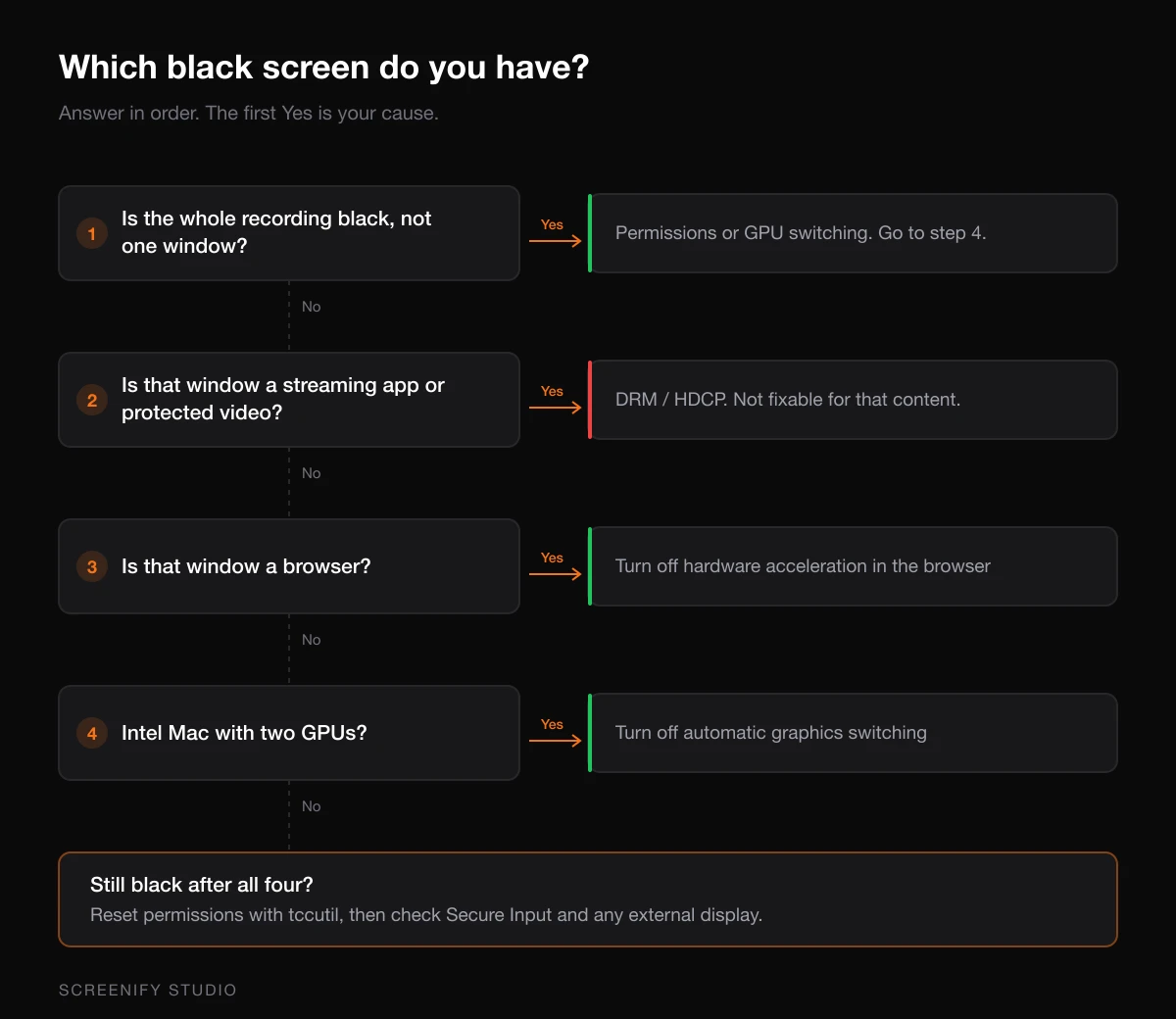
Diagnostic Flowchart
Work through this sequence to identify your specific cause:
-
Does the black screen affect only one window or the entire recording?
- One window only: likely DRM (Cause 1) or hardware acceleration (Cause 4)
- Entire recording: likely permissions (Cause 2) or GPU switching (Cause 3)
-
Is the blacked-out window a streaming app or browser playing protected content?
- Yes: DRM protection (Cause 1). Not fixable for that content.
- No: Continue to step 3.
-
Is the blacked-out window a browser?
- Yes: Try disabling hardware acceleration (Cause 4). If it fixes it, that was the issue.
- No: Continue to step 4.
-
Are you on an Intel Mac with dual GPUs?
- Yes: Try disabling automatic graphics switching (Cause 3).
- No: Continue to step 5.
-
Check Screen Recording permissions (Cause 2). Reset with
tccutiland re-grant. -
Check Secure Input (Cause 5) and external display connections (Cause 6).
If none of these resolve the issue, try a different screen recorder to determine whether the problem is with your specific tool or with macOS itself. Screenify Studio and QuickTime use different capture APIs, so testing with both helps isolate the cause. OBS Studio offers yet another capture approach and can serve as a third diagnostic tool.
Preventing Black Screen Issues
A few proactive steps can prevent most black screen problems:
Grant screen recording permission proactively. Before you need to record, open System Settings and pre-authorize your recording apps. Don't wait for the permission prompt during an important recording.
Close DRM content before recording. If you're recording a tutorial and have Netflix open in another tab, close it. DRM enforcement sometimes affects adjacent windows or the entire display output in edge cases.
Keep macOS updated. Apple regularly patches ScreenCaptureKit and the underlying capture frameworks. Bugs that cause black frames on one macOS version are often fixed in the next point release.
Test before important recordings. Do a 10-second test capture before any important session. Verify the output shows your screen content. Catching a black screen before a 30-minute presentation recording saves significant time.
FAQ
Q: Why does Netflix show a black screen in my recording but YouTube doesn't?
Netflix uses Widevine DRM (in browsers) and FairPlay DRM (in the macOS app), both of which enforce HDCP. When HDCP is active, the screen capture API receives black frames for the protected window. YouTube doesn't use HDCP for most content (except some YouTube Premium offline content), so standard videos capture normally. This is a deliberate content protection measure, not a bug in your recorder.
Q: I granted screen recording permission but still get a black screen. What now?
Try resetting the permission entirely with tccutil reset ScreenCapture in Terminal, then re-grant it. If that doesn't work, the black screen isn't permission-related — check hardware acceleration in your browser (Cause 4), GPU switching on Intel Macs (Cause 3), or Secure Input mode (Cause 5). Also verify by trying to record a simple app like TextEdit — if TextEdit captures fine but a specific app shows black, the issue is app-specific.
Q: Does this happen on Apple Silicon Macs too?
Yes, but fewer causes apply. Apple Silicon Macs don't have the dual GPU switching issue (Cause 3). DRM protection (Cause 1), permission issues (Cause 2), hardware acceleration conflicts (Cause 4), and Secure Input (Cause 5) still apply on Apple Silicon. In general, black screen issues are less common on M-series Macs because the unified architecture eliminates the GPU-related capture bugs.
Q: Can disabling hardware acceleration in Chrome cause other problems?
Yes. With hardware acceleration off, Chrome uses the CPU for rendering, which increases CPU usage and can cause slower page rendering on complex sites. Video playback (on sites like YouTube) will use more CPU and battery. Scrolling may feel less smooth on pages with heavy animations. For most browsing, the difference is minor — but if you do GPU-intensive work in the browser (WebGL, Canvas-heavy apps), re-enable hardware acceleration when you're not recording.
Q: Why does my screen recording show black only on my external monitor?
External monitors connected via HDMI involve an HDCP handshake. If the adapter or cable doesn't properly handle HDCP, macOS may treat the external display output as protected content. Try a different adapter (preferably Apple's official one), use a direct USB-C/Thunderbolt connection, or record from your built-in display instead. See Cause 6 for detailed steps.
Q: I'm getting a black screen when recording a virtual machine (Parallels/VMware). How do I fix it?
Virtual machines use GPU acceleration for their display output, similar to browser hardware acceleration. In Parallels, go to your VM's Configuration, then Hardware, then Graphics, and try switching between Apple and Auto GPU settings. In VMware Fusion, try disabling Accelerate 3D Graphics in the display settings. If the VM window still shows black, try recording the entire screen rather than the VM window specifically — full-screen capture sometimes captures the composited output that window-specific capture misses.
Q: Will using a different screen recorder fix black screen issues?
It depends on the cause. DRM protection (Cause 1) blocks all recorders equally — no tool can bypass HDCP. For permission issues (Cause 2), any properly permissioned app works. For hardware acceleration and GPU-related causes (Causes 3, 4), different recorders use different capture APIs, so switching can help. Screenify Studio uses ScreenCaptureKit (Apple's modern API), while QuickTime uses an older framework. OBS uses yet another approach. If one tool shows black, trying another is a valid diagnostic step, as discussed in our complete recording guide.
Q: Is there a way to test if DRM is causing the black screen without trial and error?
Open the suspected DRM app, then take a screenshot (Cmd + Shift + 4 and select the app window). If the screenshot shows the app's content, DRM isn't the cause — screen capture is working for that app. If the screenshot shows a black or grey rectangle where the video content should be, DRM is actively blocking capture for that window. This is a quick test that doesn't require starting a full recording.

Try Screenify Studio
Record your screen with auto-zoom, AI captions, dynamic backgrounds, and Metal-accelerated export. Free plan, unlimited recordings.
Download Free



