Mac Screen Recording Keeps Stopping? 5 Fixes
Recording quits on its own mid-session? Disk space, thermal throttling, app crashes, power management and background jobs — the five causes, ranked.
You are twenty minutes into recording an important presentation when the capture silently stops. No error message, no warning. You only discover it later when you check the file and find it ends abruptly, missing the most critical part of your session.
Unexpected recording termination is one of the most disruptive screen recording problems because it is often silent and unpredictable. The recording might stop after ten minutes, an hour, or at seemingly random intervals. The causes are always systemic: disk space exhaustion, thermal throttling, app crashes, macOS power management, or background process interference.
This guide covers every common cause, how to diagnose each one, and the configuration changes that prevent premature recording stops.
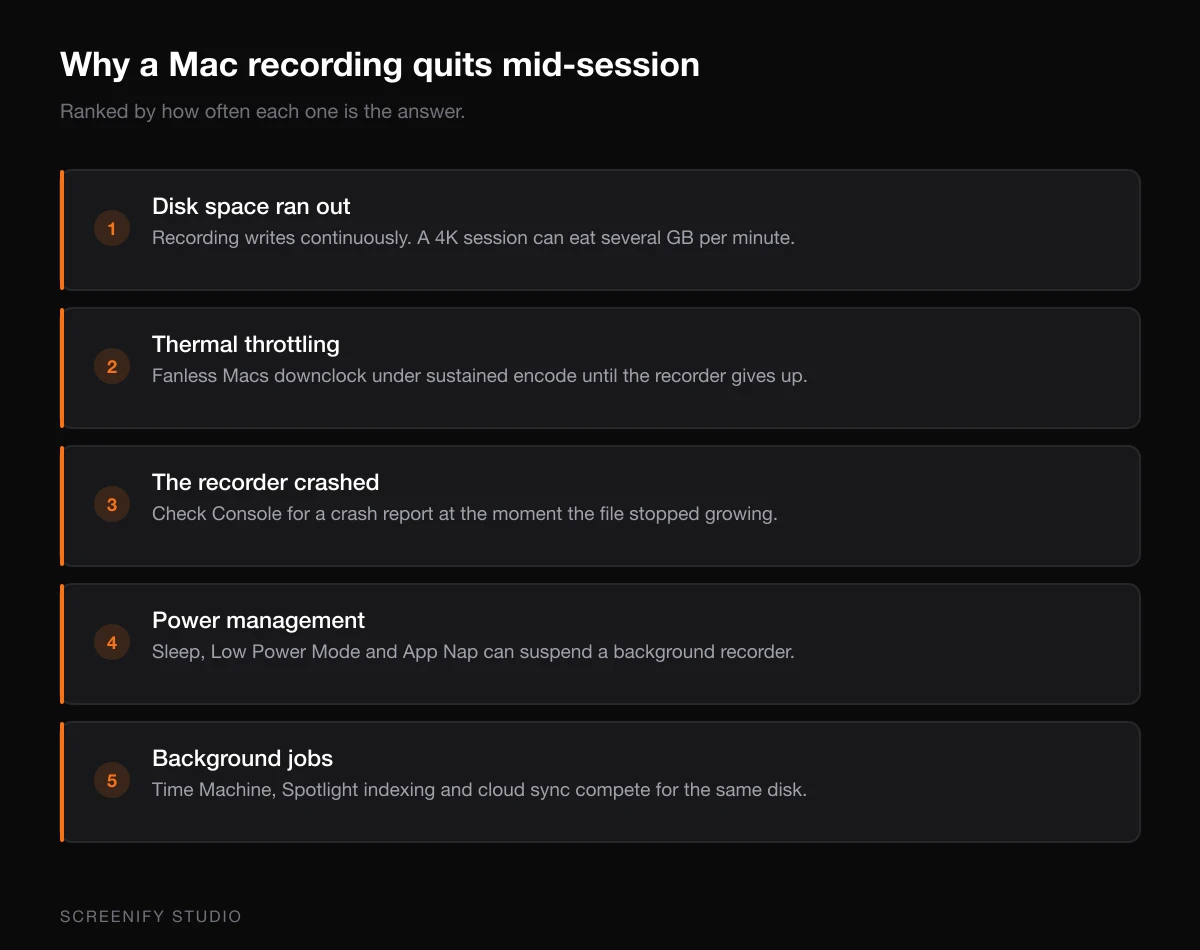
Cause 1: Insufficient Disk Space
Why It Happens
Screen recording generates large files quickly. A 1080p recording at 30 fps with H.264 encoding produces roughly 1 to 2 GB per 10 minutes, depending on screen content complexity. At 4K resolution, that number jumps to 4 to 8 GB per 10 minutes. Retina displays on MacBook Pros capture at native resolution (3024 x 1964 on a 14-inch M-series Mac), which sits between 1080p and 4K in terms of file size.
When available disk space drops below a critical threshold, macOS or the recording application terminates the capture to prevent the system drive from filling completely. A full system drive causes widespread instability: apps crash, swap memory fails, and the system can become unresponsive.
How to Diagnose
Check your available disk space:
- Click the Apple menu, then System Settings, then General, then Storage
- Alternatively, open Terminal and run:
df -h /Look at the "Available" column. If you have fewer than 20 GB free, disk space is likely your problem.
You can also check if a previous recording was truncated by examining its file size relative to duration. A 10-minute 1080p recording that is only 200 MB was almost certainly cut short by a write failure.
The Fix
Immediate: Free up at least 50 GB before recording. Target areas for quick space recovery:
- Empty Trash: Right-click the Trash icon in the Dock, select Empty Trash
- Remove old recordings: Previous screen recordings in
~/Desktopor~/Moviesoften accumulate - Clear Xcode derived data (developers):
rm -rf ~/Library/Developer/Xcode/DerivedData - Offload large files to external storage or cloud
Long-term: Configure your recorder to save to an external SSD. USB-C SSDs deliver 500+ MB/s write speeds, more than sufficient for screen recording. This keeps your system drive free for macOS operations while giving the recorder dedicated write bandwidth.
Monitor during recording: Keep Activity Monitor open with the Disk tab visible. If write throughput drops to zero during recording, the drive is struggling.
Cause 2: Thermal Throttling
Why It Happens
Extended screen recording generates sustained CPU and GPU load. On MacBook models without active fans (MacBook Air), or in environments where airflow is restricted (laptop on a blanket, closed-lid clamshell mode with inadequate ventilation), the internal temperature rises until macOS throttles performance to prevent hardware damage.
When throttling is severe, the encoding pipeline cannot maintain real-time performance. Frames queue up faster than the encoder can process them, the buffer overflows, and the recorder either drops to an unusable frame rate or terminates the session entirely.
Intel-based Macs are particularly susceptible because their CPUs generate more heat under sustained load. Apple Silicon Macs handle prolonged encoding better due to their dedicated media engines, but they can still thermal-throttle under extreme conditions (direct sunlight, high ambient temperature, sustained 4K recording while running intensive applications).
How to Diagnose
Check thermal state during recording:
sudo powermetrics --samplers smc -i 5000 -n 1This shows CPU and GPU temperatures. On Apple Silicon Macs, CPU die temperature above 95 degrees Celsius indicates active thermal throttling.
Check for throttling events in Console:
- Open Console.app (Applications, then Utilities)
- Filter for
thermalmonitordorthermal - Look for messages about performance state changes during your recording timeframe
Behavioral signs: If the recording stops after a consistent duration (always around 15 to 20 minutes), and the Mac's chassis is hot to the touch, thermal throttling is the primary suspect.
The Fix
Improve cooling:
- Use a laptop stand with open airflow underneath
- Ensure the Mac's vents are unobstructed (rear edge on MacBook Pro, hinge area on MacBook Air)
- In hot environments, consider a laptop cooling pad with active fans
- Avoid clamshell mode for long recordings unless using an external fan
Reduce thermal load:
- Close resource-intensive applications before recording
- Reduce recording resolution if the content allows it (1080p instead of Retina native)
- Use hardware-accelerated encoding to shift load from CPU to the dedicated media engine
- Disable Turbo Boost on Intel Macs using third-party utilities (reduces peak temperature at the cost of baseline performance)
Choose the right encoder: Software encoders (x264 in OBS, for example) generate significantly more heat than hardware encoders. On Mac, any recorder using Apple's VideoToolbox or Metal framework offloads encoding to purpose-built silicon that runs cooler and more efficiently. Screenify Studio's Metal-accelerated pipeline specifically targets sustained recording sessions on Apple Silicon without triggering thermal limits.
Try Screenify Studio — free, unlimited recordings
Auto-zoom, AI captions, dynamic backgrounds, and Metal-accelerated export.
Cause 3: Application Crash
Why It Happens
Screen recording applications can crash due to memory leaks over time, incompatible system extensions, or bugs triggered by specific screen content (certain pixel patterns, color space transitions, or display configuration changes).
A common trigger is connecting or disconnecting an external display during recording. The display configuration change forces the capture pipeline to reconfigure, and if the recorder does not handle this gracefully, it crashes.
Another trigger is memory pressure. Long recordings accumulate data in memory buffers before flushing to disk. If the application has a memory leak, or if macOS reclaims memory under pressure, the recorder may crash without saving the current buffer.
How to Diagnose
Check Console.app for crash logs:
- Open Console.app
- In the sidebar, expand Crash Reports
- Look for entries matching your screen recorder's name
- The crash report shows the thread that crashed and the responsible code path
Check for recent crashes via Terminal:
ls -la ~/Library/Logs/DiagnosticReports/ | grep -i "screen\|record\|obs\|screenify"If you find crash reports timestamped around the time your recording stopped, the application crashed.
Memory usage over time: Open Activity Monitor before recording, sort by Memory, and note your recorder's memory usage. If it climbs steadily over time (a memory leak), the app will eventually crash or be killed by macOS's memory pressure system (jetsam).
The Fix
Immediate:
- Update your recording software to the latest version (crash fixes are common in patches)
- Do not change display configuration during recording (no connecting/disconnecting monitors)
- Close other memory-intensive apps to give the recorder more headroom
- Restart the recorder before long sessions to clear any accumulated state
If crashes persist:
- Reset the application's preferences (check the app's documentation for preference file locations)
- Check if a macOS update introduced the issue (search the recorder's forums for your macOS version)
- Try an alternative recorder to determine if the issue is app-specific or system-wide
For OBS specifically: OBS crashes on macOS are often caused by third-party plugins. Disable all plugins (rename the obs-plugins folder), test, then re-enable one at a time to find the culprit.
Cause 4: macOS Power Management
Why It Happens
macOS aggressively manages power to extend battery life on laptops. Several power management features can interrupt screen recording:
Display sleep: If the display sleeps during recording, some recorders lose their capture source and stop. This is configured in System Settings, then Displays, then Advanced, then "Prevent automatic sleeping on power adapter."
App Nap: macOS may "nap" background applications to save energy. If the recorder's window is not visible (hidden behind other windows), App Nap can suspend its encoding pipeline. The recording appears to continue but frames are not being captured.
Power Nap and sleep: On battery power, macOS may put the system to sleep after a period of perceived inactivity, even if a recording is in progress. The system does not always recognize screen recording as "activity" that should prevent sleep.
How to Diagnose
Check pmset log for sleep events:
pmset -g log | grep -E "Sleep|Wake" | tail -20If the system slept during your recording session, you have found the cause.
Check for App Nap:
# While recording, check if the recorder is being napped
ps aux | grep -i "screen\|record"
In Activity Monitor, the "App Nap" column shows "Yes" for applications that macOS has suspended.
The Fix
Prevent display and system sleep during recording:
# Keep the system awake (run in a separate Terminal window)
caffeinate -dims
The caffeinate command prevents display sleep (-d), idle sleep (-i), disk sleep (-m), and system sleep (-s) until you press Control+C. Start it before recording and stop it when done.
Disable App Nap for your recorder:
- Find the recorder in Applications
- Right-click, select Get Info
- Check Prevent App Nap (if the option exists)
Alternatively, from Terminal:
defaults write com.your.recorder.bundleid NSAppSleepDisabled -bool YESSystem Settings adjustments:
- System Settings, then Displays, then Advanced: "Prevent automatic sleeping on power adapter" enabled
- System Settings, then Battery, then Options: Set "Put hard disks to sleep when possible" to off
- System Settings, then Lock Screen: Set screen lock timeout to a value longer than your recording duration
Cause 5: Time Machine and Background Processes
Why It Happens
Time Machine backups create significant disk I/O load. When a backup starts during recording, the system drive handles both the backup's read operations and the recorder's write operations simultaneously. On Macs with a single internal drive (which is all modern Macs), this I/O contention can cause the recording buffer to overflow, resulting in dropped frames or session termination.
Other background processes that can interfere:
- Spotlight indexing: Triggered after file changes, creates sustained disk and CPU load
- Software updates: macOS downloading and preparing updates in the background
- iCloud Drive sync: Large file syncs compete for both network and disk bandwidth
- Antivirus scans: Full-disk scans during recording sessions
How to Diagnose
Check if Time Machine ran during your recording:
tmutil latestbackupCompare the timestamp with when your recording stopped.
Check for Spotlight indexing:
mdutil -s /If indexing is enabled and you recently added large amounts of data, Spotlight may have been actively indexing.
Monitor I/O during recording:
iostat -w 2Watch for sustained high disk utilization during recording. If reads spike (indicating a backup or indexing operation) alongside your recording's writes, contention is the issue.
The Fix
Pause Time Machine before recording:
# Disable Time Machine temporarily
tmutil disable

# Re-enable after recording
tmutil enable
Or use System Settings, then Time Machine, then toggle the backup off temporarily.
Reduce Spotlight activity:
# Temporarily disable Spotlight indexing
sudo mdutil -i off /

# Re-enable after recording
sudo mdutil -i on /
Manage other background processes:
- Pause iCloud Drive sync: System Settings, then Apple ID, then iCloud, then iCloud Drive, then disable temporarily
- Defer software updates: System Settings, then General, then Software Update, then disable automatic updates
- Schedule recordings outside of backup windows
Try Screenify Studio — free, unlimited recordings
Auto-zoom, AI captions, dynamic backgrounds, and Metal-accelerated export.
The Pre-Recording System Check
Before any important recording session, run through this diagnostic checklist:
# Check available disk space (need 50GB+ free)
df -h / | awk 'NR==2{print "Available: "$4}'

# Check CPU temperature (Apple Silicon)
sudo powermetrics --samplers smc -i 2000 -n 1 2>/dev/null | grep "CPU die"

# Check for active Time Machine backup
tmutil status | grep Running

# Verify screen recording permissions
sqlite3 ~/Library/Application\ Support/com.apple.TCC/TCC.db \
  "SELECT client FROM access WHERE service='kTCCServiceScreenCapture';" 2>/dev/null
If disk space is under 50 GB, free space first. If a Time Machine backup is running, wait for it to finish or pause it. If the CPU is already hot, let it cool down before starting a long recording.
Choosing a Resilient Recorder
Not all screen recorders handle system stress equally. Key features that prevent unexpected stops:
Automatic file segmentation: Some recorders save in segments (for example, one file every 5 minutes). If the recording crashes, you lose at most one segment instead of the entire session.
Hardware encoding: Metal or VideoToolbox-based encoding runs on dedicated silicon, independent of CPU workload. This means intensive workflows do not compete with the encoder for resources.
Crash recovery: Advanced recorders flush their buffers to disk frequently, so even if the app crashes, the file up to the last flush point is recoverable.
System resource monitoring: Some recorders display disk space warnings and thermal alerts, giving you time to react before the recording terminates.
Screenify Studio implements progressive file flushing and Metal-accelerated encoding specifically to survive the system-level disruptions described in this guide. Even if macOS kills the process under extreme memory pressure, the recording file contains everything up to the last buffer flush.
Related Reading
- How to screen record without lag or dropped frames
- Fix screen recording black screen problems
- Complete guide to screen recording on Mac
FAQ
Q: My recording stops after exactly 60 minutes. Is there a time limit?
Some screen recorders impose recording duration limits, especially free tiers. Check your recorder's documentation for session limits. macOS's built-in Screenshot toolbar (Command+Shift+5) does not have a time limit, but it may stop if disk space runs low. If the stop happens at a consistent time, the recorder's configuration is more likely the cause than a system issue.
Q: Can I recover a recording that stopped unexpectedly?
It depends on the recorder and how it saves data. If the recorder writes to an MOV container progressively (which QuickTime-based tools do), the file up to the crash point is usually playable. MP4 containers, however, write their metadata index (moov atom) at the end of the file. If the recording crashes before this index is written, the file appears corrupted. You can attempt recovery with tools like untrunc or recover_mp4:
# Using untrunc (needs a working reference file)
untrunc working-reference.mp4 corrupted-recording.mp4
Q: Does recording to an external drive prevent stops?
Recording to an external SSD prevents disk-space-related stops on your system drive and eliminates I/O contention with Time Machine and Spotlight. However, external drives introduce their own risks: USB disconnection (bumped cable), drive ejection by macOS if the drive sleeps, and slower speeds if using USB 2.0 or a mechanical HDD. Use a USB-C SSD and ensure the cable connection is secure.
Q: Why does my recording stop when I switch to a different Space or full-screen app?
Some recorders capture the "main display" rather than a specific window. When you switch Spaces or enter a full-screen app, the display content changes, and the recorder may lose its capture target. Window-specific capture mode avoids this. In OBS, use "Window Capture" instead of "Display Capture." Screenify Studio maintains capture continuity across Space switches because it binds to the window, not the display.
Q: Is it better to record in shorter sessions to avoid crashes?
If you are experiencing unreliable recordings, segmenting into shorter sessions is a pragmatic workaround. Record in 15 to 20 minute segments and stitch them together in an editor. This limits your maximum data loss per crash. However, the proper fix is to address the root cause (disk space, thermal management, power settings) rather than working around it indefinitely.
Q: My MacBook Air stops recording faster than my MacBook Pro. Why?
The MacBook Air lacks an active cooling fan, which means it reaches thermal throttling thresholds faster under sustained load. Screen recording creates sustained encoding load, which is exactly the workload that separates fan-equipped Macs from fanless ones. The MacBook Pro's fans allow it to sustain higher performance for longer periods before throttling. If you regularly record long sessions on a MacBook Air, reduce resolution and frame rate to minimize thermal load.
Q: Does closing the lid during recording cause it to stop?
Yes, by default. Closing the MacBook lid triggers sleep, which stops all recordings. To record with the lid closed (clamshell mode), connect an external display, an external keyboard, a mouse or trackpad, and a power adapter. macOS will keep the system awake in clamshell mode with these peripherals connected. Use caffeinate -dims as an additional safeguard.
Q: Could a macOS update fix these issues?
macOS updates occasionally improve screen capture stability and power management. However, updates can also introduce new issues. After any macOS update, do a test recording before relying on it for important sessions. Check your recorder's release notes for macOS compatibility information, as recorder updates often ship shortly after macOS releases to address new compatibility requirements.

Try Screenify Studio
Record your screen with auto-zoom, AI captions, dynamic backgrounds, and Metal-accelerated export. Free plan, unlimited recordings.
Download Free



