Graphics: Motion Templates for Your Product Demos
Screenify Studio 2.6 adds Graphics: animated lower thirds, stats, flows, pricing cards, intros and end cards you drop onto a demo in one click.
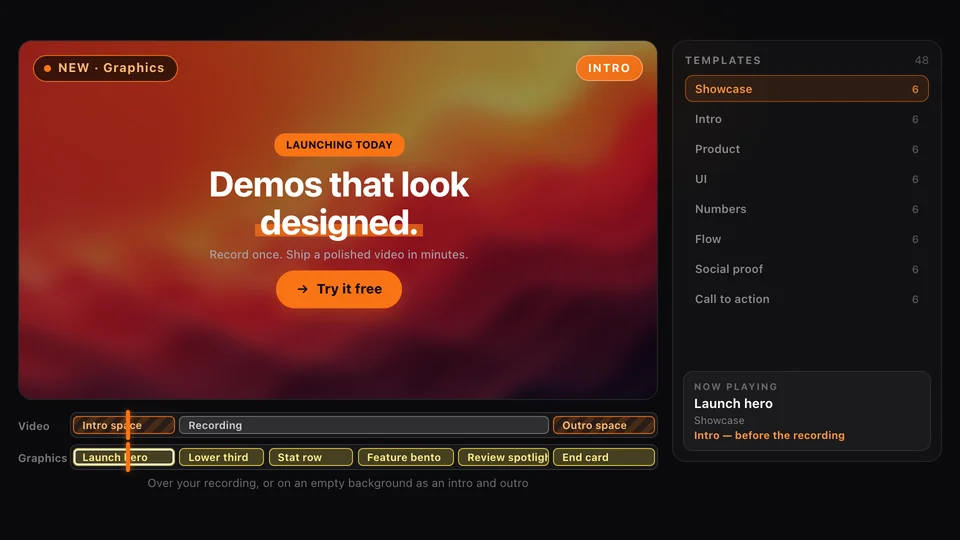
A screen recording shows what your product does. It rarely says who is talking, what the number on screen means, or what the viewer should do next. Teams usually fix that in a second app: they export the demo, open a motion design tool, rebuild a lower third and a closing card by hand, then render everything again.
Screenify Studio 2.6 brings that step into the editor. Graphics is a new track with ready-made animated templates: name tags, headline stats, step-by-step flows, pricing cards, social proof, launch openers and end cards. Pick one, type your words, and it animates in over your recording, styled to match the rest of the video.
What Graphics Are
A graphic is a short, designed piece of motion with its own timing. Each template is built from text, numbers, icons, buttons and panels, and every part has an entrance: words drop in one by one, numbers count up, cards pop in with a small stagger, a highlight sweeps across a phrase.
On the timeline, a graphic is a segment like any other. It has a start and an end, you can drag and resize it, and it plays its exit when the segment ends. Graphics sit in the screen layer, the same place as titles and captions, so they stay readable on top of device mockups, zoom and 3D camera moves.
48 Templates in 8 Groups
The library opens from the Graphics icon in the editor dock. Every card in the grid is drawn by the same renderer that draws the final video, and hovering a card plays its real animation, so you can compare motion before you add anything.
At launch there are 48 templates, arranged in eight groups:
| Group | What you'll find | Typical use |
|---|---|---|
| Showcase | Launch opener, feature grid, big number, before and after, review spotlight, end card | The first and last seconds of a launch video |
| Intro | Lower thirds, title card, chapter, big statement, episode | Naming the speaker, opening a section |
| Product | Feature card, feature grid, app badge, callout, keyboard shortcut, what's new | Explaining what a screen does |
| UI | Context menu, notification, chat bubbles, dialog, search bar, upload toast | Re-creating an interface moment cleanly |
| Numbers | Metric, progress, before and after, bar chart, stat row, milestone | Results and benchmarks |
| Flow | Steps, checklist, flow, icon steps, step indicator, timeline | Processes and roadmaps |
| Social proof | Testimonial, rating, trusted by, avatar stack, award badge, social post | Credibility before the call to action |
| Call to action | Call to action, pricing, follow, event, promo code, logo outro | Telling the viewer what to do next |
A search box above the grid matches names and descriptions. Click a card and the graphic lands at the playhead, four seconds long, ready to edit.
Over the Recording, or as an Intro
Most templates are designed to sit on top of your video: a lower third in the corner while you introduce yourself, a stat row over the dashboard it describes, a call-to-action button over the last few seconds.
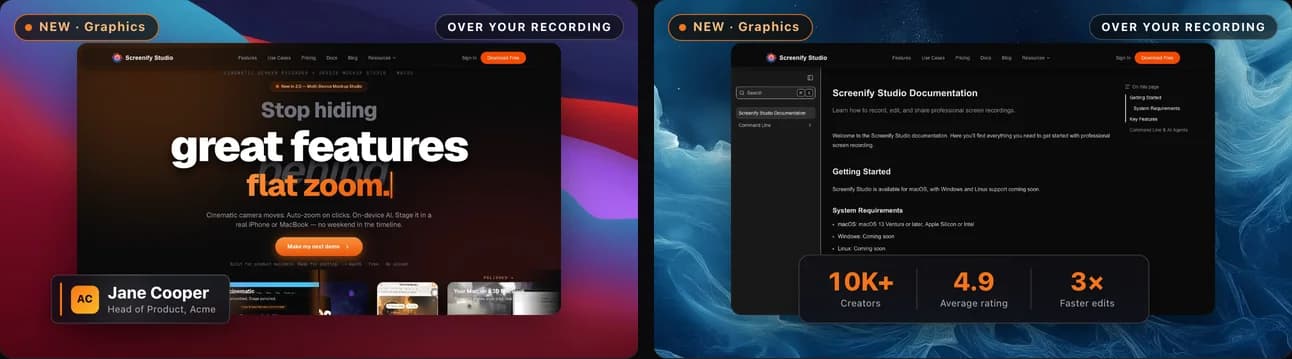

Full-frame templates work differently. The Showcase group, along with Title card, Chapter, Big statement and Logo outro, can stand on their own. Hover one of these cards and two buttons appear: Intro and Outro. Choose one and Screenify Studio adds an empty background section before or after your recording, then places the graphic on it. Your wallpaper, padding and music carry straight through, so the opener and the demo look like one video rather than two files joined together.
If you only want breathing room without a graphic, the + menu on the timeline has an Empty space option that adds the same kind of background section.
The Showcase Group
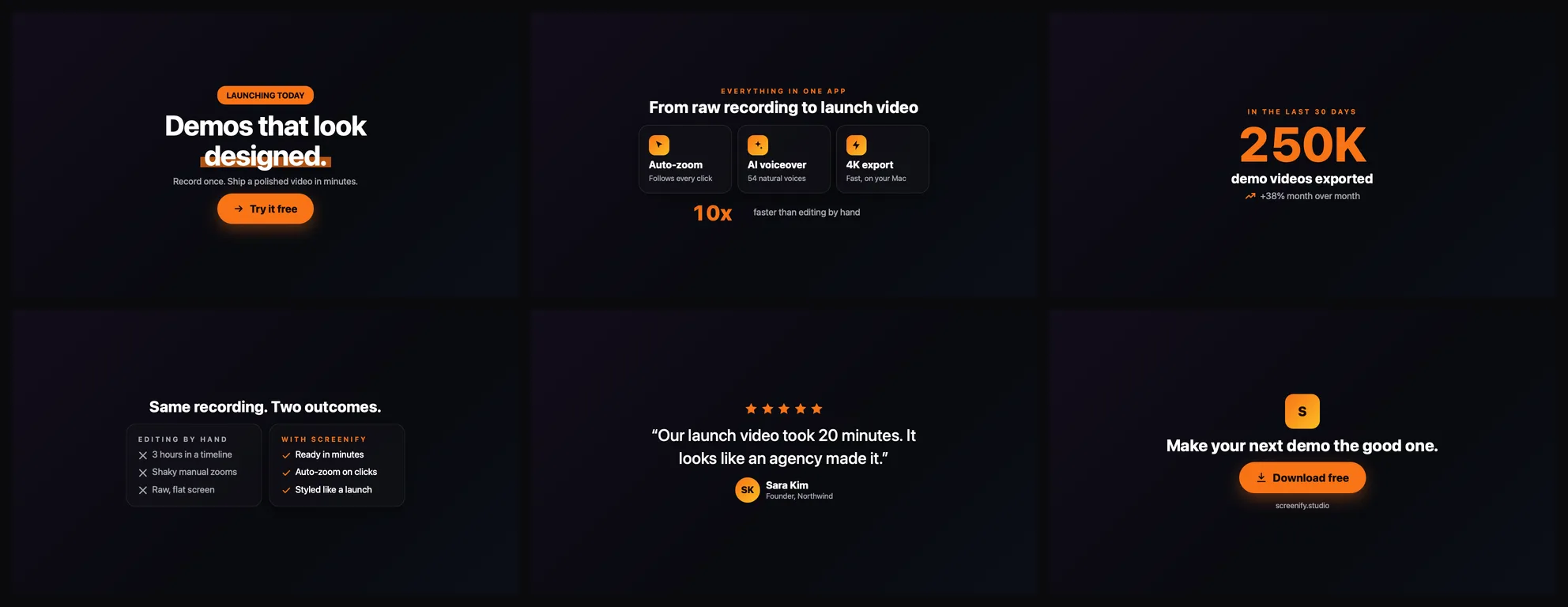
The newest group is built for launch videos. Six templates cover the shots a product video usually needs:
- Launch hero — a pulsing badge, a headline that lands word by word, a highlighted phrase and a button
- Feature bento — a grid of feature tiles that pop in one by one, with a large number counting up underneath
- Big number — one headline stat that counts up across the whole frame
- Before / after split — the old way crossed out, the new way checked off, side by side
- Review spotlight — five stars, a large customer quote and the person's name
- End card — your logo, one line, a pulsing download button and your URL
One Theme for Every Graphic
At the top of the Graphics panel you choose a theme: Screenify, Mono or Ocean. A theme sets the accent colour, panel colour, text colours and fonts for every graphic in the project at once, so a lower third, a stat row and an end card all look like they belong to the same brand.
You can still override any single graphic. Select it on the timeline and the properties panel shows six groups of controls:
| Section | What it changes |
|---|---|
| Content | The words, numbers, list items, icons and images in that template |
| Size & position | Overall size and one of nine anchor points, or drag the graphic directly on the canvas |
| Appearance | Accent and panel colour, frosted glass, corners, inset, spacing, width and border |
| Typography | Font, text colours, heading size and weight, body size |
| Shadow | Shadow on or off, colour, opacity, blur and offset |
| Motion | Entrance style, speed, stagger between elements and exit duration |
When your layout leaves an empty area beside the recording, Fit into free space places the graphic there instead of on top of your content. Panels with Frosted glass blur whatever is behind them, and that blur appears in the exported video exactly as it does in the editor.
Try Screenify Studio — free, unlimited recordings
Auto-zoom, AI captions, dynamic backgrounds, and Metal-accelerated export.
New Templates Without an Update
The template library is not fixed to the app version. New templates and new groups are delivered from our servers and appear the next time you open the editor, with no download. The Showcase group above reached the app this way during the 2.6 cycle, and more templates will follow between releases.
Works with AI Agents Too
Graphics are also available from the command line and to AI agents through the Screenify MCP server. An agent can add a template with a short instruction:
screenify effects my-demo.screenify --plan "graphic lower-third title='Jane Cooper' subtitle='CEO' start=2"An agent can also write a new template of its own in the same format the built-in templates use. Screenify Studio checks it against the same rules before using it, so a template written by an agent behaves like one from the library: it follows your theme, fits portrait and square canvases, and exports at full resolution. Videos exported from the command line include their graphics, just like videos exported from the app.
Free to Try, Pro to Export
Graphics are a Pro feature. On a free account you can open the library, add any template, change every setting and watch the result in the editor. Exporting a video that contains graphics asks you to upgrade, the same way Collage clips and AI Voiceover do.
What It Does Not Do Yet
- You can't design a template from scratch inside the app. You start from a template and change its content, layout, colours, fonts and motion. Building a new layout is currently done by an agent or by us.
- Templates use a fixed set of parts. Text, numbers, icons, images, buttons, panels and charts cover the library today; freeform drawing and particle effects are not part of it.
- A brand kit is next. Themes are the three built-in sets for now. Saving your own colours, fonts and logo as a reusable kit is coming in a later release.
Also in 2.6
- 17 timeline tracks. Graphics joins Text, Collage, Voiceover and the rest of the timeline.
- Captions-style layering. Graphics and animated titles share the same top layer, so neither ends up hidden behind a device mockup.
The full list is in the 2.6.0 changelog.
Graphics are available today in Screenify Studio 2.6.0 for Mac. Download Screenify Studio, open a recording, and add a lower third or an end card to see how much finished your next demo can look.

Try Screenify Studio
Record your screen with auto-zoom, AI captions, dynamic backgrounds, and Metal-accelerated export. Free plan, unlimited recordings.
Download Free



