Why Is My Screen Recording Blurry? Mac and iPhone
Blurry recordings come from Retina scaling, low bitrate, wrong export settings or upload compression. How to tell which one, and the fix for each.
You finished a screen recording, hit play, and the text looks smeared. Buttons are fuzzy. The crisp interface you recorded now looks like it was filmed through a dirty window. Blurry screen recordings are one of the most frustrating quality issues because the root cause isn't always obvious — the problem could originate during capture, during export, or even during playback.
This guide breaks down every cause of blurry screen recordings on Mac and gives you specific fixes for each one. By the end, you'll know exactly where your quality is being lost and how to preserve it.
Understanding Why Screen Recordings Lose Clarity
Screen recordings differ fundamentally from camera footage. Camera video captures continuous tones — skin, sky, landscapes — where slight softness is tolerable. Screen recordings capture text, UI elements, and sharp pixel boundaries where even minor blurriness is immediately noticeable.
A single pixel of text rendered at the wrong resolution or compressed with the wrong codec looks obviously wrong to the human eye. That's why screen recording quality demands more precision than general video capture.
Cause 1: Recording at the Wrong Resolution
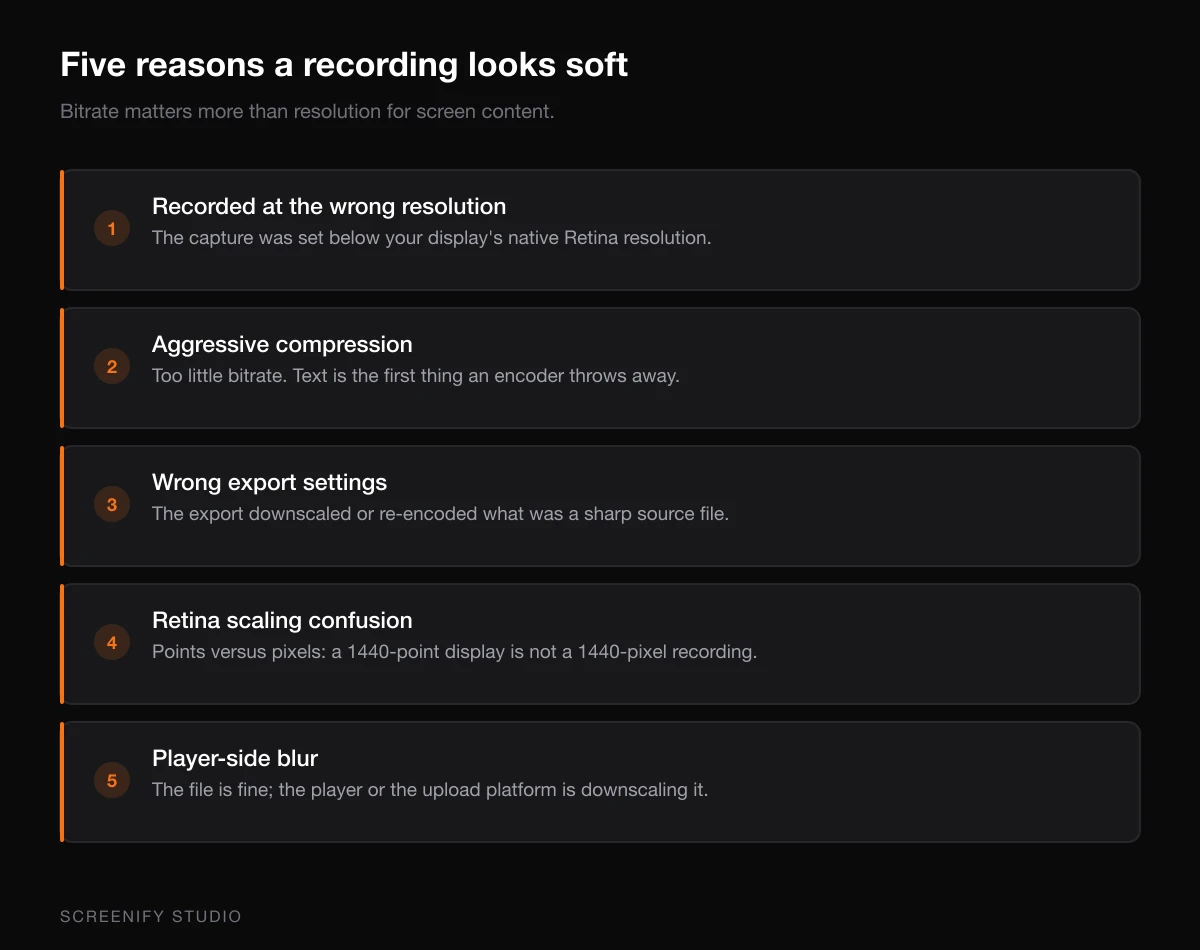
The most common cause of blurry recordings is capturing at a resolution lower than your display's native resolution.
Why it happens
On a Mac with a Retina display, your screen renders at 2x pixel density. A 14-inch MacBook Pro has a native resolution of 3024 x 1964 pixels, but macOS shows it at an effective resolution of 1512 x 982 "points." When a screen recorder captures at the point resolution instead of the pixel resolution, you get a recording at half the actual detail — and it looks blurry when played back at full size.
Some recording tools default to capturing at the "logical" (point) resolution rather than the physical pixel resolution. Others let you choose but default to a lower setting for smaller file sizes.
How to fix it
Step 1: Check your recorder's resolution setting
Before recording, verify that your tool captures at the native (physical) pixel resolution, not the scaled resolution. In QuickTime, this isn't configurable — QuickTime captures at the display's pixel resolution by default. But third-party tools often provide resolution options.
In Screenify Studio, recording always captures at native Retina resolution automatically. There's no downscaling during capture — what your display renders pixel-for-pixel is what gets recorded.
Step 2: Avoid display scaling before recording
If you've changed your Mac's display resolution in System Settings, then Displays, to "More Space" or a custom scaled resolution, your effective resolution changes. Record at the "Default" setting for the sharpest capture, or at least verify your recorder accounts for the current scaling.
Step 3: Check external monitor resolution
External displays introduce another variable. A 1080p external monitor connected to a Retina MacBook will produce recordings at 1920 x 1080 — which is sharp for that display but will look blurry if you expected Retina quality. If you need high-resolution recordings, capture from your Mac's built-in Retina display or use a 4K external monitor. See our 4K recording guide for detailed setup.
Cause 2: Aggressive Video Compression
Even if you record at the perfect resolution, compression during export can destroy clarity. This is the second most common cause of blurry recordings.
Why it happens
Video compression works by discarding information the algorithm considers "less important." For camera footage of natural scenes, this works well. For screen recordings full of sharp text and UI elements, compression algorithms often blur the exact details you care about — they smooth out text edges, merge similar-colored pixels in interface elements, and create visible artifacts around high-contrast boundaries.
The compression level is controlled by bitrate. Lower bitrate means more aggressive compression and more blurriness. Many tools default to bitrates optimized for camera footage, which are far too low for screen content.
How to fix it
Step 1: Increase the recording bitrate
If your recorder lets you set bitrate manually, use these minimum values for screen recordings:
- 1080p screen content: 8-12 Mbps (versus 4-6 Mbps typical for camera footage)
- 1440p screen content: 15-20 Mbps
- 4K screen content: 30-50 Mbps
These are significantly higher than what video platforms recommend because text and UI elements require more data to render sharply.
Step 2: Use a screen-optimized codec
Not all codecs handle screen content equally:
- Apple ProRes — Excellent for screen recordings. Nearly lossless quality but large files. Good for archival or when you'll edit the footage later.
- H.265 (HEVC) — Good compression-to-quality ratio. Better than H.264 for screen content at the same bitrate. Hardware-accelerated on all Apple Silicon Macs.
- H.264 — Adequate if bitrate is high enough, but requires more data than H.265 to achieve the same clarity on screen content.
Screenify Studio uses Metal-accelerated HEVC encoding by default, which maintains text sharpness while keeping file sizes reasonable. The hardware encoding path on Apple Silicon is particularly efficient for screen content.
Step 3: Avoid double compression
If you record in one codec, then export in another, then upload to a platform that re-encodes — you've compressed the video three times. Each pass degrades quality. Record in the highest quality your workflow allows, then compress only once for the final output.
Try Screenify Studio — free, unlimited recordings
Auto-zoom, AI captions, dynamic backgrounds, and Metal-accelerated export.
Cause 3: Wrong Export Settings
Your recording might be perfectly sharp, but export settings can ruin it before the file even reaches your audience.
Why it happens
Export presets in video editors are often designed for camera footage. When you apply a "YouTube 1080p" preset to a screen recording, the bitrate and encoding parameters may be tuned for natural scenes, resulting in blurry text and UI elements in your screen capture.
Additionally, some editors resize during export. If your source is 2880 x 1800 (Retina) and you export at 1920 x 1080, the downscaling algorithm matters enormously. Poor downscaling introduces aliasing and blur.
How to fix it
Step 1: Export at source resolution
Always check that your export resolution matches your recording resolution. If you recorded at 2880 x 1800, export at 2880 x 1800. Downscaling should only happen when necessary — and when it does, use Lanczos resampling if your editor offers it (it preserves sharpness better than bilinear or bicubic methods).
Step 2: Override preset bitrates
Don't trust presets for screen content. Manually set the bitrate to at least 2x what the preset suggests. In Final Cut Pro, use a custom export setting. In FFmpeg:
ffmpeg -i input.mov -c:v libx265 -b:v 20M -preset slow output.mp4The -preset slow flag tells the encoder to spend more time optimizing quality, which particularly benefits sharp-edged screen content.
Step 3: Check the output file
After exporting, play the file at 100% zoom (not fit-to-window) and examine text areas. If text looks soft, your bitrate is too low or the resolution was changed during export. Compare file size — if your 5-minute Retina recording is under 100 MB, it's likely over-compressed.
Cause 4: Retina Scaling Confusion
This is a Mac-specific issue that catches many people off guard.
Why it happens
macOS Retina displays render everything at 2x the logical resolution. When a screen recorder captures at the logical resolution (1440 x 900 on a MacBook Pro instead of 2880 x 1800), it produces a recording that looks fine on the same display but blurry on non-Retina screens or when zoomed in.
Worse, some recorders capture at 2x but then downscale to 1x during export, discarding half the detail they just captured.
How to fix it
Step 1: Verify the actual recording dimensions
After recording, right-click the file, select Get Info, and check the dimensions. If you're on a Retina Mac, the recording should show the physical pixel dimensions (e.g., 2880 x 1800), not the logical dimensions (1440 x 900).
Step 2: Test playback at native resolution
Open the recording in QuickTime and press Cmd + 1 to view at actual size. If it looks sharp at actual size but blurry when the window is smaller, the recording itself is fine — the blurriness is from downscaling during playback. This is normal and expected.
Step 3: Use a recorder that handles Retina correctly
QuickTime captures at native Retina resolution automatically. Screenify Studio does as well, with the added benefit of optimizing the encoding specifically for screen content. If your current tool produces logical-resolution recordings on a Retina Mac, switch to one that respects the physical pixel grid.
Cause 5: Player-Side Blurriness
Sometimes the recording is perfectly sharp, but the playback environment makes it look blurry.
Why it happens
Video players resize video to fit their window. If your 4K recording plays in a small window, the player downscales it — and not all players downscale well. Additionally, streaming platforms (YouTube, Vimeo) re-encode uploaded videos. Even if you upload a pristine file, the platform's encoder may introduce blur.
How to fix it
Step 1: Check playback at 100% zoom
Before blaming the recording, view it at actual pixel size. In QuickTime: View, then Actual Size (Cmd + 1). In VLC: Video, then Zoom, then 1:1. If it's sharp at 100%, the recording is fine.
Step 2: Wait for platform processing
YouTube processes uploaded videos over time. A freshly uploaded video may only be available at 360p or 720p initially. Wait 30-60 minutes for YouTube to finish processing all quality levels, then reload the page and select the highest available resolution.
Step 3: Upload at higher-than-target resolution
Because platforms re-encode and slightly degrade quality, upload at a higher resolution than your target viewing resolution. If your audience watches at 1080p, upload at 1440p or 4K. The extra resolution gives the platform's encoder more data to work with, resulting in a sharper final output even after re-encoding.
Try Screenify Studio — free, unlimited recordings
Auto-zoom, AI captions, dynamic backgrounds, and Metal-accelerated export.
iPhone and iPad: A Different Set of Causes
The five causes above are desktop problems. On iOS the recorder gives you no settings at all — no resolution picker, no bitrate control — so when an iPhone screen recording looks blurry, the cause is almost always what happened after the recording.
It was sent through a messaging app. Messages, WhatsApp, Instagram and Telegram re-encode video on the way out, and screen content with fine text suffers more than camera footage. The file on your phone is sharp; the copy your colleague received is not. Send the original through AirDrop, Files, or an upload link instead and the difference is obvious.
iCloud Photos is showing you a proxy. With Optimize iPhone Storage enabled, the full-resolution file lives in iCloud and your device keeps a smaller version. Open the recording, wait for the download indicator to finish, then judge the quality. Exporting before the download completes hands the low-resolution proxy to whatever app you exported into.
You recorded protected video. Netflix, Disney+ and most streaming apps either black out or degrade under recording. That is DRM, not a quality setting — see the DRM section above.
The recording is fine and the screen is not. iPhone recordings play back at native resolution, which is far denser than most displays they end up on. Zoom in during playback: if detail sharpens, the file was never blurry.
There is no equivalent of the bitrate table above for iOS — Apple picks the encoder settings and does not expose them. The only lever you control is how the file leaves the device.
Bitrate: The Number That Matters Most
Many people focus on resolution as the primary quality indicator, but for screen recordings, bitrate is equally — sometimes more — important.
A 4K recording at 5 Mbps will look worse than a 1080p recording at 15 Mbps. Resolution determines how many pixels exist; bitrate determines how much data each pixel gets. For screen content with sharp text and crisp UI edges, starving pixels of data creates visible compression artifacts that the eye interprets as blur.
Rule of thumb for screen recordings:
| Resolution | Minimum Bitrate | Recommended Bitrate |
|---|---|---|
| 1080p | 8 Mbps | 12-15 Mbps |
| 1440p | 15 Mbps | 20-25 Mbps |
| 4K | 30 Mbps | 40-50 Mbps |
These values are for H.265/HEVC. For H.264, increase by roughly 40% to achieve equivalent visual quality.
Quick Diagnostic Flowchart
Use this sequence to identify your specific blurriness cause:
- Check the recording file dimensions (Get Info on the file). Are they at native Retina resolution? If not, your recording resolution is the problem.
- Play at 100% zoom (Cmd + 1 in QuickTime). Sharp at 100%? Then blurriness is only during scaled playback — the recording itself is fine.
- Check the file size. A 5-minute 1080p screen recording should be at least 200-300 MB for high quality. Significantly smaller means over-compression.
- Look at specific areas. Blurry text but sharp icons? That's compression — text has more high-frequency detail that compression discards first. Uniformly soft? That's a resolution issue.
- Compare source and export dimensions. If they differ, downscaling during export introduced the blur.
FAQ
Q: Why does my screen recording look sharp on my Mac but blurry on my phone?
Your Mac likely has a Retina display showing the recording at or near native resolution. Your phone downscales the video to fit a smaller screen, and the phone's video player may use fast (lower quality) downscaling. This is a playback issue, not a recording issue. To verify, zoom into the video on your phone — if details sharpen as you zoom, the source file is fine.
Q: Should I record in 4K even if my display isn't 4K?
No. Recording resolution should match your display's native pixel resolution. If your display is 2560 x 1600, record at that. Recording at 3840 x 2160 when your display is 2560 x 1600 doesn't add real detail — it just upscales pixels and wastes disk space. For genuine 4K recording, you need a 4K display. See our 4K recording guide.
Q: Does frame rate affect sharpness?
Frame rate (fps) doesn't directly affect per-frame sharpness, but it has an indirect effect. At a fixed bitrate, higher frame rates mean less data per frame, which can reduce per-frame quality. If you're recording at 60fps and seeing blur, try 30fps at the same bitrate — each frame gets twice the data, which can improve text sharpness in screen recordings where motion smoothness matters less than frame clarity.
Q: Why does my QuickTime recording look blurry on YouTube?
YouTube re-encodes all uploaded videos. If your original is borderline on bitrate, YouTube's re-encoding pushes it below the sharpness threshold for screen content. Fix: export at a higher bitrate than you think necessary (at least 15 Mbps for 1080p screen content), or upload at 1440p/4K resolution even if you recorded at 1080p — YouTube allocates higher bitrates to higher resolution uploads.
Q: What's the best format for sharing screen recordings without quality loss?
For lossless sharing, use Apple ProRes (.mov) or uncompressed video. For practical sharing, H.265 at high bitrate offers the best balance. If you're sharing via a platform that re-encodes (YouTube, Vimeo, Google Drive preview), uploading at higher resolution and bitrate compensates for the quality loss during re-encoding. For direct sharing without re-encoding, Screenify Studio's sharing platform preserves the original encoding quality.
Q: Can I fix a blurry recording after the fact?
Partially. AI upscaling tools (like Topaz Video AI) can improve perceived sharpness, but they can't recover detail that was never captured or was destroyed by compression. They work by guessing what the sharp version should look like. For screen recordings with text, results are mixed — upscalers sometimes hallucinate characters. Prevention (recording at the right settings) is always better than post-processing.
Q: My OBS screen recording is blurry. What settings should I change?
In OBS, check three settings: Base Resolution should match your display's native pixel resolution. Output Resolution should match Base Resolution (no downscaling). Rate Control should be CRF with a value between 15-18 for screen content (lower numbers mean higher quality). Also ensure your Encoder is set to Apple VT H265 Hardware Encoder on Mac for the best quality-to-performance ratio.
Q: Does the recording format (.mov vs .mp4) affect quality?
The container format (.mov, .mp4, .mkv) doesn't affect quality — it's just a wrapper. What matters is the codec inside the container (H.264, H.265, ProRes) and the encoding settings (bitrate, CRF value). A .mov file with H.264 at 5 Mbps will be exactly as blurry as an .mp4 file with H.264 at 5 Mbps. Focus on codec and bitrate settings, not the file extension.

Try Screenify Studio
Record your screen with auto-zoom, AI captions, dynamic backgrounds, and Metal-accelerated export. Free plan, unlimited recordings.
Download Free



