Record & Auto-Edit Screen Demos From the Command Line
Four ways to record your screen from the command line on macOS — screencapture, FFmpeg, OBS, and a CLI that auto-edits as it records.
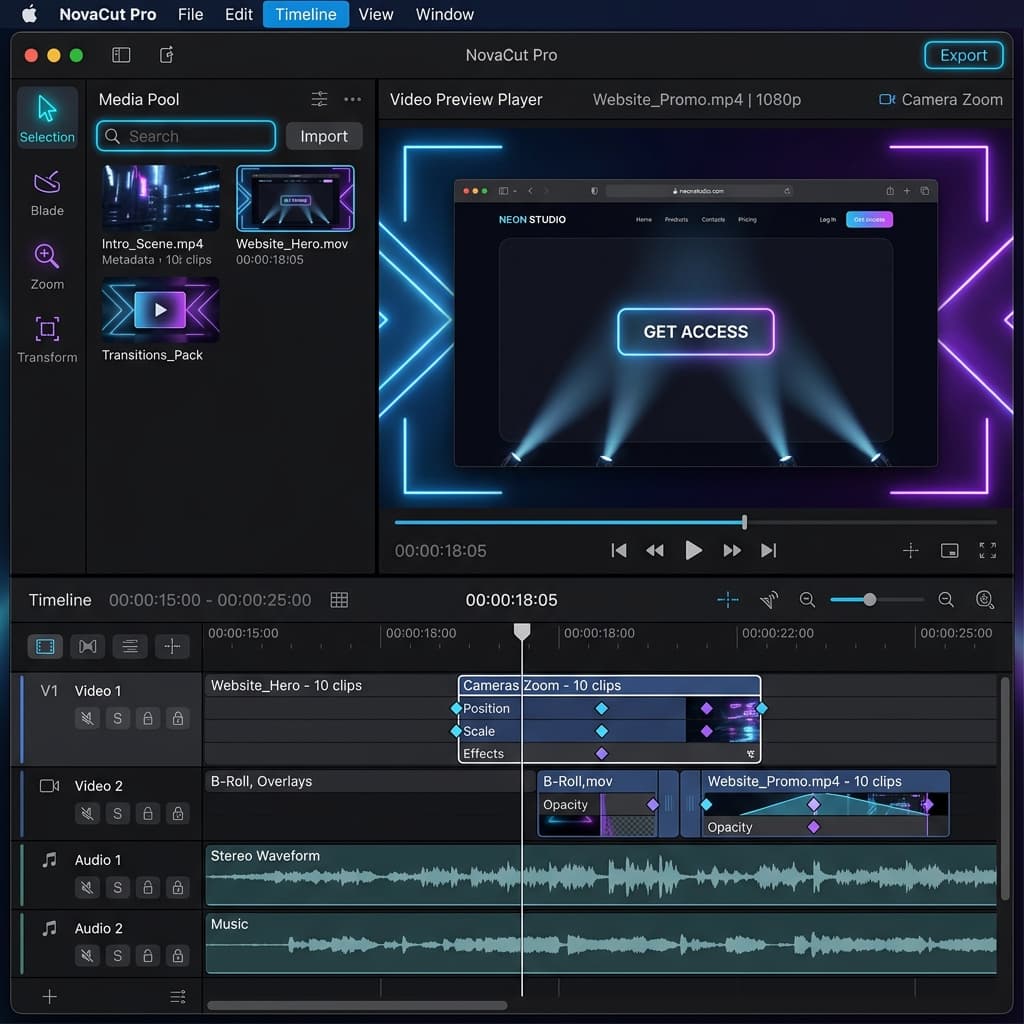
You want a screen demo to come out of a script — no mouse, no manual Start/Stop, no dragging clips around afterward. Maybe it runs in CI after every release. Maybe an agent triggers it to capture a bug repro. Maybe you just hate reaching for the trackpad when your hands are already on the keyboard.
macOS gives you more terminal-driven recording options than most people expect, and they span a wide range: a one-line built-in binary, a Swiss-army media tool, a broadcast suite you can drive headlessly, and a CLI that records and edits in the same pass. Each fits a different point on the effort/output curve. Below is a practical breakdown with real commands you can paste, plus where each one stops being useful.
Quick comparison
| Method | Cost | Best for | Difficulty |
|---|---|---|---|
screencapture -v (built-in) | Free | One-line captures, quick repros, iOS Simulator | Easy |
| FFmpeg + avfoundation | Free | Scripted raw capture, exact codec/fps control | Medium |
| Screenify CLI | Free tier + paid | Recording and auto-editing in one automated pass | Easy |
| OBS Studio (headless) | Free | Multi-source scenes, remote start/stop over WebSocket | Hard |
The split is roughly: built-in for "I need a file, now"; FFmpeg when you want surgical control over the raw stream; OBS when the recording itself is a composited scene; and Screenify when the output needs to look edited — zooms, cursor emphasis, blurred secrets — without a human sitting in an editor afterward.
Method 1: macOS built-in (screencapture -v and simctl)
The fastest path needs nothing installed. The same screencapture binary you've used for screenshots takes a -v flag to record video:
screencapture -v demo.movIt records the main display and writes to demo.mov. To stop, press Control-C in the terminal, or send the process a SIGINT from a wrapper script. Useful flags:
# Record a specific display by index
screencapture -v -D 2 second-display.mov

# Capture with the cursor visible
screencapture -v -C demo.mov

# Skip the dialog/sound, write straight to file
screencapture -v -x demo.mov
Because it's a plain executable, you can wrap it in anything. A timed capture is just screencapture backgrounded plus a sleep and a kill -INT:
screencapture -v -x demo.mov &
PID=$!
sleep 15
kill -INT $PID
wait $PID
For iOS demos, the matching built-in is simctl, which records whatever is running in the booted Simulator:
xcrun simctl io booted recordVideo demo.mp4That writes an MP4 of the Simulator window directly — handy in app pipelines where you want a clean device-framed capture rather than your whole desktop. If you do a lot of Simulator work, the standalone walkthrough on recording the iOS Simulator covers framing, audio routing, and the gotchas around picking the right booted device.
The built-in route trades control for convenience. There's no zoom, no cursor styling, no way to blur a region, and the output is exactly what the screen showed — warts and all. You also can't trim or annotate from the same command; you'd hand the file off to a second tool. For a throwaway repro that's perfect. For something people will actually watch, it's a starting frame, not a finished demo.
Method 2: FFmpeg with avfoundation
When you want the raw stream on your terms — exact frame rate, codec, bitrate, pixel format — FFmpeg talking to Apple's avfoundation input is the workhorse. Install it with Homebrew (brew install ffmpeg), then enumerate the capture devices first, because the indices change per machine:
ffmpeg -f avfoundation -list_devices true -i ""That prints something like:
[AVFoundation indev] AVFoundation video devices:
[AVFoundation indev] [0] FaceTime HD Camera
[AVFoundation indev] [1] Capture screen 0
[AVFoundation indev] AVFoundation audio devices:
[AVFoundation indev] [0] MacBook Pro Microphone
The input string is "video:audio" by index. To record screen 0 with no audio:
ffmpeg -f avfoundation -i "1:none" -r 60 demo.mp4To record screen 0 plus the built-in microphone at 60 fps:
ffmpeg -f avfoundation -i "1:0" -r 60 demo.mp4Press q to stop cleanly (it finalizes the moov atom; killing the process can leave an unplayable file). For scripted use, pipe a q into stdin or use a duration limit so it stops itself:
ffmpeg -f avfoundation -i "1:none" -r 60 -t 20 demo.mp4You get the full FFmpeg toolbox on the way out: pick a codec and tune for size (-c:v libx264 -crf 23 -preset veryfast), constrain to a region by cropping (-vf "crop=1280:720:0:0"), or down-scale for a lighter file (-vf scale=1280:-2). For something CI uploads as an artifact, that control matters — you can hold a recording to a predictable few megabytes instead of whatever the screen happens to produce.
The cost is that FFmpeg captures, it doesn't compose or edit. There's no cursor highlight, no zoom into the area you clicked, no callout when something happens. Audio device setup is the other rough edge: system audio isn't a real avfoundation device, so to capture what's playing (not just the mic) you need a virtual loopback device like BlackHole and an aggregate device set up in Audio MIDI Setup. That's a one-time chore, but it's a chore. FFmpeg gives you a clean, scriptable, exactly-specified raw recording. What it hands back is the unedited footage.
Method 3: Screenify CLI
This is the one that changes the shape of the problem. Screenify Studio ships a command-line tool where every command speaks JSON — input and output — so it drops cleanly into scripts, CI steps, and agent loops. The difference from the other three: it records and edits in the same automated pass. You don't get raw footage to clean up later; you get something that already looks produced.
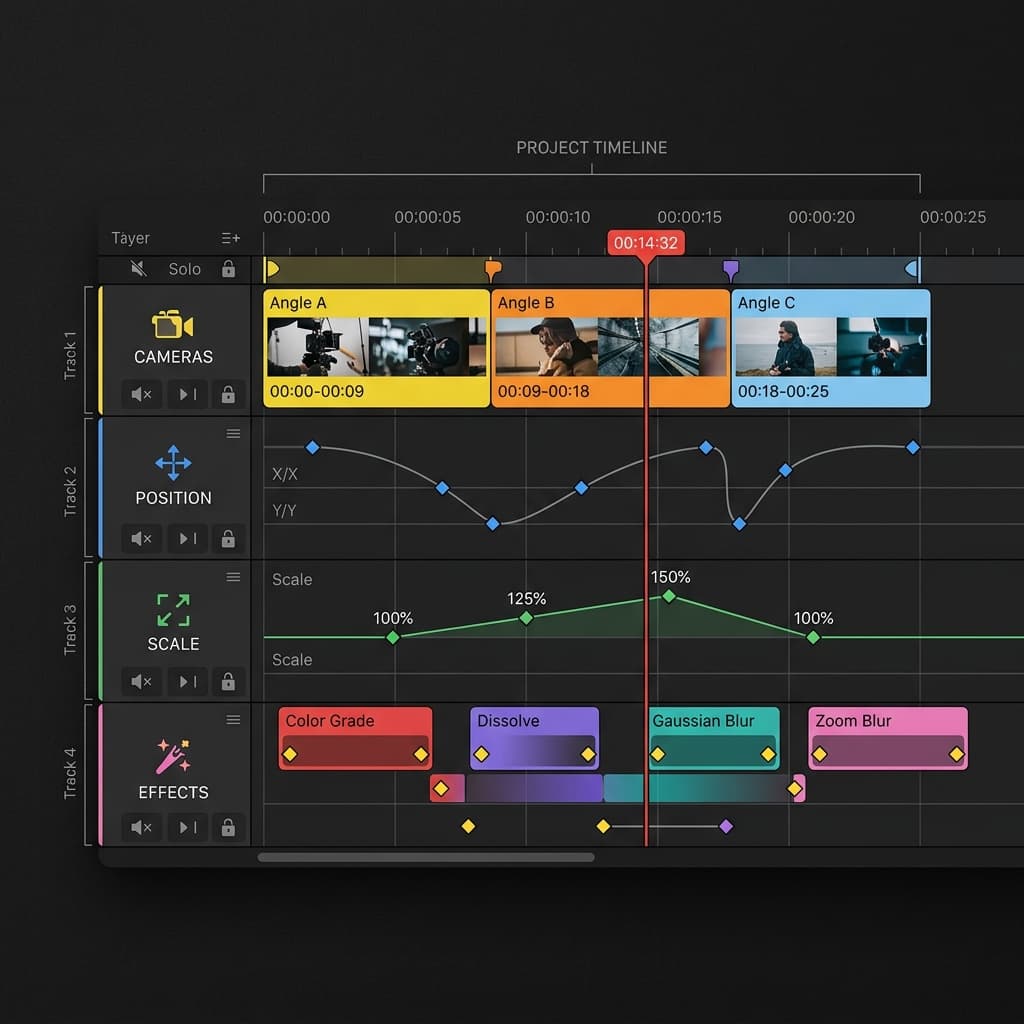
The core idea is an "AI Director" that watches the session and applies cinematic decisions while it records. At the start it can do an establish pan across the app so viewers orient before anything happens. As you work, the camera follows the cursor and zooms into the region you're acting on, then eases back out. On clicks it can drop callout cards. It can spotlight the active area and dim the rest, or paint a blur mask over a region you flag as sensitive — an API key, a customer's email, a billing panel — so secrets never make it into the export. All of that is decided and rendered as part of the recording, not bolted on by hand afterward.
Because every command emits JSON, you parse results instead of scraping logs. A run looks something like this — treat the flags as illustrative rather than copied from a man page:
# Illustrative — start a recording, get a JSON handle back
screenify record start --display 0 --director on
# => { "sessionId": "rec_8f2a", "state": "recording", "output": null }

# ...drive your app, run your test, whatever the demo shows...

# Stop and let the Director finish its pass
screenify record stop --session rec_8f2a
# => { "sessionId": "rec_8f2a", "state": "exporting", "project": "demo.scr" }
You'd hand it a region to protect or a target resolution the same way — through flags or a JSON payload on stdin — and read the resulting paths back out of the JSON. The point isn't the exact spelling of any flag; it's that the recorder is scriptable end to end and the editing is automatic.
Two things make this practical for real pipelines. First, native-quality export: the result is a proper MP4 rendered with the same engine the desktop app uses, not a re-encode of a screen grab. Second, the round-trip. A project created from the CLI opens in the Screenify desktop editor, so when the automated pass gets you 90% there, a human can nudge a zoom, retime a callout, or swap a label — then re-export. CI produces the draft; a person polishes only if it's worth it. The deeper mechanics of how the Director places these moves on a timeline are covered in the new Agent Timeline Effects / AI Director release, and the specific behaviors — like Smart Auto-Zoom and callouts and spotlights — each have their own write-ups if you want to see exactly what gets applied.
Where this wins over the other three is narrow and honest: it's the only option here that turns "record from the terminal" into "produce an edited demo from the terminal." If your output is a CI artifact nobody watches, FFmpeg is lighter. If your output is a video a customer, a reviewer, or your future self actually sits through, doing the editing in the same automated pass is the difference between shipping a clip and shipping a chore.
Try Screenify Studio — free, unlimited recordings
Auto-zoom, AI captions, dynamic backgrounds, and Metal-accelerated export.
Method 4: OBS Studio for automation
OBS Studio earns its place when the recording isn't a single screen — it's a composited scene with multiple sources: a window, a webcam corner, an overlay, a specific cropped region. You build that scene once in the GUI, then drive the recording without touching the GUI again.
The lightweight path is launch flags. OBS will start, begin recording, and tuck itself away:
/Applications/OBS.app/Contents/MacOS/OBS --startrecording --minimize-to-trayYou can pair --startrecording with --collection and --scene to pick exactly which scene collection and scene boot up, so one script can record the "release demo" layout and another records the "bug repro" layout from the same install. Quitting OBS finalizes the file.
For real start/stop control from code, the answer is the obs-websocket plugin (bundled in current OBS builds). It exposes a WebSocket API, so any language with a client library can connect and call StartRecord / StopRecord, switch scenes, toggle sources, and read the output path back. That turns OBS into a remotely controllable recorder — a test harness can stand it up, flip to the right scene, run, stop, and grab the file, all over a socket.
The trade-offs are real. Setup is heavy: install OBS, build the scenes, configure the encoder, wire up and authenticate the WebSocket. It's the most moving parts of any option here. And like FFmpeg, OBS records what the scene shows — it doesn't auto-edit. There's no follow-cursor zoom, no automatic spotlight, no blur-the-secret pass. You get powerful, scriptable capture of a composited scene; the storytelling is still on you. For multi-source recordings driven from code, nothing else here matches it. For a polished single-app walkthrough, it's a lot of rig for footage you'll still have to edit.
Troubleshooting
No audio captured via avfoundation. The most common surprise: your recording is silent even though you specified an audio index. macOS treats system audio (what's playing through your speakers) as something no built-in avfoundation device can see — the device list only exposes inputs like the mic. To capture playback, install a virtual loopback driver such as BlackHole, create an aggregate or multi-output device in Audio MIDI Setup, and point FFmpeg's audio index at that. If you only need the mic, double-check you used the audio index from -list_devices, not the video one.
Screen-recording permission. Any terminal-launched recorder needs the screen-recording entitlement granted to the app that launched it. That's usually your terminal emulator (Terminal, iTerm, the VS Code integrated terminal) — not the recording binary. Open System Settings > Privacy & Security > Screen & System Audio Recording and toggle on the terminal you run from. After granting it, fully quit and relaunch that terminal; the permission only takes effect on a fresh launch.
Black or empty recordings. A file that plays but shows a black frame almost always means the permission above is missing or stale — macOS hands back blank frames instead of erroring. The same happens when a recording was killed hard (a SIGKILL) so the file never finalized. Stop FFmpeg with q or SIGINT, not kill -9, and re-check the screen-recording toggle if frames come back empty.
Choosing the right avfoundation device index. Indices are not stable across machines and can shift when you plug in a camera, a capture card, or an external display. Never hard-code 1:0 in a script that runs elsewhere. Run -list_devices at the top of the script, grep the line containing Capture screen, and parse the bracketed number so the index is resolved fresh every run.
Huge files / choosing a codec. Raw or default-encoded captures balloon fast, especially at 60 fps on a Retina display. With FFmpeg, add -c:v libx264 -crf 23 -preset veryfast to get H.264 at a sane size, raise -crf toward 28 for smaller artifacts, or scale down with -vf scale=1280:-2. The built-in screencapture gives you little size control, which is another reason CI pipelines tend to reach for FFmpeg or a tool that exports an already-encoded MP4.
Try Screenify Studio — free, unlimited recordings
Auto-zoom, AI captions, dynamic backgrounds, and Metal-accelerated export.
FAQ
Can I record my screen from the command line on macOS without any app?
Yes. screencapture -v output.mov is built into macOS and records the main display straight to a file — no install, no GUI. Stop it with Control-C or by sending SIGINT to the process. It's the lowest-friction option, at the cost of zero editing and minimal control over codec and size.
How do I record a screen demo in CI?
Grant the screen-recording permission to whatever process the CI runner launches (this is the part people miss on self-hosted macOS runners), then call a recorder with a fixed duration or an explicit stop so nothing waits on human input. FFmpeg with -t for a timed clip is the simplest; a JSON-driven CLI is cleaner because you parse a structured stop response instead of watching stdout. Upload the resulting MP4 as a build artifact.
Does screencapture record audio?
screencapture -v records video and, depending on macOS version and flags, can include microphone audio, but it does not capture system/internal audio on its own. If you need the sound your app is playing, route it through a virtual loopback device, or use FFmpeg with that loopback as the audio input. For mic-only narration, the built-in path is fine.
Can I automate recording and editing together?
That's the one thing the raw-capture tools can't do. screencapture, FFmpeg, and OBS all hand you unedited footage. The Screenify CLI applies the edit during the recording pass — zoom, follow-cursor moves, spotlights, blur masks, click callouts — and exports a finished MP4, so a script produces a watchable demo rather than source material you still have to cut.
Is FFmpeg or OBS better for scripted recording?
FFmpeg if you're recording a single display or region and want exact control over codec, frame rate, and file size with almost no setup. OBS if the recording is a composited scene (window + webcam + overlay) or you need remote start/stop and scene switching over a socket via obs-websocket. FFmpeg is lighter; OBS is more capable for multi-source scenes. Neither edits the result.
How do I record the iOS Simulator from the terminal?
Use xcrun simctl io booted recordVideo demo.mp4, which captures the currently booted Simulator directly to an MP4 and stops on Control-C. It avoids recording your whole desktop and gives you a clean device capture. If multiple Simulators are booted, target one explicitly by its UDID instead of booted.
How do I stop a command-line recording from a script?
Send SIGINT (kill -INT $PID), not SIGKILL — a hard kill can leave the file's moov atom unwritten and the MP4 unplayable. FFmpeg also stops cleanly if you pipe q to its stdin. The safest pattern for unattended runs is a built-in duration limit (FFmpeg's -t, or a stop call after a known interval) so the process finalizes the file itself.
Why is my command-line recording black or empty?
Almost always a permissions issue: the terminal that launched the recorder doesn't have the Screen & System Audio Recording entitlement, so macOS returns blank frames rather than failing. Grant it in System Settings > Privacy & Security, then quit and relaunch the terminal. A black file can also come from a recording that was killed before it finalized.
The right tool depends on what comes out the other end. If you need a file for a quick repro, the built-in binary is already on your machine. If you need raw footage at an exact spec, FFmpeg is the scalpel. If you're recording a composited scene from code, OBS is built for it. And if the thing you're automating is an actual demo — something a person will watch, with the zooms and the secrets-hidden polish already done — recording and editing in one pass is what saves you the second job. Download Screenify Studio and try driving a recording from your terminal to see what the automated edit pass produces.

Try Screenify Studio
Record your screen with auto-zoom, AI captions, dynamic backgrounds, and Metal-accelerated export. Free plan, unlimited recordings.
Download Free



