AI Voiceover: Type a Script, Hear Your Video Narrated
Screenify Studio 1.19 turns any script into natural narration — 54 on-device AI voices in 9 languages, with subtitles generated straight from what you wrote.
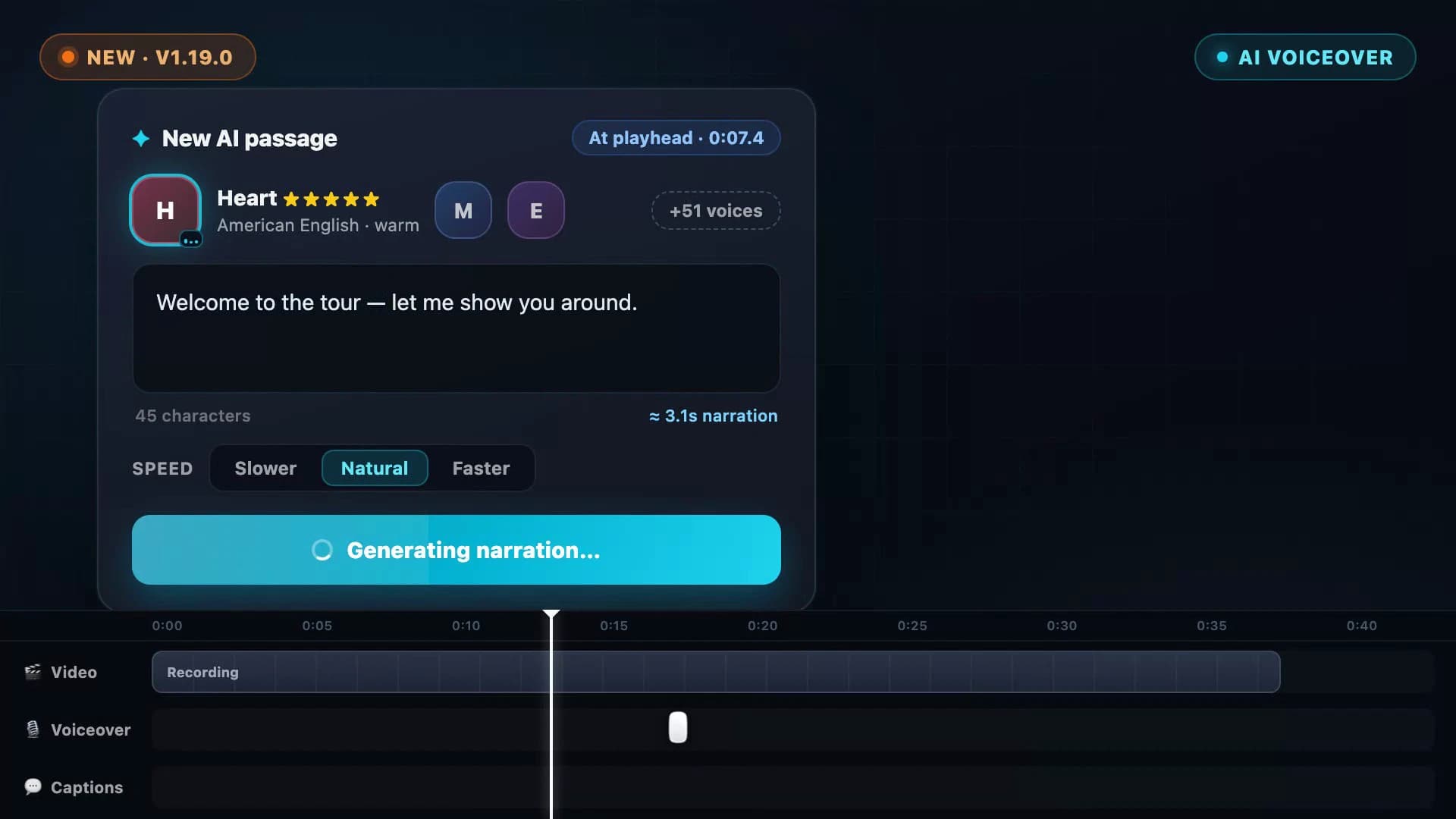
Narration is what turns a screen recording into a story — and it's also the part most people dread. You need a quiet room, a decent microphone, and the patience to re-record every stumble. Screenify Studio 1.19 removes all three requirements: write what you want said, pick a voice, and the narration appears on your timeline a few seconds later.
Type It, Hear It

Open the Voiceover tab and start a new AI passage. Write your script — or import a .txt or .md file you already have — choose a voice and a pace, and press Generate & Add voiceover. The finished passage lands exactly where you anchored it: at the playhead, right after an existing passage, or wherever you right-clicked on the Voiceover track.
Each passage stays editable. Select it later, tweak the wording, switch the voice, change the pace, and regenerate it in place — the timeline position and everything around it stay put.
54 Voices, 9 Languages
The Voice Library gives every voice a face and a personality: quality ratings at a glance, character traits like warm, bright, or confident, and instant previews so you can hear a voice before you commit. Filter by language or quality, search by name, and favorite the voices you keep coming back to — they'll be one click away the next time you write a passage.
English leads the lineup, joined by Japanese, Chinese, Spanish, French, Hindi, Italian, and Portuguese voices.
Subtitles Come Free
Because the narration starts as text, your captions don't need transcribing — they are the script. Flip on Subtitle from script and Screenify places synced captions on the Caption track, timed to the narration. Change the script and regenerate, and the subtitles follow.
Three Paces, One Natural Pitch
Some walkthroughs need room to breathe; some demos need momentum. Pick Slower, Natural, or Faster for any passage — the speaking rate changes, but the pitch stays natural, so a faster read never sounds like a chipmunk.
Private by Design
Everything happens on your Mac. After a one-time setup download (about 120 MB), voices generate locally — no account required for generating, no audio uploaded, and your script never leaves your device. It works on a plane, in a studio, or anywhere in between.
AI Voiceover joins the Voiceover track introduced in 1.18, so you can mix approaches freely: import a recorded narration for one section and generate an AI passage for the next, each with its own volume, fades, and subtitles.
Also in 1.19
The app got lighter, too. 3D device mockups now download on demand instead of shipping inside the app, and the wallpaper library syncs several files at a time — so both the download and the first launch are faster.
AI Voiceover is available today in Screenify Studio 1.19.0. Writing, generating, and previewing passages is free for everyone; exporting a video with AI narration is part of Pro. Download Screenify Studio and hear your next demo narrate itself.

Try Screenify Studio
Record your screen with auto-zoom, AI captions, dynamic backgrounds, and Metal-accelerated export. Free plan, unlimited recordings.
Download Free



