Narrate While You Watch It Back
Record narration in the editor while the preview plays — countdown, live mic meter, instant retakes, and audio that lands exactly where you started.
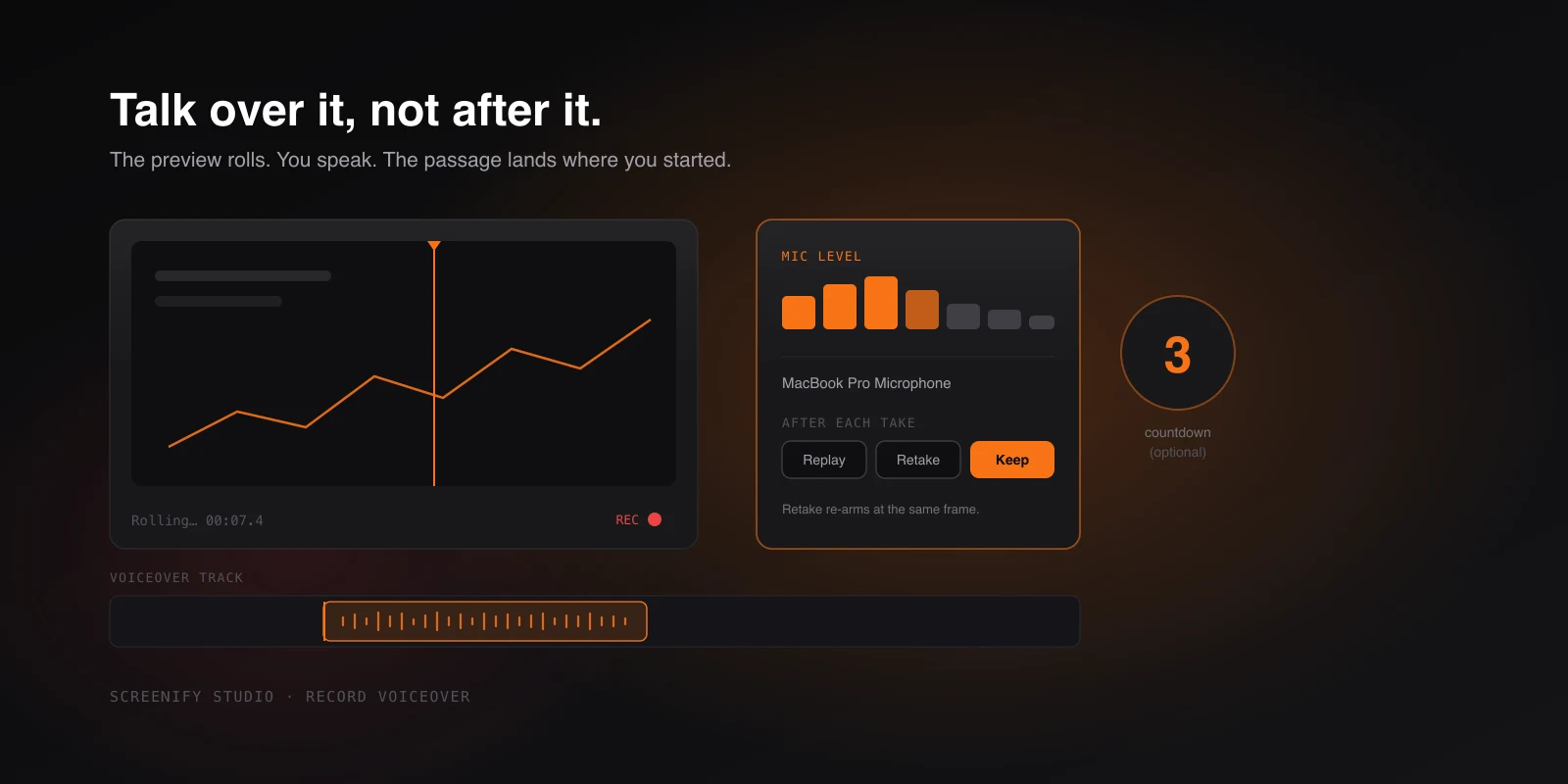
Narration is a timing problem long before it's an audio problem. The words have to arrive when the thing they describe is on screen — "and here's where it fails" needs to land on the frame where it fails, not two seconds after.
Recorded separately, that alignment is guesswork. You watch the video, write what you want to say, record it into a voice memo app, drag the file onto the timeline, and discover you're four seconds out. So you nudge. Then the next sentence is out by a different amount, because you didn't pause where the video pauses. What should have taken one minute becomes twenty minutes of shunting audio left and right.
The fix is not better nudging. It's recording the narration against the video instead of alongside it.
Hit record and talk over your own footage
In the editor, start a take from the timeline's + menu or by right-clicking the Voiceover track. The preview begins playing, and you talk over it. The passage lands on the Voiceover track at exactly the point you started speaking.
Nothing needs aligning afterwards, because nothing was ever misaligned. Recording begins the instant the video actually rolls — not when you pressed the key, not when the countdown ended, but when the first frame is genuinely on screen. That distinction is the entire feature: a fixed offset of even a few hundred milliseconds is precisely what makes hand-aligned narration feel slightly wrong without anyone being able to say why.
A 3-2-1 countdown gives you a moment to breathe before it rolls. If you'd rather go immediately, switch it off and recording starts the moment you press the key — and it remembers that preference.
A live mic meter sits on the record card, before and during the take. Being able to see that you're actually being picked up, at a sane level, before spending two minutes talking is a small thing that saves a whole re-record. You can also pick which microphone to use right there, without going near Settings.
Retakes that stay in place
Most narration is not right the first time. You stumble on a word, or you realise halfway through that the sentence is too long for the animation it's covering.
After each take you get three choices: Replay to hear it back against the video, Retake to go again, or Keep to commit it to the timeline.
The important part is what Retake does. It re-arms at the same starting point — same frame, same position on the track. You're not repositioning the playhead and hoping you catch the same moment. Try the line, listen, try it differently, listen again. The loop is fast enough that you'll do four takes where previously you'd have accepted the second one.
Later on, any recorded passage can be redone from its properties panel with Re-record. It swaps that passage in place rather than adding a second one beside it, so fixing one sentence in a finished narration doesn't disturb everything after it.
Try Screenify Studio — free, unlimited recordings
Auto-zoom, AI captions, dynamic backgrounds, and Metal-accelerated export.
It tells you when the preview stuttered
One failure mode is genuinely nasty and easy to miss. If the preview hitches while you're speaking, you narrate against a video that isn't playing at the speed the export will run at. The take sounds fine on its own and drifts out of sync in the finished video.
So the review step tells you when that happened. Rather than discovering it after export, you get a heads-up while you're still in the loop and can simply take it again.
Then turn it into captions
One click transcribes a recorded take into captions on the Caption track, timed to the passage. Since the passage is already positioned against the video, the captions inherit that alignment — you're not timing subtitles to audio that was itself timed by hand.
If your recording already has a microphone track from the original capture, a passage can mute the original mic for its duration, so your narration replaces the live audio instead of talking over it.
Three ways to get narration onto the timeline
Recording your own voice is one of three. Clicking an empty spot on the Voiceover track offers all of them: record it now, import an audio file you made elsewhere, or generate it with AI from a written script. They all land on the same track and take the same editing controls afterwards.
Which one fits depends on the video. Your own voice carries a product story better. A written script read by an AI voice is faster to revise and doesn't need a quiet room — useful when the narration will change three more times before launch.
Availability
Recording and importing narration are on the free plan, with the same countdown, meter and retake loop. AI-generated passages are a Pro feature — free exports skip them, and everything else is unaffected. Free exports are 1080p, watermarked and capped at five minutes.
Download Screenify Studio and talk over your next recording instead of after it.

Try Screenify Studio
Record your screen with auto-zoom, AI captions, dynamic backgrounds, and Metal-accelerated export. Free plan, unlimited recordings.
Download Free



