Record Two Apps Side by Side, in One Video
Capture several app windows as one video — pick a layout, drop your windows in, and Screenify arranges them on screen, then puts them back after.
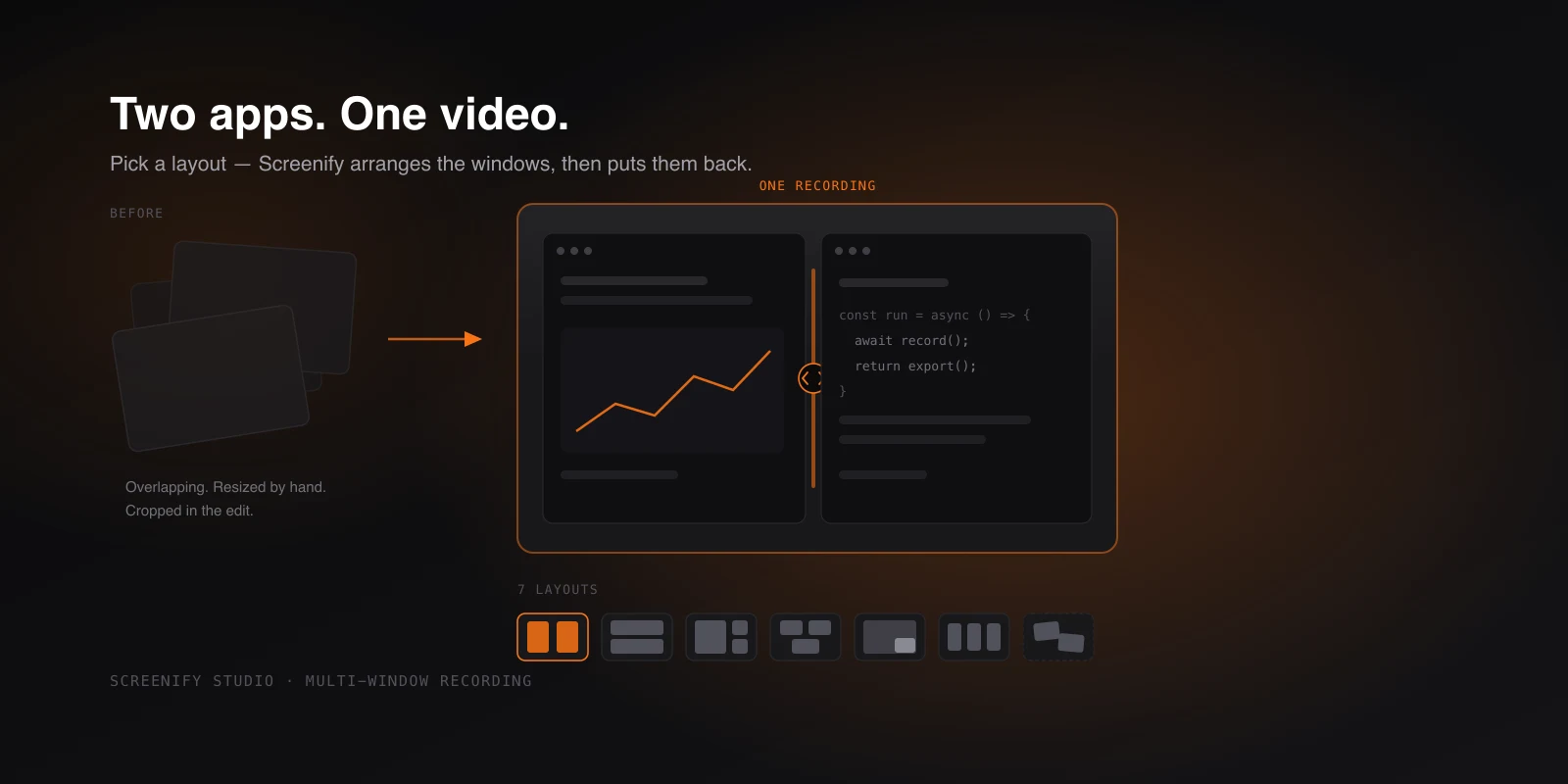
Some things can't be explained one window at a time. Code on the left, the app reloading on the right. A design file next to the build. A dashboard next to the query that produced it. The whole point is that the viewer sees both at once and connects them — and the moment you cut between two separate recordings, that connection is what you lose.
The usual workaround is to record the entire screen and hope it reads. You drag one window to the left, resize the other to roughly match, nudge both until the gap looks even, then capture everything — Dock, wallpaper, the third app you forgot to close, a notification arriving twenty seconds in. Afterwards you crop, and discover that cropping a 16:9 screen down to two windows leaves you with something that isn't 16:9 anymore.
Multi-window recording, added in v1.18.0, removes that whole detour. You choose how the windows should sit, tell Screenify which windows to use, and it does the arranging.
Pick the shape first
Instead of positioning windows and hoping the framing survives, you start from the framing. There are seven arrangements:
- Side by side — two windows, equal width. The default for code-and-result.
- Stacked — two windows, one above the other. Better for wide, short content like a terminal over a browser.
- Main + side — one large window on the left, two smaller stacked on the right. A primary surface with two supporting ones.
- Grid 2+1 — two on top, one centred below.
- Picture-in-picture — one full-size window with a smaller one tucked into the corner.
- Row of 3 — three equal columns, for comparing variants side by side.
- Keep positions — capture the windows exactly where you already have them, if you've arranged things yourself.
Once you've picked one, each slot is empty and waiting. Hover the window you want in it and press Space. Repeat for the next slot. There's no dialog to click through and no dragging — the same hover-and-Space gesture the single-window picker uses, applied to each position in turn.
Screenify then moves the real windows into the arrangement on your actual screen, so what you see while recording is what ends up in the video. Nothing is composited from separate captures and nothing shifts in post.
It puts your windows back
The detail that matters most in daily use is the one you notice least: when the recording ends, every window returns to where it was.
This sounds minor until you've done it the manual way. Rearranging your workspace for a two-minute demo means rebuilding it afterwards — the editor back to the size you like, the browser back onto the second display, the terminal back to its corner. Do that four times in an afternoon and the recording stops feeling free. Screenify treats the arrangement as temporary staging, not a change to how you work.
The split isn't fixed either. Drag the divider and the balance changes — give the code more room than the preview, or the other way around. The space between and around the windows fills with your chosen background rather than the desktop, so the result looks composed instead of captured.
And if you come back later to add another take, the project remembers the layout and the split you used, so the second take matches the first without measuring anything — the same multi-clip workflow that lets you append to any project, applied to an arrangement.
Try Screenify Studio — free, unlimited recordings
Auto-zoom, AI captions, dynamic backgrounds, and Metal-accelerated export.
Where it earns its place
Code and result. The oldest two-window story there is. An editor beside the running app, with the change and its effect in the same frame — no cutting, no "and now watch what happens".
Before and after. Row of 3 puts three variants next to each other at the same scale, which is far more convincing than three clips shown in sequence and asking the viewer to remember the first one.
Tool handoffs. Anything that crosses applications — export from one, import into another — reads as a single continuous action instead of two disconnected recordings joined by a cut.
Support and bug reports. The failing UI beside the console output, both timestamped by virtue of being the same recording. Nobody has to trust that the two clips line up, because they aren't two clips — worth pairing with the rest of a good bug-report recording.
Picture-in-picture for narration. A reference document tucked in the corner while the main window does the work, without a second monitor and without alt-tabbing away mid-sentence. If the reference is your script, Speaker Notes keeps it off the recording entirely.
Sharper and quicker, too
The release that followed brought multi-window recordings a performance and fidelity pass. Device and simulator frames now cast shadows that follow the actual shape of the device rather than drawing a rectangle around it — most visible exactly when several windows sit together, where the old rectangles read as obvious. And exports that use a drop shadow render roughly twice as fast, which multi-window recordings hit more often than most, since every window in the arrangement carries one.
It's on the free plan
Multi-window recording isn't gated. The free plan gets all seven layouts, the divider, the background fill and the put-them-back behaviour — the same as Pro. Free exports are 1080p, capped at five minutes per video and carry a watermark; Pro lifts all three.
Download Screenify Studio and pick a layout — or read what else landed recently in the changelog.

Try Screenify Studio
Record your screen with auto-zoom, AI captions, dynamic backgrounds, and Metal-accelerated export. Free plan, unlimited recordings.
Download Free



