Narration Gets Its Own Lane
A dedicated Voiceover track, separate from background music — waveform, trim, fade, volume, and captions generated from any passage on it.
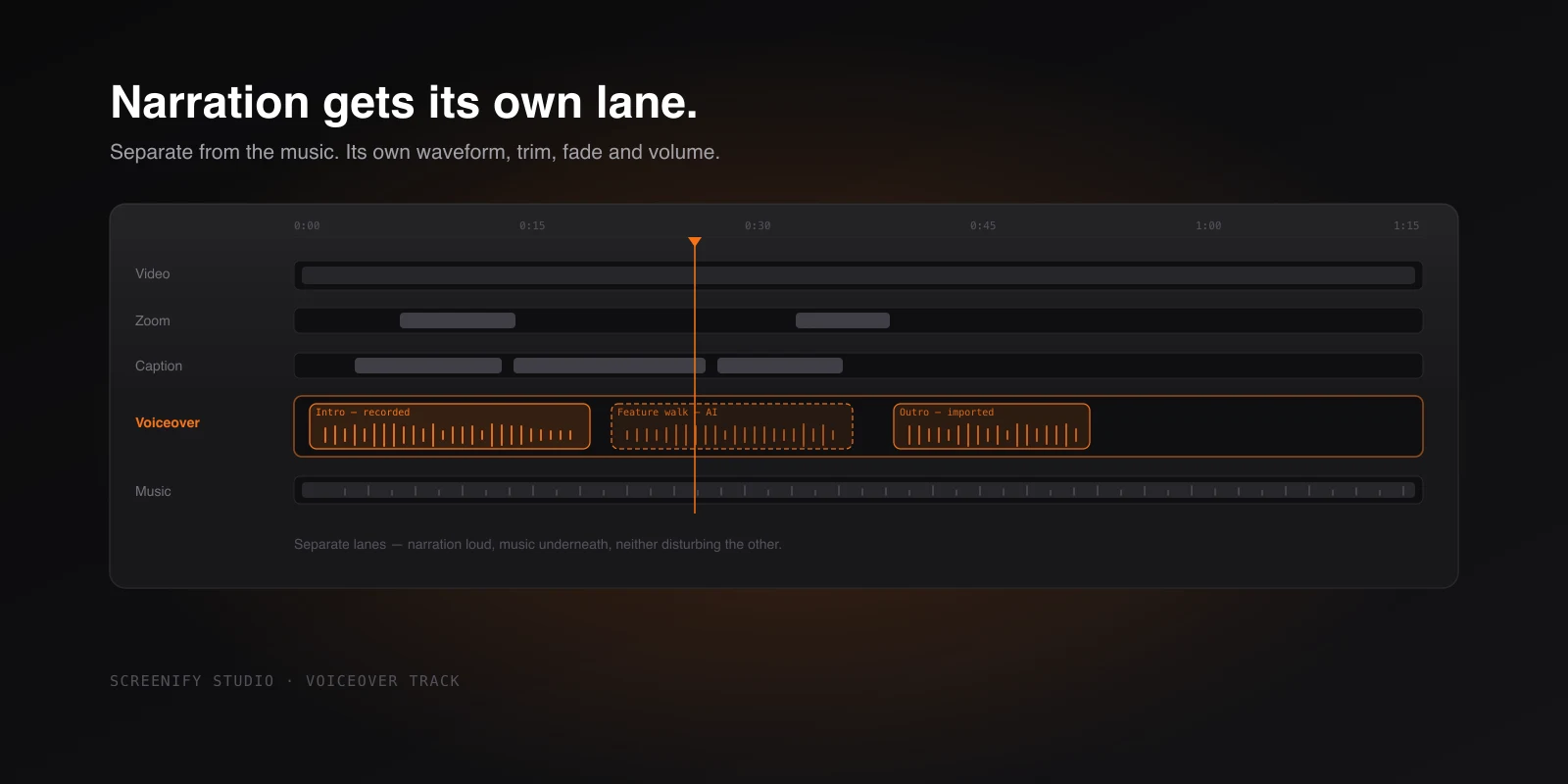
Narration and background music are both audio, and that is where the similarity ends.
Music runs underneath the whole video, gets ducked, and rarely moves once placed. Narration is chopped into passages, shifted a second at a time to match what's on screen, re-recorded when a sentence lands badly, and needs to be loud enough to carry while the music sits far below it. Putting both on one track means every adjustment to one is a chance to disturb the other — and it means one volume control for two things that need opposite treatment.
Since v1.18.3 they're separate. The Voiceover track is its own lane on the timeline, with its own segments and its own controls.
What a passage gives you
Each passage on the track behaves like any other timeline segment, which is the point — nothing about narration is a special case you have to learn:
- A waveform drawn along the segment, so you can see where speech starts and stops without playing it. Lining a sentence up to a moment on screen becomes a visual task rather than a listening one.
- Drag to move, resize to trim. Cut the pause at the front, pull the tail in.
- Volume, fade in and out, mute — per passage, independent of the music lane.
- Rename it, so a timeline with nine passages reads as sentences rather than as Voiceover 1 through Voiceover 9.
- Replace the audio in place, keeping the position and the trim, when you re-record a line elsewhere.
Right-clicking a passage — or the track itself — gets to the same actions where your hands already are: replace the audio, generate subtitles, delete. Delete and Backspace remove a selected passage like every other clip.
Mute the mic underneath
Recordings often already carry a microphone track from the original capture, and narration added afterwards has to compete with it.
A passage can mute the original recording mic for its duration. Your narration replaces the live audio where it plays and lets it back through where it doesn't — no splitting the video clip, no keyframing the microphone volume around each sentence.
The music lane has the matching control from the other direction. Auto Duck drops the music while narration is playing and brings it back up afterwards, with an adjustable amount so you can decide how far it steps aside. It's off by default, because a video with no narration shouldn't have its music dipping at random — but the moment you add a passage, it's the setting that turns two competing audio sources into a foreground and a background.
Together, those two are what the split lane buys you. Muting the mic handles the audio that was already in the recording; ducking handles the audio you added underneath it. Neither would be expressible if narration and music shared a track, because both of them are one lane reacting to the other.
Try Screenify Studio — free, unlimited recordings
Auto-zoom, AI captions, dynamic backgrounds, and Metal-accelerated export.
Captions come from the passage
Any passage can become captions on the Caption track, timed to match, in one action.
This works from all three narration sources, and the way it works differs sensibly. A recorded take is transcribed. An AI passage doesn't need transcribing at all — the words are already known, since you typed them, so captions come straight from the script and are exact rather than merely accurate.
Because the captions inherit their position from the passage, moving the narration doesn't strand the subtitles. And if you move a passage while its transcription is still running, the resulting captions land at the passage's current position, not the one it had when you started.
Transcription needs a speech model on disk, and asking for subtitles before it's there used to be a dead end — a message telling you something was missing, with no obvious next step. Now the prompt takes you straight to the download, and once it finishes your subtitles generate on their own. You ask once and get captions, rather than asking, reading an error, hunting through settings, and asking again.
Three ways in, one track out
Click an empty spot on the track and you get the three ways narration can arrive: record your voice against the playing preview, import an audio file made elsewhere, or generate it from a written script with an on-device AI voice.
Whichever you choose, the passage lands on the same track and takes the same controls. You can mix them within one video — an AI voice for the sections that will be rewritten twice more before launch, your own voice for the part where it matters that it's you.
One of thirteen lanes
The Voiceover track joins twelve others — video, zoom, camera, 3D transform, shot, stage motion, callout, annotation, mask, keystroke, caption and music. In Smart timeline mode, lanes holding segments rise above the empty ones automatically, so a project using four of the thirteen shows you four rather than making you scroll past nine empty rows.
Availability
The Voiceover track, importing audio and all of the editing controls are on the free plan. Only AI-generated passages need Pro — free exports skip those and leave everything else untouched. Free exports are 1080p, watermarked and capped at five minutes per video.
Download Screenify Studio, or see what else shipped in the changelog.

Try Screenify Studio
Record your screen with auto-zoom, AI captions, dynamic backgrounds, and Metal-accelerated export. Free plan, unlimited recordings.
Download Free



