Speaker Notes: A Built-In Teleprompter for Recordings
Never forget a script. Screenify Studio's Speaker Notes gives you a floating, invisible teleprompter that stays hidden from your final video.
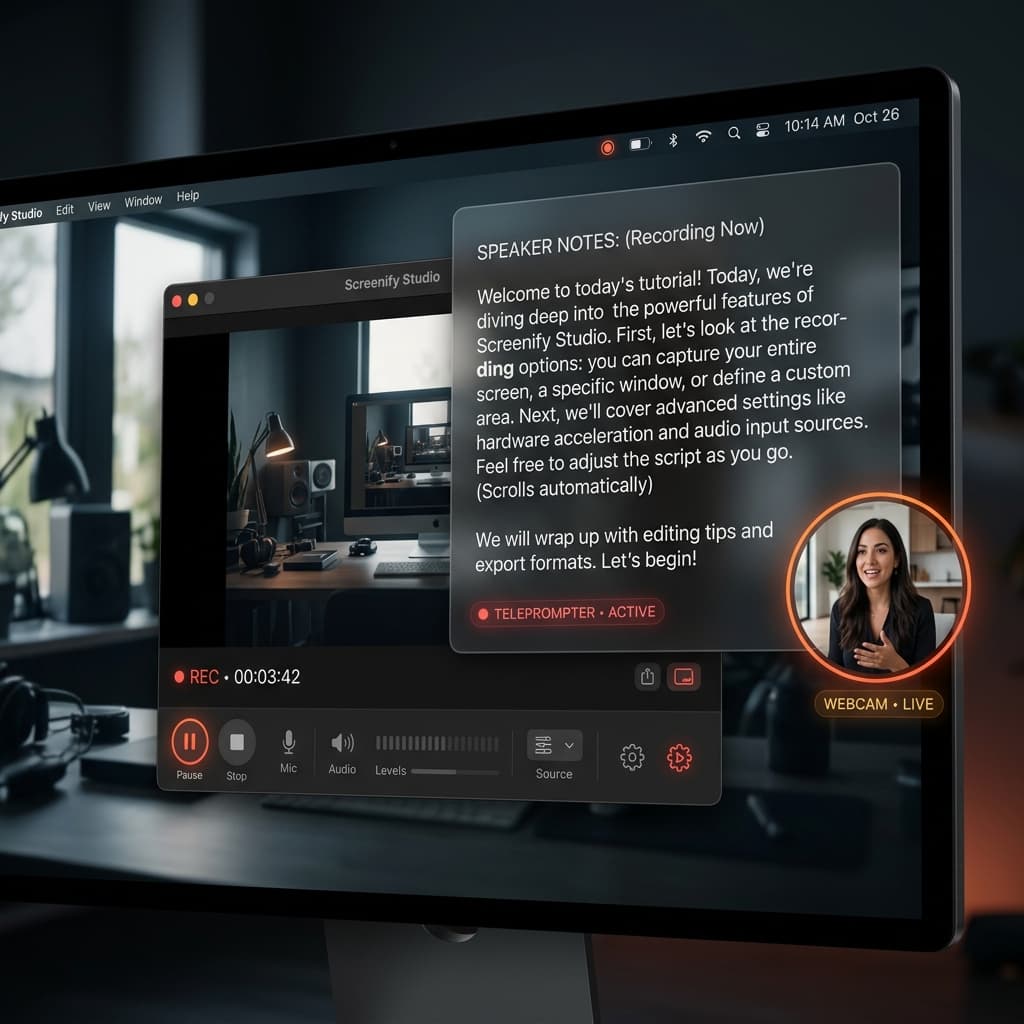
Recording a flawless demo or tutorial often means memorizing a script or constantly looking away at a second monitor. We believe you shouldn't have to compromise eye contact or risk breaking your flow just to remember your talking points.
That is why in Sprint 110, we are thrilled to introduce Speaker Notes—a built-in, floating teleprompter that stays visible to you but remains completely invisible in your final recording.
The Challenge of Scripted Screen Recordings
Creating high-quality screencasts (like when you record your screen on a Mac) usually requires a script. However, managing that script while recording on a single screen is notoriously difficult. If you keep a text document open, it gets captured in the video. If you put it on a second monitor, your eyes are constantly darting away from the camera, breaking engagement with your audience.
We needed a solution that allowed creators to read their notes naturally while maintaining a clean, professional screen capture.
Meet Speaker Notes: Your Invisible Teleprompter
With our latest update, you can now toggle a dedicated Speaker Notes window directly from the Screenify Studio HUD. This window is powered by our native graphics engine and is strictly excluded from the screen capture pipeline.
1. Invisible to the Audience
Powered by advanced macOS window exclusion techniques, the Speaker Notes window is completely stripped from the final video output. You can place it anywhere on your screen—even right next to your webcam—and your viewers will never see it.
2. Seamless Script Management
You can type or paste your notes directly into the floating window, or instantly import any .txt or .md file. Your notes are automatically saved, so they are always ready for your next take. You can easily adjust the text size and take advantage of the dark mode background for optimal readability without eye strain.
3. Global Hotkeys for Effortless Scrolling
When you are recording a demo, your mouse and keyboard are focused on the app you are showcasing. To ensure you never have to break focus, we introduced global hotkeys:
⌥⌘↓/⌥⌘↑: Scroll your notes up and down while interacting with other applications.⌥⌘N: Instantly reopen the notes window if you accidentally close it.
4. Unobtrusive Design
The Speaker Notes window features a frameless, glass-like design that can be dragged and resized freely. If you need it out of the way momentarily, you can minimize it into a tiny badge and restore it with a single click.
How to Get Started
Using Speaker Notes is incredibly simple:
- Open the Screenify Studio HUD and click the "..." menu.
- Toggle Speaker Notes to open the floating window.
- Type, paste, or import your script.
- Position the window near your camera and start recording!
(Tip: We recommend keeping the Speaker Notes window close to your webcam lens to maintain perfect eye contact with your audience.)
What's Next?
We are continually refining our recording tools to make content creation as effortless as possible. While this MVP release focuses on the core teleprompter experience, we are already exploring future enhancements, such as per-project note saving and automated scrolling. You can also explore our auto zoom screen recording feature to elevate your videos further.
Ready to record your best take yet?

Try Screenify Studio
Record your screen with auto-zoom, AI captions, dynamic backgrounds, and Metal-accelerated export. Free plan, unlimited recordings.
Download Free



