Meet the Screenify CLI: Record From Your Terminal
Screenify now runs from the command line — record and export a studio-quality MP4 in one command, fully scriptable, and built for AI agents.
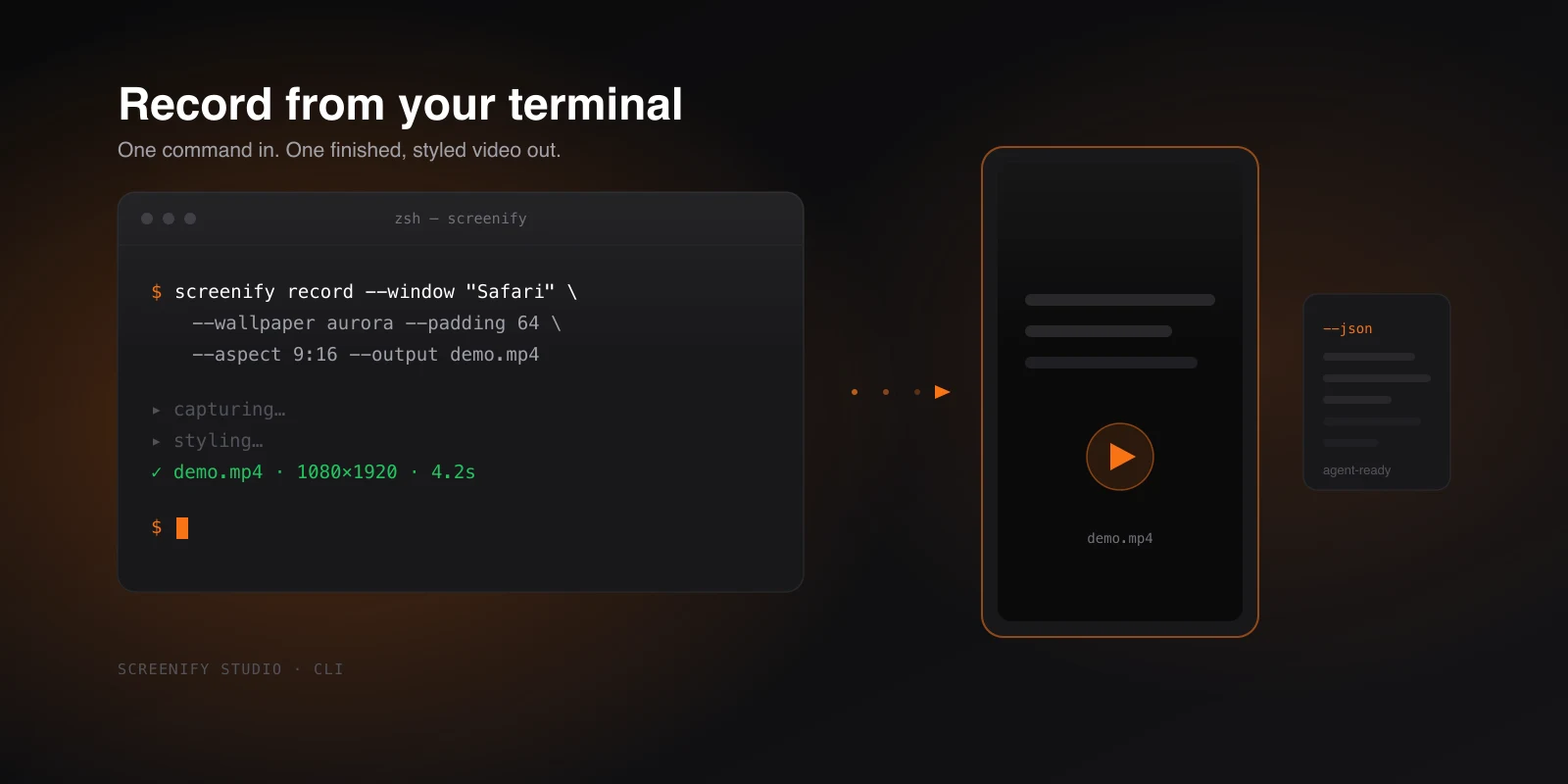
Producing a clean demo used to mean a few minutes of clicking. Open the app, pick a capture source, hit record, stop, then tab into the editor to add padding, round the corners, drop in a wallpaper, and finally export to MP4. None of those steps are hard, but they all require a person sitting in front of a window, doing them by hand, one at a time. For a single hero video that's fine. For the tenth repro clip of the week, or a demo that needs to regenerate every time the UI changes, it's a tax.
Starting in v1.12.0, Screenify Studio has a screenify command-line tool that removes that tax. You can capture your screen and produce a finished, styled MP4 without the app window ever appearing. It lives quietly until you turn it on under Settings → Command Line, and once it's on, the terminal becomes a first-class way to record.
One command, one finished video
The headline is simplicity: one invocation does the whole job. You point the CLI at what you want to capture — an entire screen, a single window, or a region you define — and it records, processes, and writes out a completed MP4. There's no separate "now export" step, and there's no editor session in between.
A command like screenify record --window "Safari" --output demo.mp4 captures the target and hands you back a polished file. (Treat that as illustrative — the point is the shape of it, one line in, one video out; the exact flags live in Record & Export.) The original recording is left untouched; styling and export happen on top of it, so you always keep a clean source if you want to render a different variant later.
That last detail matters more than it sounds. Because the raw capture is preserved, you can run the same source through different treatments — one square clip for a changelog, one widescreen version for a docs page — without re-recording anything. The recording is an asset; the export is a transformation you can repeat.
Styling without the editor
A terminal recording would be a lot less interesting if it came out raw and flat. It doesn't. The same finishing touches you'd reach for in the editor are available as plain options on the command line.
You can drop the capture onto a wallpaper, add padding so it breathes, round the corners, and set an aspect ratio — turn a wide screen grab into a vertical clip for social, or a tidy square for an embed. You can wrap a phone or laptop recording in a device frame, stamp a watermark for shared links, and lay a music track underneath. Everything that makes a Screenify export look produced rather than screenshotted is reachable from a flag.
The mental model is the same as the app, just expressed differently. Where you'd click a toggle in the editor, you pass an option instead. A command like screenify record --region 0,0,1280,720 --wallpaper aurora --padding 64 --radius 24 --aspect 9:16 describes a styled vertical clip in a single line — again, illustrative, but that's the idea. The full option list is self-describing: screenify config schema --json prints it, and the CLI docs walk through it. The styling decisions move out of a UI and into text you can save, share, and version.
Built for AI agents
The CLI was designed with one more caller in mind beyond you and your scripts: AI agents. Because every command speaks JSON — structured input in, structured results out — an agent never has to scrape log lines to figure out what happened. It asks for a recording, gets a clean JSON response telling it where the file landed and how it went, and moves on.
In practice this means you can talk to an assistant like Claude Code in plain language. Say "record a 10-second demo of my screen and make it a vertical clip," and it drives Screenify end to end — choosing the capture, applying the styling, producing the MP4 — without you touching the app. Screenify installs a small skill so Claude Code knows how to use the tool automatically; there's no setup ceremony to wire the two together. And it isn't locked to one agent: anything that can run a command, from a custom script to another assistant, works exactly the same way. For Agents & CI covers the contract in detail.
That's the foundation. Once an agent can record and export, it can do more — letting an AI direct cinematic effects and timeline edits is its own topic, covered in Agent Timeline Effects.
Try Screenify Studio — free, unlimited recordings
Auto-zoom, AI captions, dynamic backgrounds, and Metal-accelerated export.
Where a terminal recorder pays off
The value shows up the moment recording stops being a one-off thing a person does and becomes a step a machine can take.
The clearest win is automation. If your demos are generated from a script, the CLI lets you produce styled recordings the same way you'd generate any other artifact — deterministically, on demand, with the styling baked into the command rather than redone by hand each time. Change the script, rerun it, and the videos update.
Build pipelines are the next obvious home. You can capture UI demos as part of CI, so every release ships with fresh footage of the actual current interface instead of a stale clip someone recorded three sprints ago. The recording runs unattended alongside the rest of the pipeline, and because the output is JSON-friendly, the surrounding job can read the result and decide what to do next.
Bug reports might be the most quietly useful case. Wiring the CLI into your reproduction flow means a fresh repro video can be attached to every report automatically — no asking a teammate to "screen record it real quick," no inconsistent quality, no manual export. The video is just part of the artifact the moment the bug is filed.
For a hands-on walkthrough of setting these flows up, the companion how-to covers recording and auto-editing from the command line step by step. And if what you're capturing lives in a browser, there's a dedicated path to record any web app, directed by AI — both build directly on the foundation described here.
A new way in
The CLI doesn't replace the Screenify app; it gives the same engine a second front door. The visual editor is still there when you want to sit with a recording and shape it by feel. The command line is there for everything that should just happen — scripted, scheduled, or driven by an agent — without a person in the loop.
If you want to try it, update to the latest version, open Settings → Command Line to enable the tool, and your first one-line recording is a command away. Download Screenify Studio to get started, or read the CLI documentation first.

Try Screenify Studio
Record your screen with auto-zoom, AI captions, dynamic backgrounds, and Metal-accelerated export. Free plan, unlimited recordings.
Download Free



