Draw to Zoom: Introducing Storyboard Mode and AI Smart Suggest
Creating professional zoom animations is now as easy as drawing a rectangle. Experience the new Storyboard mode with AI-powered Smart Suggestions.

Not everyone wants to spend minutes tweaking keyframes and easing curves. Sometimes, you just want to point at something and say, "Make the camera go here, like this."
That is exactly why we built Storyboard Mode. It’s a completely new way to author camera movements that feels more like drawing than editing.
Draw Your Vision
In Storyboard Mode, the preview canvas becomes your drawing board. Want to zoom into a specific button? Just draw a rectangle around it.
The moment you finish the rectangle, Screenify automatically calculates the exact zoom depth and focus coordinates needed to frame that area perfectly. No more sliders, no more trial and error.

Apply "Effect Cards" in One Click
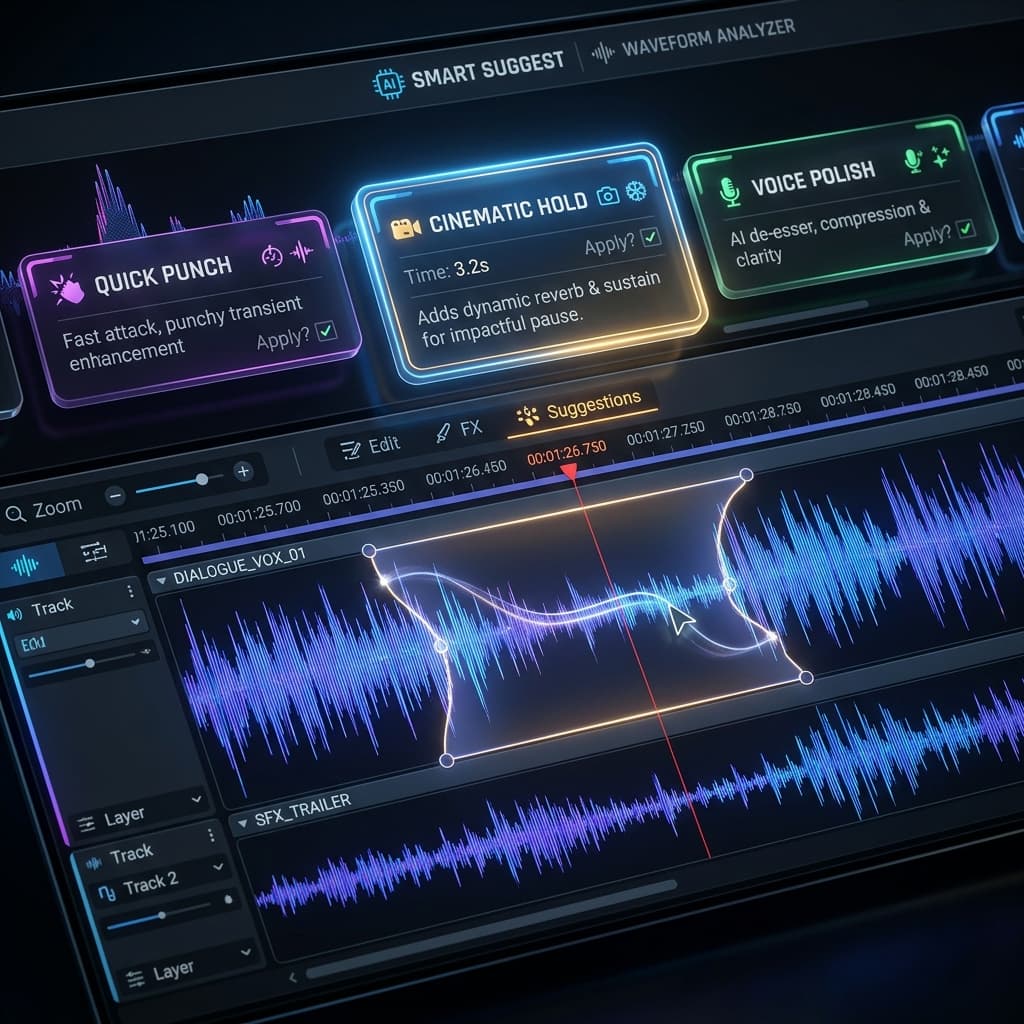
A rectangle tells us where to go, but Effect Cards tell us how to get there. After drawing a rectangle, you can pick from a curated library of cinematic behaviors:
- Cinematic Hold: A smooth glide in, followed by a steady hold.
- Quick Punch: A fast, snappy zoom for highlighting an error or a specific result.
- The Drift: A slow, artistic movement that keeps the viewer engaged during a long explanation.
- Whip Pan: A high-speed transition from your previous location to the new one.
Each card automatically generates the underlying keyframes for you. You get professional-grade results without ever touching a technical setting.
AI Smart Suggest: Let the App Decide
The most powerful part of this update is hidden behind a single button: Smart Suggest.
During your recording, Screenify is already analyzing your actions. It knows when you click a button, where your cursor is moving, and even the cadence of your voice. When you enter Storyboard Mode and click "Suggest," our AI heuristics scan your recording data and automatically propose zoom points.
- Did you click a "Submit" button? The AI suggests a zoom there.
- Did you pause your cursor over a complex menu? The AI suggests a "Cinematic Hold" to help the viewer follow along.
- Is there a long silence while you demonstrate a feature? The AI might suggest a "Slow Drift" to maintain visual rhythm.
A Workflow That Scales
Storyboard Mode doesn’t replace our powerful Keyframe engine — it lives on top of it. Every rectangle you draw and every Effect Card you apply generates real keyframes.
This means you can use the AI to do 90% of the work in seconds, and then switch to Keyframe Mode to polish that last 10% manually. It’s the perfect blend of automation and control.
Why You'll Love Storyboard Mode
- Visual-First: You see exactly what will be in the frame because you’re drawing the frame yourself.
- Intelligent Pacing: AI suggestions help ensure your video has the right rhythm and never feels static.
- Consistency: Effect Cards ensure that every zoom in your video feels part of the same professional "style."
- Speed: What used to take minutes now takes clicks.
Try Screenify Studio — free, unlimited recordings
Auto-zoom, AI captions, dynamic backgrounds, and Metal-accelerated export.
Download Screenify Studio and try the new Storyboard mode. Let our AI help you tell your story.

Try Screenify Studio
Record your screen with auto-zoom, AI captions, dynamic backgrounds, and Metal-accelerated export. Free plan, unlimited recordings.
Download Free



