The Ultimate iOS Developer Studio: From Simulator to Physical Devices
Supercharge your mobile development workflow with Sprint 101 & 102. Achieve 1-click App Store Previews compliance, physical iOS USB recording, Live Mirror, and revolutionary Transform3D-powered Manual Taps.
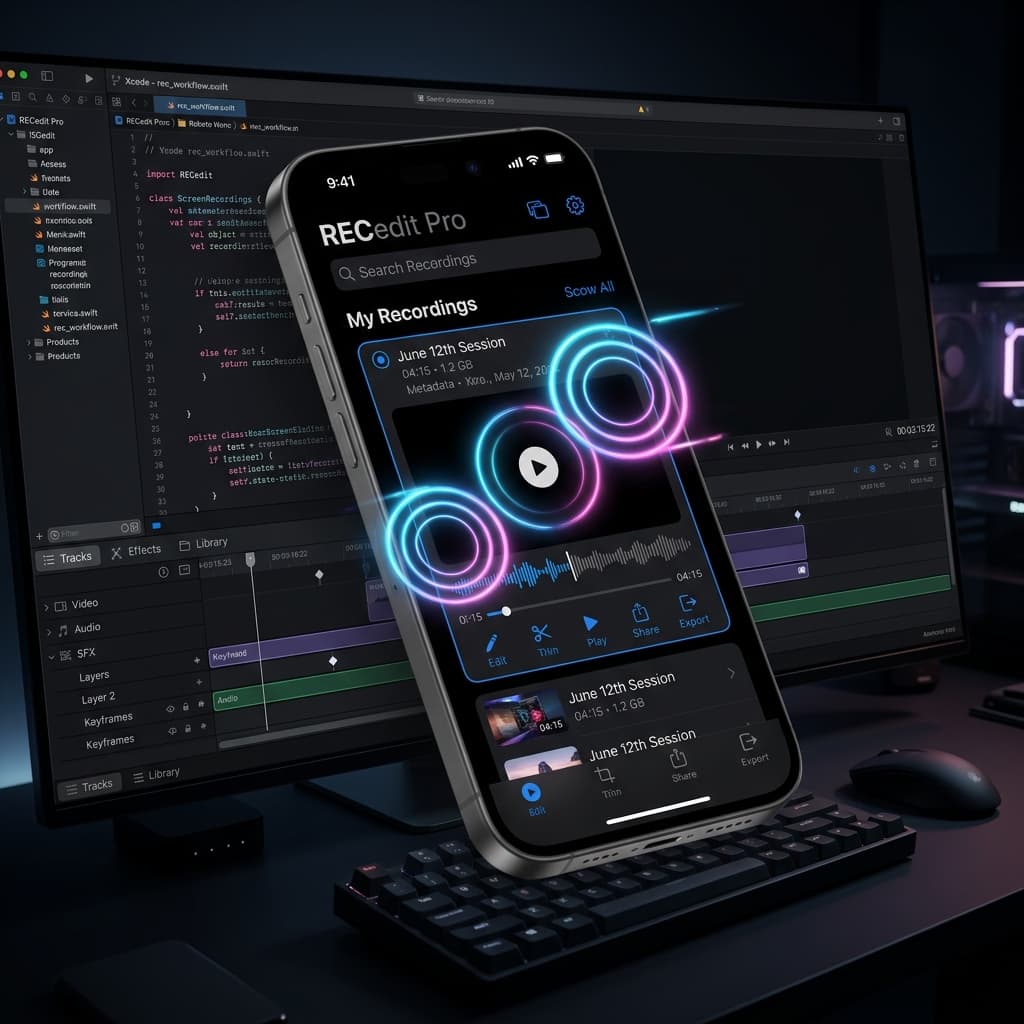
Gaining traction on the App Store or sharing smooth mobile walkthroughs has always been a painful bottleneck for iOS developers. From silent App Store Connect video rejections due to wrong dimensions or missing audio tracks, to simulators not capturing tap indicators, to terminal hacks required to clean up your status bar—mobile product recording has historically been incredibly tedious.
With the release of Sprints 101 and 102, Screenify Studio officially transitions into a powerhouse App Preview Studio. We’ve bridged every competitive gap, giving mobile developers a cohesive, premium pipeline that takes your recording from a raw development frame into a cinema-grade product showcase.
1. Simulator Studio (Sprint 101) — A Pixel-Perfect Virtual Engine
The iOS Simulator is where developers spend 90% of their development time. Sprint 101 introduces three core features that elevate simulated screen recordings into production-ready masterpieces:
1-Click Clean Status Bar
No more terminal scripts or third-party menu bar utilities. With a single click under the simulator launch menu, Screenify overrides your simulator's status bar to meet Apple's strict standard layout guidelines:
- Time locked strictly to 9:41 AM.
- Battery level forced to 100% with charging state active.
- Wi-Fi bars filled to 3 bars (maximum strength).
- Carrier name and extraneous notification icons completely cleared.
Decoupled Touch Indicators (Ripple & Circle)
Because Apple’s native simctl recordVideo doesn't capture mouse-click events on Simulator framebuffers, standard simulator screen videos lack natural interactive context. Screenify overlays clean tap indicators (Ripple or Circle styles) exactly at click coordinates.
Crucially, we decoupled highlight rendering from cursor visibility. You can select the "Hide cursor" setting (highly recommended for App Previews), and the mouse cursor will be hidden while the beautiful, custom-colored ripple taps remain perfectly visible, mimicking native finger touches!
App Store Previews Validator & Multi-Size Export
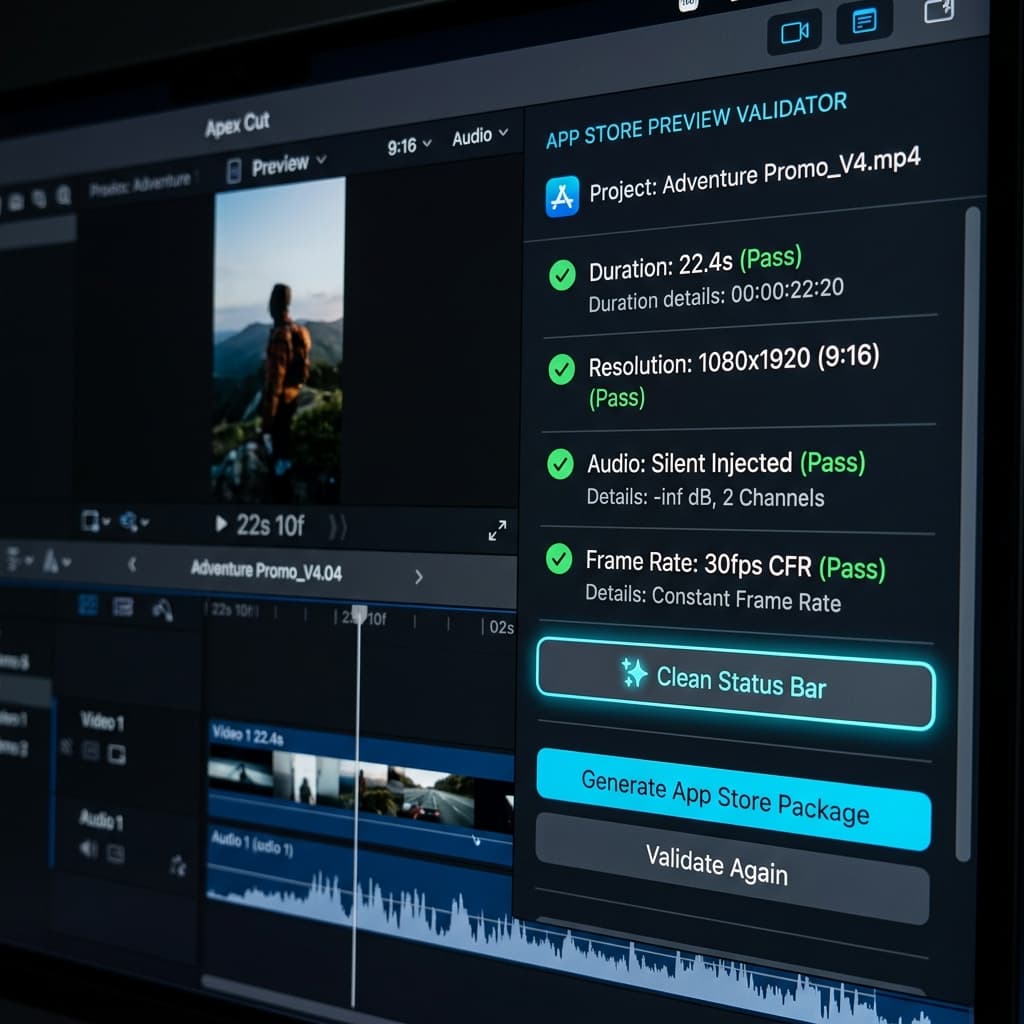
Tired of mysterious quiet rejects from App Store Connect? Our dedicated validator analyzes your video live inside the editor:
- Exact Duration Limits: Warns and provides a 1-click auto-trim to fit within Apple's mandatory 15 - 30 seconds limit.
- Technical Compliance: Enforces 30fps CFR (Constant Frame Rate) and the H.264 High Profile Level 4.0 codec so your uploads never break compatibility checks.
- Silent Audio Injection: Previews must contain an audio track. If your simulator recording lacks audio, Screenify automatically injects a silent stereo AAC 48kHz track on export, saving your video from immediate automated rejection.
- Multi-size Batch Loop: Select multiple target device classes (iPhone 6.9", 6.5", 5.5", iPad 13", etc.), and Screenify loops through, rescales, and crops them in matching aspect ratios, exporting all files in one go.
2. Real Device Recording & Live Mirror (Sprint 102) — Bring the Physical World to Screenify
While the Simulator is convenient, showcasing hardware-reliant components like cameras, AR, Face ID, push notifications, or real performance requires a physical device. Sprint 102 provides the ultimate USB screen capture system.
Zero-Config USB Recording (CoreMediaIO & AVFoundation)
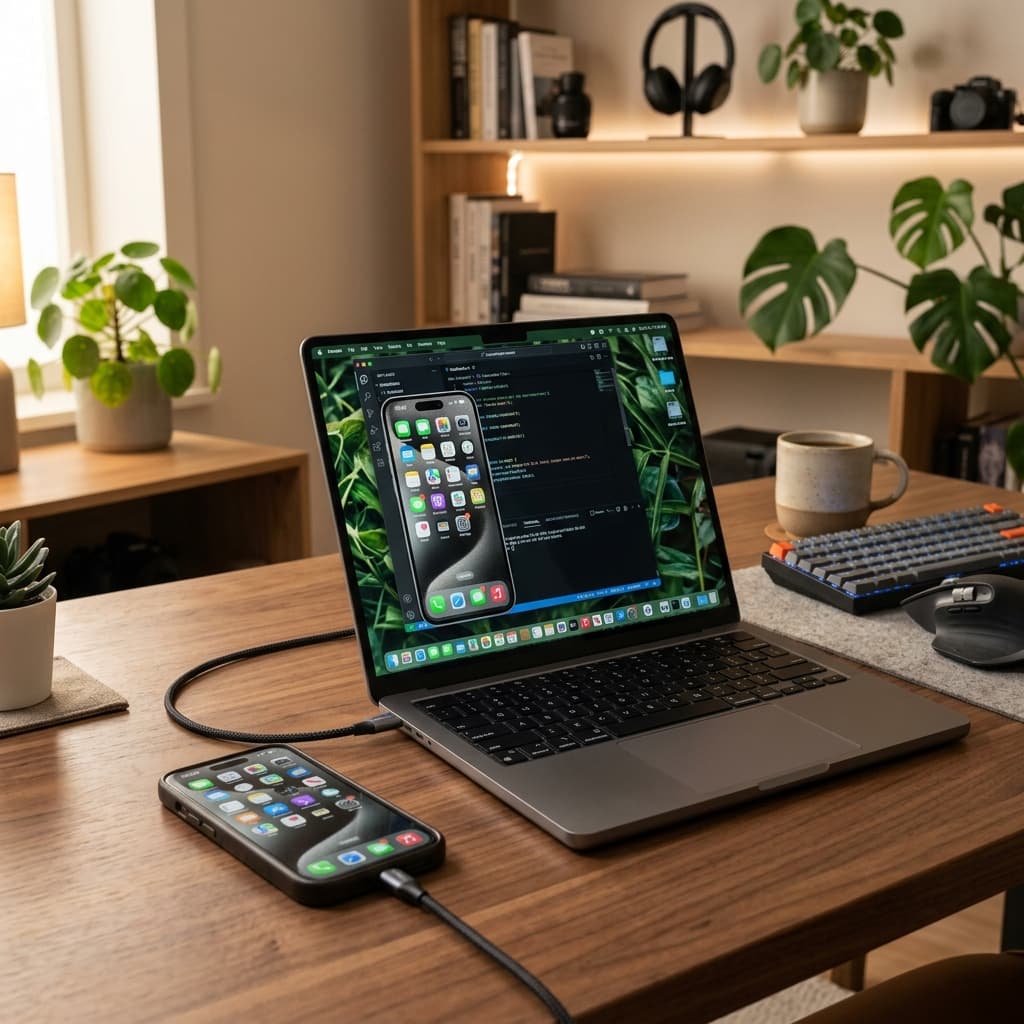
Simply plug your physical iPhone or iPad into your Mac via USB, select it under the source modal, and start recording. Leveraging native CoreMediaIO screen capture APIs under the hood, Screenify captures your real device screen at its native Retina resolution and high frame rate with absolute fluidity.
Transparent Live Mirror Window
To assist you before and during recording, Screenify introduces a gorgeous floating Live Mirror window:
- Framed with an elegant iPhone 17 Pro Max mockup featuring ultra-thin bezels and premium aluminum trim.
- Designed with translucent styling and Always-on-Top layering.
- You can float the mirror anywhere on your screen, interacting with your device in hand while monitoring the recording frame directly on macOS.
Post-Production Manual Taps
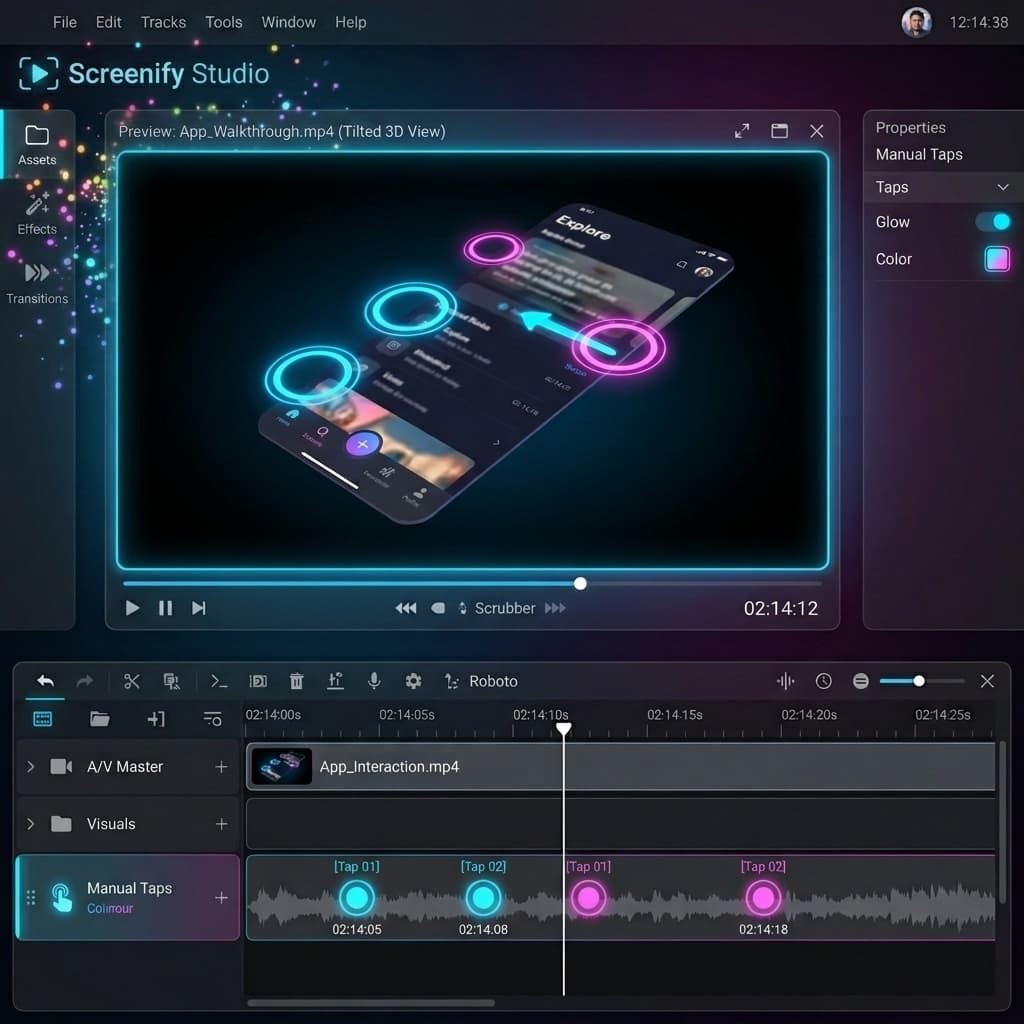
Since physical touchscreens do not transmit mouse cursor coordinates to macOS, USB recordings have historically lacked tap indicator tracks. Screenify resolves this with an intuitive Manual Taps interface:
- Enter "Add Tap Mode" inside the editor panel (your cursor becomes a precise crosshair over the preview).
- Navigate to a precise timestamp on the timeline.
- Click directly on the video preview where your finger pressed on the real screen.
- Screenify instantly creates a customizable "Ripple" or "Circle" tap event, which you can adjust in color, size, and duration directly on your timeline.
Transform3D Camera Projection Matching
The real magic happens when you pair manual taps with our cinematic Transform3D camera system (released in Sprints 87 & 88):
- Unlike typical flat video editor overlays, manual taps in Screenify are forward-projected onto the 3D plane of the interface.
- When your video applies a cinematic Dolly Zoom, Crane movement, or 3D Orbit, your tap ripples tilt, scale, and skew in absolute perspective harmony alongside your app bezel!
3. The Open-Ended Vision: Future Developer Hub (Roadmap)
Sprints 101 and 102 lay down a powerful framework for our mobile developer ecosystem. To keep our platform adaptable to your expanding dev workflows, we are committed to delivering the following expansions in our upcoming releases:
- Extensive Bezels & Custom Device Frames: We are expanding our device mockups to support Android frames (Google Pixel, Samsung Galaxy Ultra), premium foldables, Apple Watch Ultra, and clean Mac desktop borders (Studio Display) in realistic aluminum and titanium finishes, with customizable bezel thickness and corner roundness sliders.
- Specialized 3D Mobile-Dev Cinematics:
- 3D UI Layer Explosion (Explosive Layers): A new automated effect that temporarily peels your app interface layers (Navbar, cards, floating action buttons) off along the Z-axis, showing UI hierarchy and component separation in full 3D space.
- Auto-Tilt on Tap: Camera paths that automatically tilt slightly toward touch ripple coordinates, adding a subtle haptic physical depth to touch interactions.
- Parallax Scroll Camera Path: Synchronizes vertical/horizontal scrolling on the device screen with camera perspective tilts, adding infinite depth to long scrolling views.
- Advanced Gesture Simulation: Moving beyond single taps to support animated gesture paths for swipes, multi-point pinches, and long-press haptic visualizers.
- Wireless AirPlay Capture: Cut the cords entirely by recording and mirroring high-quality screens wirelessly over a local Wi-Fi connection using secure AirPlay streaming.
- Smart Touch Extraction (Log-Driven): Connect Xcode active test suites or simulator logs directly. Screenify will auto-parse click coordinate logs and render touch indicator ripples automatically without you having to position them manually.
- Dev HUD Overlays (Futuristic Debug HUD): Add glassmorphic visual widgets showing network API details (requests/responses), FPS rates, CPU/Memory stats, or live Console Logs synced directly to your application demonstration video.
Download and Experience It Today
Whether you are an indie developer scaling the App Store charts, or a Lead Engineer building a polished demo for stakeholders, Screenify Studio's iOS Developer Studio brings elite cinematic presentation to your mobile application.
The v1.8.0 release is available now. Plug in your iPhone, open your simulator, and watch your mobile product come to life.

Try Screenify Studio
Record your screen with auto-zoom, AI captions, dynamic backgrounds, and Metal-accelerated export. Free plan, unlimited recordings.
Download Free



