How to Blur Part of a Video on Mac (5 Ways)
Blur a password, email or customer name in a screen recording before you send it. Five Mac methods, from a two-click mask to Premiere tracking.
You just recorded the perfect demo. Then you scrub back and spot it: your personal email in the top corner, a customer's name in the sidebar, an API key sitting in a terminal for four full seconds. You can't re-record. The take was good, the client call is in an hour, and the bug report has to go out today.
What you need is to blur that one part of the video and leave everything else sharp. Your Mac doesn't do that out of the box, which is why so many people end up re-recording or sending a video with a password in it. Below are five ways to do it on a Mac, from a two-click mask to frame-by-frame tracking in a pro editor, and which one fits the video you actually have.
Quick answer: which method fits your video
| Tool | Price | Blur one region? | Follows motion | Difficulty |
|---|---|---|---|---|
| QuickTime / Photos | Free, built in | No | — | — |
| iMovie | Free | No (workaround only) | No | Easy |
| Screenify Studio | Free plan; Pro for 4K and no watermark | Yes: Blur, Pixelate, Solid, Focus | Stays locked to content through zooms and 3D moves | Easy |
| CapCut (desktop) | Free, paid tier | Yes, with a duplicated track + mask | Yes, Track mask | Medium |
| DaVinci Resolve | Free; Studio $295 | Yes, Power Window + Blur | Yes, Tracker | Hard |
| Final Cut Pro | $299.99, free trial | Yes, Shape Mask on a blur effect | Yes, object tracker | Medium |
| Premiere Pro | Creative Cloud subscription | Yes, mask on Gaussian Blur | Yes, mask tracking | Medium–hard |
Short version: for a screen recording where the sensitive thing sits still (an email, a sidebar, a URL bar), a mask in a screen-recording editor is the fastest fix. For camera footage where a face or a licence plate moves around the frame, you want an editor with real motion tracking.
Method 1: QuickTime Player and Photos (what the built-in apps can and can't do)
Start here, because it saves you twenty minutes of hunting through menus: neither QuickTime Player nor the Photos app can blur part of a video.
QuickTime's Edit menu gives you Trim, Split Clip, Rotate and Flip. That's the whole editing toolbox. It's excellent for cutting the dead air off the start of a recording (our QuickTime screen recording guide covers that), but it has no effects and no way to touch a region of the frame.
Photos lets you open a video, click Edit, and use Adjust, Filters and Crop. Every one of those applies to the whole frame. A filter can make the entire clip soft, which hides your email but also hides the product you were demoing.
What you can do with built-in tools:
- Crop the sensitive area out. In Photos, click Edit → Crop and drag the frame edges inward. This only works if the private information sits at the very edge of the screen (a menu bar, a dock, a browser tab strip).
- Trim the seconds where it's visible. In QuickTime, choose Edit → Trim and drag the yellow handles. Fine if the password was on screen for two seconds at the start; useless if it's on screen the whole time.
If neither of those removes the problem, you need an editor with masks. Read on.
Method 2: iMovie (free, but no regional blur)
iMovie is the next place most Mac users look, and it's worth being clear about what it has. iMovie's Clip Filter button applies a look (Sci-Fi, black and white, sepia and so on) to an entire clip or a selected time range. Apple's own iMovie video effects guide describes filters, "Fade to" effects and Flash and Freeze Frame. None of them work on a region of the frame, and there is no blur filter you can position over one spot.
The workaround people use is an overlay:
- Take a screenshot of the frame (⌘⇧4), open it in Preview, and draw a filled rectangle over the private text, or crop out just a blank patch of the same background.
- Drag that image onto the timeline above your clip.
- Click the Video Overlay Settings button and choose Picture in Picture.
- Resize and position the small image so it covers the sensitive area, then drag its edges on the timeline so it lasts as long as the text is visible.
It works for a static patch. It's fiddly, it looks like a sticker rather than a blur, and if the recording zooms or pans the patch stays still while the content moves underneath it. For anything beyond one quick cover-up, the methods below are faster.
Method 3: Screenify Studio (blur, pixelate or cover in a couple of clicks)
Screen recordings have a specific problem that camera editors don't: the sensitive stuff is text, it sits in a predictable place, and you often need to hide three or four separate things in one video. A Slack sidebar, a customer list, the URL bar, a token in the terminal. Screenify Studio's editor has a dedicated Mask track built for exactly that.
Blur a region in four steps
- Record or open your video in Screenify Studio. The editor opens automatically after a recording stops.
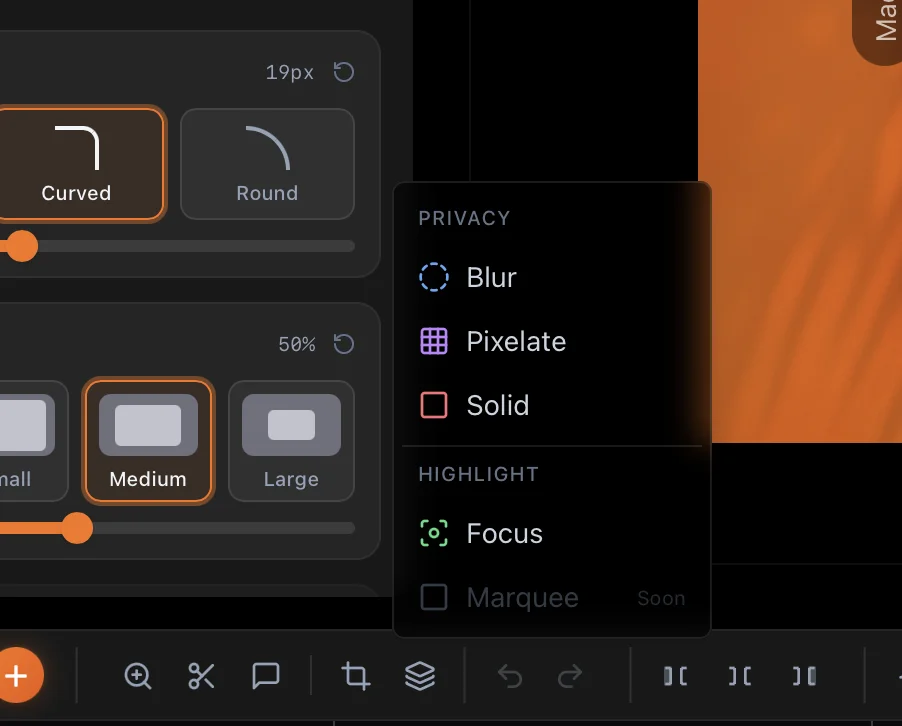
- Click the Mask button in the timeline toolbar (the layers icon, tooltip "Add Mask / Focus Region"). A menu opens with two groups: Privacy (Blur, Pixelate, Solid) and Highlight (Focus).
- Pick Blur, then drag a rectangle on the preview over the email, password or name. The cursor turns into a crosshair while you draw. The mask lands at the playhead and runs for three seconds by default.
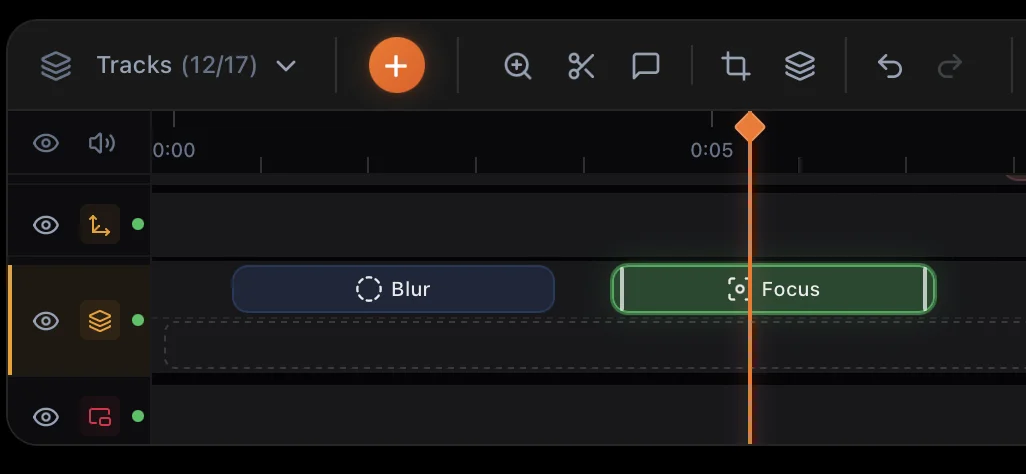
- Stretch it on the timeline. Drag either edge of the orange mask segment on the Mask track until it covers the whole stretch where the text is visible. For frame-exact timing, type the Start and End times under Time Range in the properties panel.
That's it. Export, and the blur is baked into the finished video.
Try Screenify Studio — free, unlimited recordings
Auto-zoom, AI captions, dynamic backgrounds, and Metal-accelerated export.
Tune the look: Blur, Pixelate or Solid
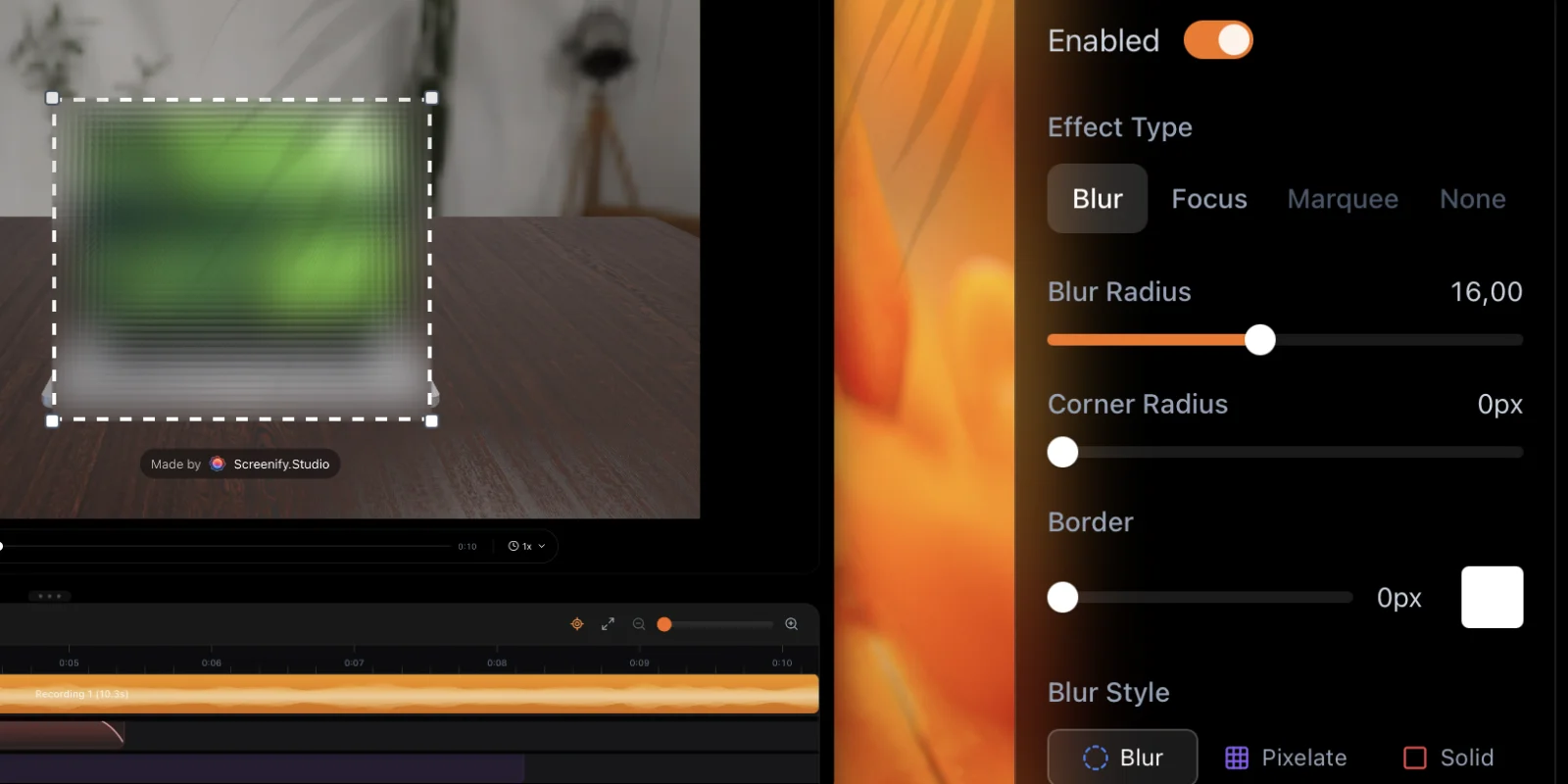
Select the mask and the properties panel shows Global Mask Settings:
- Effect Type: Blur hides what's inside the box. Focus does the opposite (more on that below).
- Blur Radius: how strong the blur is. Small text in a sidebar needs more than you'd think; push it until you can't guess a single letter.
- Blur Style: Blur for a soft frosted look, Pixelate for the classic blocky censor look, Solid to cover the area completely with a colour you choose (black, white, or any hex value).
- Corner Radius: 0 to 50 px, so the mask can match a rounded card or input field instead of looking like a hard box slapped on top.
- Border: add a thin outline (width and colour) when you want viewers to see that something was deliberately hidden, which is handy in bug reports where "redacted" is part of the message.
- Animation Settings: fade the mask in and out with presets (0s, 0.2s, 0.3s, 0.5s), or set Enter Duration and Exit Duration yourself. Use 0s for passwords; a fade-in of 0.3s can leave a letter or two readable on the first frames.
Position & Size also accepts exact numbers (as a percentage of the video), which helps when you're hiding the same sidebar across several clips and want the box in exactly the same place each time. Hit Duplicate in the panel to copy a mask, then drag the copy to a new time.
Hide several things at once
Real recordings rarely have just one problem. You can stack as many masks as you need, and they can overlap in time: blur the email in the corner and pixelate the customer table and cover the terminal with a solid block, all in the same few seconds. When masks overlap, the Mask track fans them out into separate lanes so each one stays easy to grab.
The masks stay put when the camera moves
This is where most quick fixes break. Screenify adds automatic zooms to your recording based on your clicks and typing (see how auto-zoom works), and you might add a 3D camera tilt on top. In a lot of editors, a blur box drawn on the flat frame stays in place while the zoom slides the content out from under it, and your password peeks out mid-zoom.
Screenify renders masks inside the video pipeline, so a blur stays glued to the content it covers while the camera zooms or tilts, in the preview and in every export. Draw the box once on the normal view and it follows the zoom.
Focus mode: blur everything except the part that matters
Sometimes the problem isn't one secret. It's a whole dashboard full of client data when you only want to show one button. Choose Focus from the Mask menu and draw a box around the part you want viewers to see. Everything outside it is blurred and darkened.
Focus has its own controls:
- Outside Blur: how soft the surroundings get.
- Outer Overlay Opacity: how dark the surroundings get.
- Zoom Level: push in on the focused area, from 1.0× to 2.0×.
- Animate to Center: glide the focus area to the middle of the screen.
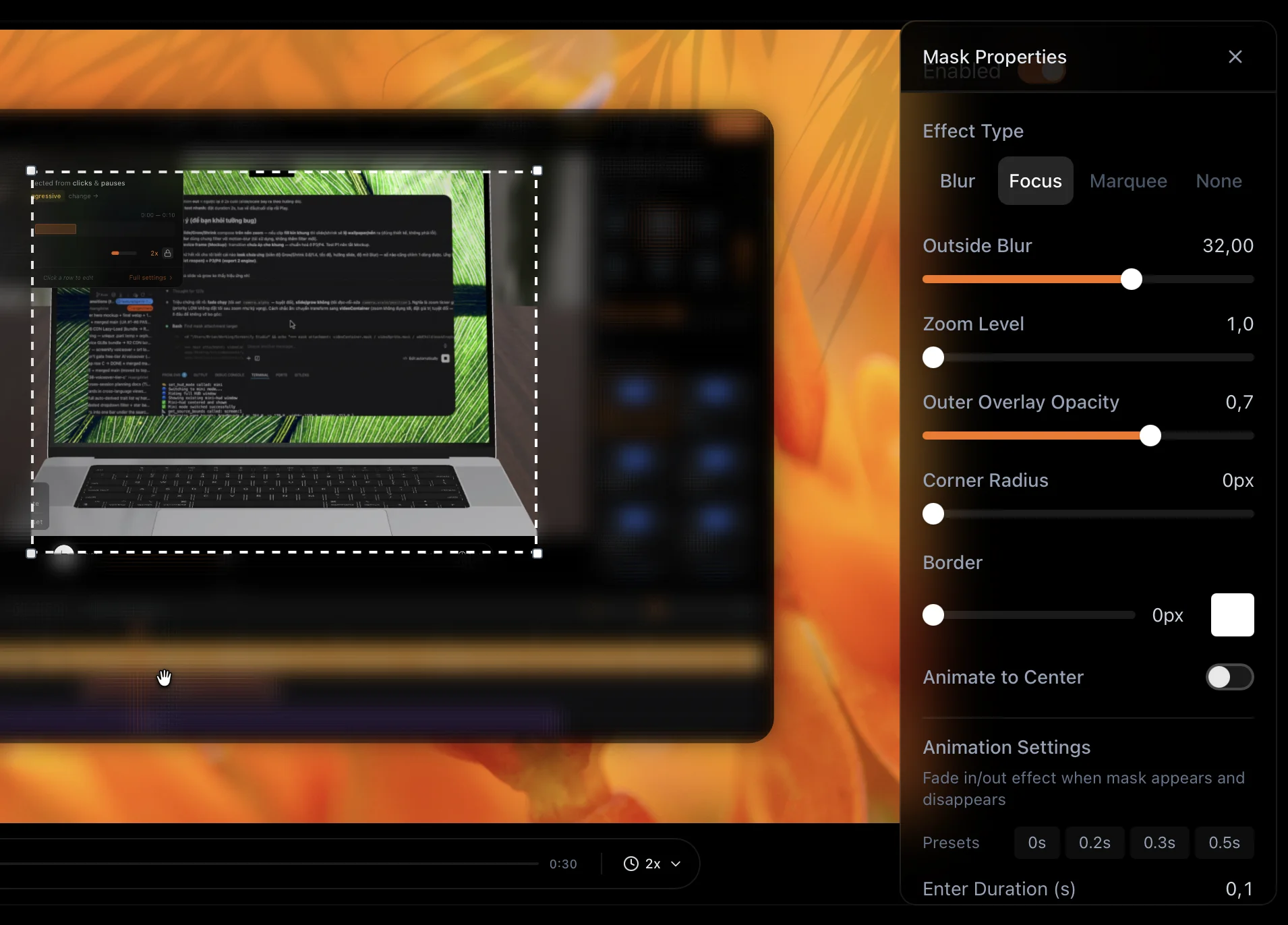
One mask does two jobs: it hides the private data and points the viewer's eye at the thing you're explaining. That's a demo that looks edited by someone who cared, made in about ten seconds.
What's in the free plan
Masks are in the free plan: Blur, Pixelate, Solid and Focus, as many as you need. Free exports go up to 1080p and five minutes per video, with a small watermark. Pro takes you to 4K, lets you remove or customise the watermark, and removes the length limit, which is worth having when the redacted recording is a client deliverable. Download Screenify Studio free and blur your first recording in the next five minutes.
One honest note on fit: Screenify's masks are rectangles you place, not an object tracker. If the thing you're hiding is a face walking across a camera shot, use one of the tracking methods below. For screen recordings, where an email or a token sits in one spot, the mask is the fastest of the five.
Method 4: CapCut desktop (free, with mask tracking)
CapCut's desktop app runs on Mac and can blur a region by stacking two copies of your clip. This follows CapCut's own desktop blur guide:
- Start a new project and import your video to the timeline.
- Duplicate the clip. Right-click it, choose Copy, then paste. A second copy appears on a track above the original.
- Blur the bottom copy. Open the Effect tab, go to Video effects, search for Blur, and drag it onto the lower (original) track. Set the strength in the right-hand panel.
- Mask the top copy. Select the upper track, open the Video tab in the right panel, and choose Mask. Pick Rectangle (or Circle), with the playhead at the start of the clip.
- Position the mask by dragging its edges in the Player window over the area you want to hide, then click Reverse at the top right of the mask panel. The top copy now shows everything sharp except your box, where the blurred copy underneath shows through.
- Track it (optional). If the area moves, open Track mask and click Track.
- Click Export.
Good for: free blurring with motion tracking, especially for social clips. Watch out for: the two-track trick doubles the clips on your timeline, every extra region means another duplicate, and menu labels shift between CapCut versions (some builds say Invert instead of Reverse).
Method 5: Pro editors (DaVinci Resolve, Final Cut Pro, Premiere Pro)
If you're blurring camera footage, faces, or anything that moves, a full editor's tracker is worth the learning curve.
DaVinci Resolve (free)
The free version of Resolve includes everything you need: windows, the blur palette and the tracker.
- Put your clip on the timeline and switch to the Color page.
- Right-click in the node editor and choose Add Node → Add Serial (⌥S) so the blur lives on its own node.
- Open the Window palette and click the Rectangle or Circle window. Drag it over the area to hide.
- Open the Blur palette and raise Radius until the text is unreadable. Only the area inside the window blurs.
- If the area moves, open the Tracker palette (set to Window) and click Track Forward. Check the result frame by frame; trackers lose high-contrast edges when the content scrolls.
Good for: free, precise, trackable blur. Watch out for: the node-based Color page is a lot to learn for a ten-second fix. The paid Studio version ($295) adds extra effects but isn't required for this.
Final Cut Pro
Final Cut Pro puts a shape mask on any effect, following Apple's guides on shape masks and tracking an effect:
- Select the clip in the timeline and drag a blur effect (from the Blur category of the Effects browser) onto it.
- Open the inspector (⌘4) and click Video at the top.
- Click the Add Shape Mask button to the right of the effect's name. An oval appears in the viewer.
- Drag the centre to move it, the side handles to resize, and the roundness handle to make it a rectangle. Pull the outer ring close to the inner one for a hard edge.
- For moving objects: in Final Cut Pro → Settings → General, set Drop Effect in Viewer to Add Tracker, drag the blur effect straight onto the viewer over the object, then click Analyze.
Good for: Mac users who already own it; the object tracker is excellent on faces. Watch out for: $299.99 is a lot if blurring is the only edit you need. Apple offers a free trial.
Adobe Premiere Pro
Adobe has an official walkthrough for blurring a moving face with masking and tracking. The short version:
- In the Effects panel, open Video Effects → Blur & Sharpen and drag Gaussian Blur onto your clip.
- In Effect Controls, expand Gaussian Blur and click the ellipse or 4-point polygon icon to create a mask.
- Size the mask in the Program Monitor, then raise Blurriness. Use Mask Feather for a soft edge and tick Repeat Edge Pixels if the frame edges go soft.
- To follow motion, select the mask and click Track selected mask forward. Review the result and fix any frames where the mask drifts.
Good for: teams already on Creative Cloud. Watch out for: a subscription and a heavyweight app for what, in a screen recording, is usually a static box.
Which method should you use?
- You recorded your screen and need to hide an email, password, sidebar or token: Screenify Studio. Draw a box, stretch it on the timeline, export. Free, and it survives zooms.
- You want to show one part of a busy screen and soften the rest: Screenify's Focus mask. It's one step instead of a blur plus an inverted mask plus a vignette.
- You're blurring a moving face or licence plate in camera footage, free: DaVinci Resolve, or CapCut if you want something lighter.
- You already own Final Cut Pro or Premiere: use their trackers; they're very good.
- The private bit is at the edge of the frame for two seconds: crop or trim in Photos or QuickTime and call it done.
Making demo or tutorial videos regularly? Our guide to annotating screen recordings on Mac pairs well with this one: blur what viewers shouldn't see, then add arrows and text to what they should.
Try Screenify Studio — free, unlimited recordings
Auto-zoom, AI captions, dynamic backgrounds, and Metal-accelerated export.
Troubleshooting
The blur slides off the text when the video zooms in. In most editors this happens because the blur sits on top of the frame while the zoom moves the picture underneath it. In Premiere and Final Cut, apply the blur on the same clip as the zoom (or nest the zoomed clip first, then blur). In Screenify Studio masks render inside the video pipeline and follow zooms and 3D camera moves on their own.
The page scrolls and the private text moves out from under the mask. A fixed mask can't know where scrolling content went. Split the job: end the first mask where the scroll starts, duplicate it, and place the copy over the text's new position. In camera editors, a tracker can follow it, but check every frame; text sliding past a sharp edge is exactly where trackers slip.
I can still read the text through the blur. Small, high-contrast text (white code on a dark terminal) survives a light blur surprisingly well. Raise the blur strength, make the box a little bigger than the text, or switch to a solid fill. For passwords and API keys, a solid block is the safe choice; a blur only has to hide, a solid fill guarantees it.
The first frame shows the password before the blur kicks in. Your mask starts a few frames late or fades in. Move the start earlier by a frame or two, and set the fade-in to zero. In Screenify, set Enter Duration to 0 or pick the 0s preset.
The edges of the blurred box look soft or smeared into the frame border. In Premiere, tick Repeat Edge Pixels on Gaussian Blur. In Final Cut, pull the outer ring of the shape mask closer to the inner one. In Screenify, use Corner Radius and a thin Border for a clean, deliberate edge.
The exported video doesn't have the blur. Check that the mask track wasn't switched off. Screenify lets you hide any track with the eye icon on its track header, and hidden tracks don't render in the export. In CapCut, make sure the effect was dropped on the right track and still covers the full clip length.
FAQ
Can QuickTime blur part of a video?
No. QuickTime Player on Mac can trim, split, rotate and flip a video, but it has no effects or masks. To blur a region you need an editor with masks, such as Screenify Studio, CapCut, DaVinci Resolve, Final Cut Pro or Premiere Pro.
How do I blur part of a video on a Mac for free?
The quickest free route for screen recordings is the Mask track in Screenify Studio: choose Blur, drag a box over the area, and stretch it across the timeline. For camera footage with movement, DaVinci Resolve's free version (Window + Blur + Tracker on the Color page) and CapCut desktop (duplicate track + Mask + Track mask) both work.
Is blur or pixelate safe enough to hide a password?
For most information, a strong blur is plenty. For passwords, API keys and anything that would cause real damage if read, use a solid fill instead. Light blur and large pixel blocks on short text can sometimes be partially reconstructed, and a solid colour block can't be. In Screenify, that's Blur Style → Solid.
What's the difference between blur and pixelate?
Blur softens the area so detail melts together; it looks clean and modern. Pixelate (also called mosaic) replaces the area with large coloured blocks; it reads as "censored" at a glance. Both hide text when set strongly enough. Pick blur for polished demos and pixelate when you want viewers to know something was redacted on purpose.
Can the blur follow a moving object?
In CapCut (Track mask), DaVinci Resolve (Tracker), Final Cut Pro (object tracker) and Premiere Pro (mask tracking), yes. Screenify Studio's masks are placed by hand and stay locked to the content when the camera zooms or tilts, which covers what screen recordings need; for something moving freely across the frame, like a person walking, use a tracker.
How do I blur everything except one part of the video?
Use an inverted mask. In Screenify Studio, pick Focus from the Mask menu: the area inside your box stays sharp while everything else is blurred and darkened, with optional zoom. In CapCut, use the mask's Reverse button; in Premiere, tick Inverted on the mask.
Does blurring part of a video lower the quality of the rest?
No. A mask only changes the pixels inside (or, for Focus, outside) the area you draw. The rest of the frame is exported at the same resolution and quality as the rest of your video.

Try Screenify Studio
Record your screen with auto-zoom, AI captions, dynamic backgrounds, and Metal-accelerated export. Free plan, unlimited recordings.
Download Free



