Fix macOS Screen Recording Permission
Black recordings, a greyed-out toggle, or an app missing from the list — four fixes for macOS screen recording permission, including tccutil reset.
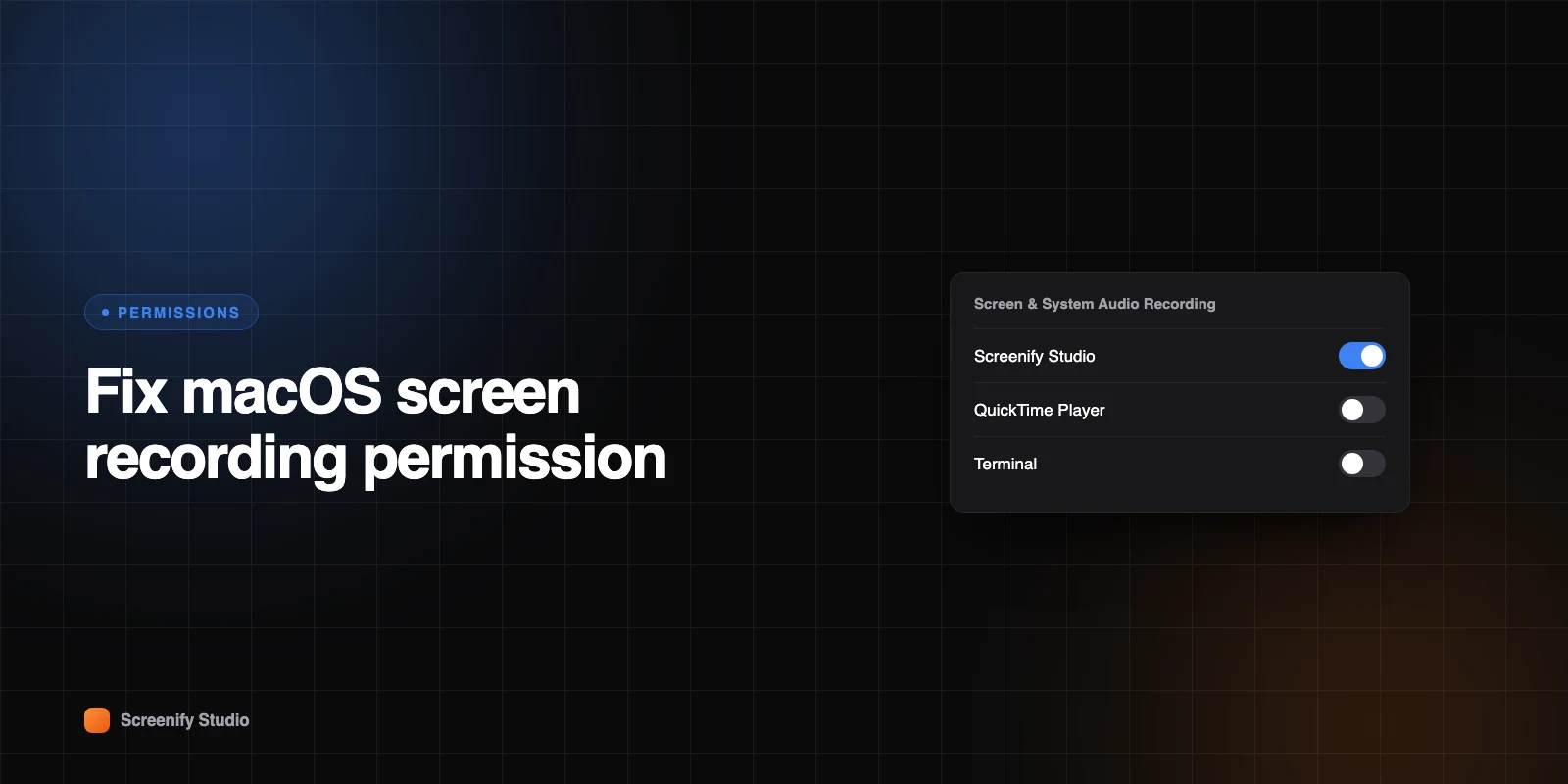
macOS gates screen capture behind a permission called Screen & System Audio Recording. When it is granted, everything works and you forget it exists. When it is not, the failures are unhelpfully quiet: a recording that comes out black, a desktop that appears frozen, an app that never shows up in the settings list at all.
The permission lives in a database called TCC — Transparency, Consent and Control. Most problems here are TCC getting into a state the Settings UI cannot fix, which is why the checkbox you keep toggling changes nothing.
Quick comparison
| Method | When to use | Difficulty |
|---|---|---|
| System Settings toggle | First time, or after an app update | Easy |
| Quit and relaunch properly | Toggle is on but the app still gets black | Easy |
tccutil reset | App missing from the list, or toggle does nothing | Medium |
| Rebuild the TCC database | Everything above failed | Hard |
Work down the list. Ninety per cent of cases end at method two.
First: confirm it is actually permission
Three failures look identical and only one is a permission problem.
Record a plain window — TextEdit, Finder, anything ordinary. If that records fine and only one app comes out black, the problem is that app, or DRM protection on its content, not your permission.
Check whether the recording is black or empty. A black frame with correct duration and file size means capture ran but received nothing — that is permission or protection. A zero-byte or missing file means the recording never started.
Play back a protected video. If the black rectangle only appears over Netflix, Disney+ or Apple TV+, that is DRM and no permission change will alter it. We cover that in protected content can't be recorded.
Method 1: the System Settings toggle
The obvious one, included because the path moved in recent macOS versions and half the guides online still point at the old location.
Step 1 — open System Settings → Privacy & Security → Screen & System Audio Recording. On Ventura and earlier it was Screen Recording, under System Preferences → Security & Privacy → Privacy.
There is a URL scheme that jumps straight there, which is handy in support docs and shows up in search on its own:
x-apple.systempreferences:com.apple.preference.security?Privacy_ScreenCapturePaste it into Safari's address bar or run open "…" in Terminal.
Step 2 — find your app in the list and switch it on.
Step 3 — macOS will prompt you to quit and reopen the app. Do it. The permission is read when the app launches; an app already running keeps its old answer.
Good for: the ordinary case, and the first thing to try after any app update.
Bad for: the two states this cannot reach — an app that is not in the list at all, and an app whose toggle is already on but still records black. Both mean TCC has a stale entry, and the UI will not clear it.
Method 2: quit properly, not just close the window
Worth its own section because it is the single most common reason method 1 "did not work".
Closing the window is not quitting. The process keeps running with the permission state it had at launch. Use Cmd+Q, or better:
# confirm nothing is left running
pgrep -fl "Screenify Studio"

# if it is, end it
pkill -f "Screenify Studio"
Then reopen. If a helper process or login item relaunched it silently, a full logout and login clears the stragglers.
Good for: the case where the toggle is on, you swear you restarted, and it still fails.
Bad for: nothing. Do this before escalating to tccutil.
Method 3: tccutil reset
The command that actually fixes stubborn cases, and the reason people end up searching for it by name.
tccutil clears TCC entries and forces macOS to ask again on next launch. Resetting the screen capture service specifically:
# every app: all screen-recording grants are forgotten
tccutil reset ScreenCapture

# one app only — safer, needs the bundle ID
tccutil reset ScreenCapture com.apple.QuickTimePlayerX
Find a bundle ID with:
osascript -e 'id of app "QuickTime Player"'Then quit and relaunch the app. It will prompt fresh, and the prompt is the point — the prompt is what writes a clean entry.
A few notes that save time:
- The service name is
ScreenCapture, case-sensitive.screencapture(lowercase) is a different command entirely — the built-in CLI screenshot tool — which is why searches for the two get tangled. - Running with no bundle ID resets every app. Every recorder, conferencing app and remote-support tool will ask again. Not destructive, but noisy.
- On some macOS versions
tccutil reset ScreenCaptureneedssudo; on others it must run without it, because the user database is per-user. Try plain first. - Related services use the same syntax:
Microphone,Camera,Accessibility,SystemPolicyAllFiles.
Good for: apps missing from the list, toggles that do nothing, and permission that broke after an app was moved, re-signed or updated.
Bad for: cases where TCC itself is corrupted rather than stale. If the app still fails to appear after a reset and relaunch, go to method 4.
Method 4: when TCC itself is broken
Rare, and usually the aftermath of a migration between Macs or a restore from backup.
Step 1 — check for the app under a stale path. If you moved the app from Downloads to Applications, TCC may hold an entry for the old location. Reinstall to /Applications and reset that bundle ID.
Step 2 — verify the signature. TCC keys on code signature, so a broken or re-signed binary reads as a different app:
codesign -dv --verbose=4 /Applications/YourApp.app 2>&1 | grep -E "Identifier|TeamIdentifier"Step 3 — boot into Safe Mode and try once. It rules out a login item or a security agent interfering with the prompt.
Step 4 — create a fresh user account and test there. If recording works in the new account, the TCC database in your main account is the problem, not the app.
Step 5 — last resort: the TCC database lives at ~/Library/Application Support/com.apple.TCC/TCC.db and is protected by SIP. Disabling SIP to edit it is not worth it. Migrating to a fresh user account is faster and safer.
Good for: genuinely corrupted state.
Bad for: everything else. If you got here in under ten minutes, you skipped a step above.
The related permission everyone hits next
Screen recording permission does not cover audio, and the separation is the second most common source of "it recorded but it is silent".
- Your microphone needs Privacy & Security → Microphone, granted separately.
- System audio — what the Mac is playing — is not a permission at all on older macOS. It requires either a virtual audio device (BlackHole, Loopback) or an app that uses the newer system audio capture APIs.
If a recording has video but no sound, check the microphone permission before assuming anything more exotic.
There is a third permission that gets confused with these two. Input Monitoring and Accessibility control whether an app can observe keystrokes and control your Mac. A recorder that displays your keystrokes on screen needs one of those; a recorder that only captures pixels does not. If an app asks for Accessibility to record your screen, it is asking for the keystroke feature, not the capture — and you can decline it and still record.
What TCC actually stores, and why the checkbox lies
Understanding the shape of the database explains every weird symptom on this page.
TCC keeps one row per (service, client) pair. The service here is kTCCServiceScreenCapture. The client is not the app's name or its path — it is the bundle identifier plus a code-signature requirement. That single design choice causes most of the trouble:
- Move an app and it can keep working, because the path is not the key.
- Re-sign an app, update it with a different certificate, or copy it off a machine in a way that breaks the signature, and macOS sees a different client. The old row still exists, still shows a checkbox in Settings, and no longer applies to the binary you are running. That is the "toggle is on but it still records black" case, and no amount of clicking fixes it because the row you are toggling is not the row being consulted.
- The database is per-user. Two accounts on the same Mac grant independently. There is also a system-level database for services granted machine-wide, which is why some entries cannot be changed by a standard user.
- Decisions are read at process launch. This is why "quit and reopen" is not a superstition — a running process holds whatever answer it got when it started.
tccutil reset works precisely because it deletes the row rather than flipping a value in it. The next launch has no row, so macOS must ask, and the fresh prompt writes a row keyed to the binary you are actually running.
You can inspect what the system thinks it knows, though the database itself is protected by System Integrity Protection and should be treated as read-only:
# what has ever asked for screen capture (read-only; may need Full Disk Access)
sqlite3 "$HOME/Library/Application Support/com.apple.TCC/TCC.db" \
  "SELECT client, auth_value FROM access WHERE service='kTCCServiceScreenCapture';" 2>/dev/null
An auth_value of 2 means allowed, 0 means denied. If your app is absent from that output entirely, it has never successfully asked — which points at the app crashing before the request, not at a permission you forgot to grant.
Managed Macs, MDM, and why nothing you click works
On a work Mac, screen recording permission may not be yours to grant.
Organisations deploy PPPC profiles — Privacy Preferences Policy Control — through MDM. A PPPC payload can pre-approve an app, or explicitly deny it, and a denial delivered this way greys out the toggle entirely. Clicking does nothing because the decision has been made upstream.
To check whether that is your situation:
# list configuration profiles applied to this Mac
profiles show -type configuration | grep -i -A3 "ScreenCapture\|PPPC\|TCC"
If a profile appears, the fix is a request to whoever administers the fleet, not a Terminal command. Worth knowing before spending an hour on tccutil, which cannot override a managed denial.
One quirk of PPPC that catches admins out: screen recording is one of the few services Apple does not allow MDM to silently approve on the user's behalf in the way it can for Accessibility or Full Disk Access. Deployment can pre-populate the entry, but on many macOS versions the user still sees the prompt once. Plan the rollout expecting that.
Scripts, CI, and the terminal case
Automation hits a version of this that the Settings UI describes badly.
The permission attaches to the process that owns the session — the terminal emulator, not the script. Grant it to Terminal, iTerm2, or whichever app you launch from, then quit and relaunch that app entirely. Opening a new tab or window inherits the old process and the old answer.
# a five-second capture, useful as a permission smoke test
screencapture -v -V 5 /tmp/permtest.mov && open /tmp/permtest.mov
If that produces a black file, the terminal lacks permission. If it produces a real recording, your permission is fine and the problem lives in whatever app you were actually trying to use.
For CI and headless runners there is no honest workaround: there is no user session to prompt, and no supported way to pre-seed the database. Runners that need screen capture must be configured as a logged-in user with the permission granted interactively once, on that machine.
What good permission handling looks like
An app that handles this well asks once, in context, and tells you what to do when the answer is no — rather than producing a black file and leaving you to work out why.
Screenify Studio checks screen and audio permissions before recording starts, and if either is missing it says which one and opens the right settings pane rather than a generic error. Recording itself is unlimited on the free plan; the paid tier buys 4K, no watermark and no length cap.
That is a small thing, but a black five-minute recording you only discover afterwards is an expensive way to learn a checkbox was off.
Try Screenify Studio — free, unlimited recordings
Auto-zoom, AI captions, dynamic backgrounds, and Metal-accelerated export.
Troubleshooting
The app is not in the Screen Recording list. The list only shows apps that have asked. Launch the app and start a recording — the request is what adds the row. If it never appears, the app may be crashing before the request, or an old TCC entry is suppressing the prompt. Reset that bundle ID.
"New Screen Recording" is greyed out in QuickTime. Usually permission, occasionally a stuck screencapture process from an earlier session. Check with pgrep -x screencapture and end it if present.
The toggle turns itself back off. A signature mismatch — macOS grants, then invalidates when it re-checks. Reinstall from the original source rather than a copied .app.
Works for me but not for a standard user account. Screen recording permission is per-user. Each account grants its own.
Broke after a macOS update. Point updates occasionally invalidate entries. Toggle off, quit, toggle on, relaunch.
Recording is black only on an external display. Not permission. That is HDCP on the display link, or the wrong display selected in the recorder.
Screen sharing works but recording does not. They are separate permissions. Conferencing apps may hold one and not the other.
Terminal cannot record even after granting. The permission attaches to the terminal app, not the command. Grant it to Terminal or iTerm, then quit and relaunch that app — a new tab is not enough.
FAQ
Where is screen recording permission on macOS? System Settings → Privacy & Security → Screen & System Audio Recording. On Ventura and earlier: System Preferences → Security & Privacy → Privacy → Screen Recording.
What does tccutil reset ScreenCapture do?
It clears the screen-recording permission decision for every app (or one app if you pass a bundle ID), so macOS asks again next time each one launches. It does not delete anything else.
Do I need sudo for tccutil?
Usually not — the per-user database is writable by you. If you get a permission error, try sudo. Behaviour differs by macOS version.
Why does the app still record black after I granted permission?
Almost always because it was not fully quit. The permission is read at launch. Cmd+Q, confirm with pgrep, then reopen.
Why is my app missing from the list?
The list shows apps that have requested access. Trigger a recording to make the request. If nothing appears, reset that bundle ID with tccutil and try again.
Is tccutil the same as screencapture?
No. tccutil manages privacy permissions; screencapture is the built-in screenshot and recording command. Similar names, unrelated jobs.
Does resetting permission delete my recordings? No. It only clears the permission decision.
Why does my recording have video but no audio? Microphone is a separate permission, and system audio needs a virtual device or an app that supports the newer capture APIs. Check Privacy & Security → Microphone first.
The toggle is greyed out and I cannot click it. What now?
That usually means a configuration profile from MDM has made the decision. Run profiles show -type configuration and look for a PPPC payload. If one exists, only whoever manages the Mac can change it — tccutil cannot override a managed denial.
Does granting screen recording let an app see my passwords? It lets the app capture what is on screen, which includes anything visible. It does not grant keystroke access — that is Input Monitoring, a separate permission. Grant screen recording only to apps you would be comfortable watching your display.
The order that works
Toggle it on. Quit properly and reopen. If it is still wrong, tccutil reset ScreenCapture <bundle-id> and relaunch to get a clean prompt. Only then start suspecting the database.
And before any of it, record a plain TextEdit window for five seconds. If that comes out fine, your permission was never the problem — and you have saved yourself an afternoon.
Related reading: Protected content can't be recorded · Screen recording stops by itself on Mac · Screen recording for beginners

Try Screenify Studio
Record your screen with auto-zoom, AI captions, dynamic backgrounds, and Metal-accelerated export. Free plan, unlimited recordings.
Download Free



