Mac Screen Recording Permission: Fix + tccutil Reset
Grant, revoke and reset macOS screen recording permission, including the tccutil reset screencapture command when an app stops appearing in the list.
You install a capture app, launch it, and the first thing it does is ask for screen recording permission. You click Allow, restart the app, and it still can't record your display. Or you open System Settings and the app isn't even listed under Screen Recording. Or macOS keeps asking for permission every single time you reboot.
Apple's permission system for display capture is more complex than most users realize, and it changed significantly with macOS Sequoia. This guide covers how the system works, how to troubleshoot every common failure mode, and what changed in recent macOS versions.
How macOS Screen Recording Permissions Work
macOS uses a framework called TCC (Transparency, Consent, and Control) to manage privacy-sensitive permissions. Display capture is one of the most restricted categories because a malicious app with screen access could silently grab passwords, financial data, private messages, and anything else visible on your display.
When an app requests capture access, macOS does the following:
- The app calls the ScreenCaptureKit or CGWindowList API
- macOS checks the TCC database for an existing permission entry
- If no entry exists, macOS shows a permission dialog to the user
- The user's choice (Allow or Deny) is stored in the TCC database
- The app must be restarted for the permission to take effect
The TCC database is a SQLite file stored at ~/Library/Application Support/com.apple.TCC/TCC.db (user-level) and /Library/Application Support/com.apple.TCC/TCC.db (system-level). You can't edit these files directly due to System Integrity Protection (SIP), but you can reset entries using the tccutil command.
Granting Screen Recording Permission
Step-by-Step
- Open System Settings (macOS Ventura and later) or System Preferences (older macOS)
- Navigate to Privacy & Security > Screen Recording (under Privacy & Security in the sidebar)
- You'll see a list of apps that have requested capture access
- Toggle the switch on next to your recording app
- macOS will prompt you to quit and reopen the app — you must do this for the permission to activate
First-Time Permission Flow
When an app first requests capture access:
- On macOS Monterey and earlier: A system dialog appears with "Open System Preferences" button
- On macOS Ventura and later: A system dialog appears asking you to allow or deny directly
- On macOS Sequoia: The dialog is more prominent and includes a monthly re-authorization prompt (see Sequoia changes below)
The app must be relaunched after granting permission. This is a common source of confusion — toggling the switch in System Settings doesn't take effect until the app is fully quit and reopened. Use Cmd + Q to quit (not just close the window), then reopen.
Revoking Screen Recording Permission
To remove an app's capture access:
- Open System Settings > Privacy & Security > Screen Recording
- Toggle the switch off next to the app
- Or click the minus (-) button to remove the app from the list entirely
- The app must be restarted for revocation to take effect
Revoking permission causes the app to capture blank/black frames instead of actual display content. Some apps detect this and show an error message; others simply produce a black video.
macOS Sequoia Permission Changes
macOS 15 Sequoia introduced significant changes to capture permissions that caught many users and developers off guard.
Monthly Re-Authorization
Starting with Sequoia, macOS prompts users to re-confirm capture permission for each app on a monthly basis. This means:
- Every 30 days, a dialog appears asking whether the app should still have display capture access
- If you dismiss or ignore the dialog, the permission remains but the prompt recurs
- If you click "Don't Allow," the app loses access immediately
- This applies to all third-party capture apps, including OBS, Screenify, Loom, and others
Apple's stated rationale is preventing "permission fatigue" — users granting access once and forgetting about it, potentially leaving stale permissions for apps they no longer use.
Screen Capture Indicator
Sequoia added a persistent orange indicator in the menu bar whenever any app is actively capturing the screen. This indicator:
- Cannot be dismissed while capture is active
- Appears even for apps that are only capturing a portion of the screen
- Is separate from the microphone (orange dot) and camera (green dot) indicators
One-Time Session Access
Sequoia also introduced a "Allow for One Session" option alongside the traditional "Allow" in some permission dialogs. Choosing this grants access only until the app is quit — on next launch, the permission dialog appears again.
What Developers and Users Should Know
- The monthly prompt cannot be disabled by users or developers
- Enterprise MDM (Mobile Device Management) profiles can pre-authorize capture permissions to avoid repeated prompts
- Apps signed with a valid Apple Developer certificate get a slightly better permission UX than unsigned apps
Troubleshooting: App Not Appearing in the List
This is the most frustrating scenario: your recording app doesn't show up in System Settings under Screen Recording, so you can't even grant permission.
Why It Happens
An app only appears in the permission list after it actually requests capture access through the system API. Simply installing the app doesn't trigger this. The app must:
- Be launched at least once
- Attempt to capture the screen (start a recording or preview)
- Use the correct API (ScreenCaptureKit, CGWindowList, or CGDisplayStream)
How to Fix It
Step 1: Launch the app and try to record
Some apps don't request permission until you actually start a recording. Open the app and initiate a screen capture — this should trigger the permission dialog.
Step 2: Check if the app is listed under a different name
Some apps bundle their recording component as a helper process with a different name. For example, an app called "RecordPro" might have its capture agent listed as "RecordPro Helper" or "RecordPro Agent" in the permission list.
Step 3: Reset the Screen Recording permission database
Open Terminal and run:
tccutil reset ScreenCaptureThis removes all capture permission entries. Every app will need to request access again from scratch. Reboot after running this command.
Step 4: Check for code signing issues
Unsigned or ad-hoc signed apps sometimes fail to register in the TCC database. If you're a developer or sideloading an app, ensure it has a valid code signature:
codesign -dv --verbose=4 /Applications/YourApp.appIf the app is unsigned, macOS may silently refuse to add it to the permission list.
Step 5: Reset the full TCC database (last resort)
If nothing else works:
tccutil reset AllThis resets all privacy permissions (Camera, Microphone, Screen & Display Capture, Accessibility, Files, etc.) for all apps. You'll need to re-grant every permission. Use this only as a last resort.
Try Screenify Studio — free, unlimited recordings
Auto-zoom, AI captions, dynamic backgrounds, and Metal-accelerated export.
The TCC Database Explained
For users comfortable with the terminal, understanding the TCC database helps diagnose stubborn permission issues.
Location
- User-level:
~/Library/Application Support/com.apple.TCC/TCC.db - System-level:
/Library/Application Support/com.apple.TCC/TCC.db
User-level permissions cover apps running in your user context. System-level permissions are managed by MDM or require root access.
Viewing Entries (Read-Only)
You can query the TCC database to check if an app has an entry:
sqlite3 ~/Library/Application\ Support/com.apple.TCC/TCC.db \
  "SELECT client, auth_value FROM access WHERE service='kTCCServiceScreenCapture'"
auth_value = 2means allowedauth_value = 0means deniedauth_value = 3means "limited" (used in some contexts)
Why You Can't Edit It Directly
SIP (System Integrity Protection) prevents modification of TCC database files by any process other than the TCC daemon itself. Even with sudo, direct SQLite writes are blocked on modern macOS. The only supported way to modify entries is through System Settings UI or the tccutil command.
Using tccutil
The tccutil command is macOS's official tool for resetting TCC entries:
# Reset capture permissions for all apps
tccutil reset ScreenCapture

# Reset capture permission for a specific app (bundle ID)
tccutil reset ScreenCapture com.example.myapp

# Reset all permissions for all apps (nuclear option)
tccutil reset All
After any tccutil reset, reboot your Mac for changes to take full effect. Some permission categories require a reboot; others take effect after re-launching the affected app.
Common Permission Scenarios and Fixes
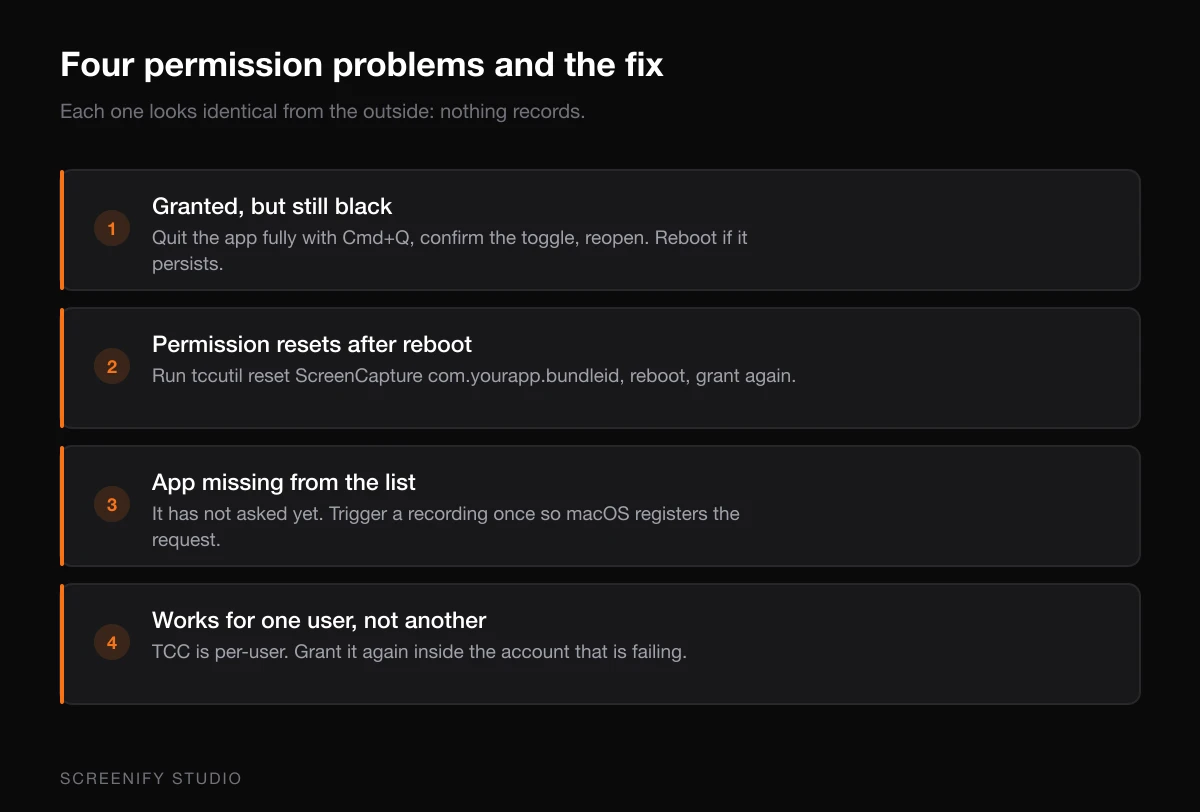
Scenario: Permission granted but recording shows black screen
Cause: The app was not properly restarted after granting permission, or a system process cached the old permission state.
Fix:
- Fully quit the app (Cmd + Q, not just close window)
- Verify in System Settings that the toggle is on
- Reopen the app and try recording
- If still black, reboot the Mac
Scenario: Permission keeps resetting after reboot
Cause: On macOS Sequoia, this may be the monthly re-authorization prompt. On older macOS, it can indicate a corrupted TCC entry or an app with an unstable code signature.
Fix:
- Run
tccutil reset ScreenCapture com.yourapp.bundleid - Reboot
- Re-grant permission
- If it recurs, check if the app's code signature changes between launches (common with auto-updating apps during beta periods)
Scenario: Multiple users on one Mac, recording works for one but not another
Cause: TCC permissions are per-user. Each macOS user account has its own TCC database.
Fix: Log into the affected user account and grant permission from that account's System Settings.
Scenario: App asks for permission but dialog never appears
Cause: macOS sometimes suppresses the dialog if it was previously dismissed or if the app is requesting permission too frequently.
Fix:
- Open System Settings > Privacy & Security > Screen Recording manually
- If the app is listed, toggle it on
- If not listed, reset with
tccutil reset ScreenCaptureand reboot - Relaunch the app
Try Screenify Studio — free, unlimited recordings
Auto-zoom, AI captions, dynamic backgrounds, and Metal-accelerated export.
Enterprise and MDM Considerations
For IT administrators deploying capture tools across a fleet of managed Macs:
- MDM profiles can pre-authorize Screen Recording permissions using the
com.apple.TCC.configuration-profile-policypayload - This eliminates the user-facing permission dialog entirely
- The Sequoia monthly re-authorization prompt is bypassed for MDM-managed permissions
- Use the
ScreenCaptureservice identifier and the app's bundle ID in the profile - Both PPPC (Privacy Preferences Policy Control) profiles and newer Declarative Management support this
This is particularly relevant for organizations deploying tools like Screenify Studio, OBS, or Zoom to employee machines where you want seamless capture without IT support tickets about permissions.
FAQ
Q: Where are screen recording permissions in macOS settings?
Open System Settings > Privacy & Security > Screen Recording (on macOS Ventura and later). On older macOS, it's System Preferences > Security & Privacy > Privacy > Screen Recording.
Q: Why does macOS keep asking for capture permission?
On macOS Sequoia (15.0+), Apple introduced monthly re-authorization prompts. Every 30 days, macOS asks you to re-confirm access for each capture-enabled app. This is by design and cannot be disabled except through MDM profiles.
Q: How do I reset capture permissions on Mac?
Open Terminal and run tccutil reset ScreenCapture. This removes all capture permission entries. Reboot your Mac, then re-grant access to your recording apps. For a specific app, use tccutil reset ScreenCapture com.example.bundleid.
Q: Can capture apps see my passwords?
Yes, if granted permission. Display capture grabs everything visible on screen, including password fields if they display characters temporarily (some password managers do this). This is why macOS gates this capability behind an explicit permission — treat it like camera or microphone access.
Q: Does Screenify Studio require screen recording permission?
Yes. All third-party capture apps on macOS require explicit permission under Privacy & Security. Screenify requests this on first launch and guides you through the setup. Once granted, it uses Apple's ScreenCaptureKit API for efficient, low-overhead capture.
Q: What's the difference between Screen Recording and Accessibility permissions?
The Screen Recording toggle allows an app to capture visual content from your display. Accessibility permission allows an app to control your computer (simulate clicks, read UI elements, interact with other apps). Some tools request both — capture access for recording and Accessibility for features like click highlighting or window selection.
Q: Can I grant capture permission via Terminal?
You can only reset (remove) permission entries via Terminal using tccutil. You cannot grant new permissions from Terminal due to security restrictions. Granting must happen through the System Settings UI or MDM profiles.
For related troubleshooting, see our guide on fixing screen recording audio issues and our complete guide to screen recording on Mac.

Try Screenify Studio
Record your screen with auto-zoom, AI captions, dynamic backgrounds, and Metal-accelerated export. Free plan, unlimited recordings.
Download Free



