QuickTime Error While Recording Your Screen? Fixes
QuickTime Player encountered an error while recording your screen — what causes it, plus fixes for greyed-out buttons, missing audio and crashes.
QuickTime Player ships with every Mac and handles basic screen recording well enough — until it doesn't. A grey record button, a silent recording, or an outright crash can derail your workflow when you need to capture something quickly.
This guide walks through every common QuickTime screen recording failure mode, explains why each happens, and gives you concrete fixes. If you've been staring at a non-responsive QuickTime window, start from the top and work down.
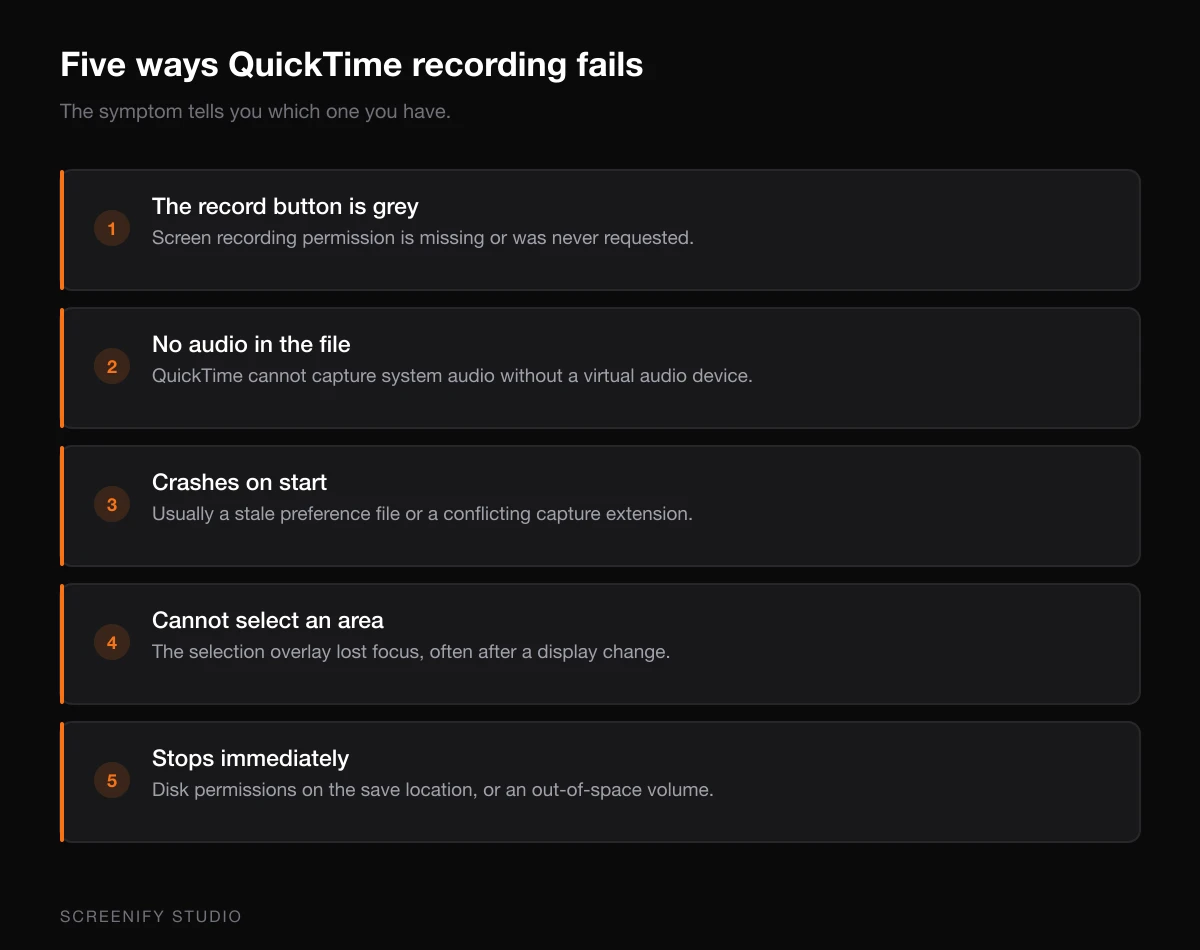
The Grey Record Button
The most frequent QuickTime complaint is a record button that appears but refuses to respond. You click it, nothing happens. The button stays grey or dims without starting a recording.
Why it happens
QuickTime's record button greys out when macOS denies screen recording access at the system level. Starting with macOS Mojave (10.14), Apple requires explicit user permission before any app can capture screen content. If QuickTime doesn't have this permission — or if the permission was revoked during an OS update — the button becomes inert.
A secondary cause: another application already holds an exclusive lock on the screen capture API. This is rare but occurs with certain enterprise security tools that block screen recording company-wide.
How to fix it
Step 1: Check Screen Recording permissions
Open System Settings (or System Preferences on older macOS), navigate to Privacy & Security, then Screen Recording. Look for QuickTime Player in the list. If it's missing, you need to trigger the permission prompt by attempting a recording, then granting access when macOS asks.
If QuickTime appears but the toggle is off, flip it on. macOS will ask you to quit and reopen QuickTime — do it.
Step 2: Reset the permission if toggling doesn't work
Sometimes the permission database gets corrupted. Open Terminal and run:
tccutil reset ScreenCapture com.apple.QuickTimePlayerXThis revokes QuickTime's screen recording permission entirely. Next time you try to record, macOS will prompt you fresh. Grant the permission and try again.
Step 3: Check for MDM or enterprise restrictions
If you're on a company-managed Mac, your IT department may have deployed a configuration profile that blocks screen recording. Open System Settings, then General, then Profiles. If you see a profile that mentions screen capture restrictions, you'll need IT to whitelist QuickTime or provide an alternative.
No Audio in QuickTime Screen Recordings
QuickTime can record your microphone during a screen recording, but it has a well-known limitation: it cannot capture system audio (the sound coming from your Mac's speakers) without third-party help.
Why it happens
Apple designed QuickTime to access microphone input only. There's no built-in path for routing system audio into a QuickTime recording. Many users expect screen recording to capture everything they hear, but QuickTime simply doesn't support it natively.
If your microphone audio is also missing, that's a separate permissions issue.
How to fix it
For microphone audio:
Open QuickTime, go to File then New Screen Recording. Before clicking record, click the dropdown arrow next to the record button. Select your microphone from the list. If no microphone appears, check System Settings, then Privacy & Security, then Microphone, and ensure QuickTime has access.
For system audio:
QuickTime alone cannot capture system audio. You need a virtual audio driver like BlackHole to route system sound into a virtual input that QuickTime can record. The setup involves creating a Multi-Output Device in Audio MIDI Setup, which adds friction every time you want to record.
If capturing system audio matters for your workflow, tools like Screenify Studio handle this natively — system audio capture is built in, no virtual audio drivers or MIDI configuration required. You select your audio sources before recording and everything routes automatically.
QuickTime Crashes on Recording Start
You hit record, QuickTime freezes for a moment, then either force-quits or shows a "QuickTime Player quit unexpectedly" dialog.
Why it happens
Crashes on recording start typically stem from one of three causes:
- Corrupted QuickTime preferences — a damaged plist file causes QuickTime to choke during initialization
- Insufficient disk space — QuickTime needs several gigabytes of free space to begin writing a recording buffer
- Conflicting screen capture software — some tools hook into the same macOS APIs and create conflicts
How to fix it
Step 1: Delete QuickTime preferences
Open Terminal and run:
rm ~/Library/Preferences/com.apple.QuickTimePlayerX.plist
rm -rf ~/Library/Containers/com.apple.QuickTimePlayerX
Relaunch QuickTime. This resets all QuickTime settings to defaults.
Step 2: Check available disk space
Open About This Mac from the Apple menu, then click Storage. If you have fewer than 5 GB free, QuickTime may refuse to start a recording. Clear space and try again. For long recordings, you'll want at least 20-30 GB free since QuickTime writes uncompressed video data to a temp directory.
Step 3: Quit conflicting apps
Close any other screen recording or streaming software — OBS, Loom, or any capture tool running in the background. Some of these apps register persistent screen capture sessions that conflict with QuickTime's initialization.
Step 4: Update macOS
Apple occasionally patches QuickTime crash bugs in minor macOS updates. Check System Settings, then General, then Software Update. If an update is available, install it and retry.
Can't Select a Recording Area
You choose New Screen Recording, the toolbar appears, but clicking and dragging to select a portion of the screen doesn't work. Either the selection doesn't appear, or it selects the entire screen regardless.
Why it happens
This issue often appears after connecting or disconnecting an external display, or after changing display resolution. macOS sometimes loses track of the coordinate mapping between your cursor and the screen capture region.
How to fix it
Step 1: Try the keyboard shortcut instead
Press Cmd + Shift + 5 to invoke macOS's built-in screenshot toolbar (available on Mojave and later). Select Record Selected Portion from the toolbar. This uses the same underlying API but through a different code path that's often more reliable.
Step 2: Disconnect and reconnect external displays
If you're using multiple monitors, unplug external displays, start the recording on your built-in screen, then reconnect. If the issue only appears with a specific display arrangement, try mirroring instead of extending.
Step 3: Restart WindowServer
This is the nuclear option — it logs you out. Save all work first. Open Terminal:
sudo killall WindowServerYou'll be returned to the login screen. Log back in and try QuickTime again. This resets all display-related state.
Try Screenify Studio — free, unlimited recordings
Auto-zoom, AI captions, dynamic backgrounds, and Metal-accelerated export.
Recording Stops Immediately After Starting
You click record, the recording appears to begin (the menu bar icon changes), but within one to three seconds, the recording stops on its own.
Why it happens
The most common cause is disk write failure. QuickTime begins writing to a temporary directory, encounters a write error (full disk, permission issue on the temp folder, or a read-only volume), and aborts. Less commonly, a power management event (like a scheduled sleep) can interrupt the recording.
How to fix it
Step 1: Verify temp directory permissions
QuickTime writes recordings to /private/var/folders/. Check that this directory isn't full or restricted:
df -h /private/var/folders/If the volume is full, clear space. If permissions are wrong (rare, usually after a failed OS update), reset them:
sudo diskutil resetUserPermissions / $(id -u)Step 2: Disable Power Nap and sleep timers
Open System Settings, then Displays, then adjust sleep timer. Also check Battery (or Energy Saver) and disable Power Nap. Some Macs will begin sleep preparation even during a recording if the idle timer is aggressive.
Step 3: Try recording to a different location
In the Cmd + Shift + 5 toolbar, click Options and change the save location to your Desktop or a specific folder. If the default location (which may be iCloud-synced) is causing write conflicts, a local folder resolves it.
When QuickTime Keeps Failing: Alternative Approaches
If you've tried every fix above and QuickTime still won't cooperate, the issue may be systemic — a corrupted macOS installation, incompatible hardware, or persistent permission database corruption.
Before reinstalling macOS (the last resort), try alternatives:
macOS Screenshot toolbar (Cmd + Shift + 5): Uses the same capture API but through a different application process. If QuickTime fails but this works, the issue is QuickTime-specific.
Screenify Studio: A dedicated screen recorder built for macOS that handles screen recording with system audio, area selection, and webcam overlay without the permission juggling that QuickTime requires. It uses Apple's modern ScreenCaptureKit API, which is more stable than the legacy API QuickTime relies on. If your QuickTime issues stem from the older capture framework, switching to a tool built on the newer API often resolves them entirely.
OBS Studio: Free and open-source. More complex to configure but handles edge cases that QuickTime cannot, including system audio capture and custom encoding settings. Useful if you need to rule out whether the issue is macOS-level or QuickTime-specific.
Try Screenify Studio — free, unlimited recordings
Auto-zoom, AI captions, dynamic backgrounds, and Metal-accelerated export.
Diagnostic Checklist
Before you start troubleshooting, run through this quick checklist to narrow down the problem:
- macOS version — Are you on the latest point release? Check Software Update
- Disk space — More than 10 GB free on your startup volume?
- Screen Recording permission — QuickTime listed and enabled in Privacy settings?
- Microphone permission — If audio is the issue, check Microphone in Privacy settings
- Other capture apps — Any screen recording, streaming, or remote desktop software running?
- External displays — Does the issue persist with only the built-in display?
- Safe Mode — Boot into Safe Mode (hold Shift during startup on Intel, or hold power button on Apple Silicon and select Safe Mode). If QuickTime works in Safe Mode, a third-party extension is the culprit
FAQ
Q: Why does QuickTime show a black screen instead of my recording?
Black screens during QuickTime recording usually mean a DRM-protected app is blocking capture. Apps like Netflix, Apple TV+, and Spotify use HDCP protection that prevents any screen recorder — including QuickTime — from capturing their content. Check our black screen fix guide for detailed solutions.
Q: Can QuickTime record system audio on Mac?
No. QuickTime can only record microphone input natively. To capture system audio, you need a virtual audio driver like BlackHole or a dedicated recorder like Screenify Studio that includes built-in system audio capture.
Q: Why is my QuickTime recording file so large?
QuickTime records in Apple's intermediate codec, which prioritizes quality over file size. A 10-minute recording can easily exceed 1 GB. You can compress the file afterward using File then Export As and selecting a lower resolution, or use a tool with built-in compression like Screenify Studio's Metal-accelerated export.
Q: Does QuickTime screen recording work on Apple Silicon Macs?
Yes, but Apple Silicon Macs use different GPU architecture, which occasionally causes issues with apps that haven't been updated for the M-series chips. If QuickTime crashes only on your Apple Silicon Mac, check for a QuickTime update via macOS Software Update and ensure you're on the latest macOS version.
Q: How do I fix QuickTime screen recording with no cursor visible?
In the Cmd + Shift + 5 toolbar, click Options and ensure Show Mouse Clicks is checked. For the standalone QuickTime recording, there's no built-in cursor highlight — you'll see the cursor but without click indicators. For visible cursor emphasis, screen recording tools with cursor effects provide better options.
Q: Why does QuickTime recording lag or drop frames?
QuickTime uses CPU-based encoding on some older Macs, which causes frame drops during intensive recordings. Close unnecessary applications, reduce the recording area (don't capture full screen if you only need a window), and ensure your Mac isn't thermal throttling. If lag persists, a recorder with hardware-accelerated encoding will perform better.
Q: Can I recover a QuickTime recording that crashed mid-capture?
Sometimes. Check /private/var/folders/ for temporary .mov files — QuickTime writes to a temp location during recording. You can search with Terminal:
find /private/var/folders -name "*.mov" -newer /tmp -type f 2>/dev/nullIf you find a file, copy it to your Desktop. It may be incomplete but partially recoverable.
Q: QuickTime screen recording permission keeps resetting after macOS updates — why?
Apple occasionally resets privacy permissions during major macOS upgrades as a security measure. This is by design. After updating, you'll need to re-grant Screen Recording permission to QuickTime (and any other capture tools). There's no way to prevent this — it's Apple's security policy.

Try Screenify Studio
Record your screen with auto-zoom, AI captions, dynamic backgrounds, and Metal-accelerated export. Free plan, unlimited recordings.
Download Free



