DRM Black Screen When Screen Recording: Why It Happens
Netflix, Disney+ and Spotify go black when you record. The DRM tech behind it, what it means legally, and what you can record instead.
You hit record, capture a clip from Netflix or Disney+, and play it back only to find a black rectangle where the video should be. The audio might be there, but the picture is completely gone. Your screen recorder is not broken. The streaming service actively prevented the capture.
This is Digital Rights Management (DRM) at work, and it affects every screen recorder on every operating system. Understanding why it happens, what triggers it, and what you can legally capture instead saves hours of frustrated troubleshooting.
How DRM Prevents Screen Recording
DRM is a set of technologies that restrict how digital content can be copied, shared, or recorded. For streaming video, three major DRM systems dominate:
HDCP (High-bandwidth Digital Content Protection) operates at the hardware level. It encrypts the video signal between the source (your Mac's GPU) and the display. When a screen recorder tries to intercept the decoded video frames, HDCP detects the unauthorized tap and replaces the output with black frames. This is why external capture cards sometimes show black when connected to HDMI outputs from a Mac playing protected content.
Widevine is Google's DRM system, used by Netflix, Disney+, Amazon Prime Video, Hulu, HBO Max, and most major streaming platforms in their web players. Widevine operates at three security levels:
- L1: Hardware-level decryption. The video is decoded entirely within a secure hardware enclave and never exists as unencrypted frames in accessible memory. Screen recording produces a black screen.
- L2: Software decryption of video, hardware processing of the output. Partial protection that some recorders can capture at reduced quality.
- L3: Software-only DRM. The least secure level, which some recorders may capture, but platforms typically limit streaming quality to 480p or 720p at this level.
FairPlay is Apple's DRM system, used by Apple TV+, iTunes Store purchases, and Apple Music video content. FairPlay integrates directly with macOS's media framework, and Safari enforces it natively. When FairPlay-protected content plays in Safari, the compositor marks those frames as protected, and screen capture APIs return black pixels for that region.
Why Your Recorder Shows a Black Screen
When you record Netflix in Chrome, Safari, or the Netflix app, here is what happens at the system level:
- The browser requests the video stream from Netflix's CDN
- Netflix's server checks the browser's DRM capabilities (Widevine level for Chrome, FairPlay for Safari)
- The encrypted video stream arrives and is decrypted within a protected pipeline
- The decrypted frames are sent directly to the GPU's display compositor with a "protected" flag
- macOS's
CGWindowListCreateImageandSCStreamConfigurationAPIs (which screen recorders use) check this flag - Protected frames are replaced with black pixels in the capture output
This is not a bug in your screen recorder. Apple's screen capture APIs are designed to respect DRM flags. Every recorder that uses official macOS APIs will produce the same black screen result.
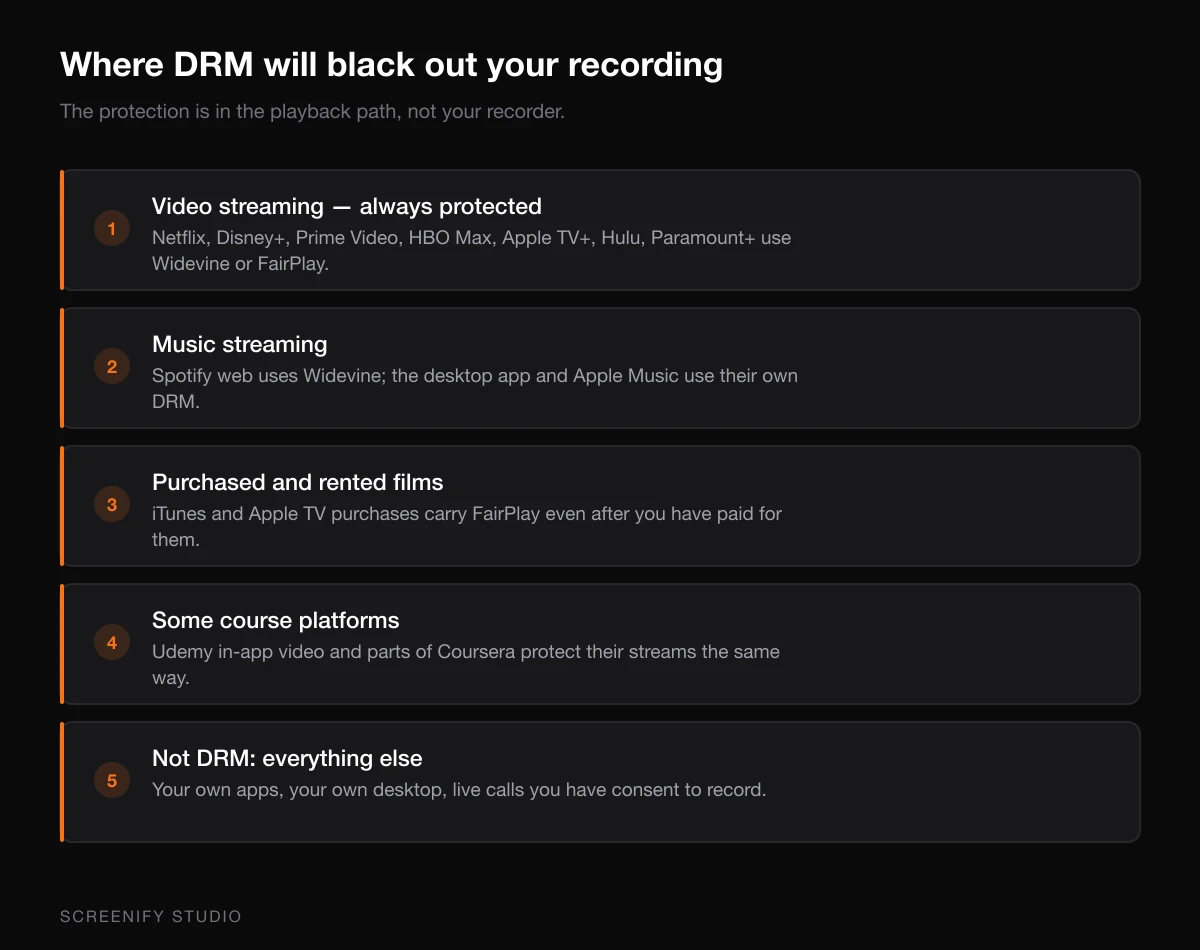
Which Platforms Use DRM
Nearly every major streaming service employs DRM. Here is a breakdown of what you will encounter:
Video streaming (always DRM-protected):
- Netflix (Widevine in Chrome, FairPlay in Safari)
- Disney+ (Widevine/FairPlay)
- Amazon Prime Video (Widevine/FairPlay)
- HBO Max (Widevine/FairPlay)
- Apple TV+ (FairPlay)
- Hulu (Widevine/FairPlay)
- Paramount+ (Widevine/FairPlay)
Music streaming (audio DRM):
- Spotify (Widevine for web player, proprietary DRM in app)
- Apple Music (FairPlay)
- Tidal (proprietary DRM)
Other protected content:
- iTunes/Apple TV purchased or rented movies
- DRM-protected PDFs and ebooks
- Some online course platforms (Udemy videos in the app, Coursera)
Legal Considerations You Should Understand
DRM circumvention carries serious legal implications in most jurisdictions.
In the United States, the Digital Millennium Copyright Act (DMCA) Section 1201 makes it illegal to circumvent technological measures that control access to copyrighted works. Bypassing DRM, even to record content you are paying for, can result in civil liability and criminal penalties.
In the European Union, the Copyright Directive (Article 6) similarly prohibits circumvention of technological protection measures.
In Australia, the Copyright Act 1968 (as amended) includes anti-circumvention provisions.
The legal landscape is nuanced. Fair use or fair dealing defenses may apply in specific educational, commentary, or accessibility contexts, but these are narrow exceptions that often require legal counsel to navigate.
The practical takeaway: Do not attempt to bypass DRM protections. The legal risks are substantial, and the technical measures are specifically designed to prevent it.
What You CAN Record Legally
Despite DRM restrictions, there is a wide range of content you can freely capture:
Your Own Content
Any content you create is yours to record. This includes:
- Your own presentations, demos, and tutorials
- Software you built or administer
- Your desktop workflow and productivity sessions
- Video calls where you have consent from participants
- Your own creative work in progress
Unprotected Web Content
Most websites do not use DRM for their video content. You can typically record:
- YouTube videos (most are not DRM-protected, though YouTube Premium downloads use DRM)
- Vimeo embeds (unless the uploader enabled DRM, which requires a premium plan)
- Self-hosted HTML5 video on blogs and documentation sites
- Social media content displayed in the browser (Twitter/X videos, Reddit clips, Instagram Reels in the web player)
- Educational platforms that use standard video embeds (many do not use DRM)
- Webinar platforms and live streams
Browser Content Without Hardware DRM
Some platforms use Widevine L3 (software-only) which may not trigger black-screen protection in all scenarios. However, these platforms typically restrict quality to standard definition when hardware DRM is not available.
You can check if a site uses DRM by opening Chrome DevTools (Command+Option+I), going to the Application tab, and looking at Media in the sidebar. Playing a video will show whether an EME (Encrypted Media Extensions) session is active.
Try Screenify Studio — free, unlimited recordings
Auto-zoom, AI captions, dynamic backgrounds, and Metal-accelerated export.
Ethical Alternatives to Recording Protected Content
If you need content from a DRM-protected source, consider these legitimate approaches:
Use Official Download Features
Most streaming platforms offer offline download options within their apps:
- Netflix: Download button on individual titles in the iOS/Android app
- Disney+: Download for offline viewing in the mobile app
- Spotify: Download playlists for offline listening (Premium required)
- Apple TV+: Download in the Apple TV app on Mac, iPhone, or iPad
These downloads are still DRM-protected and expire, but they give you legitimate offline access.
Request Permission
If you need clips for educational, review, or commentary purposes:
- Many platforms have press or media inquiry contacts
- Some content creators license their work for educational use
- Stock footage and music libraries offer licensable alternatives
Create Your Own Demonstrations
Instead of recording a Netflix show to demonstrate a UI concept, recreate the example:
- Use placeholder content or public domain material
- Record your own narration over static screenshots (which are generally captured without DRM interference)
- Reference timestamps and descriptions instead of video clips
Use Platform-Provided Sharing Tools
Streaming services often provide built-in sharing features:
- Netflix "Share" button sends links directly
- Spotify's share feature creates preview clips
- YouTube's clip and share tools let you highlight specific segments
Troubleshooting: Is It DRM or Something Else?
Not every black screen is caused by DRM. Before concluding that DRM is the culprit, verify these other common causes:
Hardware acceleration conflicts: Some screen recorders conflict with GPU-accelerated rendering. Try disabling hardware acceleration in your browser (Chrome: Settings, then System, then "Use hardware acceleration when available") and test again with non-DRM content first.
Permission issues on macOS: Screen recording requires explicit permission in System Settings, then Privacy and Security, then Screen Recording. If your recorder is not listed or not enabled, you will get black frames on all content, not just DRM-protected material.
Display scaling and HDR: Some recorders struggle with HDR content or unusual display scaling. Test with SDR content at standard resolution first.
For a comprehensive guide to black screen issues beyond DRM, see our screen recording black screen troubleshooting guide.
Try Screenify Studio — free, unlimited recordings
Auto-zoom, AI captions, dynamic backgrounds, and Metal-accelerated export.
Recording Non-DRM Content Reliably
For all the content you can legally record, here is how to get clean captures:
Choose the right capture mode. Window capture is more efficient than full-screen capture because it only processes pixels from the target window. This reduces CPU load and produces smaller files.
Match your recording settings to the content. If you are recording a static webpage, 30 fps at 1080p is sufficient. For video playback of non-DRM content, match the source frame rate (typically 24, 30, or 60 fps).
Use a recorder with hardware acceleration. Software encoding competes with the browser for CPU time, which can cause dropped frames. Screenify Studio uses Metal-accelerated encoding on Apple Silicon, keeping the capture pipeline smooth even when recording browser content alongside intensive workflows.
Test before committing to a long session. Record 30 seconds, play it back, and verify both audio and video are captured correctly. This catches permission issues, black screen problems, and audio routing mistakes before they ruin a full recording. Our guide on recording with audio on Mac covers audio setup in detail.
The Future of DRM and Screen Recording
DRM technology continues to evolve. Hardware-level protection is becoming more prevalent, and browser vendors are tightening their implementations. Chrome has progressively restricted Widevine L3 fallback scenarios, and Apple continues to expand FairPlay coverage.
At the same time, the content you create, your tutorials, your demos, your presentations, remains entirely yours to record and share. The practical impact of DRM is limited to third-party copyrighted material. For the vast majority of screen recording use cases (software demos, tutorials, presentations, bug reports, workflow documentation), DRM is never a factor.
Focus your recording workflow on content you own and have rights to capture. That is where screen recording delivers its full value.
Related Reading
- Fix screen recording black screen issues (all causes)
- How to screen record on Mac: complete guide
- Screen record without lag or performance issues
FAQ
Q: Why can I hear the audio but the video is black when recording Netflix?
DRM protection targets the video stream specifically. Audio and video use separate DRM pipelines, and some recorder configurations capture the audio output (which passes through the system's audio routing) while the video frames are blocked by HDCP or Widevine. The audio is still technically protected, but the enforcement mechanism differs.
Q: Does using a different browser help bypass DRM black screens?
No. All major browsers (Chrome, Safari, Firefox, Edge) implement DRM through Encrypted Media Extensions (EME). Switching browsers changes which DRM system is used (Widevine vs FairPlay) but does not remove the protection. The black screen result is the same across all of them.
Q: Can an HDMI capture card record DRM-protected content?
HDCP (the hardware-level DRM) specifically prevents this. Modern HDMI outputs from Macs include HDCP encryption, and compliant capture cards will show a black screen or refuse to capture. Devices that strip HDCP exist but using them to capture copyrighted content likely violates the DMCA.
Q: Why can I screenshot Netflix but not screen-record it?
Screenshots capture a single frame at a specific moment, and some platforms allow this because a single frame has limited utility for piracy. Screen recording captures continuous frames at 30 or 60 per second, which reproduces the content in a watchable format. DRM enforcement is stricter for continuous capture than for single-frame capture, though some platforms block screenshots as well.
Q: Is recording a Zoom call the same as recording DRM content?
No. Zoom calls are not DRM-protected (though Zoom has its own recording policies). You can screen-record Zoom calls using any recorder, provided you have consent from participants. Many jurisdictions require all-party consent for recording conversations. Zoom's built-in recording feature handles this with automatic notifications.
Q: Will future macOS updates make it possible to record DRM content?
Unlikely. Apple actively maintains and strengthens FairPlay DRM in macOS. Each macOS update tends to tighten screen capture restrictions for protected content, not loosen them. Apple has financial incentives (Apple TV+, iTunes Store) to enforce DRM effectively.
Q: Can I record DRM content on Windows or Linux instead?
DRM enforcement exists across all operating systems. Windows uses PlayReady DRM and HDCP, Linux uses Widevine (typically at L3 level, with lower quality). While implementations differ, the intent and result are the same: protected content produces black frames or degraded quality in screen captures.
Q: What about recording for accessibility purposes?
Accessibility exemptions to DRM exist in some jurisdictions (notably the US Library of Congress grants periodic DMCA exemptions). However, these are narrow, specific exemptions that typically do not cover general screen recording. If you need accessible versions of DRM-protected content, contact the platform directly, as most offer accessibility features (captions, audio descriptions) within their players.

Try Screenify Studio
Record your screen with auto-zoom, AI captions, dynamic backgrounds, and Metal-accelerated export. Free plan, unlimited recordings.
Download Free



