How to Add an iPhone Mockup Frame to Screen Recordings
Four ways to wrap a screen recording in a realistic iPhone or iPad mockup frame — from manual iMovie overlays to automatic device frames.
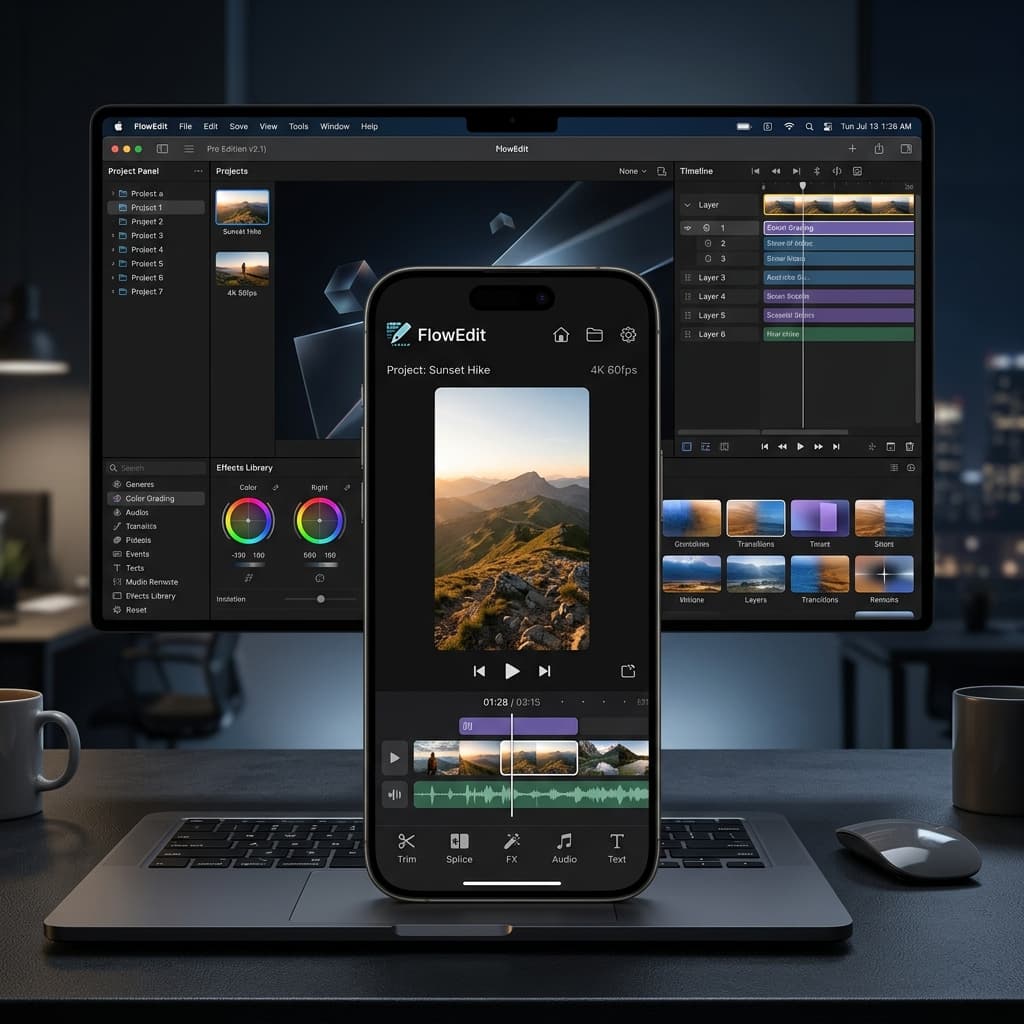
You captured a clean recording of your iPhone app, dropped it onto the timeline, and it looks... flat. A bare rectangle of UI floating on a slide. The thing that makes app demos feel real — that physical phone shell around the screen, with the right bezels and a notch or Dynamic Island in the correct spot — is missing. Adding that shell is the step most people get stuck on, because the recording itself is easy and the framing is fiddly.
This walks through four concrete ways to take a finished iPhone or iPad capture and put it inside a believable device shell for a demo or marketing video. Each method trades off effort, cost, and how convincing the result looks. Pick the one that matches how often you ship videos and how polished they need to be.
A quick note on scope: recording the screen itself is a solved problem and covered elsewhere. If you still need to grab the footage, see how to screen record an iPhone. Everything below assumes you already have a clip and want to wrap it.
Method Comparison
| Method | Cost | Realism | Best for |
|---|---|---|---|
| Manual overlay (iMovie / Keynote) | Free | Low–medium | One-off videos, full manual control |
| Online mockup generator | Free / freemium | Low for video | Static screenshots, quick social posts |
| Screenify Studio | Free tier + paid | High | Repeatable app demos with camera motion |
| Screen Studio | Paid (Mac) | High | Polished Mac-first marketing videos |
The gap between these isn't just visual quality — it's how much work you redo every time you re-export. A manual overlay has to be re-aligned whenever you trim the clip; an automatic frame travels with the recording. Keep that in mind as you read.
Before the methods, it helps to name what a convincing mockup actually requires, because that's the checklist each approach is measured against:
- Correct cutout geometry — the corner radius, the notch or Dynamic Island shape, and the bezel thickness all match a specific device, not a generic rounded rectangle.
- Pixel-accurate fit — the recording fills the screen area edge to edge with no peeking UI and no internal margin.
- Stability under motion — if the camera tilts or zooms, the shell and the screen content move together.
- Export parity — what you see while editing is what renders, so you don't catch a misalignment only after a long export.
- A believable finish — the device color and material read as a real product, not a flat gray slab.
Few of the cheap routes hit all five. The methods below differ mainly in how many they cover and how much manual effort each one costs you.
Method 1: Manual overlay in iMovie or Keynote
The lowest-cost approach is to composite the frame yourself. You find a transparent PNG of an iPhone (the shell with a hole where the screen goes), place it as an overlay on top of your recording, and nudge the recording behind it until the screen content lines up inside the cutout.
In iMovie, this means adding the device PNG as a picture-in-picture layer above your recording track, then scaling and positioning the recording underneath so it shows through the screen hole. Keynote works similarly: drop the PNG on a slide, send your video behind it, and resize by hand. Both let you record the slide or timeline out as a finished clip.
Where it falls down:
- Alignment drift. Getting the recording to sit exactly inside the cutout — no sliver of UI peeking past the bezel, no gap at the corners — is eyeball work. A pixel or two off reads as sloppy.
- No notch or Dynamic Island accuracy. A flat PNG doesn't know where your recorded content sits relative to the cutout. If the PNG's notch lands over a button in your app, you're stuck.
- It breaks on every edit. Trim the clip, change its length, or swap the footage and the manual positioning often has to be redone. There's no link between the frame and the recording.
- One resolution. Scale the composite for a vertical social post and a landscape YouTube intro and you may be re-aligning twice.
A realistic estimate of the effort: sourcing a clean transparent PNG for the right model, scaling it to your canvas, scaling and positioning the recording behind it, and checking every edge takes a careful few minutes the first time. That's tolerable once. The problem is that the positioning isn't saved as a relationship — it's saved as absolute coordinates — so the moment the underlying clip changes length, gets replaced, or moves to a project at a different resolution, you're back doing it again.
For a single video you'll never touch again, manual overlay is fine and costs nothing but time. For anything you iterate on, the redo tax adds up fast. FFmpeg can automate the overlay step — the overlay filter, a transparent frame PNG, and a scaled input — which removes the drag-and-drop tedium if you're comfortable scripting. A minimal version layers a scaled recording under a frame PNG and writes out a new file, and you can templatize it across many clips. But it inherits the same limitations of a static PNG: you still hand-tune the scale and offset values once per device, the notch position is whatever the PNG dictates, and there's no warning if the frame doesn't match the footage. It trades GUI fiddling for command-line fiddling rather than removing the alignment problem.
Method 2: Free online mockup generators
A web mockup tool flips the work around: you upload a screenshot or short clip, the site drops it into a preset phone frame, and you download the result. No editor, no PNG hunting.
These shine for static screenshots — App Store shots, a landing-page hero image, a tweet. Upload, pick a frame, export, done. For video the experience degrades:
- Weak video support. Many tools only frame stills, or cap clip length and resolution. Some re-encode the upload and soften it.
- Watermarks and quality caps on free tiers, removed only on a subscription.
- A privacy cost. Framing footage online means uploading your recording — possibly an unreleased app, internal tooling, or customer data — to a third-party server. For pre-launch or sensitive demos that's a real concern.
- Limited model and color choice. You take whatever frames the site offers, which may not include the device or finish you want.
There's also a workflow cost that's easy to miss. Generators are a separate step outside your editor, so the framed clip comes back as a finished file you then have to import, position on a background, and combine with the rest of your video. If you later re-record one screen, you repeat the whole round trip — re-upload, re-export, re-import. For a video stitched from several framed clips, that round trip happens once per clip.
If you only need a framed screenshot once in a while, a generator is the fastest path and worth keeping bookmarked. As your default for video, the upload friction, quality ceiling, and privacy tradeoff tend to push people toward something that runs locally.
Method 3: Screenify Studio
Screenify takes the framing out of the manual loop entirely. When you bring an iPhone or iPad recording into the editor, you pick a device and an official finish, and the recording snaps into the screen cutout of a photorealistic 2D shell — bezels, rounded corners, and the notch or Dynamic Island land in the right places without hand-alignment.
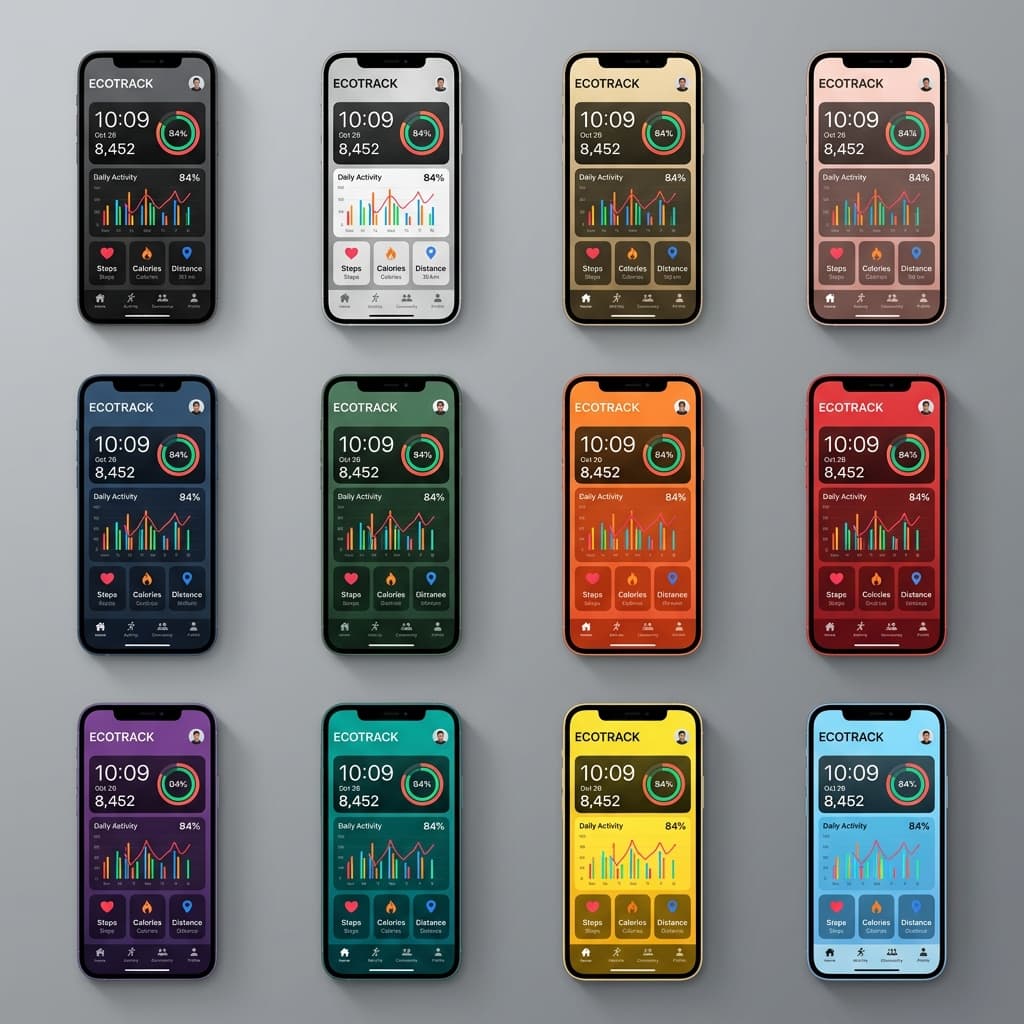
The detail that matters for video specifically: the frame and the recording behave as one unit. Apply a 3D tilt, push in with a zoom, or move the camera, and the shell tracks the screen content through the whole move instead of sliding out of register the way a separate overlay would. The preview you scrub in the editor is what comes out at export, so you're not exporting blind and discovering a misaligned frame after the render.
It covers a wide range of recent iPhone and iPad models and official finishes, so you can usually match the device you actually recorded on rather than settling for the nearest preset. And because the framing lives in the project, re-trimming or swapping the footage keeps the frame attached — no re-aligning on each export.
One safeguard worth calling out: if the recording's device geometry doesn't match the frame you picked — say the capture is from a different model than the shell you selected — Screenify flags the mismatch instead of silently producing a frame where the notch sits over your content. That catches the single most common cause of an off-looking mockup before you publish.
Mapped against the five-point checklist from earlier, this is where the local, editor-native approach earns its place. The cutout geometry is calibrated per model rather than approximated, the fit is automatic instead of eyeballed, the shell holds through motion because it's bound to the screen content, the editor preview matches the render, and you choose from official finishes so the device reads as a real product. The payoff isn't a single dramatic frame — it's that the second, third, and tenth time you re-export, you don't redo any of it.
This matters most for the kind of work that's never one-and-done: an onboarding clip you tweak as the app changes, a feature demo you re-cut for different channels, App Store preview videos you refresh each release. The manual and online routes treat each export as a fresh framing job; an editor that keeps the frame attached treats it as a saved property of the project.
The technical write-up on the new photorealistic 2D device frames covers how the assets are calibrated, and if your demo leans on motion, cinematic 3D device frame motion shows how the shell holds together through camera moves. The same idea applies to desktop captures via MacBook device frames.
To be clear about what it does and doesn't do: framing is automatic, but it doesn't detect or blur passwords and sensitive fields for you — review your footage for anything you don't want on screen before exporting, the same as you would with any tool.
Try Screenify Studio — free, unlimited recordings
Auto-zoom, AI captions, dynamic backgrounds, and Metal-accelerated export.
Method 4: Screen Studio
On the paid Mac side, Screen Studio is a credible alternative with built-in device frames and background presets. It's a polished, Mac-first app aimed at the same outcome: turn a raw capture into a presentable marketing clip without a full NLE.
Its strengths are real. The automatic zoom and smooth cursor work are well regarded, the background and padding presets make a recording look composed with little effort, and the device frames are clean. If you're already invested in its workflow for Mac screen recordings, framing an iOS clip inside it is a natural extension.
The practical considerations: it's a separate paid app with its own license, and its center of gravity is Mac screen capture rather than iPhone/iPad mockups specifically. For teams whose output is mostly mobile app demos, the difference comes down to how each app handles iOS device geometry, model coverage, and whether the framed preview matches the export. Both are reasonable choices; try the one whose framing model fits your footage.
If most of what you ship is desktop captures with the occasional mobile clip, an app built around Mac recording fits comfortably. If the bulk of your output is iPhone and iPad app demos, weigh how each handles tablet shells, portrait and landscape orientation, and the per-model cutouts that make the difference between a frame that looks right and one that's slightly off. Neither choice locks you in — both let you frame a clip and judge the result quickly.
Troubleshooting
Most device-frame problems trace back to a mismatch between the recording and the shell. The usual suspects:
- Aspect ratio or orientation doesn't match the frame. A portrait recording dropped into a landscape frame (or vice versa) leaves the screen content squeezed or rotated. Match the frame orientation to how you recorded — record portrait, frame portrait. If you need landscape output, re-record in landscape rather than rotating a portrait clip.
- Notch or Dynamic Island overlapping your content. This almost always means the frame model differs from the device you recorded on. The cutout geometry is model-specific, so a frame for one model can drop its notch over a button that sat in safe space on yours. Choose the frame that matches the recorded device; if a tool warns about a geometry mismatch, don't override it.
- Black bars or letterboxing inside the frame. The recording's resolution doesn't fill the screen cutout, so the editor pads it. Crop or rescale the recording to the cutout's aspect ratio so it fills edge to edge instead of floating with margins.
- Blurry result. Wrapping a low-resolution capture in a large frame forces an upscale, which softens everything. Capture at the device's native resolution from the start — you can scale a sharp recording down cleanly, but you can't recover detail by scaling up.
- Screen content clipped at the rounded corners. Frames mask the screen to rounded corners, so UI pushed all the way into a corner — a close button, a badge — can get trimmed. Keep important elements out of the extreme corners, or add a little padding in your app's layout before recording.
Try Screenify Studio — free, unlimited recordings
Auto-zoom, AI captions, dynamic backgrounds, and Metal-accelerated export.
FAQ
What's the best way to put a screen recording in an iPhone frame? For a one-off, a manual overlay in iMovie or Keynote works. For videos you re-export or that include camera motion, an app that attaches the frame to the recording — so it stays aligned through trims and moves — saves the most time and looks the most consistent.
Can I add a device frame to a video for free? Yes. Manual compositing in iMovie or Keynote with a transparent frame PNG is free, and FFmpeg can script the overlay at no cost. Free online generators also exist, though they often watermark video or cap quality. The tradeoff is manual alignment versus convenience.
Do I need the exact iPhone model to use its frame? You don't need the physical phone, but the frame should match the model you recorded on. The screen cutout, corner radius, and notch or Dynamic Island position are model-specific, so a mismatched frame can clip content or misplace the cutout.
How do I avoid the notch overlapping my content? Pick the frame for the same model you recorded, since the notch position is tied to the cutout geometry. Keep critical UI out of the top safe area when you design the screen, and heed any mismatch warning rather than forcing an incompatible frame.
Can I frame an iPad recording too? Yes. The same approach applies — match the frame to the iPad model and orientation you recorded. Just confirm the tool actually offers tablet shells, since some online generators only carry phone frames.
What resolution should I record at for a crisp mockup? Record at the device's native resolution. Wrapping a low-res capture in a large frame forces an upscale that looks soft; a native-resolution recording scales down cleanly for any output size while staying sharp.
Why does my framed recording have black bars around it? The recording's aspect ratio doesn't match the screen cutout, so it's being padded to fit. Crop or rescale the clip to the cutout's ratio so it fills the screen area instead of sitting inside margins.
Does framing my recording online risk my privacy? It can. Online generators require uploading your footage to their servers, which is a concern for unreleased apps or sensitive data. A tool that frames the recording locally on your machine avoids sending the footage anywhere.
If you make app demos regularly and want the frame to snap into place, match the device you recorded on, and look identical in the preview and the final render, give it a try: Download Screenify Studio and wrap your next iPhone or iPad recording in a device shell without the manual alignment pass.

Try Screenify Studio
Record your screen with auto-zoom, AI captions, dynamic backgrounds, and Metal-accelerated export. Free plan, unlimited recordings.
Download Free



