How to Combine Multiple Screen Recordings into One
Five ways to record a walkthrough in several takes and combine them into one clean video — from iMovie stitching to native multi-clip recording.
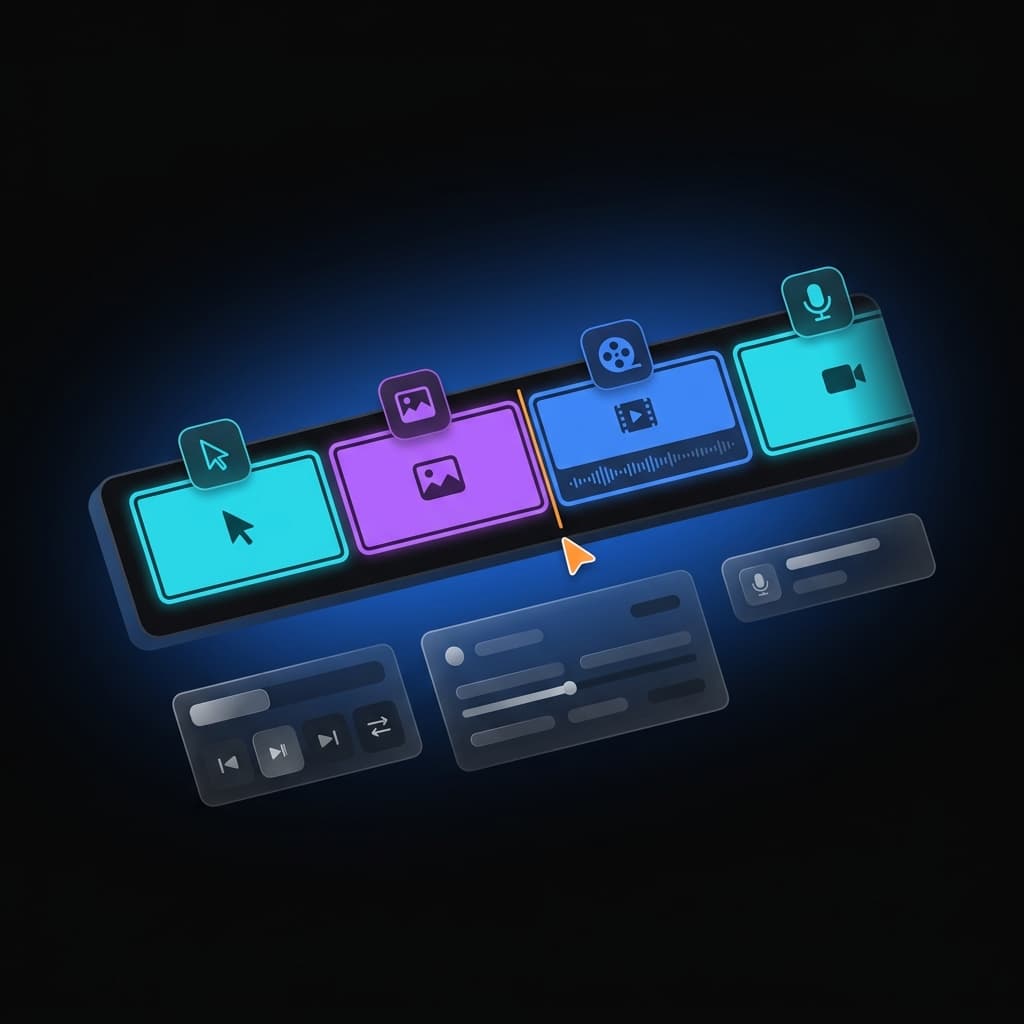
Almost no screen demo survives a single take. You explain a feature cleanly, then flub the next step, mistype a search, or get interrupted — and because the whole thing was one continuous recording, fixing that one moment means starting over from the top. The professional-looking walkthroughs you see are almost never one perfect run; they're several good takes assembled into one.
The question is how you assemble them. There are real differences between the approaches — in how much manual work each re-export costs, whether your audio stays in sync across the seams, and whether the takes even have to match in size. This walks through five concrete ways to record in segments and combine them into a single video, and where each one starts to hurt.
If you haven't captured anything yet, the recording step itself is covered separately — see how to screen record a FaceTime call on iPhone for a device-specific walkthrough. Everything below assumes you have, or are about to record, more than one clip.
Method Comparison
| Method | Cost | Sync risk | Best for |
|---|---|---|---|
| Manual stitch (iMovie / QuickTime) | Free | Medium | One-off videos, full manual control |
| Online video merger | Free / freemium | High | Quick joins, non-sensitive footage |
| FFmpeg concat | Free | Low–medium | Scripted batches, identical formats |
| Screenify Studio | Free tier + paid | Low | Repeatable walkthroughs, per-clip edits |
| Screen Studio | Paid (Mac) | Low | Polished Mac marketing clips |
The gap between these is less about whether they can join two files and more about what happens after they're joined. A tool that treats each take as a separate file makes you re-merge on every edit; a tool that keeps the takes inside one project lets you trim, reorder, and re-export without redoing the join. Keep that redo tax in mind as you read.
Before the methods, it helps to name what actually makes a combined recording look like one video rather than several clips taped together:
- Audio that stays locked to picture across every seam, so narration doesn't drift a few frames out by the third take.
- Consistent framing and resolution, or a deliberate cut when they differ, instead of a jarring size jump mid-video.
- Per-take control — the ability to mute one segment, hide the cursor on another, or trim a third without disturbing the rest.
- A clean seam where one take ends and the next begins, with no flash of a wrong frame or a stalled playhead.
- No re-work on re-export, so tweaking take two doesn't force you to rebuild the whole timeline.
Few of the quick routes hit all five. The methods below differ mainly in how many they cover and how much hand-work each one costs.
Method 1: Manual stitch in iMovie or QuickTime
The zero-cost route is to record each take as its own file and line them up by hand in a video editor. In iMovie, you drop every clip onto the timeline in order, drag them edge to edge, and export the result. QuickTime Player can do a lighter version: open the first clip, then use Edit → Add Clip to End to append the others, and export a combined file.
For a handful of takes recorded at the same size, this works and costs nothing. Where it breaks down:
- Audio drift on long joins. Each clip carries its own audio track, and small timing differences between recordings can accumulate across several joins, leaving narration a touch ahead of or behind the picture by the end.
- Manual reordering. Change your mind about the sequence and you're dragging clips around by hand, re-checking every boundary.
- No per-clip recording controls. iMovie doesn't know one take had a live cursor and another didn't, or that the mic should be muted on a silent pass. Anything like that is manual masking after the fact.
- It's a separate step from recording. You record in one app, then switch to an editor to assemble — and if you re-record one segment, you re-import and re-place it.
Manual stitching is fine for a video you'll finish once and never revisit. The moment you iterate — trimming take two, swapping take four, re-exporting for a different aspect ratio — the hand-alignment work comes back each time, because the join is a one-time action rather than a saved relationship.
Method 2: Online video mergers
A web merger flips the effort: you upload your clips, the site joins them in the order you set, and you download one file. No editor to learn, no software to install.
For a fast, low-stakes join — two short clips for a social post — this is the quickest path. For a real walkthrough it degrades:
- Upload friction and quality caps. Larger recordings take time to upload, and many free tiers re-encode the output, softening your text and UI. Some cap length or resolution.
- A privacy cost. Combining footage online means sending your recording — possibly an unreleased product, internal tooling, or customer data — to a third-party server. For pre-launch or sensitive material that's a genuine concern.
- Weak sync handling. Browser tools generally concatenate files as-is; if your takes have slightly different frame rates or audio offsets, the seams can pop or the sound can slip.
- A round trip every time. The merged clip comes back as a finished file you still have to import into your main edit. Re-record one take and you repeat the whole upload-merge-download loop.
If you occasionally need to glue two clips together and they're not sensitive, a merger is worth bookmarking. As a default for demo work, the upload wait, quality ceiling, and privacy tradeoff push most people to something that runs locally.
Method 3: FFmpeg concat
If you're comfortable at the command line, FFmpeg can join clips with no GUI at all. Its concat demuxer takes a text list of files and writes them out as one, and when every clip shares the same codec, resolution, and frame rate, it can do this without re-encoding — a fast, lossless join.
That's the strength and the catch in one. FFmpeg concat is excellent for identical-format takes: same device, same settings, same export. You can script it across dozens of clips and automate the whole assembly. But the moment your takes differ — one recorded at a different resolution, another at a different frame rate — you have to re-encode them to a common format first, which adds a generation of quality loss and a lot of flag-tuning. And like every file-level join, it produces a finished output rather than an editable project: there's no per-take mute, no cursor toggle, no trim handle. It removes the drag-and-drop tedium of Method 1 but inherits the same "it's a one-time join" limitation, and it assumes your clips were already recorded consistently.
Try Screenify Studio — free, unlimited recordings
Auto-zoom, AI captions, dynamic backgrounds, and Metal-accelerated export.
Method 4: Screenify Studio
Screenify takes the assembly out of the separate-editor loop by letting you record the next take straight into the project you're already editing. You record a segment, stop, and record again — screen captures, iOS Simulator sessions, and USB-connected iPhone or iPad recordings all append to the same timeline. There's no export-and-re-import between takes.
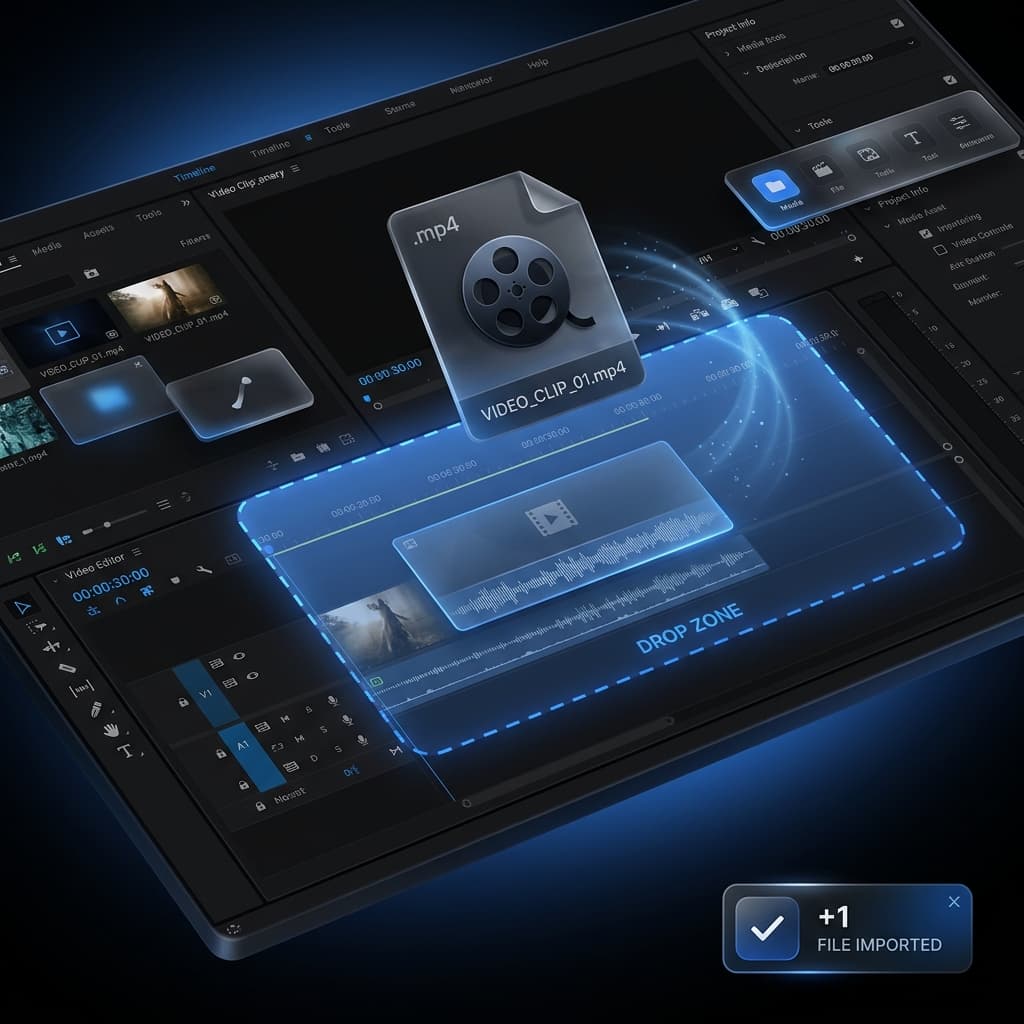
The detail that matters for combining specifically: each take stays a first-class clip, not a flattened piece of one long file. Select any segment and you can trim it, mute its microphone or system audio, hide its cursor, show or hide the camera, or drop a zoom over one moment — and none of it touches the neighboring takes. A silent UI pass and a narrated walkthrough can sit side by side, each with its own audio setting, in the same project.
Takes recorded at the same size join seamlessly, as though captured in one run. When a take is a different size — an iPhone simulator followed by a physical iPad, say — Screenify adds it as its own clip rather than forcing a distorted stitch, so you get a deliberate cut instead of a squashed frame. New takes can land at the end or be inserted at the very start, which is the cleanest way to add an intro you recorded last.
Two things that specifically address the "looks like one video" checklist from earlier: the app anchors each recording's audio to its capture window so voice and picture line up from the first frame across every seam, and the framing you were recording with — the window, the custom area, the connected device, the Space — is restored when you append, so consecutive takes match without re-setup. Because the takes live inside one project, re-trimming or reordering them keeps everything attached; you don't re-merge on each export.
This is the approach that pays off on work that's never one-and-done: onboarding clips you re-cut as the product changes, feature demos you refresh each release, App Store previews recorded across several attempts. The manual and online routes treat each export as a fresh assembly job; a project that keeps every take editable treats it as saved structure. The related multi-clip recording overview covers the per-clip controls in more depth, and if you're framing mobile takes, photorealistic iOS device frames apply across the whole assembled timeline.
To be clear about scope: combining is automatic, but the app won't scrub passwords or sensitive fields from your footage for you — review each take for anything you don't want on screen before exporting, the same as with any tool.
Method 5: Screen Studio
On the paid Mac side, Screen Studio is a credible option with automatic zoom, smooth cursor motion, and clean backgrounds built in. It's aimed at the same outcome — turning raw captures into a presentable clip without a full editing suite — and its polish is well regarded. Loom occupies a nearby space for quick share-and-send recordings, though it leans toward instant sharing over segment-by-segment assembly.
Screen Studio's strengths are real: the composed look it produces with little effort is a genuine time-saver, and if your workflow already lives there, combining a few Mac captures inside it is natural. The practical considerations come down to how each app handles takes captured under different conditions — mixed resolutions, iOS device sessions, per-clip audio — and whether the assembled preview matches the final export. Both are reasonable choices; the deciding factor is usually whether your footage is mostly uniform Mac captures or a mix of device and simulator takes that need per-clip handling. Neither locks you in, so recording a couple of test takes in each and judging the seams is the fastest way to choose.
Troubleshooting
Most problems with combined recordings trace back to takes that don't match or a join that isn't truly linked. The usual suspects:
- Narration drifts out of sync by the last take. Small per-clip timing differences add up across file-level joins. Record with a tool that anchors audio to each capture, or if you're stitching manually, nudge each clip's audio back into place at the boundaries rather than trusting the raw concatenation.
- A jarring size jump mid-video. One take was recorded at a different resolution, so the picture suddenly shrinks or letterboxes. Record every take at the same resolution when you can; if you must mix, treat the size change as a deliberate cut rather than trying to hide it.
- A flash of the wrong frame at the seam. File-level joins can show a stray frame from the next clip at the boundary. Trim a few frames off each clip's edges before joining, or use a project that manages the boundary for you.
- The playhead stalls or jumps at a clip boundary during playback. This is usually a preview issue rather than an export one — check the exported file before assuming the join is broken. Keeping takes in a single project with a shared timeline avoids most boundary glitches.
- Blurry output after merging. Re-encoding during a join — common with online tools and with FFmpeg when formats differ — softens text and UI. Join without re-encoding when the formats already match, and capture at native resolution so a later downscale stays crisp.
Try Screenify Studio — free, unlimited recordings
Auto-zoom, AI captions, dynamic backgrounds, and Metal-accelerated export.
FAQ
What's the easiest way to combine several screen recordings? For a couple of same-size clips you'll finish once, appending them in QuickTime or iMovie is quick and free. For a walkthrough you'll re-cut, or one that mixes device and simulator takes, recording each take into a single project — so trims and reorders don't force a re-merge — saves the most time and keeps the seams clean.
Can I combine screen recordings for free? Yes. iMovie and QuickTime join clips at no cost, and FFmpeg can concatenate them from the command line for free. Free online mergers exist too, though they often re-encode the output or cap quality. The tradeoff is manual alignment and a per-edit redo versus a smoother, project-based workflow.
Do all my takes need to be the same resolution? For a seamless join, yes — matching resolution and frame rate lets clips combine without re-encoding or a visible size jump. If takes differ, you can still combine them, but expect either a re-encode step or a deliberate cut at the boundary where the size changes.
How do I stop the audio from drifting out of sync? Drift usually comes from joining separate audio tracks whose timing differs slightly. Record takes with a tool that ties audio to each capture window, or when stitching by hand, re-check and nudge the audio at every clip boundary instead of trusting a raw concatenation.
Can I combine an iPhone or simulator recording with a screen recording? Yes, though they're often different sizes. A tool that appends the smaller take as its own clip — rather than stretching it to match — keeps both looking right. Match orientation and, where possible, resolution to make the seam as clean as it can be.
Will combining my recordings online risk my privacy? It can. Online mergers require uploading your footage to their servers, which is a real concern for unreleased products or sensitive data. Combining recordings locally on your own machine keeps the footage off third-party servers entirely.
Can I reorder or trim the clips after combining them? It depends on the method. A file-level join (iMovie export, FFmpeg, an online merger) produces a finished video, so reordering means redoing the join. A project that keeps each take as a separate clip lets you trim, mute, reorder, and re-export freely without rebuilding anything.
Does combining recordings reduce the quality? Only if the join re-encodes the footage. A same-format join — matching codec, resolution, and frame rate — can combine clips without a second encode, so the output stays as sharp as the originals. Quality loss creeps in when a tool re-encodes to reconcile mismatched takes, which is common with online mergers and with FFmpeg when the source clips differ. Record every take with the same settings, and capture at native resolution, to keep the combined result crisp.
How many takes can I combine into one video? There's no practical limit to how many segments you can assemble, but the workflow scales very differently by method. Hand-stitching ten clips in iMovie is ten alignment checks and ten sync passes; recording ten takes into one project is just ten stops and starts, with each take staying independently editable. For anything beyond a few clips, a project-based approach keeps the assembly manageable.
If you make walkthroughs regularly and want takes that stay editable, keep their audio in sync, and combine without a re-merge on every change, give it a try: Download Screenify Studio and record your next demo one take at a time.

Try Screenify Studio
Record your screen with auto-zoom, AI captions, dynamic backgrounds, and Metal-accelerated export. Free plan, unlimited recordings.
Download Free



