How to Merge Videos on Mac
4 ways to combine video clips on Mac — QuickTime, Screenify Studio, iMovie, and Final Cut Pro with step-by-step instructions.
You recorded a demo in three separate clips because you paused between sections. Now you need one continuous video to share with your team or upload to a platform. Stitching clips together is one of the most common video tasks on Mac, and you don't need expensive software to do it.
macOS offers several paths — from a hidden feature in QuickTime Player that most people miss, to full timeline editors. The right tool depends on whether you need a simple concatenation or want transitions, trimming, and audio adjustments between clips.
Quick Comparison
| Tool | Price | Transitions | Trim Clips | Max Clips | Difficulty |
|---|---|---|---|---|---|
| QuickTime Player | Free (built-in) | No | Basic trim only | Unlimited | Easy |
| Screenify Studio | Free / Pro $19/mo | Automatic | Yes | Unlimited | Easy |
| iMovie | Free (built-in) | Yes (29 styles) | Yes | Unlimited | Easy |
| Final Cut Pro | $299.99 one-time | Yes (hundreds) | Yes | Unlimited | Advanced |
Method 1: QuickTime Player (Built-in)
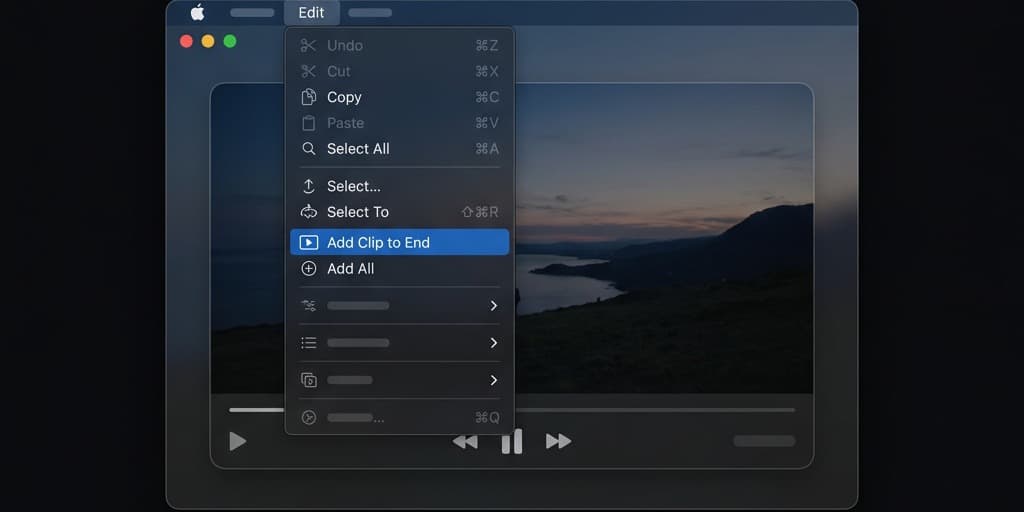
QuickTime Player has a little-known feature: you can append clips to an open video and export the combined result. No timeline, no transitions — just sequential concatenation. It works surprisingly well for joining screen recording segments that share the same resolution and frame rate.
Steps
- Open Finder and double-click your first video clip to open it in QuickTime Player
- With the video open, go to the menu bar and click Edit > Add Clip to End
- A Finder dialog opens. Navigate to your second clip and click Choose Media
- The clip appends to the end of the first video. You'll see a timeline strip appear at the bottom of the QuickTime window showing both segments
- Repeat steps 2-3 for each additional clip you want to append. Clips are added in the order you select them
- To reorder clips: click and drag segments in the timeline strip to rearrange them
- To trim a clip before merging: select the segment in the timeline, then go to Edit > Trim (or press ⌘ + T). Yellow handles appear — drag them to set your in and out points, then click Trim
- Once all clips are in order, go to File > Export As and choose your resolution (4K, 1080p, 720p, or 480p)
- Pick a destination folder, name your file, and click Save
- QuickTime re-encodes all clips into a single
.movfile
Limitations
- No transitions — clips cut directly from one to the next. There's no crossfade, wipe, or dissolve option
- Re-encoding required — QuickTime must re-encode the entire combined video on export, which takes time and may slightly alter quality
- Mixed formats can cause issues — if one clip is 1080p at 30fps and another is 4K at 60fps, QuickTime handles the mismatch silently, but the output may have unexpected frame rate behavior. Best results come from clips with matching resolution and frame rate
- No audio mixing — you can't adjust volume levels between clips or add background music
When to use this
You have 2-5 clips at the same resolution, don't need transitions, and want the job done in under two minutes without opening another app.
Method 2: Screenify Studio
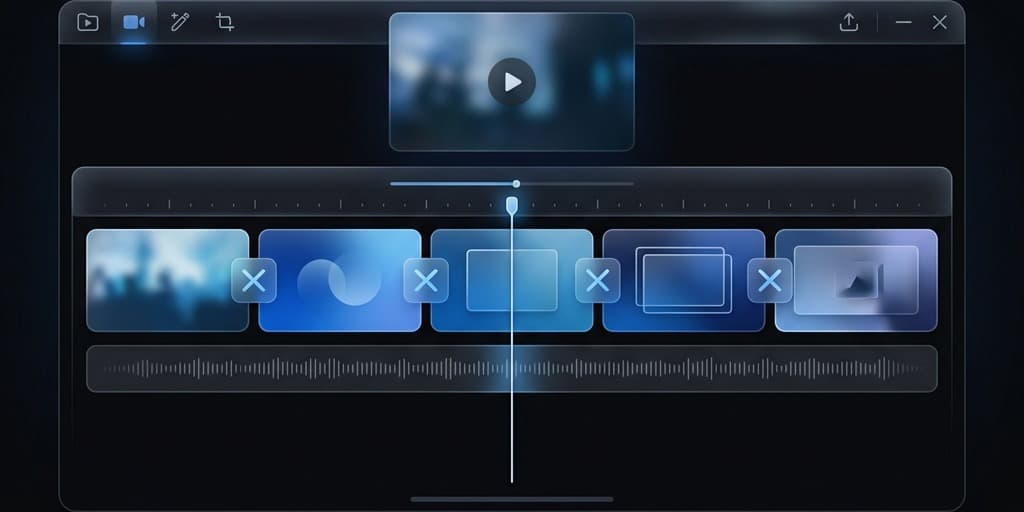
Screenify Studio's editor is built for screen recordings — joining multiple recording sessions into a polished final video is a core workflow. Unlike QuickTime, you get trim controls, automatic transitions, and HEVC export without switching tools.
Steps
- Open Screenify Studio
- In the library, select the recordings you want to merge. Hold ⌘ and click each clip to multi-select them
- Right-click the selection and choose Merge Recordings (or drag them onto the timeline in the editor)
- Screenify opens the editor with all clips placed sequentially on the timeline
- Each clip appears as a separate segment. You can:
- Reorder — drag segments left or right on the timeline to change their position
- Trim — click a segment, then drag the start or end handle to remove unwanted portions. The trim preview shows the exact frame you're cutting at
- Split — position the playhead where you want to cut and press S to split a segment into two pieces. Delete the unwanted piece by selecting it and pressing Delete
- Screenify automatically applies a brief crossfade between segments. You can adjust the transition duration in the timeline or disable it entirely by setting duration to 0
- Preview the combined video using the Space bar
- When satisfied, click Export in the top-right corner. Select your settings:
- Codec: HEVC (H.265) for the smallest file, or H.264 for maximum compatibility
- Resolution: match your source resolution, or downscale if you need a smaller file
- Frame rate: 30fps for screen walkthroughs, 60fps for smooth scrolling or animations
- Click Export. Metal-accelerated encoding on Apple Silicon finishes quickly — a combined 15-minute video typically exports in 60-90 seconds
Why Screenify works well for merging screen recordings
Screen recordings often need more than simple concatenation. You might need to trim the first few seconds where you were finding the right window, remove a section where you got distracted, or cut out a long loading screen. Screenify's timeline gives you frame-accurate control over each clip without the overhead of a full video editor like Final Cut Pro.
The automatic crossfade between clips also eliminates the jarring hard-cut that QuickTime produces, making the combined video feel like a single continuous recording.
Try Screenify Studio — free, unlimited recordings
Auto-zoom, AI captions, dynamic backgrounds, and Metal-accelerated export.
Method 3: iMovie (Free)
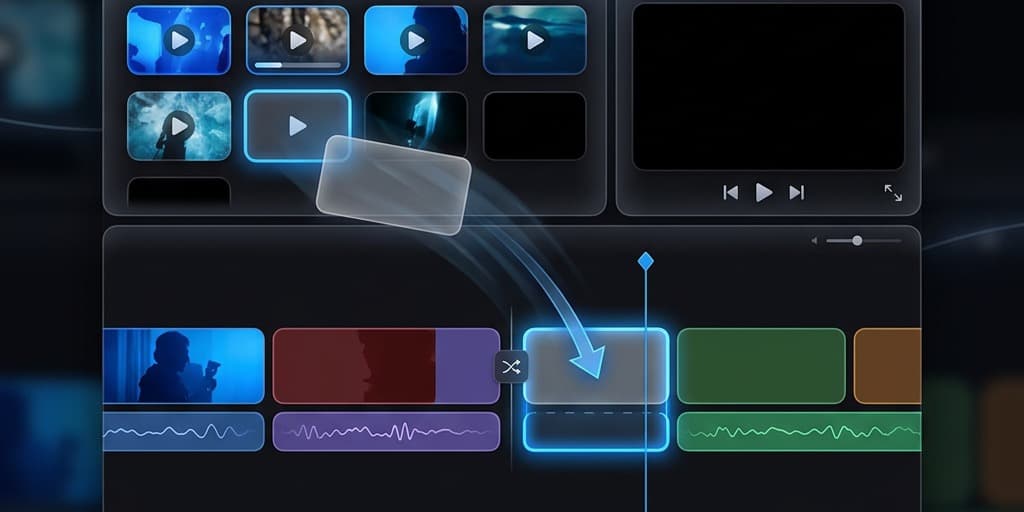
iMovie ships free with every Mac and provides a full timeline editor with transitions, titles, audio mixing, and basic color correction. For merging clips, it's more capable than QuickTime and easier to learn than Final Cut Pro.
Steps
- Open iMovie from your Applications folder (or download it from the Mac App Store if it's not installed)
- Click Create New and select Movie (not Trailer)
- You start with an empty project. Click the Import Media button (down-arrow icon) in the top-left area, or press ⌘ + I
- Navigate to your video clips in the Finder dialog. Select all clips you want to merge (hold ⌘ to multi-select) and click Import Selected
- Your clips appear in the My Media browser at the top. You'll see thumbnails of each clip with their duration displayed
- Select all clips in the media browser (press ⌘ + A), then drag them onto the timeline at the bottom. They line up sequentially in the order you selected them
- To reorder clips on the timeline: click and drag a clip to a new position. A green insertion line shows where it will land
- To trim a clip: hover over the start or end edge of a clip on the timeline until you see a trim cursor (a bar with an arrow). Click and drag inward to remove frames from the beginning or end. The yellow border shows the trim region
- To add a transition between two clips:
- Click Transitions in the top toolbar (the bowtie-shaped icon)
- Browse the 29 available transitions — Cross Dissolve is the most common for screen recordings
- Drag the transition onto the junction between two clips on the timeline
- Double-click the transition on the timeline to adjust its duration (0.5-1.0 seconds works well for screen content)
- To adjust audio: click a clip on the timeline, then drag the horizontal audio line up or down to change volume. Drag it all the way down to mute a clip
- Preview your combined video by pressing Space or clicking the play button above the timeline viewer
- When ready to export: click File > Share > File from the menu bar
- In the export dialog:
- Resolution: choose the highest that matches your source (up to 4K)
- Quality: set to High or Best (ProRes) depending on your needs. High produces an H.264
.mp4. Best produces a ProRes.mov(large file, lossless quality) - Compress: choose Faster for quick encoding or Better Quality for slower, higher-quality encoding
- Click Next, pick a save location, and click Save
Tips for screen recordings in iMovie
- Disable the Ken Burns effect on still images — iMovie applies it by default to photos and can sometimes apply unwanted pan-and-zoom to imported clips
- Set project resolution at creation time by going to File > Project Properties if your clips are 4K — iMovie defaults to the resolution of the first clip you add to the timeline
- Keep transitions short (0.5 seconds). Long transitions look odd between screen recording segments that are meant to feel continuous
Method 4: Final Cut Pro

Final Cut Pro ($299.99 or included with Apple One Premier) is Apple's professional video editor. It's overkill for simple merges, but if you already own it or need features like multicam sync, color grading, or complex audio mixing between clips, it handles everything.
Steps
- Open Final Cut Pro
- Create a new Library if you don't have one: File > New > Library, name it, and choose a save location
- Create a new project: click New Project in the browser area (or File > New > Project). Set the resolution and frame rate to match your source clips — e.g., 1920x1080 at 30fps for standard screen recordings
- Import your clips: File > Import > Media (or press ⌘ + I). Select your files and click Import Selected. Clips appear in the browser
- Select all clips in the browser and drag them onto the Primary Storyline (the main dark timeline track). They arrange left to right in the order selected
- Reorder clips by dragging them on the timeline. Final Cut uses a magnetic timeline — clips snap together without leaving gaps
- Trim clips using the Blade tool (B key): position the playhead where you want to cut, press B to switch to the Blade tool, then click on the clip. Press A to switch back to the Select tool. Select the unwanted portion and press Delete. Alternatively, drag clip edges to trim from the start or end
- Add transitions: select the junction between two clips and press ⌘ + T to apply the default Cross Dissolve. Or open the Transitions browser (click the transitions icon in the top-right of the browser area) and drag a specific transition onto the junction
- Adjust transition duration by double-clicking it on the timeline and entering a value in the Inspector panel on the right
- Adjust audio levels: select a clip, open the Audio Inspector on the right, and drag the Volume slider. You can also keyframe volume changes by Option-clicking the audio waveform line in the timeline
- Export the final video: go to File > Share > Master File (or click the Share button in the top-right corner)
- In the export settings:
- Format: Video and Audio
- Video Codec: H.264 for compatibility, or HEVC (H.265) for smaller files
- Resolution: match your project settings
- Click Next, choose a save location, and click Save
When Final Cut Pro makes sense for merging
The $299.99 price tag isn't justified for basic clip concatenation. But if you're merging screen recordings with talking-head camera footage, need to sync separate audio tracks, or want to add motion graphics between sections, Final Cut's magnetic timeline and advanced audio tools save significant time compared to iMovie.
Try Screenify Studio — free, unlimited recordings
Auto-zoom, AI captions, dynamic backgrounds, and Metal-accelerated export.
Troubleshooting
Audio goes out of sync after merging clips
This usually happens when clips have different frame rates or sample rates. Before merging, check each clip's properties: right-click the file in Finder, select Get Info, and look at the video and audio specs under More Info. For best results, all clips should share the same frame rate (e.g., 30fps) and audio sample rate (48kHz). If they don't match, re-export the outlier clip using HandBrake with matching settings before merging.
QuickTime shows "The document could not be opened" when adding a clip
QuickTime's clip appending works best with .mov and .mp4 files using H.264 or HEVC codecs. Files encoded with uncommon codecs (VP9, AV1) or wrapped in containers like .mkv or .webm aren't supported. Convert the problem file to H.264 .mp4 using HandBrake first, then retry the merge in QuickTime.
Merged video has black frames between clips
Black frames appear when the trim points of adjacent clips include a few blank frames at the start or end — common in screen recordings that capture the moment before you started interacting with the screen. Trim each clip more aggressively: in iMovie or Screenify, drag the start handle past the first frame of actual content, and drag the end handle before the last frame.
Final export takes an extremely long time
Long export times happen when the editor re-encodes at maximum quality with software encoding. In iMovie, choose High quality instead of Best (ProRes) — ProRes files are massive and slow to encode. In Final Cut Pro, select HEVC with hardware encoding. In Screenify, HEVC with Metal acceleration exports at near-real-time speed on Apple Silicon.
Merged video resolution doesn't match the original clips
When you merge clips of different resolutions, the editor must pick one output resolution. iMovie and Final Cut Pro use the resolution of the first clip or the project settings. If you add a 4K clip to a 1080p project, it downscales to 1080p. Set your project resolution before importing clips, matching the highest resolution in your source material.
FAQ
Q: Can I merge videos on Mac without re-encoding?
Not with built-in tools. QuickTime, iMovie, and Final Cut Pro all re-encode on export. For lossless concatenation without re-encoding, you'd need a command-line tool like FFmpeg with the -c copy flag — but this only works when all clips share the same codec, resolution, frame rate, and audio format. Any mismatch requires re-encoding.
Q: What's the fastest way to combine two video clips on Mac?
QuickTime Player. Open the first clip, press Edit > Add Clip to End, select the second clip, then File > Export As > 1080p. Total time: under two minutes for short clips. The trade-off is no transitions and no trim control beyond basic cut points.
Q: Does merging videos reduce quality?
Any re-encoding introduces a small generational quality loss, but with modern codecs (H.264, H.265) at reasonable quality settings, the loss is invisible to the eye. The risk increases if you re-encode multiple times — each generation compounds the loss. Merge all your clips in a single pass rather than merging two, exporting, then merging the result with a third clip.
Q: How do I merge videos of different resolutions on Mac?
All four tools handle mixed resolutions, but the output quality depends on your settings. The best approach: set your project or export resolution to match the highest-resolution clip (e.g., 4K if any clip is 4K). Lower-resolution clips will be upscaled, which may look slightly soft, but you avoid downscaling your best footage. In iMovie, the project adopts the resolution of the first clip — add your highest-resolution clip first.
Q: Can I merge videos with different aspect ratios (16:9 and 9:16)?
Technically yes, but the result won't look clean. The editor fills the mismatch with black bars (letterboxing or pillarboxing). If you're merging a landscape screen recording with a vertical phone capture, consider cropping one to match the other's aspect ratio before merging. In iMovie, you can use the Crop to Fill option on individual clips to force them into the project's aspect ratio — but this cuts off the edges.
Q: How do I add a transition between merged clips?
QuickTime doesn't support transitions. In iMovie, drag a transition from the Transitions browser onto the cut point between clips. In Screenify Studio, crossfade transitions are applied automatically and can be adjusted in the timeline. In Final Cut Pro, select the cut point and press ⌘ + T for a default Cross Dissolve, or browse the transitions library for other options.
Q: What format should I export merged videos in?
For sharing online (YouTube, Vimeo, social media): export as H.264 .mp4 — it's universally supported. For sharing with Mac users or storing archives: HEVC .mp4 or .mov gives you smaller files at the same quality. For professional workflows where you'll edit the video again later: ProRes .mov preserves maximum quality but produces very large files (3-5x larger than H.264).
Q: Can I merge screen recordings with webcam recordings?
Yes. All four tools let you place different video sources sequentially on the timeline. If you want the webcam footage to overlay the screen recording simultaneously (picture-in-picture), you'll need iMovie (supports side-by-side and PiP), Final Cut Pro, or Screenify Studio — QuickTime only supports sequential placement.
Related Guides
- How to Screen Record on Mac — record your screen clips properly before merging them
- How to Screen Record on Mac with Audio — ensure your recordings capture audio before combining
- How to Record Screen in 4K on Mac — capture at full resolution so merged output stays sharp

Try Screenify Studio
Record your screen with auto-zoom, AI captions, dynamic backgrounds, and Metal-accelerated export. Free plan, unlimited recordings.
Download Free



