Smart Auto-Zoom: Let Your Cursor Tell the Story
Screenify Studio analyzes your cursor movement, clicks, and keystrokes to automatically create a cinematic zoom timeline — complete with spring easing, live cursor tracking, and 3D perspective effects.
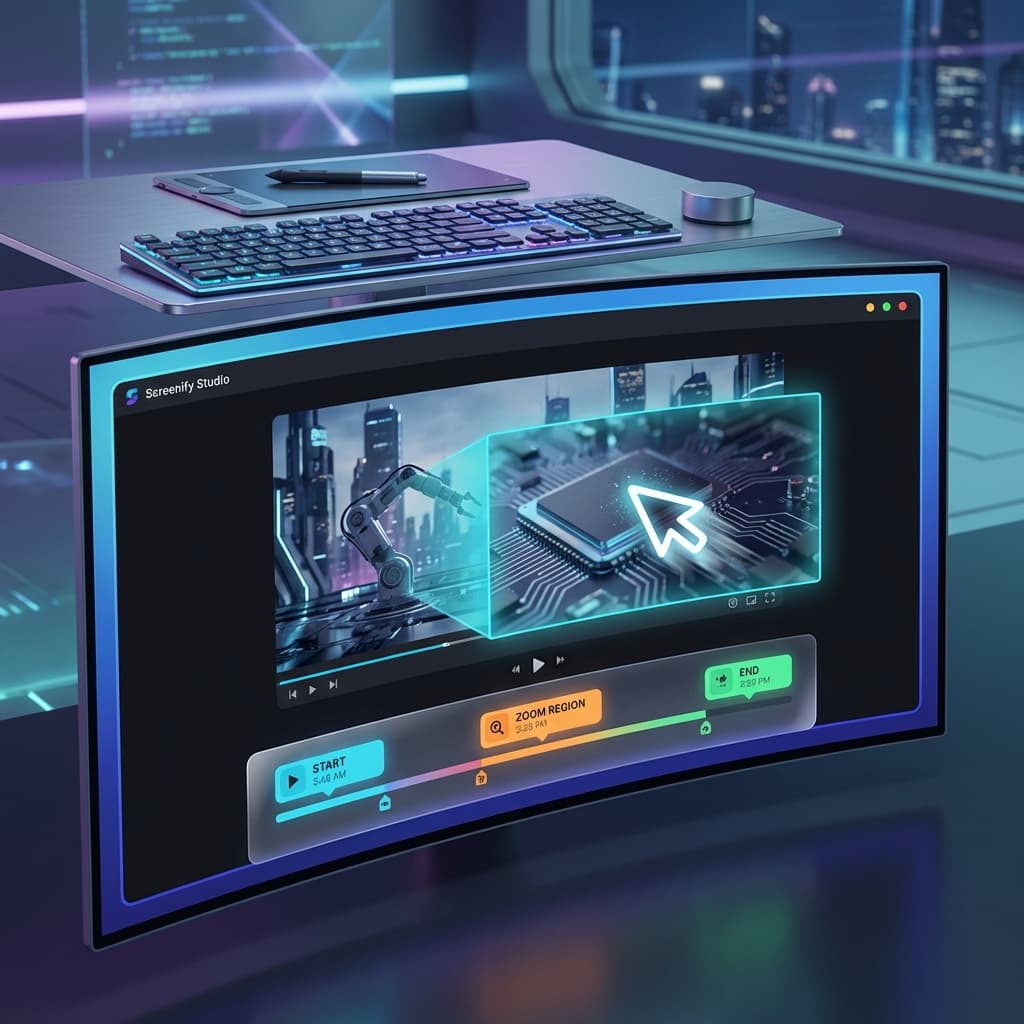
Every screen recording has moments that matter more than others — the precise click that triggers a feature, the text field where something important gets typed, the brief pause where attention naturally falls. The problem is that finding those moments and manually creating zoom regions for each one is tedious work.
Smart Auto-Zoom in Screenify Studio does this automatically. It watches your cursor, clicks, and keystrokes — and builds a professional zoom timeline for you.
1. Your Cursor Is Already Telling a Story
Every time you record your screen, Screenify captures a complete map of your cursor movement. Smart Auto-Zoom reads this data and identifies the moments worth emphasizing:
- Clicks: Left, right, and double-click events get high-priority scores — these are the moments viewers need to see up close.
- Dwell Events: When your cursor rests in a small area for over 500ms, that's usually where something important is happening on screen.
- Typing Sessions: Short keyboard bursts (filling in a form, entering a command) are flagged as high-confidence zoom targets.
The result is a scored, clustered map of your entire recording, ranked by importance. You review suggestions, accept or reject them, and apply the whole set to your timeline in one click.
2. Three Sensitivity Presets
Not every recording needs the same zoom density. A 30-second product demo should feel different from a 10-minute tutorial. Smart Auto-Zoom ships with three presets:
- Conservative: Only the highest-confidence moments (threshold 9). Minimal zooms, maximum impact.
- Balanced: A curated middle ground (threshold 7). Good for most tutorials and demos.
- Aggressive: Catches everything worth catching (threshold 5). Dense zooms for high-energy walkthroughs.
When you open a project in the editor, Smart Auto-Zoom automatically selects the right preset and applies it — without you touching anything.
3. Spring, Ease-Out, or Perfectly Linear
The zoom animation itself is just as important as where you zoom. A jarring cut into a close-up kills the feeling of a polished recording. Screenify ships four easing curves, each mathematically consistent between the editor preview, Metal export, and Standard export:
| Easing | Feel |
|---|---|
| Linear | Mechanical, precise — good for data-heavy screencasts |
| Ease Out | Fast entry, graceful settle — the classic choice |
| Ease In-Out | Smooth S-curve — works well for long zoom transitions |
| Spring | Overshoots ~8%, then settles — energetic and alive |
Spring easing uses a damped oscillation formula (2^(-10t) × sin((10t − 0.75) × 2π/3) + 1) that produces a genuine physical bounce — not a bezier approximation. It's the easing curve you'd use when you want the recording to feel handcrafted, not generated.
4. The Camera Follows Your Cursor
A zoom that locks onto a static point quickly becomes distracting if your cursor wanders. The Camera Behavior system solves this by letting the camera follow your cursor during a zoomed segment — using a dead zone algorithm that prevents jitter while still tracking intentional movement.
The center 40% of the zoomed frame is a dead zone. As long as your cursor stays inside it, the camera doesn't move. The moment the cursor drifts toward the edges, the camera pans proportionally to keep it in frame.
┌─────────────────────────────────────┐
│                                     │
│   ┌───────────────────────────┐     │
│   │       DEAD ZONE           │     │  ← Cursor here = no pan
│   │     (center 40%)          │     │
│   └───────────────────────────┘     │
│                                     │
│         TRACKING ZONE               │  ← Cursor here = gradual pan
│       (outer 60%)                   │
│                                     │
└─────────────────────────────────────┘
You can configure dead zone size, pan smoothness, and tracking mode per recording — or override them on individual zoom regions when a specific moment calls for a tighter or looser follow.
5. 3D Perspective on Entry
When zooming into a corner or edge of the screen, a flat zoom can feel abrupt. The Zoom 3D Effect system applies a subtle perspective tilt at the moment of zoom entry — automatically choosing the right direction based on where the focus point is.
Focus in the top-left? The camera tilts right as it zooms in. Bottom-right corner? It tilts left. The tilt resolves over 300ms as the zoom settles, mimicking the natural motion of a camera physically moving toward a subject.
Three presets let you dial in how dramatic the effect should be:
| Preset | Angle |
|---|---|
| Subtle | 15° |
| Standard | 28° |
| Dramatic | 40° |
The perspective math in the export shader matches the CSS formula exactly (x_screen = x × cos(θ) × d / (d − x × sin(θ))), so what you see in the editor preview is pixel-accurate in the final export — for both Metal and Standard render paths.
6. Works Correctly After Trimming
One edge case that breaks many auto-zoom tools: trimming. When you delete the first 90 seconds of a recording, cursor events at source timestamp 125s need to map to timeline position 35s — not 125s.
Smart Auto-Zoom handles this through a timeline mapping step that runs automatically whenever you change your clips. Cursor events are filtered to only those inside active clip ranges, then their timestamps are converted from source time to timeline time. Zoom suggestions always appear exactly where they should, regardless of how much you've trimmed.
7. Timeline Markers at a Glance
Applied zoom regions are color-coded on the timeline by their source:
| Source | Color | Icon |
|---|---|---|
| Click | Cyan | Mouse pointer |
| Dwell | Orange | Clock |
| Typing | Green | Keyboard |
| Manual | Teal | Zoom in |
Each marker shows the confidence score (type 85%, click 92%) so you know at a glance which zooms were detected with high certainty and which ones might be worth reviewing manually.
Start with Zero Manual Work
Smart Auto-Zoom is on by default. Record your screen, open the editor, and the zoom timeline is already built. If you want to change anything — adjust a region, delete a suggestion, or dial up the intensity — every zoom is independently editable after the fact. Manual zoom regions coexist with auto-generated ones and are never overwritten when you re-apply.
Great recordings don't have to be labor-intensive. Download Screenify Studio and let the camera work for you.
Smart detection. Spring physics. Zero manual keyframing. Get started free.

Try Screenify Studio
Record your screen with auto-zoom, AI captions, dynamic backgrounds, and Metal-accelerated export. Free plan, unlimited recordings.
Download Free



