How to Record Xcode & iOS Simulator
Record iOS Simulator on Mac for App Store previews, bug reports, and demo videos using 4 methods — CLI, Screenify, Screenshot toolbar, and QuickTime.
Recording the iOS Simulator is a routine part of iOS development. You need it for App Store preview videos, bug report attachments, design reviews, and demo recordings you share with stakeholders who don't have Xcode installed. The Simulator window behaves like any other macOS window — but getting a pixel-perfect recording at the right resolution requires knowing which tool fits your workflow.
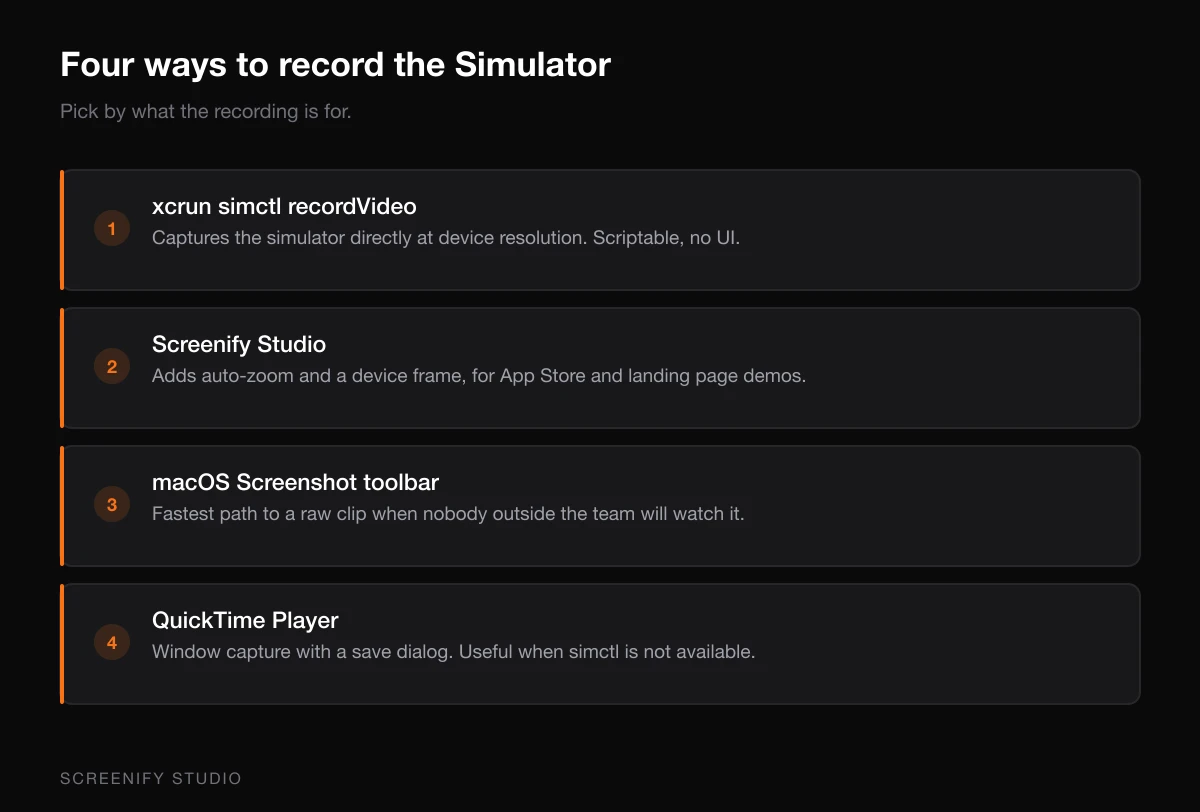
Each method below produces different output formats, resolutions, and editing capabilities. The CLI approach gives you raw .mp4 files. Screenify adds post-processing features like auto-zoom and device frames. The Screenshot toolbar and QuickTime are zero-install options already on your Mac.
Quick Comparison
| Method | Output Format | Device Frame | Audio Capture | Best For |
|---|---|---|---|---|
xcrun simctl CLI | .mp4 (H.264) | No | Simulator audio only | CI pipelines, quick captures |
| Screenify Studio | .mp4 / .mov | Yes (overlay) | System + mic | App Store previews, demos |
| macOS Screenshot Toolbar | .mov | No | Mic only | Quick window recordings |
| QuickTime Player | .mov | No | Mic only | Longer recordings, specific windows |
Method 1: xcrun simctl recordVideo (Xcode CLI)
Apple ships a command-line tool for recording the Simulator directly — no GUI needed. This is the fastest path from terminal to .mp4 file.
Prerequisites
- Xcode installed with command-line tools (
xcode-select --install) - A Simulator instance running (any device)
Steps
- Launch your target Simulator from Xcode (or run
xcrun simctl boot "iPhone 16 Pro"from terminal) - Open Terminal and run:
xcrun simctl io booted recordVideo output.mp4 - The recording starts immediately. Perform your app interactions in the Simulator.
- Press Ctrl + C in Terminal to stop recording. The file saves to your current working directory.
Advanced options
Record a specific device (when multiple Simulators are running):
# List booted devices
xcrun simctl list devices | grep Booted

# Record a specific device by UDID
xcrun simctl io <DEVICE_UDID> recordVideo --codec h264 demo.mp4
Set the codec explicitly:
# H.264 (smaller file, compatible everywhere)
xcrun simctl io booted recordVideo --codec h264 output.mp4

# HEVC (better quality per byte, macOS/iOS native)
xcrun simctl io booted recordVideo --codec hevc output.mp4
Limitations
- No webcam overlay or annotations
- No post-recording editing — you get a raw video file
- Recording stops if the Simulator shuts down or the booted device changes
- No device frame in the output — it records only the screen content
- Audio capture is limited to Simulator-generated sounds (not your Mac's system audio)
Method 2: Screenify Studio (Auto-Zoom + Device Frames)
Screenify Studio records the Simulator window and adds features specifically useful for app demos: cursor-following auto-zoom that highlights UI interactions, device frame overlays that make your recording look like a real iPhone, and separate audio tracks for narration.
Steps
- Download Screenify Studio and open it
- In the Simulator, set the window to Physical Size (menu: Window → Physical Size, or press ⌘ + 1). This ensures the recording matches the device's native resolution.
- In Screenify's capture panel, select Window mode and pick the Simulator window from the list. The preview shows the exact frame that will be captured.
- Enable System Audio if your app produces sound effects or plays media. Toggle Microphone if you're narrating.
- Press ⌃ + ⌘ + R to start recording
- Interact with your app. Screenify's auto-zoom follows your cursor — when you tap a small button or scroll through a list, the zoom level adjusts automatically to keep the action visible.
- Stop recording with the same shortcut
- In the editor, apply a Device Frame overlay (iPhone 16 Pro, iPad Air, etc.) from the Effects panel. This wraps your raw Simulator footage in a photorealistic device shell.
- Export at the resolution Apple requires for App Store previews (see FAQ below)
Why this works well for Simulator recordings
- Auto-zoom on cursor — when demonstrating a feature, tapping a small UI element becomes visible without manually zooming in post-production
- Device frame overlay — your Simulator recording looks like a real device recording without needing a physical iPhone
- Separate audio tracks — system audio from the Simulator (button taps, media playback) stays on one track; your microphone narration on another. Adjust levels independently.
- Webcam overlay — add a small camera feed of yourself for commentary-style demos
Try Screenify Studio — free, unlimited recordings
Auto-zoom, AI captions, dynamic backgrounds, and Metal-accelerated export.
Method 3: macOS Screenshot Toolbar
The built-in Screenshot toolbar (introduced in macOS Mojave) records any window on your screen, including the Simulator.
Steps
- Press ⌘ + Shift + 5 to open the Screenshot toolbar
- Click Record Selected Window (the icon showing a window with a record circle)
- Click on the Simulator window. A highlight appears around it.
- Click Record in the toolbar. The menu bar shows a stop button (square icon).
- Interact with your app in the Simulator
- Click the Stop button in the menu bar, or press ⌘ + Ctrl + Esc
- The recording thumbnail appears in the bottom-right corner. Click it to preview, or wait for it to save to your Desktop (default location).
Changing the save location
Before recording, click Options in the Screenshot toolbar. Under Save to, choose a folder like your project's assets/ directory.
Limitations
- Records at the window's displayed size — if the Simulator is scaled down, your recording is lower resolution
- No system audio capture (microphone only, selectable in Options)
- No device frame overlay
- No editing beyond basic trim (available in the Quick Look preview)
- The recording includes the Simulator's window chrome (title bar and bezel) unless you crop in post
Method 4: QuickTime Player
QuickTime offers a bit more control than the Screenshot toolbar — you can choose audio input before recording and the recording window stays accessible as a floating panel.
Steps
- Open QuickTime Player from Applications
- Go to File → New Screen Recording (or press ⌃ + ⌘ + N)
- The Screenshot toolbar appears. Click the dropdown arrow next to Record and select your microphone if needed.
- Choose Record Selected Window and click the Simulator window
- Click Record
- Perform your app interactions
- Stop recording from the menu bar
- QuickTime opens the recording in a player window. Go to File → Save (or ⌘ + S) to save the
.movfile.
When to use QuickTime over Screenshot toolbar
- When you need to select a specific audio input device (external mic, audio interface)
- When you want the recording to open immediately in a QuickTime window for review
- When you're already working in QuickTime for other video tasks
The output quality is identical to the Screenshot toolbar — both use the same underlying screen capture framework (ScreenCaptureKit on macOS 13+, the older CGDisplayStream API on earlier versions).
Trimming in QuickTime
QuickTime includes a basic trim tool. After recording, go to Edit → Trim (or press ⌘ + T). Drag the yellow handles to set in/out points, then click Trim. This is non-destructive until you save — you can undo and re-trim. Useful for cutting the first few seconds where you're positioning windows, or removing the end where you reach for the Stop button.
Exporting at specific resolutions
QuickTime's File → Export As gives you preset options (4K, 1080p, 720p, 480p). For App Store previews that need exact pixel dimensions, QuickTime's presets won't match. You'll need to export at the highest quality and then use ffmpeg or another tool to scale to the exact required resolution.
Tips for Better Simulator Recordings
Set the correct window size
Always set the Simulator to Physical Size (⌘ + 1) or Pixel Accurate (⌘ + 2) before recording. If you record at an arbitrary window size, the pixels won't align with the device's native resolution, and you'll get scaling artifacts — especially visible on text and thin UI elements.
For App Store preview videos specifically, use Physical Size and export at the exact resolution Apple requires (see FAQ).
Clean up the status bar
The Simulator's status bar shows "9:41 AM" by default, but network indicators and battery might look inconsistent. Use xcrun simctl status_bar to set a clean, consistent status bar:
# Set a clean status bar (full signal, WiFi, full battery, 9:41)
xcrun simctl status_bar booted override \
  --time "9:41" \
  --batteryState charged \
  --batteryLevel 100 \
  --wifiBars 3 \
  --cellularBars 4 \
  --operatorName ""
To reset the status bar back to default:
xcrun simctl status_bar booted clearRecord at 2x for Retina clarity
If your final output target is a 1080p or 4K video, record the Simulator at Pixel Accurate (⌘ + 2) which renders at the device's actual pixel count. An iPhone 16 Pro at Pixel Accurate renders at 2556 × 1179 pixels — this gives you room to scale down in editing without losing sharpness.
Remove the Simulator window chrome
If you don't want the macOS title bar in your recording:
- CLI method:
xcrun simctlalready records only the Simulator screen content, no chrome - Window recording methods: crop the title bar in post-production, or use Screenify's device frame overlay which masks the chrome automatically
- Simulator setting: go to Window → Show Device Bezels and toggle it off for a borderless Simulator window (available in Xcode 15+)
Prepare your app state
Before pressing Record:
- Clear any test data that would look confusing in a demo. Reset the app's UserDefaults or Core Data store if needed (
xcrun simctl erase bootedwipes the entire Simulator, or delete just your app's data from Settings → General → iPhone Storage). - Pre-load content so you're not waiting for network requests during recording. If your app fetches data on launch, open it once, let everything load, then start the recording.
- Disable notifications from other apps if recording full screen. Enable Focus mode on the Simulator to suppress alerts: Settings → Focus → Do Not Disturb.
- Set the Simulator's appearance (Light/Dark mode) to match your recording plan: Settings → Developer → Dark Appearance
- If your app supports Dynamic Type, set the text size to the default (Settings → Accessibility → Display & Text Size → Larger Text) so the UI looks standard in your recording
Troubleshooting
Recording is a black screen
This happens when the Simulator window is minimized or fully obscured by another window during a screen-area capture. Window-capture mode (Screenify, QuickTime) handles occluded windows correctly, but region-based capture only records visible pixels. Keep the Simulator visible throughout recording.
If you're using xcrun simctl recordVideo and get a black screen, the Simulator process may have entered a suspended state. Check that the device is still booted:
xcrun simctl list devices | grep BootedIf nothing appears, the device shut down mid-recording. Re-boot it and start over.
Recording file is 0 bytes
When using the CLI method, pressing Ctrl+C too quickly after starting (before the first frame renders) can produce an empty file. Wait at least 1-2 seconds after running the command before stopping. Also verify you have write permissions to the output directory.
Simulator window has black bars in recording
The Simulator displays black bars (letterboxing) when the window aspect ratio doesn't match the device. This happens when you manually resize the Simulator window. Reset to Physical Size (⌘ + 1) to eliminate the bars. Alternatively, use xcrun simctl recordVideo which captures only the device screen content, ignoring the window chrome entirely.
Status bar shows wrong time or carrier
You recorded without setting the status bar override. Run the xcrun simctl status_bar command listed in the Tips section above before your next recording. Once set, the override persists until you clear it or reboot the Simulator.
Recording stutters on Intel Mac
Intel Macs with integrated graphics struggle to render the Simulator at full frame rate while simultaneously encoding a screen recording. Three fixes:
- Lower the Simulator's rendered resolution: use a smaller device (iPhone SE) or scale the window down
- Close GPU-intensive apps (Chrome with many tabs, Figma, 3D tools)
- Record with
xcrun simctl recordVideowhich captures frames directly from the Simulator render pipeline without going through the display compositor — this produces smoother results on underpowered hardware
Audio from Simulator not captured
The Simulator routes audio through your Mac's audio system. Methods that capture system audio (Screenify with System Audio enabled, or any recorder paired with BlackHole) will pick up Simulator sounds. The Screenshot toolbar and QuickTime only capture microphone input — they won't record your app's UI sounds, media playback, or haptic feedback audio.
The xcrun simctl recordVideo command captures Simulator audio by default in Xcode 15+. On earlier Xcode versions, it's video-only.
FAQ
Q: What are the App Store preview video specs?
Apple requires specific resolutions for each device class:
| Device | Resolution | Duration |
|---|---|---|
| iPhone 6.9" (16 Pro Max) | 1320 × 2868 | 15-30 seconds |
| iPhone 6.3" (16 Pro) | 1206 × 2622 | 15-30 seconds |
| iPhone 6.7" (15 Plus/Pro Max) | 1290 × 2796 | 15-30 seconds |
| iPad 13" (M-series) | 2064 × 2752 | 15-30 seconds |
| iPad 11" | 1668 × 2388 | 15-30 seconds |
Videos must be H.264 or HEVC, 30fps, and include no device frames (Apple adds them automatically on the store listing). Record at Pixel Accurate size and export at the exact resolution.
Q: How do I add a device frame to my recording?
Three approaches:
- Screenify Studio — apply a device frame overlay in the editor after recording. Select from iPhone, iPad, and Mac frames.
- Apple's marketing resources — download device frame PNGs from developer.apple.com/app-store/marketing/guidelines and composite them in video editing software
- ffmpeg — overlay a device frame PNG on your video using the
overlayfilter:ffmpeg -i recording.mp4 -i iphone-frame.png -filter_complex "overlay=x=...:y=..." output.mp4
Q: Can I record the Simulator at 60fps?
Yes. The xcrun simctl recordVideo command records at the Simulator's render rate, which defaults to 60fps. For window-based recording tools (Screenify, Screenshot toolbar, QuickTime), the frame rate depends on the tool — Screenify records at up to 60fps, while the Screenshot toolbar caps at 30fps on some hardware.
Verify by checking the output file: ffprobe -v quiet -print_format json -show_streams output.mp4 | grep r_frame_rate
Q: The recording is laggy — the Simulator drops frames. How do I fix this?
Simulator performance depends on your Mac's GPU and available RAM:
- Close other GPU-intensive apps (3D software, games, other Simulators)
- Use a simpler device (iPhone SE instead of iPhone 16 Pro Max) — fewer pixels to render
- In Simulator settings, disable Debug → Slow Animations if it's enabled
- Give the Simulator more memory: close unused background apps
- On Apple Silicon Macs, the Simulator runs natively and rarely drops frames. On Intel Macs with integrated graphics, frame drops are common at high resolutions.
Q: How do I record a specific part of the Simulator (not the whole window)?
- Screenify Studio: use Custom Region capture mode and drag to select the area you want
- Screenshot toolbar: choose "Record Selected Portion" instead of "Record Selected Window" and draw a rectangle over the Simulator area
- CLI: not supported —
xcrun simctlalways records the full Simulator screen. Crop afterward with ffmpeg:ffmpeg -i full.mp4 -filter:v "crop=width:height:x:y" cropped.mp4
Q: Does the recording include Simulator audio (app sounds)?
- xcrun simctl: Yes, it captures audio output from the Simulator process
- Screenify Studio: Yes, if System Audio is enabled — captures all Mac audio including Simulator sounds
- Screenshot toolbar / QuickTime: No system audio by default. You'd need BlackHole or a virtual audio device to route Simulator audio to the recording input
Q: Can I automate Simulator recordings in CI?
Yes. Use xcrun simctl in your CI scripts:
# Boot, record for a fixed duration, then kill
xcrun simctl boot "iPhone 16 Pro"
xcrun simctl io booted recordVideo --codec h264 ci-recording.mp4 &
RECORD_PID=$!
sleep 30  # or run your UI tests
kill -INT $RECORD_PID
This works in GitHub Actions (macOS runners), Bitrise, and CircleCI with macOS executors. The recording captures whatever happens in the Simulator during that window — pair it with XCUITest to record automated test runs.
Q: How do I record the Simulator in landscape orientation?
Rotate the Simulator before recording:
- Hardware → Rotate Left/Right (or ⌘ + ← / ⌘ + →)
- The window reshapes to landscape. All recording methods capture the window in its current orientation.
- For
xcrun simctl, the video matches the Simulator's current rotation automatically.
Related
- How to Screen Record on Mac — general screen recording guide
- How to Record Internal Audio on Mac — capture app audio alongside your Simulator recording
- Screen Record on Mac with Audio — combining mic and system audio

Try Screenify Studio
Record your screen with auto-zoom, AI captions, dynamic backgrounds, and Metal-accelerated export. Free plan, unlimited recordings.
Download Free



