Welcome to Screenify Studio: Polished Product Demos for Mac
Why we built another screen recorder, what makes Screenify different, and how to make the most of it as a developer, creator, or product team.
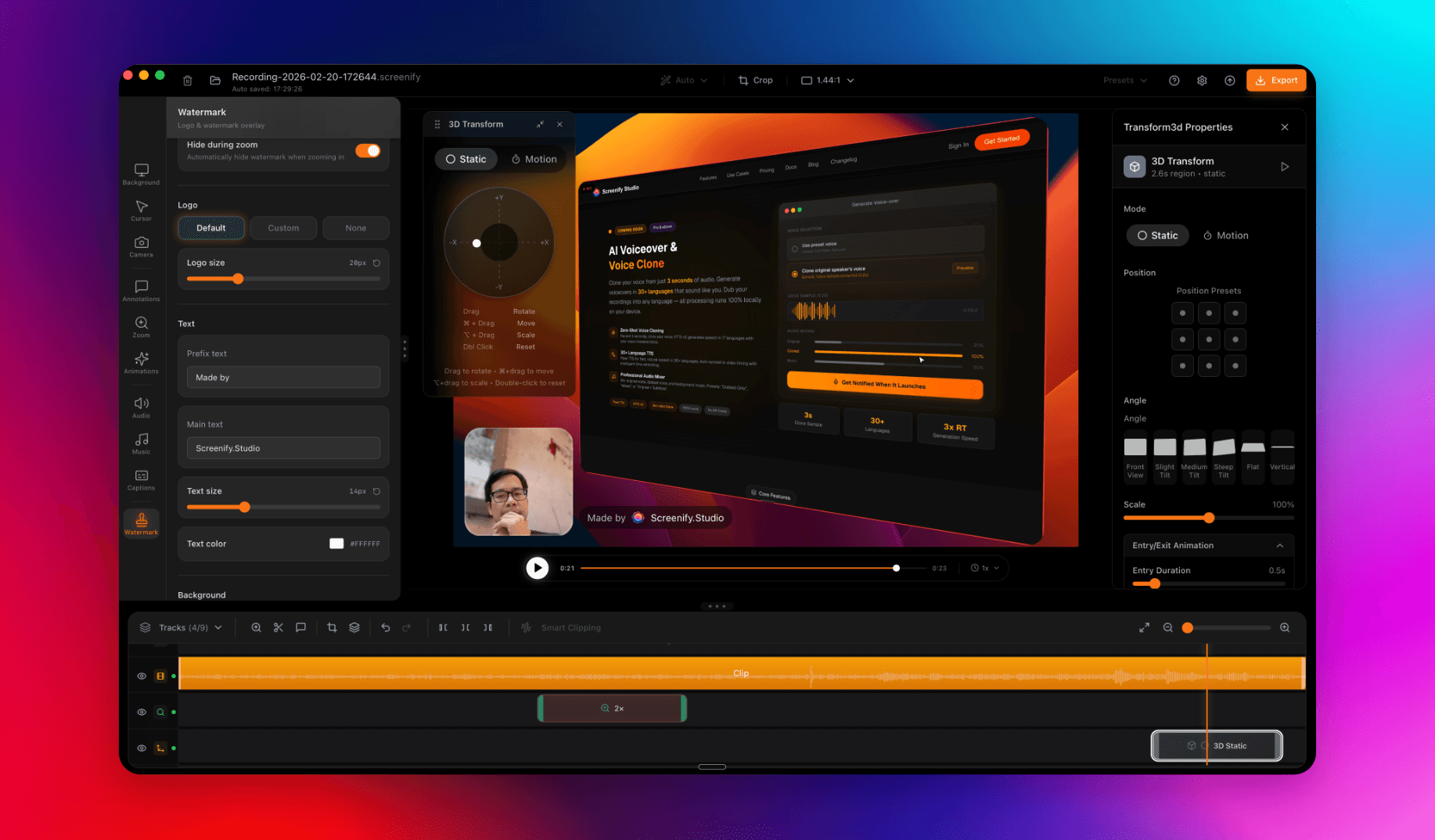
My demos kept looking like shit. I bet yours do too. Spent months building features that hid behind static, flat recordings. So I built the tool I wanted.
The problem with how screen recording works today
If you've recorded more than a handful of videos, you know the workflow:
- Record the screen (and pray the audio captures correctly)
- Trim the silence at the start and end
- Cut out the "uhh, let me restart" moments
- Manually zoom into the parts you actually want viewers to see
- Add captions (or skip them and lose half your audience)
- Export, wait, re-encode for some platform's specific requirements
- Upload to cloud storage, generate a share link, hope playback works
Each step is friction. And the popular tools have made trade-offs that solve one or two of those steps while breaking others:
- QuickTime is reliable but stops at step 1. Zero editing, zero polish, zero AI.
- Loom nails sharing but locks editing behind paid tiers, requires login to view, and processes everything in the cloud.
- OBS has limitless control but a learning curve measured in weekends, not minutes.
- Screen Studio brought cinematic polish to Mac recordings but pushes you into post-production for everything.
- Camtasia is a full NLE but assumes you want to sit down for a 2-hour editing session.
We wanted one tool where the entire workflow — capture, edit, polish, share — happens locally, fast, and with AI doing the boring parts for you.
Try Screenify Studio — free, unlimited recordings
Auto-zoom, AI captions, dynamic backgrounds, and Metal-accelerated export.
What makes Screenify different
Three opinionated choices shape the entire product:
1. On-device AI, always
Everything runs on your Mac — captions, auto-zoom, background removal, smart clipping included. No upload, no cloud queue, no "your video is processing" email an hour later.
We use Apple's Neural Engine, Core ML, and Whisper running natively on Apple Silicon. AI captions transcribe at roughly real-time. Background removal happens frame-by-frame as you record. Smart Clipping finishes its scan before you can finish a coffee sip.
That's not just about speed. It's about who owns the recording. A product demo of a pre-release feature. A bug repro that includes a customer's PII. A walkthrough of an internal admin panel. These shouldn't leave your machine to get edited.
If you've ever hesitated to record something because the tool would phone it home — Screenify is the answer.
2. Edit while you record, not after
Most workflows split capture and editing into separate apps and separate mental modes. Screenify collapses them.
You can drop in a zoom keyframe while recording. Add a callout that anchors to the cursor position at a specific timestamp. Mark a section as "cut this later." The recording finishes, and your edit timeline is already half-built.
The result: a 10-minute raw recording becomes a 5-minute polished video in roughly the same 10 minutes, not the usual 30–45.
3. Polished output without the editing complexity
Cinematic 3D camera moves. Depth-of-field blur. Custom backgrounds. Metal GPU export that ships an HEVC 4K render in under a minute.
These are features you'd expect in Premiere or DaVinci Resolve — but they're surfaced as one-click presets, not as an inspector panel with 50 sliders. The defaults look good. The advanced controls are there when you need them.
Core features at a glance
Here's what you get out of the box:
- Smart Auto-Zoom — AI watches your cursor and clicks, then auto-zooms into the parts viewers need to see. No manual keyframing. Read the deep-dive in our guide on how to add zoom effects to screen recordings.
- AI Captions — Whisper-powered transcription with high accuracy on clean audio. Word-level karaoke sync. Burn-in or export as SRT. Walkthrough: how to add captions to a screen recording.
- AI Background Removal — Real-time green-screen-free background swap for your webcam track. Powered by Apple's Vision framework, runs locally.
- 3D Perspective Effects — Cinematic camera motions for Mac and iPhone — Hero, Drama, Vertigo, Pull Back, and more. Bring screen recordings closer to motion graphics without leaving the tool.
- Smart Clipping — Detects silence and inactivity, suggests cuts. Approve all in one click or review individually.
- Metal GPU Export — Hardware-accelerated export — most renders finish in seconds.
- System Audio + Mic Capture — Capture both without virtual audio drivers (no BlackHole, no Loopback). See our guide on recording with audio.
- Webcam Overlay — Picture-in-picture with rounded corners, drop shadows, and shape options. Guide: recording with webcam overlay.
- Multi-track NLE-level Timeline — Separate tracks for screen, webcam, system audio, mic, captions, callouts, zoom keyframes, music, and more.
Built for real workflows
Screenify isn't a general-purpose tool. It's shaped around the workflows we built it for:
For developers
Recording a bug repro for an issue ticket, walking a teammate through a tricky code path, or shipping a code review when async beats a 30-minute Zoom — those are the videos that fill an engineer's week.
Screenify's combination of system audio capture + smart clipping + click-highlighting matches that workflow exactly. See our use-case pages on recording code reviews and recording bug reports for concrete workflows.
For course creators and educators
Multi-hour course modules are punishing to edit by hand. Screenify's auto-zoom on demonstrations, automatic caption generation, and chapter markers cut hours off each module.
Our use-case page on recording training courses walks through the full pipeline, from outlining to publishing.
For product teams
A polished product demo wins deals. A scrappy 2-minute walkthrough wins async feedback. Screenify handles both.
The cinematic 3D effects + Smart Auto-Zoom + branded backgrounds let you ship demo-day quality videos in an afternoon. Read more in our guide on recording product demos.
For distributed teams
Async video replaces meetings — but only if the recording workflow takes less time than the meeting itself.
With Screenify, the typical Loom-replacement flow (record, trim, share link) takes about 90 seconds. Add captions if it's going to a global team. See async meeting updates for the patterns we recommend.
Try Screenify Studio — free, unlimited recordings
Auto-zoom, AI captions, dynamic backgrounds, and Metal-accelerated export.
How Screenify compares to other tools
We don't think Screenify is the right tool for every person or every job. Here's a honest read:
- vs Loom — Use Loom if your priority is the cloud-sharing platform (built-in analytics, viewer reactions, team workspaces). Use Screenify if you want local-first editing, no upload required for editing, and AI features included on the free tier. Full breakdown: Loom alternative.
- vs Screen Studio — Use Screen Studio if you want the original cinematic-recording aesthetic and nothing more. Use Screenify if you want comparable cinematic output plus AI captions, background removal, smart clipping, and on-device processing. Comparison: Screen Studio alternative.
- vs OBS — Use OBS for livestreaming and complex multi-source scenes. Use Screenify for the "record-edit-share" loop that doesn't require a setup weekend. Comparison: OBS alternative.
- vs Camtasia — Use Camtasia for long-form course production where you want a single tool from record to final cut, and you don't mind a heavyweight UI. Use Screenify when you want the AI features built-in and a faster workflow. Comparison: Camtasia alternative.
- vs ScreenFlow — Use ScreenFlow if you're deep in the Telestream ecosystem. Use Screenify for cinematic polish, on-device AI, and a more modern interface. Comparison: ScreenFlow alternative.
- vs QuickTime — QuickTime is free and always available. Use it for quick captures with no editing needs. Use Screenify the moment you need to do anything beyond trim.
Getting started in 3 minutes
If you haven't downloaded Screenify yet, grab the latest version here. It's free to use; Pro unlocks advanced cinematic features and a longer max recording length.
Once installed:
- Open Screenify — Choose your recording mode: full screen, region, app window, or webcam-only.
- Configure your sources — Toggle system audio, mic, and webcam. The defaults are sensible; adjust if needed.
- Hit record — A floating control gives you start/pause/stop, plus quick access to zoom-in markers and callouts during recording.
- Stop and edit — The timeline opens automatically. Smart Clipping suggestions appear within seconds.
- Polish — Add captions (auto-generate or import SRT). Drop in zoom keyframes. Pick a background preset for the cinematic look.
- Export or share — Metal GPU export for local file, or one-click to Screenify Cloud for a shareable link.
The full first-recording walkthrough is in our docs.
What's coming next
A few items on our public roadmap:
- Team workspaces — Shared video libraries, comments, and permissioned sharing.
- Custom branding — Watermarks, intro/outro presets, and theme persistence across recordings.
- Analytics dashboard — Viewer engagement, drop-off graphs, and per-link insights.
- Public API — Programmatic upload, transcription pull, and CI/CD integration for engineering teams that want to automate demo capture.
- Windows beta — On the roadmap; join the waitlist on the download page.
We share updates on each release in our changelog.
FAQ
Is Screenify free? Yes. The free tier includes unlimited recordings up to 5 minutes, all core editing features, and AI captions in English. Pro unlocks longer recordings, additional cinematic effects, and multi-language transcription. See pricing.
Does Screenify work on Windows or Linux? Currently macOS only. We're prioritizing depth on Mac (Apple Silicon optimization, Neural Engine integration) before going cross-platform. Windows beta is on the roadmap.
Where are my recordings stored? Locally on your Mac, by default. Cloud upload is opt-in per recording. We never auto-sync.
Do the AI features require internet? No. Captions, auto-zoom, background removal, and smart clipping all run on-device using Apple's Neural Engine and Core ML. You can record and edit on a plane.
Can I import recordings from QuickTime or other tools? Yes. Screenify imports MOV, MP4, and most common video formats into the timeline editor.
How does the AI captions accuracy compare to manual transcription? We're consistently hitting 98%+ word accuracy on clear English audio using Whisper Large. Technical jargon and accents can drop accuracy, but the editor makes corrections fast — click a word, retype, done.
Can I use Screenify for streaming? Not in the initial release. Screenify is optimized for the record-edit-share loop. For live streaming, OBS remains the best free option.
Is the source code available? Screenify is closed-source commercial software. We do publish technical deep-dives on our blog covering specific implementation challenges.
Thanks for being here at the start. If you've used Screenify and have feedback, ideas, or bug reports — we read every email. Follow @screenifystudio for product updates, or download Screenify and start recording.

Try Screenify Studio
Record your screen with auto-zoom, AI captions, dynamic backgrounds, and Metal-accelerated export. Free plan, unlimited recordings.
Download Free



